Chapter 35A — The roster
A shift assignment says what a person normally works, and for an office on nine to five that is the whole story. A support desk open from seven in the morning to ten at night is different: the same person is on earlies this week and lates the next. Somebody has to decide that ahead of time, tell people early enough to plan around it, and keep it inside the working-time rules, and attendance has to grade each day against the shift planned for that day. This chapter is the roster: the plan, its publication, the trades made afterwards, and the comparison with what happened.
What this chapter covers
- 35A.1 Patterns and rotations
- 35A.2 The week grid and editing a day
- 35A.3 Publishing and the rule warnings
- 35A.4 Which shift attendance is graded against
- 35A.5 Swaps and drops
- 35A.6 Scheduled vs actual
The concept
A roster (a rota, in many workplaces) is a table of people against days with a shift or a day off in each square. A rotation shares the unpopular hours: a cycle of shifts and rest days that repeats, with people started at different points of it. Publication is the moment the plan becomes a promise people arrange their lives around. Working-time limits protect them: rest between shifts, a ceiling on weekly hours, a rest day after so many days in a row, and notice. Trades are how a published roster survives real life, and scheduled versus actual is the check that the plan is what people worked.
How Operentra handles it
- Attendance › Roster has five tabs: Week, Patterns, Swaps & drops, Scheduled vs actual and Rules. Employees see their own days under Time → My Schedule.
- The roster is part of the Scheduling feature, which comes with the Growth and Enterprise plans (Appendix F). Without it Roster is locked, with a page that names the plans that include it, and My Schedule is not shown; shifts and assignments (Chapter 35) work as before.
- A roster entry is one person's one day, draft or published (Appendix G). Publish checks four scheduling rules, which warn and never block.
- Swaps and drops start with the employee and are decided on an approval flow (Chapter 14A).
- Who (Appendix E):
roster.viewopens the page (the HR roles and Department Head), for direct reports only withoutattendance.view_all;roster.manageedits it (Super Admin, HR Manager, HR Officer);roster.publishpublishes and decides swaps (Super Admin, HR Manager). Every default role carriesroster.view_ownandroster.swap_request.
Walkthrough
Northwind covers support from 07:00 to 22:00 with two shifts, Support Early (07:00–15:00) and Support Late (14:00–22:00). Its two support agents, Anastasia Ruvalcaba (NWL-0034) and Fionnuala Brennan (NWL-0035), are on a 14-day pattern named Support rotation; everyone else stays on the Office Shift.
35A.1 Patterns and rotations
On the Patterns tab, New pattern asks for a Name, a Cycle (days) from 1 to 366, and a shift or Off for each day. Support rotation is five days of Support Early, two off, five of Support Late, two off. Assign people takes the people and three dates. From is the first day the pattern applies. Day 1 on is the date the cycle counts from, and it is what staggers a team: Northwind's two are anchored on Mondays a week apart, so in any week one is on Early while the other is on Late. Until (optional) ends the assignment.
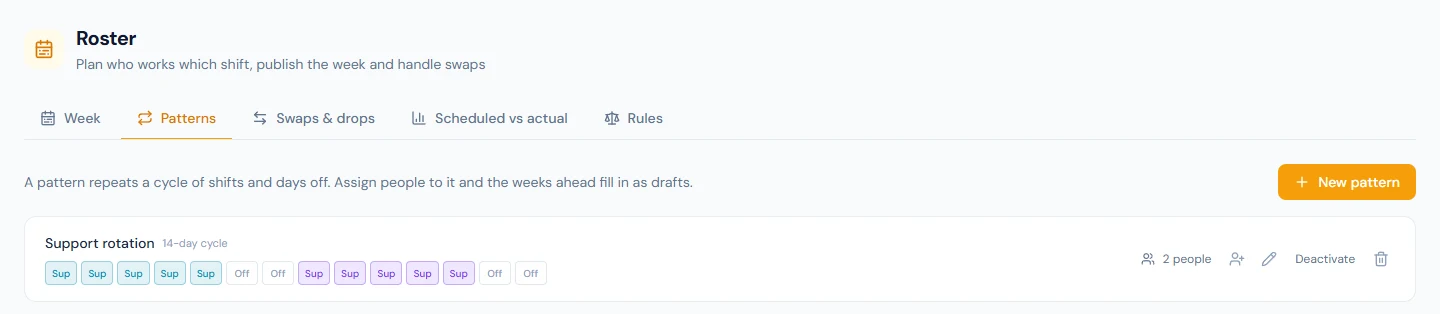
Assigning writes the next eight weeks as drafts, and a nightly job keeps eight weeks ahead filled. It fills empty days only: a day the planner edited, or one already published, is never overwritten.
35A.2 The week grid and editing a day
The Week tab has a row per active employee, Monday to Sunday, with department and branch filters and a search box. Each cell is the day's shift as a chip in the shift's colour, or Off. A solid chip is published, a dashed chip is a draft, and a faded chip is a standing shift the roster has not touched. An arrow marks a day that changed hands in a swap. Hours are totalled per person and per day.
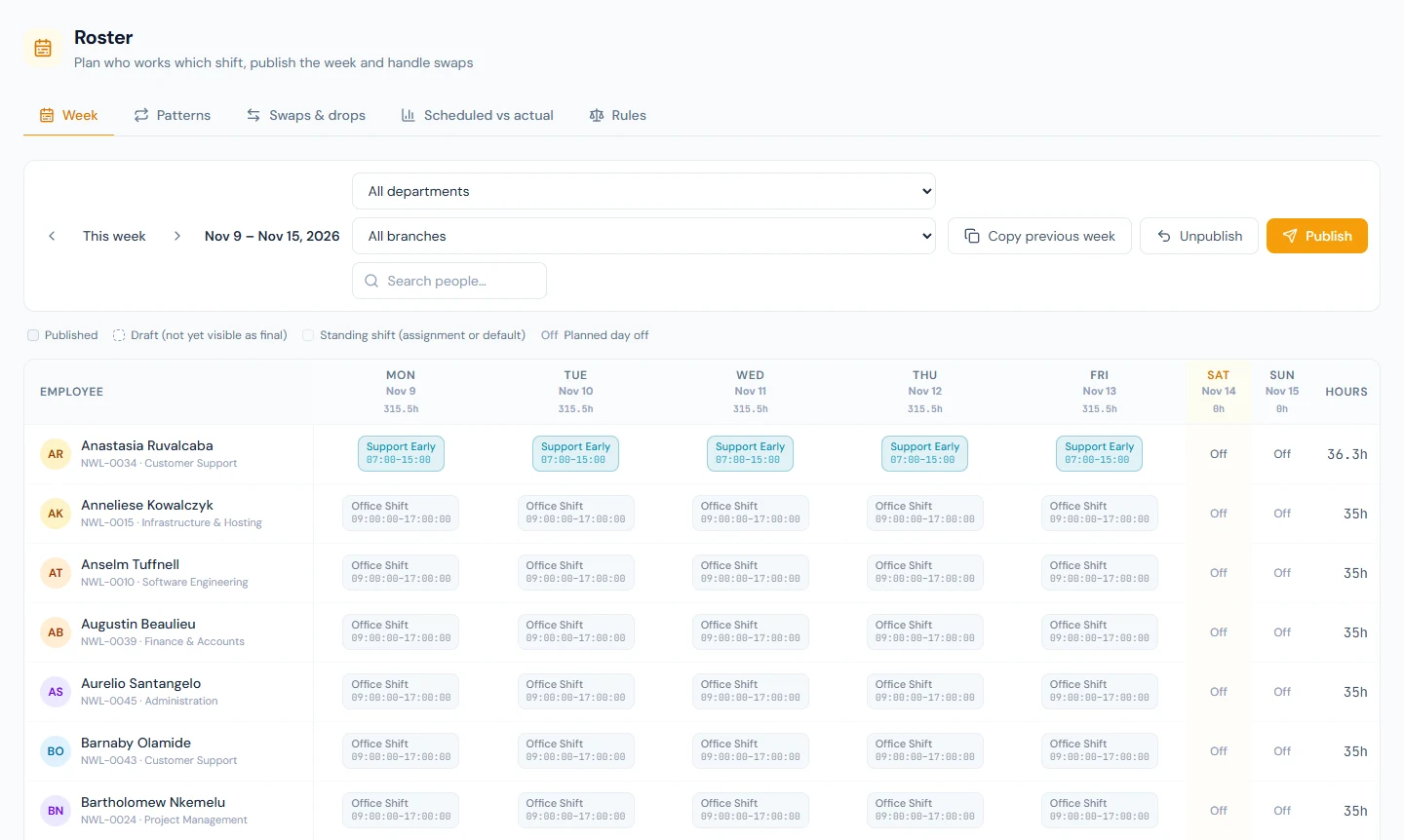
Click a cell to edit the day: choose a shift or Off, add a Note the employee sees once the day is published, and save. Clear entry removes the roster's say, so the pattern, the assignment or the default decides again. Copy previous week writes last week's entries onto this week as drafts.
On an empty day or a draft, saving writes a draft and nothing changes for anyone. On a published day the edit waits beside it as a change: the cell gets an amber dot and outline, and its tooltip names what is live until then. The employee, attendance and payroll keep the published shift until you publish again; the change then goes live and the employee gets the Schedule Published email. Clear entry on a published day works the same way, removing the entry at the next publish. Undo the change in the cell drops it, and the day stays as published. Copy previous week stages its copy on published days in the same way and says how many.
35A.3 Publishing and the rule warnings
Before a week is published, a day from the employee's pattern shows in My Schedule with a dashed outline and reads Provisional, and a planner's draft edit is not shown at all. Publishing makes the week final: the cards turn solid, notes appear, Swap and Drop are offered, and each person with a newly published day gets the Schedule Published email (Appendix C).
Publish opens a dialog with the number of drafts in the week and any warnings, each with the person's name, the day and the figure. It covers everyone you may roster, whatever filter the grid is showing.
| Rule on the Rules tab | Warns when |
|---|---|
| Minimum rest between shifts | fewer hours than the limit lie between one shift's end and the next shift's start |
| Maximum hours per week | the paid hours from Monday to Sunday exceed the limit |
| Maximum consecutive days | a person has more working days in a row than the limit |
| Publishing notice | the first rostered day in the range is fewer days away than the limit |
All four warn and none blocks. To publish over a warning, tick Publish anyway and record a reason and write why; the reason goes into the audit log (Chapter 92), and the warnings stay on the published days. Each rule shows a Country default, a Workspace override and what is In effect. For a US workspace such as Northwind every default reads No limit, so nothing warns until HR types its own limits. Below the four, Warn on overtime is on unless HR switches it off; off, a week over Maximum hours per week is not flagged, and the other three rules still are.
The checks read past the edges of the week being published. Working days before and after it count towards a run, so the seventh day in a row warns even when the first six were published last week, and a range that covers part of a week is still added up over its whole Monday to Sunday. Unpublish takes every published day of the week back to draft, days rewritten by an approved swap included.
35A.4 Which shift attendance is graded against
Everything that needs a person's shift for a date asks one resolver, which answers from the first of four sources that has something to say: a published roster entry (one with no shift is a day off), then the pattern the person is assigned to, then their shift assignment in force on that date, then the workspace's default shift.
A draft is not on the list: until it is published, whatever lies beneath it decides the day. The pattern's place matters as much: it decides attendance from the first day of the assignment, before anything is published. Publishing makes the days final and lets the planner's edits override the pattern; it does not switch a rotation on.
So a punch by someone rostered on Support Late is graded against 14:00 and that shift's grace, not the Office Shift's 09:00 (Chapter 34), and payroll takes a rostered Off as a rest day (Chapter 54).
35A.5 Swaps and drops
The employee starts a trade from My Schedule, on a working day that is final and still to come. Swap offers the day to one named colleague, who takes the shift while the requester gets the day off; with Take their shift on (optional) filled in, the requester takes one of the colleague's days in return. Give the same day there and the two exchange shifts, an Early for a Late. Drop offers the day to everyone under For you, and Take this shift works for anyone with no shift that day; someone who has one is refused.
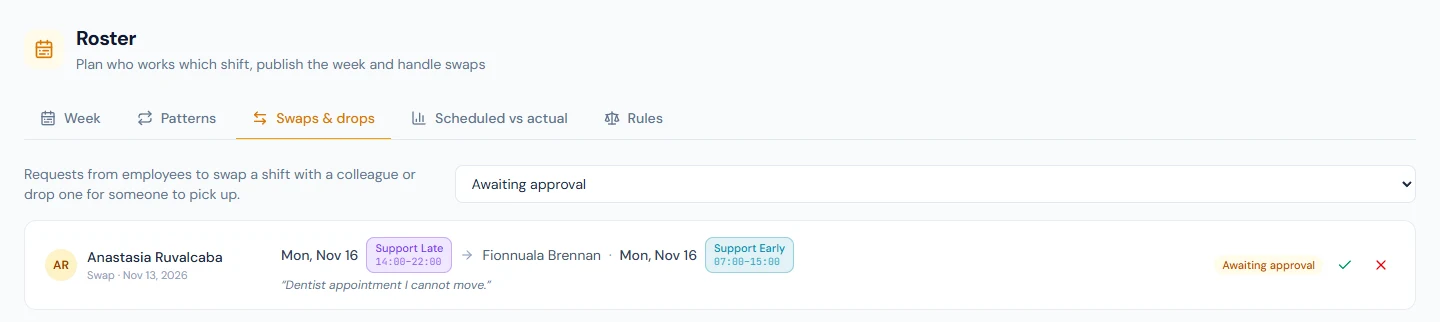
The colleague answers first. Only an accepted request reaches an
approver, as a Shift swap in the Approvals inbox and on the
roster's Swaps & drops tab. The default flow asks the requester's
reporting manager if that manager holds roster.publish, then anyone
who holds it. Approval rewrites the roster: the colleague's day becomes
the requester's shift and the requester's day becomes Off (or, in
a same-day exchange, the colleague's shift), published at once and
marked with the swap arrow. A decline or a rejection changes nothing,
and until a decision the requester can Cancel request.
Northwind has one request waiting. Anastasia Ruvalcaba has offered a shift next week to Fionnuala Brennan in exchange for Fionnuala's the same day, Fionnuala has accepted, and it sits on Swaps & drops as Awaiting approval.
A request is always decided by a person: where no flow covers swaps, it waits on the tab as Awaiting approval. And it is only good until its day: once the day is over on the clock of the person who works it, the request becomes Expired (Appendix G), so a late approval never rewrites a day two people have already worked.
35A.6 Scheduled vs actual
The Scheduled vs actual tab compares the plan with attendance over a date range, which opens on the last four weeks: scheduled and worked hours, Late, Early out, Overtime, No-shows and Unscheduled days, by department and by person, with Export CSV. A no-show is a scheduled day already past with no attendance or an absence; leave and holidays excuse it. An unscheduled day is work recorded on a day the plan had off. One reading of the roster covers at most 92 days: a longer range is answered with A roster call covers at most 92 days, so read a year a quarter at a time.
What happens next
- People Analytics has its own Scheduled vs actual tab with coverage by department (Chapter 91A).
- A connected chat channel is told when a week is published
(Chapter 95), and the
public API serves
roster_entriesread-only with the eventroster.published(Chapter 97).
What the employee sees
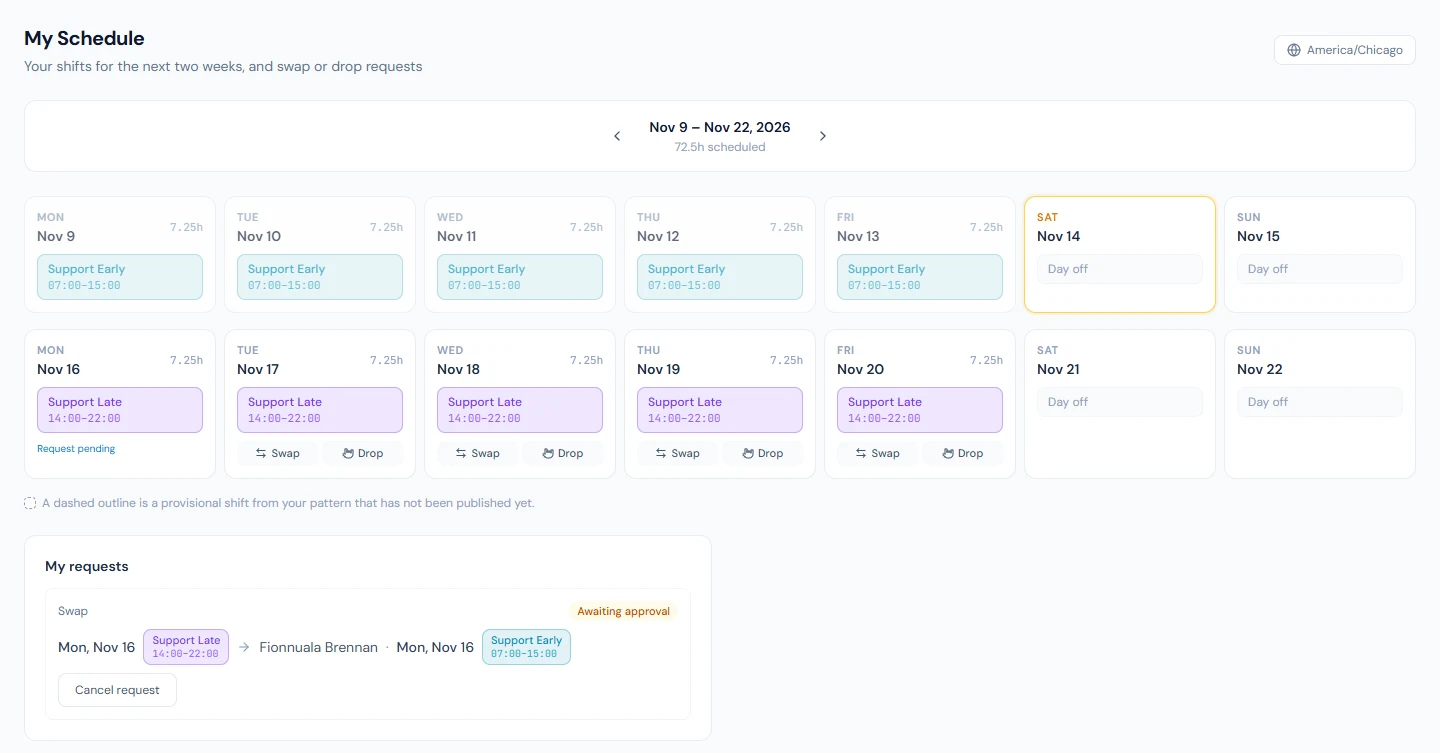
Time → My Schedule: two weeks of day cards with the shift's name, times and hours, and Day off where the roster gives one. Signed in as Anastasia Ruvalcaba (NWL-0034), who is on the Support rotation, the published weeks are solid cards with Swap and Drop on the days still to come, and the weeks beyond are dashed and Provisional. For you lists swaps offered to her and open drops; My requests follows her own, the waiting exchange among them, and that day reads Request pending. My Account › Calendar offers a My shifts link for her own calendar.
Common mistakes
- Treating an unpublished pattern as switched off. Attendance reads the pattern from the assignment's first day.
- Changing a published day and telling nobody. It is live at once and no email goes out.
- Expecting every line manager to approve swaps. The default flow
skips a manager without
roster.publish, which a Department Head does not hold; the request then waits on HR. - Reading "no warnings" as a safe roster. Where the default is No limit, nothing is checked until you set a limit.
Practice
Use the Northwind demo workspace or your own trial, not a customer's.
- On Patterns, open Assign people on Support rotation to see who is on it and since when. On Week, find those two rows and step forward until the chips turn dashed.
- On Rules, set Minimum rest between shifts to 11 and save. In a dashed week, change a Support Late person's Tuesday to Support Early, press Publish, read the warning and publish with a reason.
- On Swaps & drops, find the request that is Awaiting approval: Anastasia Ruvalcaba's shift for Fionnuala Brennan's on the same day. Approve it, then find that day on Week: each has the other's shift, with the swap arrow.
- Step to next week, which is published, press Copy previous week and read the notice: nothing was copied over a published day.
- Open Scheduled vs actual, read the Customer Support rows, and ask for a range longer than 92 days.
Quiz
1. In what order is a person's shift for a day decided?
A published roster entry, then the pattern they are assigned to, then their shift assignment, then the default shift. A draft counts for nothing.
2. Which scheduling rules block a publish?
None. Rest, weekly hours, consecutive days and notice all warn; the planner may publish anyway with a reason, which is recorded.
3. What does an employee see of a week before it is published?
Their pattern's days, dashed and marked Provisional, without Swap or Drop. A planner's draft edits are not shown.
4. Who has to say yes to a swap, and in what order?
The colleague first, then an approver: by default the reporting manager
if they hold roster.publish, then anyone who does.
5. What happens to a request nobody decides before its day ends?
It becomes Expired, on the clock of the person who works the day, and the original shift stands.