Chapter 55 — Running monthly payroll
Chapter 54 was the arithmetic for one person. This chapter is the month for everyone: the checks before anyone presses a button, the run itself, the review where mistakes are cheap, and the two signatures, approve and lock, after which they are not. It ends where paying begins (Chapter 58).
What this chapter covers
- 55.1 Checks before approval: what refuses approval and how to fix it
- 55.2 Processing a month
- 55.3 Run states: review, approved, locked, disbursed
- 55.4 Reading the run: summary, entries, expanded breakdown
- 55.5 Out-of-date runs and reprocessing (all, selected, one)
- 55.6 Approve, send back to review, lock
- 55.7 Payroll history, CSV export, printed register
The concept
A payroll run is a draft until someone accountable says it is not. The discipline is to make the draft cheap to redo and the final hard to change: recalculate as often as the month needs, then approve once the numbers have been read by someone other than the person who produced them, then lock so the figures the bank, the tax office and the employee hold can no longer drift. Two failure modes matter most. A run approved with a structural problem, a person with no shift and therefore no attendance, pays almost nothing and looks normal. A run recalculated after money has moved pays the wrong figure twice. The first is caught by checks before approval; the second by locking.
How Operentra handles it
- Payroll › Process picks a month (the previous month by default) and calculates every active employee with a salary in force; a panel above it, Checks before approval, lists what would stop the month being approved before anyone processes it.
- One run per month. Processing a month that already has a run in Review recalculates the whole run; an approved run must be sent back to review first; a locked or disbursed run cannot be processed again.
- States: Review (processed, editable), Approved (signed off), Locked (frozen; bonuses and adjustments marked paid, loan instalments settled), Disbursed (payments recorded, Chapter 58).
- Approval runs the checks and is refused while any blocker stands; warnings are shown and never block.
- Reprocess recalculates one entry or a selection without touching the rest, while the run is in Review; a banner says when bonuses or adjustments have changed since processing.
- Payroll › History lists every run with its totals and employer cost, exports them to CSV, and opens each run, whose own CSV and printed register cover every employee.
- Who:
payroll.processandpayroll.view(HR Manager, Accountant),payroll.approve(HR Manager),payroll.lockandpayroll.manage(Accountant). Super Admin holds all of them. The split is deliberate: in a company with both roles, HR approves what the accountant locks and pays.
Walkthrough
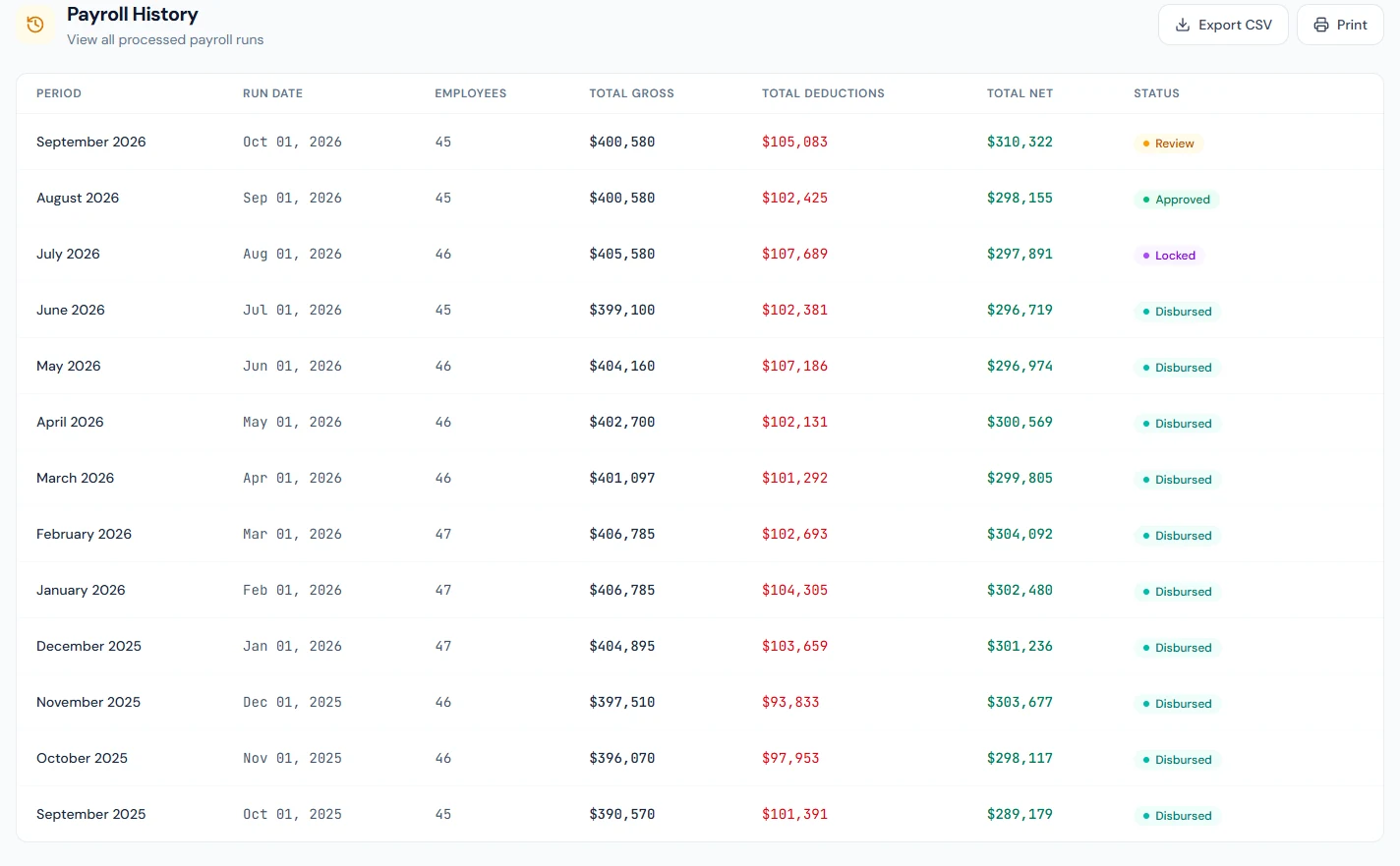
Northwind's history holds thirteen monthly runs: September 2025 to June 2026 disbursed, July locked, August approved, September in Review, processed on 1 October. October 2026 is the month under way and has no run yet, so September is the month to process: processing it again recalculates its run in Review. Every run so far was processed by Dana Whitfield, the Super Admin, who also approved each one past Review.
55.1 Checks before approval: what refuses approval and how to fix it
The Checks before approval panel sits on the Process page for the selected month and, collapsed, on a run in Review. It reads "Nothing found that would stop this month being approved." when the month is clean, and otherwise counts the problems: red items block approval, amber ones are worth checking and never block payday. Each item says what is wrong, why it costs money, what to do, and names the people involved.
| Blocks approval | What to do |
|---|---|
| No default shift | Mark one shift as default (Chapter 35) |
| Employees with no shift | Assign one on each profile; without it no day is ever recorded |
| Employees with no attendance this month | Mark the days (Chapter 38), or move them to an auto-present shift |
| No current fiscal year | Set one (Chapter 10) |
| No tax slabs for the year, where income tax applies | Enter the year's brackets (Chapter 63) |
| A statutory contribution with no component, or an employer match with none | Create the component the message names (Chapter 51) |
| Nationality missing where a contribution is levied on nationals only | Set nationality on the profiles |
The warnings are employees still pending activation (the run will not pay them), more than one default shift, employees without a salary in force (skipped, not paid zero), and anyone losing over sixty percent of gross to deductions, with a note when the bulk is an absence deduction, which usually means missing attendance rather than real absence. Employees who have left are never checked; attendance is not expected from anyone on a Punch Not Required shift.
55.2 Processing a month
On Payroll › Process, choose the month and year and read the panel. If the workspace allows it (Chapter 53), a Skip attendance deductions box appears; leave it clear unless the company decided otherwise for this month. Process Payroll asks "Process payroll for September 2026? This will calculate salaries for all eligible employees." and then shows the totals: employees, gross, deductions, net. Anyone left out is listed under the totals with their code and the reason, no salary in force or an error for that person; they are not in the run, so fix each reason and process the month again. View Payroll Run opens the run in Review.
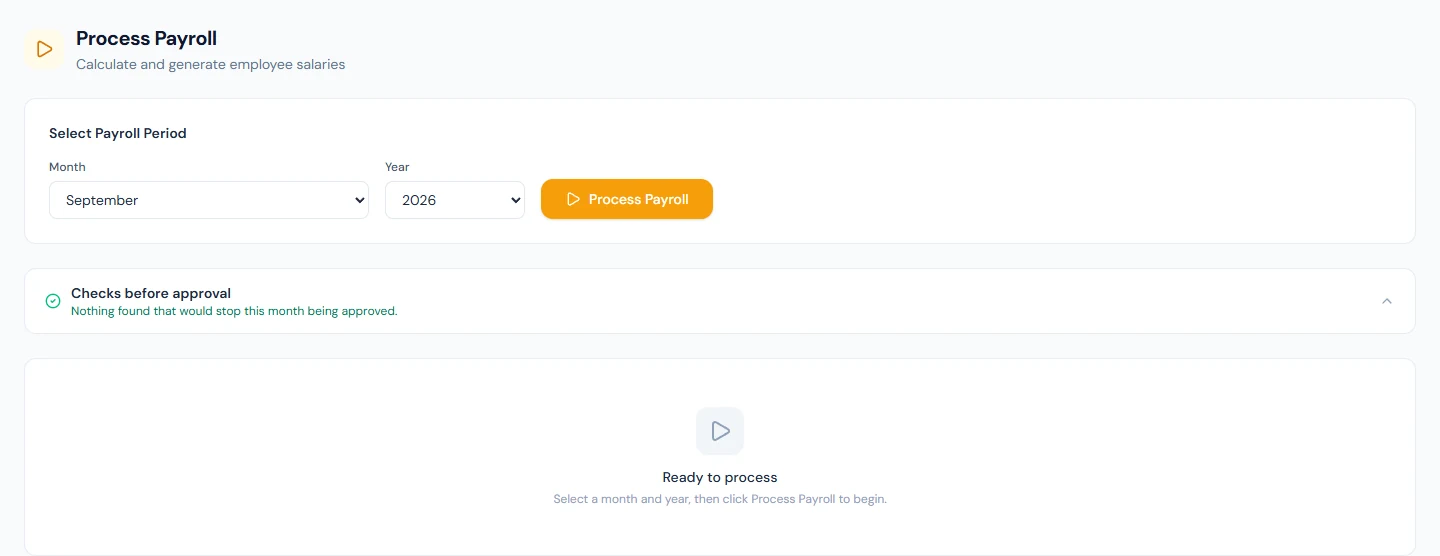
Processing emails every employee their figures for the month ("Salary Processed for September 2026") and the slip appears in their portal with its run status beside it. A company that prefers to announce pay only once it is final switches that email off on Settings › Email Templates (Chapter 79); Northwind has.
55.3 Run states: review, approved, locked, disbursed
| State | Means | Moves to |
|---|---|---|
| Review | Calculated; every figure can still change | Approved (Approve) |
| Approved | Signed off, checks passed | Review (Send back) or Locked (Lock, or by paying it) |
| Locked | Frozen | Disbursed (Mark as Paid, Chapter 58) |
| Disbursed | Payments recorded | — |
Paying an approved run (Chapter 58) locks it first, with the same checks, so a run is never paid without being locked. Locking is where the month's inputs are spent: the bonuses and adjustments the run included are marked paid, loan instalments are settled and a loan whose last instalment it was is completed. Nothing in a locked run is recalculated again; a later correction is an adjustment in a later month.
55.4 Reading the run: summary, entries, expanded breakdown
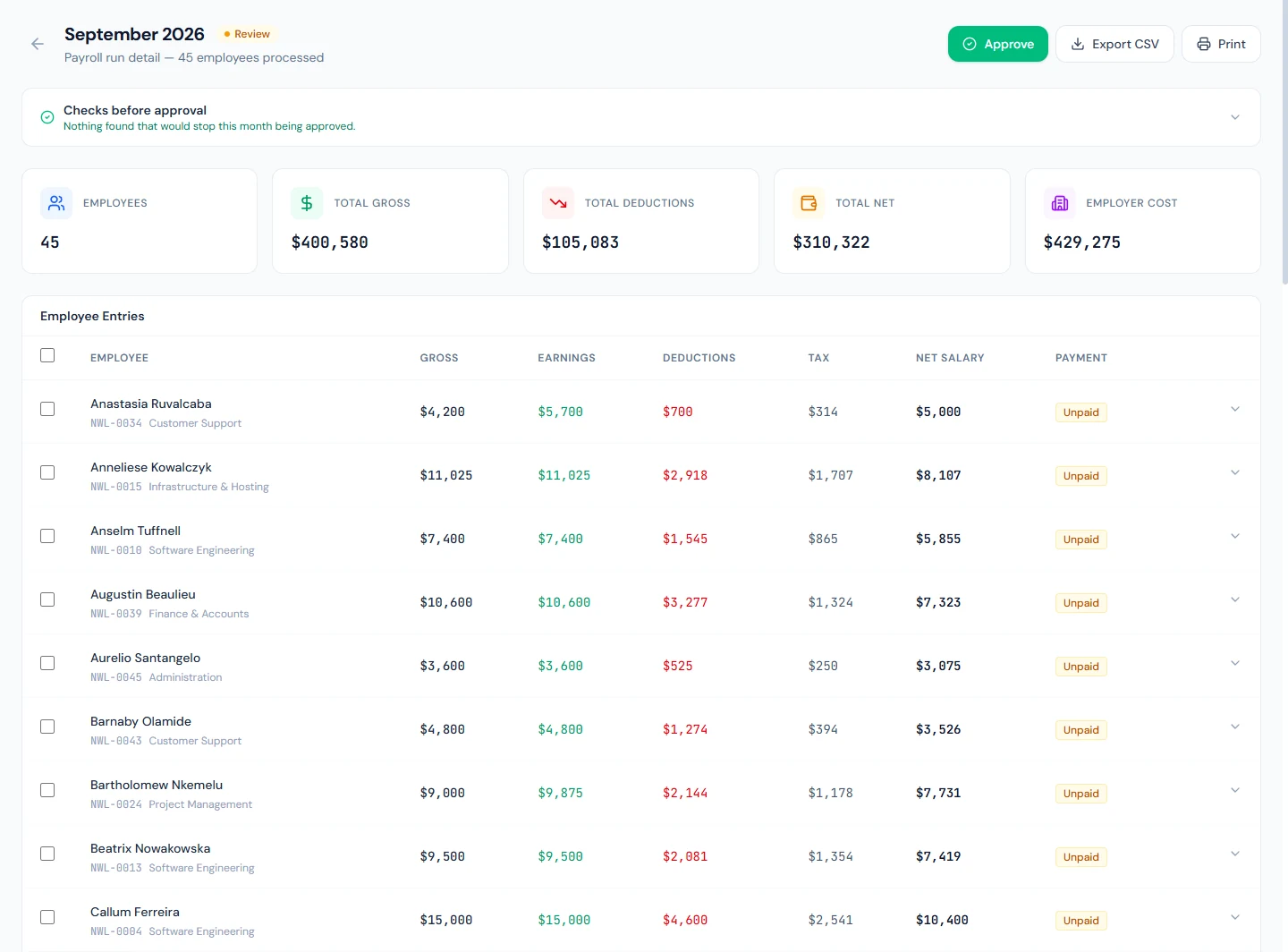
The run page heads with the month, its status and the totals: gross, deductions, net and Employer Cost, the company's contributions on top of gross. Below is Employee Entries: gross, earnings, deductions, tax and net per person, with the payment state once the run is paid. Expanding an entry shows its earnings, its deductions (statutory lines, loan repayment, adjustments, and the Absence, Unpaid Leave and Late Coming lines of Chapter 54), the employer's contributions and the month's attendance counts. Read at least the entries the warnings name and anyone whose net moved sharply from last month; that is the review.
55.5 Out-of-date runs and reprocessing (all, selected, one)
A run calculates once. When a bonus or adjustment for the month is added or edited afterwards, the run page says "This run is out of date." and counts what changed, for example "2 new adjustments since this run was processed". An attendance correction or a salary change does not raise the banner; reprocess after making one. The banner counts only the people a reprocess would pay, active employees with a salary for the month: a leaver's final settlement, which is paid outside payroll (Chapter 82), does not raise it.
Reprocess on an entry, or Reprocess Selected after ticking several, asks for confirmation ("The latest salary structure, attendance, bonuses, and adjustments will be re-applied. Untouched entries on this run keep their existing values.") and, where allowed, offers to skip attendance deductions for just those people. To recalculate everyone, process the month again from the Process page. Reprocessing is open only while the run is in Review; an approved run must be sent back first.
55.6 Approve, send back to review, lock
Approve asks "Approve this payroll run? This will move it to approved status." and runs the checks; if a blocker stands, the panel opens with the findings and the run stays in Review. Send back to review reverses an approval, "No salary figures, bonuses, or adjustments are changed", so the run can be reprocessed and approved again. Lock asks "Lock this payroll run? Once locked, no further changes can be made." and freezes it. Northwind's August run is Approved, but its lock is refused for now: three August bonuses were awarded after it was approved and are not in it, so it must be sent back to review and reprocessed first (Chapter 56). September is in Review waiting for its approval.
The system does not stop the person who processed a run from approving it; the roles do, when the company uses them.
55.7 Payroll history, CSV export, printed register
Payroll › History lists every run: period, run date, gross, deductions, net, employer cost, status, and whether it was processed here or imported from history (Chapter 64), with totals at the foot and a CSV of all of it. On a run, Export CSV downloads every column for every employee, and Print produces the payroll register: the month's sheet of every employee's figures, the record an auditor or a board asks for.
What happens next
- Paying the run, the bank file and the cheques are Chapter 58; slips and acknowledgements are Chapter 59.
- Adjustments and bonuses (Chapter 56) feed the next run, or this one if it is still in Review.
What the employee sees
The processed-pay email (unless the company turned it off), their slip in the portal with the run's status beside it, and, once the run is paid, the payment and the acknowledgement request.
Common mistakes
- Processing before reading the panel. The blockers are cheaper to fix before the run exists.
- Approving with a heavy-deduction warning unread. It is usually missing attendance, not real absence.
- Correcting attendance and approving without reprocessing. The banner does not track attendance; reprocess the people you fixed.
- Processing the whole month again to fix one person. It recalculates everyone and emails everyone again; reprocess the one entry.
- Locking before the last bonus is in. It moves to next month as an adjustment.
- One person processing, approving and locking. Use the roles; the second pair of eyes is the control.
- Expecting a locked run to change. Corrections are next month's adjustments.
- Leaving the processed email on by accident. Employees see figures before approval; decide which the company wants.
Practice
Use your own trial workspace, not a customer's.
- Open Payroll › Process, pick last month, and read the Checks before approval panel; fix one blocker if there is one.
- Process the month and read the totals; open the run.
- Expand two entries and explain every deduction line against Chapter 54.
- Add an adjustment for one employee for that month (Chapter 56), return to the run, read the out-of-date banner, and reprocess that entry.
- Approve, send back to review, approve again, then lock; print the register and export the CSV.
Quiz
1. What stops a run being approved?
A blocker in the checks: no default shift, employees with no shift or no attendance, no current fiscal year, no tax slabs where tax applies, a missing statutory component, or a missing nationality where a contribution depends on it.
2. Which states allow reprocessing?
Review only; an approved run is sent back to review first, and a locked or disbursed run never changes.
3. What does locking do besides freezing the run?
Marks the run's bonuses and adjustments paid and settles the loan instalments it deducted, completing a loan on its last instalment.
4. What raises the out-of-date banner, and what does not?
A bonus or adjustment added or edited after processing; an attendance correction or salary change does not, so reprocess after making one.
5. Who can approve, and who can lock, by default?
The HR Manager approves; the Accountant locks and pays; the Super Admin can do both.