Chapter 8 — Company profile and workspace settings
Part 3 builds the organisation, and it starts with the company itself: who the employer legally is, where it is, how it writes dates, and which statutory rules Operentra applies to it. Two screens hold this. The company profile is the company's identity; Workspace Settings is how the workspace behaves. This chapter fills in the first and reads the second, ending on the Statutory coverage card that Chapter 3 introduced.
What this chapter covers
- 8.1 The company profile: legal details, registrations, contact, address
- 8.2 Regional settings: currency, date format, time zone
- 8.3 Workspace Settings › Overview: the plan card, your workspaces, shortcut tiles
- 8.4 Reading the Statutory coverage card for your country
The concept
Everything a company issues carries its identity: the legal name on a contract, the address on a payslip, the registration number on a tax certificate. Getting these right once, in one place, is what makes every generated document right. The regional settings are part of that identity too: a date written 03/04 means something different in Austin and in London, and a payslip dated the wrong way is a payslip someone queries.
Separately, a workspace has behaviour: which plan it is on, which languages it writes in, which address its emails come from, whether it has its own domain. Operentra keeps identity on the profile and behaviour under Workspace Settings, and this chapter respects the split: profile now, behaviour in Chapters 12 and 13, plan and billing in Chapter 93.
How Operentra handles it
The company profile at Company Setup → Company Profile is readable with
the company.view permission and editable with company.settings. Two of
its fields are read-only on purpose: country and currency, set at
sign-up (Chapter 4) because the statutory pack, holidays, fiscal year, bank
catalogue and every stored amount depend on them.
Workspace Settings (/admin/settings/workspace, also in the user menu)
has five tabs: Overview, Language, Email sender, Custom
domain and Member accounts. This chapter uses the Overview; Chapter 13
covers the rest. The Overview's Statutory coverage card is derived from the
country pack, never typed in, so it cannot describe the workspace as more
automated than it is.
Walkthrough
8.1 The company profile
Open Company Setup → Company Profile, or press Ctrl K and type "company profile". The form has four sections.
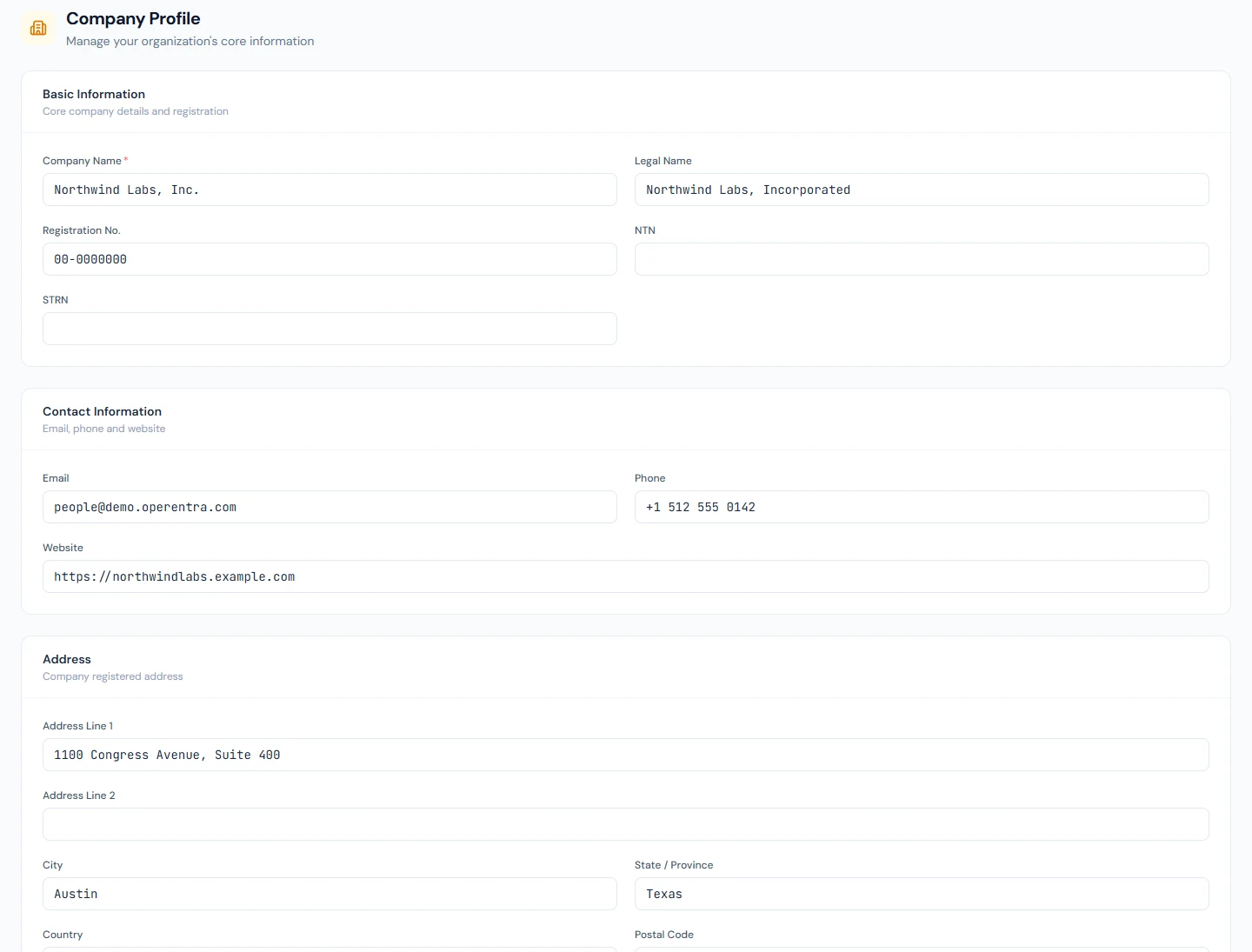
Basic information
| Field | What to enter |
|---|---|
| Company Name | Required. The everyday name shown across the app and on documents. |
| Legal Name | The registered legal entity, where it differs. Contracts and letters should carry this. |
| Registration No. | The company's registration or incorporation number. For Northwind, its federal employer identification number. |
| Tax registrations | Shown only where the country uses them, or once a value is on file. A US workspace shows none here. |
Contact information: the company's email, phone and website.
Address: two address lines, city, state or province, country and postal code. The country is read-only and says so: it was set at sign-up and changing it is a support request (Chapter 4 explains why).
The regional section is 8.2. Select Save Changes; a banner confirms it.
At Northwind the profile carries the Austin address, the EIN as the registration number, and no tax registrations, because the United States has none of the kind the form asks for.
8.2 Regional settings
The last section of the profile:
| Field | What it does |
|---|---|
| Currency | Read-only, set at sign-up. It labels every payslip, certificate and document; it never converts anything. |
| Date Format | How dates are shown everywhere: DD/MM/YYYY, MM/DD/YYYY, YYYY-MM-DD or DD-MMM-YYYY. |
| Timezone | The zone the workspace operates in. |
Changing the time zone does more than relabel clock times: it
re-anchors the time-based automations, such as the auto-present attendance
job and birthday emails, so they fire at the right local time. Change it
before attendance starts accumulating, not after. The date format is
cosmetic and can be changed at any time; Northwind uses MM-DD-YYYY.
8.3 Workspace Settings › Overview
Open Workspace Settings from the user menu. The Overview tab has three parts.
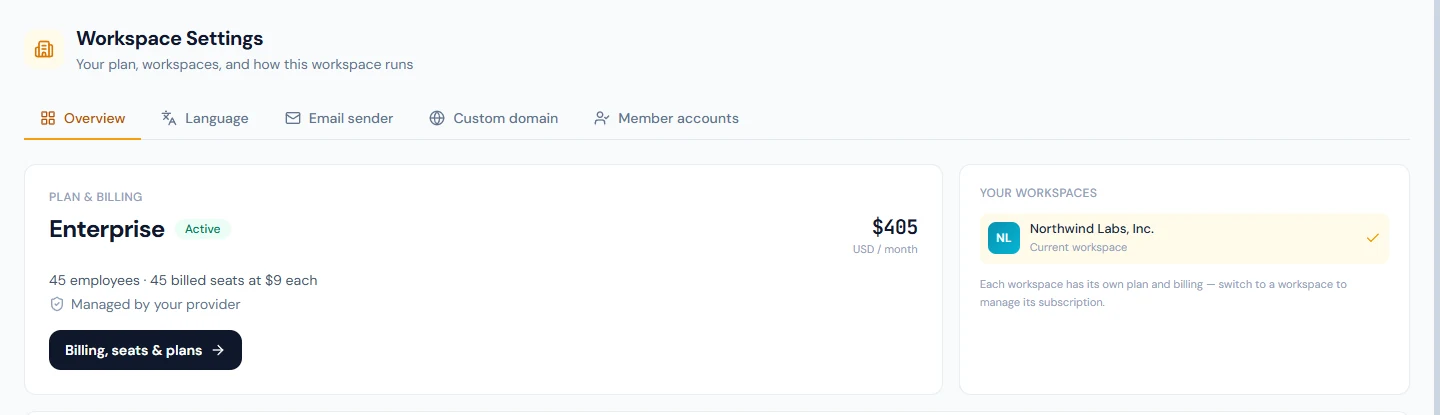
Plan & billing card. The plan's name and status (Trial, Active, Payment overdue, Canceled or Incomplete), the days left on a trial, the cost in USD and the seats billed, with a note where pricing is bespoke, the renewal or cancellation date, and a link to Billing. A workspace whose subscription is handled by the provider rather than by card, as Northwind's is, says "Managed by your provider". Chapter 93 is the billing chapter; for now this card is where you check the trial clock.
Your workspaces. The companies your account administers, and the switch between them, the same list as the top bar's company switcher.
Shortcut tiles. Company Profile, Branding, System Settings, Billing, Users & Roles and Data & Privacy: the six settings screens an administrator opens most, one click each.
8.4 Reading the Statutory coverage card
Below the tiles sits the Statutory coverage card. Chapter 3 explained its six areas and three statuses; now read it for your own workspace and write down what it says, because it is the list of things you own.
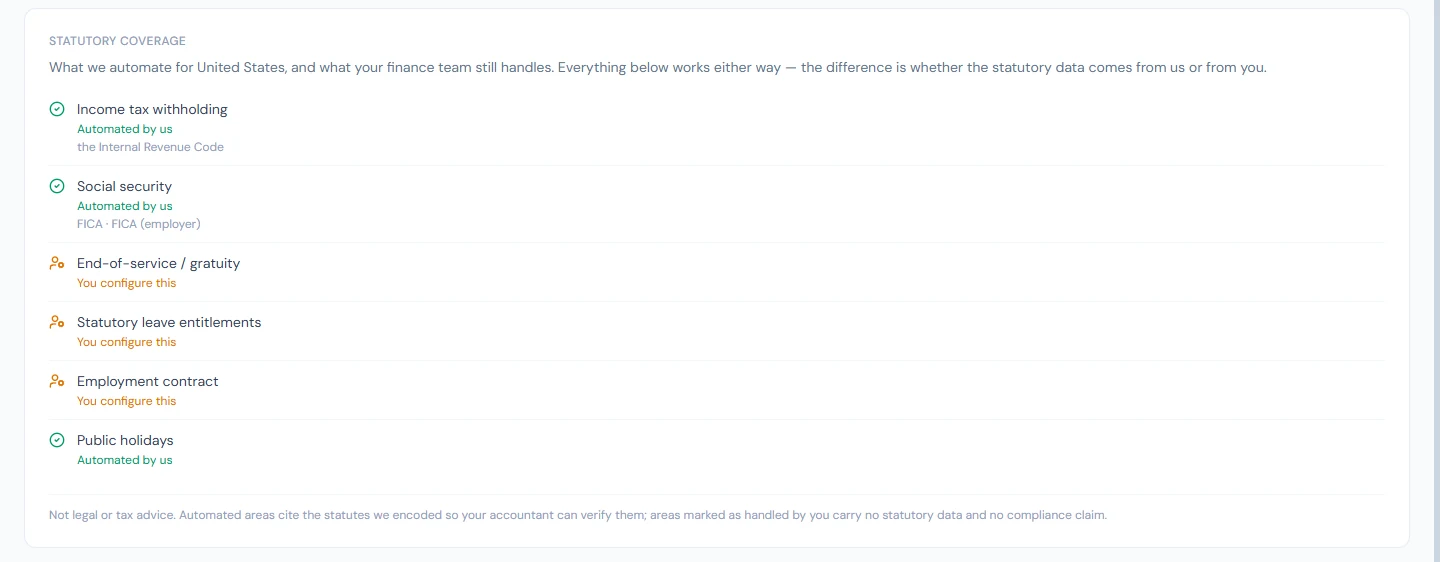
For Northwind, a US workspace, the card reads:
| Area | Status | What it means for Northwind |
|---|---|---|
| Income tax withholding | Automated by us | Federal income tax is computed from the shipped brackets. State and local tax are Northwind's to handle. |
| Social security | Automated by us | FICA, and the employer's matching FICA, are computed on every payslip. |
| End-of-service / gratuity | You configure this | US law requires none; any severance is a policy, entered by hand at exit. |
| Statutory leave entitlements | You configure this | The workspace starts with a neutral leave set, because US federal law mandates no paid annual leave. Northwind writes its own policy in Chapter 45. |
| Employment contract | You configure this | The contract template makes no statutory claim; Northwind's counsel reviews the wording in Chapter 31. |
| Public holidays | Automated by us | The federal holidays are suggested each year for review. |
A workspace in a country with a fuller pack sees more green; a workspace in a country Operentra has no dataset for sees "You configure this" in every row except public holidays. Neither is a fault. The card's own footer says the rest: it is not legal or tax advice, automated areas cite the statutes encoded so your accountant can verify them, and manual areas carry no compliance claim.
Make the card part of two routines: read it on day one, and read it again each January, when rates and holidays roll over.
What happens next
- The legal name, address and registration appear on every document generated from now on: payslips, letters, contracts, tax certificates. A document issued before the profile was complete is not reissued; fill the profile before Chapter 16 adds people.
- A time-zone change moves the scheduled jobs to the new zone from their next run.
- Nothing is emailed by this chapter.
What the employee sees
The company name and logo in the portal, and the legal name and address on their payslips and letters. The date format applies to their portal too. They never see Workspace Settings or the coverage card.
Common mistakes
- Leaving the legal name blank because the company name is "the name". Contracts and certificates then carry the trading name, which is not the legal party.
- Changing the time zone after a month of attendance. The punches already recorded keep their instants; the day boundaries move. Set it first.
- Reading "Automated by us" as "done". It means the statutory data is Operentra's; the structures, components and reviews that use it are still yours (Parts 7 to 9).
- Expecting the currency field to convert. It is a label on amounts you enter in that currency.
Practice
In your workspace:
- Complete the company profile: legal name, registration number, contact details and full address. Choose the date format your country reads naturally and confirm the time zone is where your team sits.
- Open Workspace Settings and read the plan card. Write down the trial end date.
- Read the Statutory coverage card. For every row marked "You configure this", write one line on what you will need to enter and in which chapter: leave policy (45), contract wording (31), tax brackets (63), end-of-service (62).
- Use the shortcut tiles to open Branding, then come back; Chapter 13 fills it in.
Quiz
1. Which two fields on the company profile cannot be changed, and where do they come from?
Answer
Country and currency. Both are set at sign-up and locked because the statutory pack, holidays, fiscal year, bank catalogue and every stored amount depend on them. Changing either is a support request.
2. What changes when you change the workspace time zone?
Answer
Clock times are shown in the new zone, and the time-based automations (the auto-present job, birthday emails) are re-anchored so they run at the right local time.
3. Northwind's coverage card says statutory leave is "You configure this". Is something missing?
Answer
No. US federal law mandates no paid annual leave, so there is no statutory set to ship; the workspace starts with a neutral set and Northwind writes its own policy. The status is a statement about the law, not a gap.
4. Where is the default email language set: the company profile or Workspace Settings?
Answer
Workspace Settings, on the Language tab. The profile holds identity; language is behaviour.
5. The plan card says "Managed by your provider". What does that tell you?
Answer
The subscription is handled by the platform operator rather than by a card on file, so there is no self-service checkout to run; billing questions go to the provider.