Chapter 28 — Candidates and the pipeline
Applications arrive from the careers site or from HR's own sourcing, and from then on the work is moving each one to a decision. Operentra keeps two things apart that recruiters often blur: the candidate, a person with contact details and a CV, and the application, that person's run at one particular opening. One person, several roles, several applications, one record. This chapter is the board where the applications move and the directory where the people live.
What this chapter covers
- 28.1 The pipeline board: Applied → Screening → Interview → Offer → Hired
- 28.2 Adding a candidate manually; candidate sources
- 28.3 Candidate directory and candidate profile
- 28.4 Rejecting with a reason; withdrawn candidates
The concept
A pipeline is a set of stages with a rule for entering each. The stages are only useful if the rule is the same for every application: Screening means someone has read the CV and decided it is worth a call; Interview means a round has been arranged; Offer means terms have gone out; Hired means they were accepted. Without rules the board becomes a to-do list that means something different to each person who looks at it.
Two stages sit outside the flow and matter as much as the ones inside it. Rejected is a decision you made, and it should carry a reason: for the candidate, who is owed one; for you, because the reasons add up to a picture of what the advert attracted. Withdrawn is a decision the candidate made. Keeping the two apart is how you tell "we said no" from "they said no" when you look back at a search.
The last thing a pipeline needs is memory. A candidate who was rejected for a role in March and applies for another in June should arrive with March attached. That is why the candidate record exists separately from the application.
How Operentra handles it
- Five stages in order: Applied, Screening, Interview, Offer, Hired; two closed stages beside them: Rejected and Withdrawn. The board on an opening's Applications tab has a column per flow stage; rejected applications sit in a collapsible list under it; withdrawn ones are only seen on the candidate's own page.
- One candidate per email address per workspace. A public application and a manual entry with the same address land on the same person; a candidate applying to three roles is one row on the Candidates page with three applications.
- Moving forward is one click at a time, from the application page, except into Offer and into Hired: an offer is extended with the Extend offer action (Chapter 30), and a candidate with an offer out becomes Hired by accepting it. The first move to Screening records who screened and when.
- Rejecting needs a reason, and the reason is emailed to the candidate. There is no way to reject silently.
- Withdrawn happens when the candidate declines an offer (with their reason), not from a button.
- Every application carries a source: "careers page" for the public form, or the channel HR picks when adding someone by hand.
- Who can do it:
recruitment.viewto read the board, the directory and the profiles;recruitment.manageto add candidates, move stages and reject. Both are the Super Admin's alone until granted to another role (Chapter 26).
Walkthrough
Northwind's DevOps Engineer opening has fifteen applications on its board: four Applied, three in Screening, two at Interview, one at Offer, one Hired, three Rejected and one Withdrawn.
28.1 The pipeline board: Applied → Screening → Interview → Offer → Hired
Open the opening and its Applications tab. The count beside the tab name is every application on the opening, open or closed; the line under it says "15 applicants". Five columns follow, each headed with its stage and a count, each card showing the candidate's name, email and the date they applied. Cards are ordered newest first.
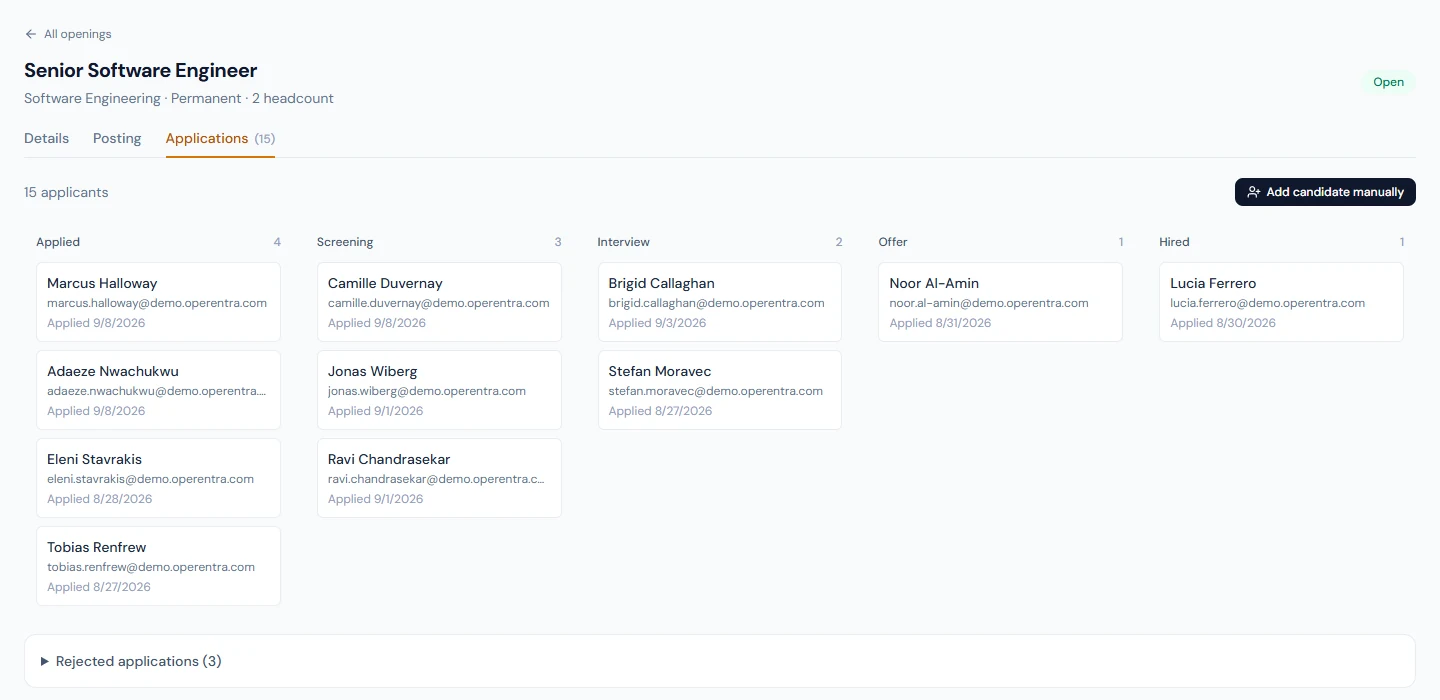
| Column | Who is in it | How they got there |
|---|---|---|
| Applied | Amara Diallo, Felix Ohlsson, Gregor Pawlak, Sinead Murtagh | The careers form, or HR's Add candidate manually |
| Screening | Isabela Cardoso, Nikolai Bergmann, Ren Takahashi | "Move to Screening" on the application; the first move stamps who screened and when |
| Interview | Callum Birrell, Yasmin Haddad | "Move to Interview"; the Schedule interview action then appears (Chapter 29) |
| Offer | Tamsin Everly | Extend offer (Chapter 30); there is no "Move to Offer" |
| Hired | Mateo Restrepo | The candidate accepting the offer, or "Move to Hired" when no offer is out |
Below the columns, "Rejected applications (3)" expands to the three with their reasons: "Closer matches progressed to interview", and twice "Withdrew from consideration at the salary stage". Eleni Stavrakis, withdrawn, is not on the board at all; Eleni is on the Candidates page and on the candidate profile with the stage Withdrawn.
Clicking a card opens the application page: the candidate's name, "Applied for DevOps Engineer on" the date, the stage pill, and a stepper with the five stages. Under the stepper are the actions the stage allows: Move to the next stage, Schedule interview at the Interview stage, Extend offer at Interview or Offer when none exists, Convert to employee at Offer or Hired, and Reject always. The rest of the page: the cover letter, the interviews with their feedback, the offer card, and a sidebar with the candidate's email, phone, LinkedIn, current employer and Download CV, plus the source.
Three rules the stepper enforces. There is no Move to Offer: terms leave through Extend offer, so an offer record, a letter and an email exist. There is no Move to Hired while an offer is out with the candidate; their acceptance does it. And a closed application (Hired, Rejected, Withdrawn) shows its outcome and date instead of actions: "Hired on … — now employee, view profile", "Rejected on … — reason", "Candidate withdrew on … — offer declined: reason".
Moving back is not offered. An application put into Screening by mistake stays there; the stage is a record of the furthest point reached, and the fix is a reject with an honest reason or simply leaving it.
28.2 Adding a candidate manually; candidate sources
Not every candidate finds the careers page. Add candidate manually on the Applications tab is for the ones you found: a LinkedIn profile you wrote to, a referral from a colleague, a CV an agency sent.
The dialog asks for first name, last name and email (required), phone, LinkedIn URL, current employer, a Source and a free Source detail. The sources are LinkedIn, Referral, Headhunter, Direct email, Manual entry and Other; the detail is where "Referred by Dana Whitfield" or the agency's name goes. Add creates the candidate (or finds them by email), creates the application at Applied, and emails the candidate the same receipt a public applicant gets. The dialog's subtitle says so, because a candidate who did not apply may be surprised by "We received your application".
Two refusals. The opening must be Open; a draft or on-hold opening is refused with its status named. And a candidate who already has an application on this opening is refused with their current stage, so a referral of someone who applied last week does not produce a duplicate; mention the referral in the interview notes instead.
What the dialog cannot take: a CV. There is no upload here or on the candidate's profile; a CV reaches Operentra only through the public form. The practical pattern for a sourced candidate with a CV in your inbox is to send them the job link and let them apply; the application joins the record you created, by email.
The source matters later. Northwind's forty candidates came 28 from the careers page, 5 from LinkedIn, 4 by referral and 3 from an agency, and the Candidates page and each application show it. Six months of that column is the sourcing report Chapter 25 asked for.
28.3 Candidate directory and candidate profile
Recruitment › Candidates is the people, not the applications: one row per person with name, email, the number of applications, the source of their most recent one and the date they first appeared. Search matches name or email. Northwind has forty.
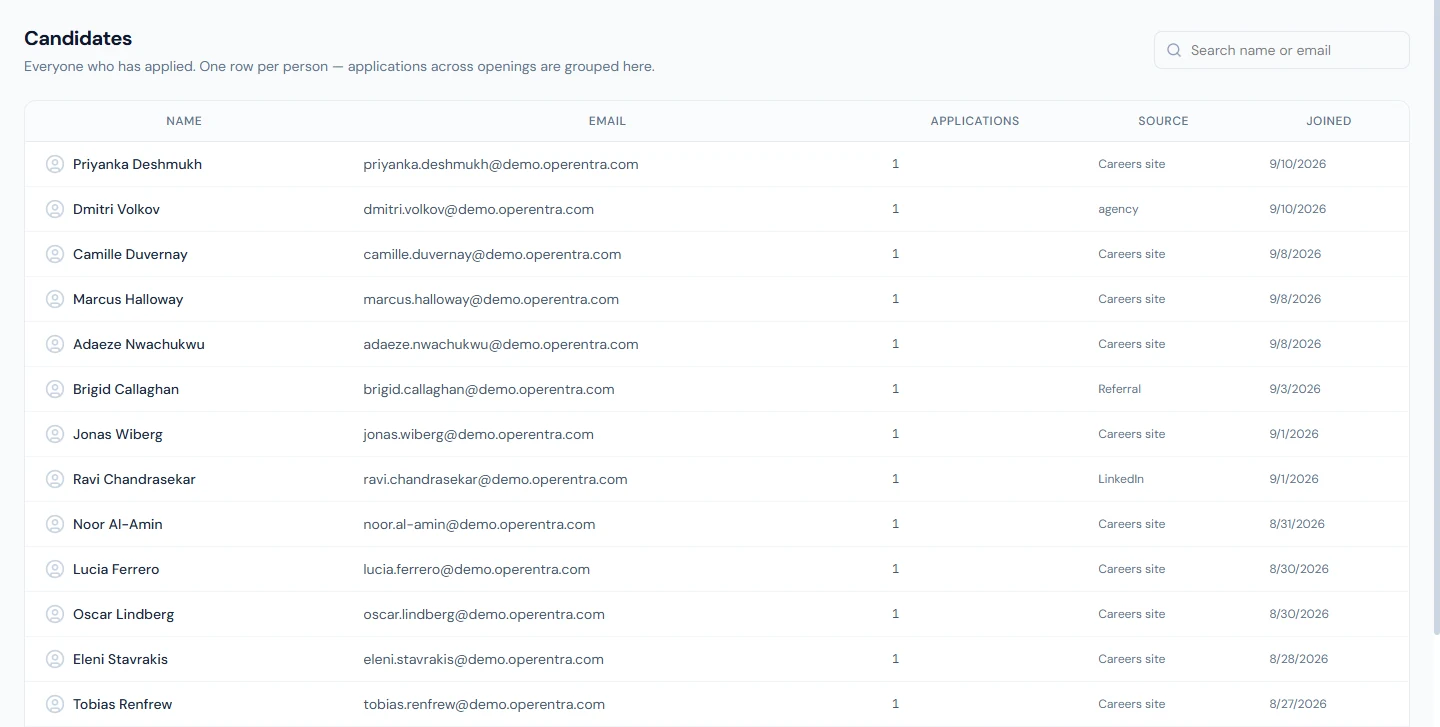
A row opens the candidate profile: name, current title and employer, email, phone, LinkedIn, Download CV when one was uploaded, any notes on the record, and an Applications table with the role, source, date and stage of each. A candidate who was hired and converted shows View employee profile, which is the link between the two halves of the system: the candidate record stays as the history of how they were hired, and the employee record (Chapter 19) takes over from the joining date.
Nothing on the profile is editable from the screen. Name, contact details and employer are updated when the person applies again (the public form refreshes them), and the notes field is written through the API only. Treat the profile as a read-only file; the working notes belong on the application and in interview feedback.
The directory has no filters beyond search, no export and no delete. A candidate record is permanent, which is right for a hiring history and worth knowing for any retention policy you publish.
28.4 Rejecting with a reason; withdrawn candidates
Reject is on every open application. The dialog, "Reject Application", has one field and one rule: a reason, which "the candidate will receive an email with", with the hint to keep it kind and an example ("We chose a candidate with more direct experience in distributed systems."). Reject application without a reason is refused.
On confirm the application moves to Rejected with the date and the user, the card leaves its column for the Rejected list, and the candidate is emailed "Update on your DevOps Engineer application": thanks for their interest and time, "we've decided to move forward with other candidates", a "Feedback:" line with your reason, and an invitation to apply again with a link to the careers page. The reason goes to the candidate word for word; write it for them, not for the file. Rejection does not touch the candidate record or their other applications.
There is no undo. A rejected application cannot be reopened; if the decision was wrong, the candidate applies again (the form keeps them rejected on the same opening, so add them by hand to a new opening or ask HR to contact them).
Withdrawn is the candidate's decision, and the only way it is recorded is through the offer page: a candidate who declines an offer gives a reason, the offer becomes Declined and the application Withdrawn, with the reason shown on the application ("offer declined: …") and sent to the hiring team (Chapter 30). A candidate who stops answering at an earlier stage has no Withdrawn button; reject them with a reason that says so ("No response to two interview invitations"), which the candidate will receive, or leave the application where it is. Withdrawn applications do not appear on the board; they are on the candidate's profile and in the Candidates count.
What happens next
- The next chapter's actions start from this board: Schedule interview from an application at Interview (Chapter 29); Extend offer from Interview or Offer (Chapter 30); Convert to employee from Offer or Hired, which opens the Add Employee form pre-filled (Chapters 30 and 16).
- Stages stamp dates: screened, rejected, withdrawn and hired each record when and by whom. The closed ones show on the application page; all of them are in the API; there is no report of them.
- A hire fills the opening when the headcount is reached, which takes its posting down (Chapter 26) but leaves the other applications where they are. Reject the ones you will not take, with a reason, rather than leaving them in Screening on a filled role.
What the employee sees
Candidates are not employees, so the portal shows nothing. The candidate's own experience is the receipt email on applying, silence while you screen, and then an interview invitation, an offer or a rejection with your reason. Interviewers meet the candidate in Chapter 29.
Common mistakes
- Using Screening as "I have seen it". Screening should mean the CV passed a first filter. Leave the rest at Applied, and reject what failed, with a reason.
- Rejecting with a reason written for the file. "Weak candidate" goes to the person. Write what you would say to their face.
- Looking for a withdraw button. There is none; withdrawal comes from a declined offer. For a candidate who went quiet, reject with a reason that says so.
- Adding a sourced candidate before telling them. The dialog emails them a receipt for an application they did not make. Write to them first.
- Expecting to attach the CV you were sent. There is no upload for HR. Send the job link and let the candidate apply; it joins the same record.
- Creating the same person twice with two email addresses. Two records, two histories. Use the address they applied with.
- Trying to move a card back a stage. Not offered; the stage is the furthest point reached. Decide instead.
- Leaving applications open on a filled role. They sit in Screening forever and the candidates hear nothing. Reject them when the role fills.
Practice
Use your own trial workspace, not a customer's.
- Open an opening's Applications tab and count the cards per column against the count beside the tab name. Expand the rejected list and read the reasons.
- Add a candidate manually with a demo name and a demo email address, source Referral, detail "Referred by" and your name. Find the card in Applied and the receipt email in the outbox (or the mail log).
- Open the card. Move it to Screening, then to Interview. Note which buttons appear at each stage and which do not (there is no Move to Offer).
- Open Recruitment › Candidates, search for the demo candidate, open the profile and read the Applications table.
- Reject the application with a reason you would be happy for the candidate to read. Find it in the Rejected list and on the profile, and read the rejection email.
Quiz
1. What is the difference between a candidate and an application?
A candidate is a person, unique by email address within the workspace, with contact details and a CV. An application is that person's run at one opening, with a stage, a source and dates. One candidate can have several applications.
2. Why is there no "Move to Offer" button?
An offer must exist as a record, with a letter and an email the candidate can accept or decline. Extend offer creates all of that and moves the stage; a plain stage move would leave an Offer column with nothing behind it.
3. What does a rejection send, and to whom?
An email to the candidate, "Update on your … application" naming the role, with your reason under "Feedback:" and a link to apply again. The reason is mandatory and goes word for word.
4. How does an application become Withdrawn?
Only by the candidate declining an offer from their offer page, with a reason. There is no withdraw button; a candidate who disappears earlier is rejected with a reason that says so.
5. A referral you add by hand has a CV in your inbox. How does it get onto the record?
It does not, from the admin side. Send them the job link; their application joins the candidate record you created by email, and the public form uploads the CV.