Chapter 48 — Applying for and approving leave
Everything so far was setup. This chapter is the daily traffic: an employee asks for days, the request is checked against the policy on the spot, a manager decides, and the balance and the attendance record follow. Operentra keeps the decision with the person who knows whether the team can spare them, gives HR the whole picture, and emails every step.
What this chapter covers
- 48.1 The employee's application: eligibility, half day, attachment, balance panel, policy details
- 48.2 Cancelling leave
- 48.3 Pending approvals: attachments, approve, reject with reason
- 48.4 The leave register: filters, export, print
- 48.5 The leave calendar
- 48.6 Leave emails
The concept
A leave request is a small contract: the employee asks for specific days of a specific type, the policy says whether the ask is allowed, and a person with authority says whether the business can afford it. The system's job is the middle step, done instantly and consistently, so that the manager decides only the last. Two rules keep it fair: the checks run on submission, so nobody is refused after waiting a week; and the decision goes to the reporting manager first, with HR as the fallback and the overseer, never to the applicant themselves.
How Operentra handles it
- The portal's My Leaves shows balances per type (with a policy dialog), the application list with cancel, and Apply for Leave: type, half day, dates, reason, attachment, and a summary with the day count and the available balance.
- On submission the request is checked: the type is active and in the current fiscal year; the employee is eligible (gender, tenure, employment type, leave group); the range holds working days and is within the maximum consecutive; the balance covers it (or the negative limit does); no pending or approved request overlaps; an attachment is present when the length requires one. The day count is working days adjusted by the sandwich rules.
- Pending Approvals is the queue: the applicant's reporting manager with the approve permission sees their team; HR with view-all sees everyone; nobody decides their own request while another approver exists. Approve deducts the days and marks the attendance dates on leave; Reject needs a reason.
- Cancelling: a pending request at any time, an approved one until it starts; cancelling an approved request restores the balance and clears the attendance marks.
- Leave Applications is the register with status filter, search, CSV and print; Leave Calendar plots approved leave by month.
- Four emails: applied (to the approvers), approved, rejected, cancelled (to the employee).
- Who:
leave.apply(every role);leave.approve(HR Manager, Department Head) scoped to direct reports;leave.view_all(HR Manager, HR Officer) for the register, the calendar and the whole queue;leave.view_team(Department Head) for the register and the calendar of their direct reports.
Walkthrough
Northwind has about a hundred and fifty applications: most approved, a handful cancelled, a few rejected, and seven pending with future dates, across Annual, Sick, Parental, Bereavement and Leave Without Pay, none of them half days. The walkthrough follows one from Imani's portal to the manager's queue.
48.1 The employee's application: eligibility, half day, attachment, balance panel, policy details
My Leaves opens on Leave Balances: a card per type in the employee's group with the available days over the total, Accrued, Used, Carried and Encashed, an "Accrues monthly" chip where the policy releases monthly, and View policy, a dialog of the rules in plain words: quota, accrual, eligibility, carry forward, encashment (the rate, as a multiple of the employee's daily basic pay or an amount per day, or that HR has not set it), maximum consecutive days, the sandwich rule, and the document rule. Below are the employee's applications with dates, days, status and Applied On, and a cancel icon where cancelling is still allowed.
Apply for Leave is one form. Leave Type lists the group's types with what applies: "(Balance: 12 — manager approval)" for a quota type, "(Unpaid — manager approval)" for leave without pay, "(On request — HR approval)" for a type granted on request rather than allocated, and a greyed entry with the reason for a type the employee is not eligible for ("after 12 months of service"). Half Day Leave adds First Half or Second Half and charges 0.5. From and To dates, a Reason, and an Attachment (PDF, JPG or PNG up to 5 MB, optional unless the policy's document rule makes it mandatory for the length). The Application Summary on the side shows the duration the rules produce and the available balance, and warns when the balance is insufficient.
Submit Application runs the checks in the list above and refuses with the reason, naming the limit it hit; a request that passes is Pending, and the approvers are emailed.
48.2 Cancelling leave
The cancel icon on an application works while it is Pending, and on an Approved one whose first day has not come; an approved leave that has started cannot be cancelled from the portal and is HR's to correct. Cancelling asks for confirmation; cancelling an approved request restores the days to the balance and removes the On Leave marks from attendance, and the employee is emailed the cancellation.
48.3 Pending approvals: attachments, approve, reject with reason
Leave › Pending Approvals counts the applications awaiting review and lists them: employee, type, period, days, the reason, a Doc icon that previews the attachment (images and PDFs inline, a download for other files), when it was applied, and Approve and Reject. Who sees which rows is decided by permission: a manager with the approve permission sees the requests of their direct reports; HR, holding view-all as well, sees the workspace. An approver's own request is not theirs to decide while another approver exists; in a workspace with a single approver, it is.
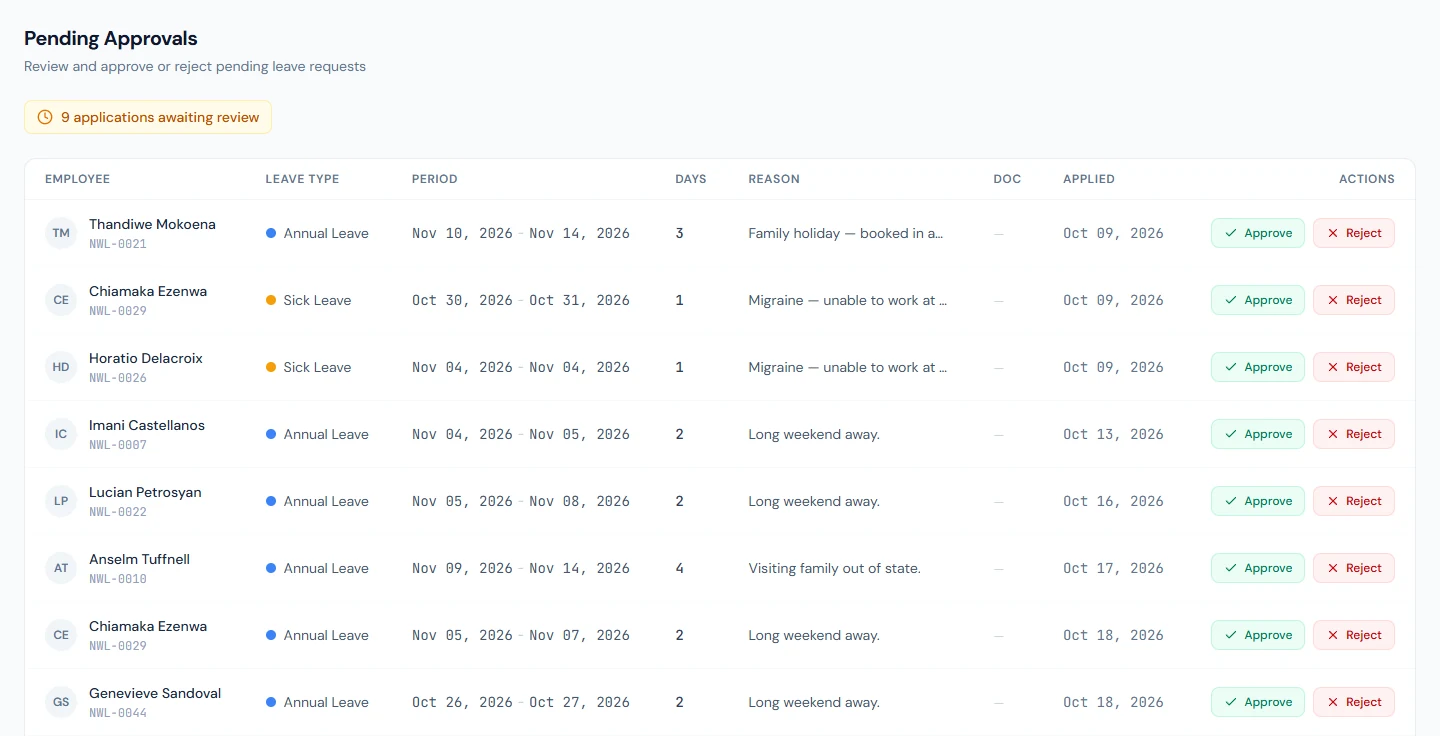
Approve confirms, marks the request Approved, deducts the days from the balance, writes On Leave on each date in the attendance record, and emails the employee. Reject opens a dialog that requires a reason and emails it to the employee with the decision.
48.4 The leave register: filters, export, print
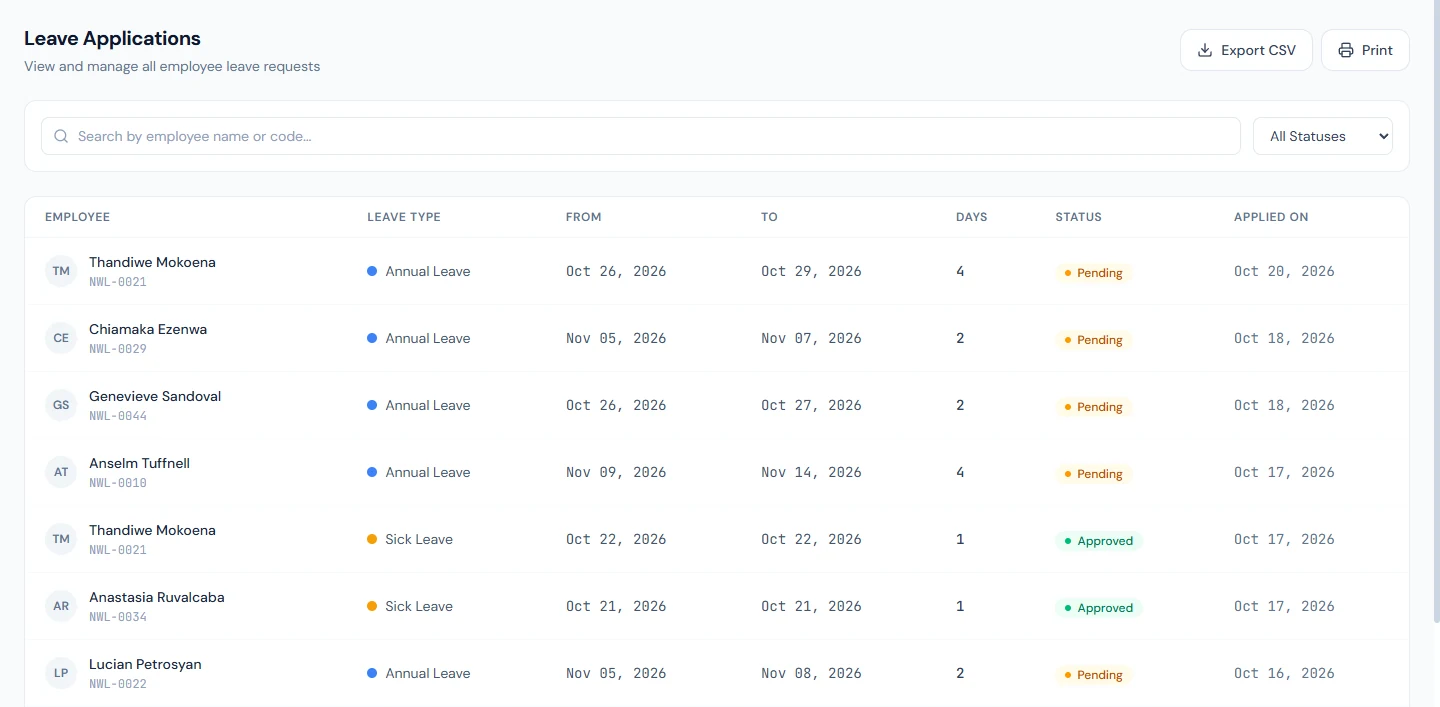
Leave › Leave Applications lists every request in the workspace: employee and code, type, from and to, days, half day, status, applied on, with a status filter (Pending, Approved, Rejected, Cancelled, All) and a search by name or code. A row opens the details: duration, the half, the reason, the attachment, who approved, and a cancellation reason when there is one. Export CSV downloads the current filter; Print opens the Leave Register sheet with its count, the paper record an auditor or an HR review wants.
48.5 The leave calendar
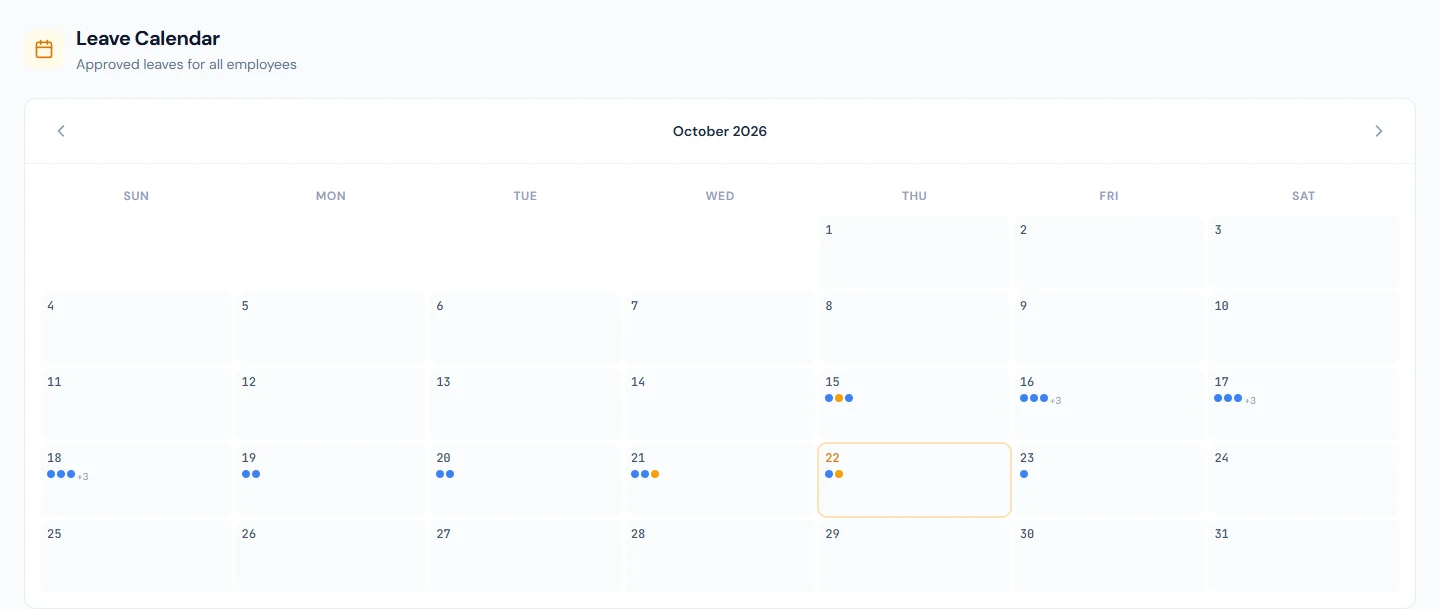
Leave › Leave Calendar shows a month grid with a dot per employee on leave on each day, in the leave type's colour, with the name and type on hover, for approved leave only; the month controls step through the year. It is the quickest way to see who is away in a week before approving another request for the same team.
48.6 Leave emails
| To | When | |
|---|---|---|
| Leave applied | The approvers: the reporting manager with the approve permission, else the users holding both approve and view-all | On submission |
| Leave approved | The employee | On approval |
| Leave rejected, with the reason | The employee | On rejection |
| Leave cancelled | The employee | When a request is cancelled |
All four are templates on Settings › Email Templates with their own switches (Chapter 79) and bell notifications for the recipient.
What happens next
- Attendance shows the dates as On Leave with source Auto (Chapter 37); payroll pays them as leave, paid (at the type's pay share) or unpaid by the type (Chapter 54).
- The balance moves on approval and back on cancellation; the figure the employee sees is always current.
- Encashment (Chapter 49) is the other way a balance goes down.
What the employee sees
Their balances and policy dialogs, the apply form and its summary, the refusal reasons, their applications with their statuses, the cancel icon while it applies, and an email at each decision.
Common mistakes
- Approving from the email. The email announces the request; the queue is where the attachment and the balance are.
- Expecting HR to see a manager's queue by default. HR sees everything with view-all; a Department Head sees their reports.
- Rejecting without a reason. The dialog refuses; the reason goes to the employee.
- Cancelling an approved leave that has started. Not from the portal; HR corrects the record.
- Reading an "On request" type as a quota. It is granted on request by HR and shows no balance.
- Letting the sandwich rule surprise applicants. The summary shows the day count before submission; point people at it.
- Approving over an overlap. The overlap is refused at submission; a pending request that looks like a duplicate is a different date range.
- Deciding your own leave. Refused while another approver exists; ask them.
Practice
Use your own trial workspace, not a customer's.
- Sign in as an employee, open My Leaves, read the balance cards and one View policy dialog.
- Apply for two days of annual leave over a weekend and read the summary's duration; then switch on the sandwich rule in the policy and read it again.
- Apply for a longer sick leave than the document rule allows without an attachment and read the refusal; attach a file and submit.
- As the manager, open Pending Approvals, preview the attachment, reject one with a reason and approve another; read the employee's emails and attendance.
- Open Leave Applications, filter Approved, export the CSV and print the register; then open the calendar on the month.
Quiz
1. What is checked when a request is submitted?
The type and fiscal year, eligibility, working days and the consecutive limit, the balance or negative limit, overlaps with pending or approved requests, and the document rule; the day count applies the sandwich rules.
2. Who sees a pending request?
The applicant's reporting manager with the approve permission (their direct reports), and anyone holding both approve and view-all (the whole workspace). Nobody decides their own while another approver exists.
3. What does approval change?
The request becomes Approved, the days leave the balance, each date is marked On Leave in attendance, and the employee is emailed.
4. When can an employee cancel?
While the request is Pending, or while an approved request has not yet started; cancelling an approved one restores the balance and clears the attendance marks.
5. Where do the four leave emails go?
Applied to the approvers; approved, rejected (with the reason) and cancelled to the employee.