Chapter 37 — Viewing attendance
Before anyone marks, corrects or approves anything, they look. The Daily Attendance page is where HR starts the morning, where a manager checks who is in, and where payroll goes when a figure looks wrong. This chapter is that page in its two shapes, the whole team on one day and one person across a month, with the vocabulary of its pills, tags and columns.
What this chapter covers
- 37.1 Daily view and per-employee monthly view
- 37.2 Statuses and tags: holiday, weekend, rest-day swap, missing clock-out
- 37.3 Source column: auto, biometric, manual, import
- 37.4 Export and print the attendance register
The concept
An attendance view answers two different questions and should not mix them. "Who is here today?" is a list of people on one date; "how was this person's month?" is a list of dates for one person. The first is operational, the second is for payroll and for the conversation about lateness. A good view also separates what happened (the status), what the calendar said (a holiday, a rest day), and who said so (the source), because a dispute is usually about the third.
How Operentra handles it
- Attendance in the menu opens Daily Attendance: every employee for one date, with summary cards and filters. Choosing an employee turns the same page into their month.
- Thirteen statuses: Present, Absent, Late, Early Leave, Half Day, On Leave, Holiday, Weekend, WFH, Comp Off, Not Marked, and two the monthly view adds, Upcoming for future dates and Exempt for days on a Punch Not Required shift.
- Tags beside the status: Holiday (with the holiday's name) or Weekend when a day was worked on one; Swapped or Swap off for a rest-day swap; an amber Missing clock-out when a day has a check-in and no check-out past the checkout grace.
- Source on every row: Auto, Biometric, Manual, Import, GPS or Regularized.
- Read-only. Nothing on this page edits a day; marking and correcting are Chapter 38 and Chapter 39.
- Export CSV downloads every column of the current view; Print opens a paper register.
- Who:
attendance.view_allfor the whole workspace;attendance.view_team(Department Head) for the holder's direct reports only (Chapter 89).
Walkthrough
Northwind's record runs from September 2025 to today for forty-eight people, captured at the Austin terminal and by HR: Present on most days, with Late, Early Leave and Half Day among them, weekends and eighteen holidays written by the calendar, leave days marked by HR, a few dozen days with a check-in and no check-out, and five days HR pinned with the Force lock.
37.1 Daily view and per-employee monthly view
Daily Attendance opens on today. The Today and Yesterday chips, the day stepper and the calendar move the date; Department narrows the list. Five cards count Total, Present, Absent, Late and On Leave for the date, and the table lists Employee, Department, Status, Clock In, Clock Out, Late (min), Working Hrs and Source, one row per employee. On a day still in progress the clock-out column shows dashes for everyone who has not left, which is why a screenshot of "today" at ten in the morning looks like a page of missing clock-outs and is not.
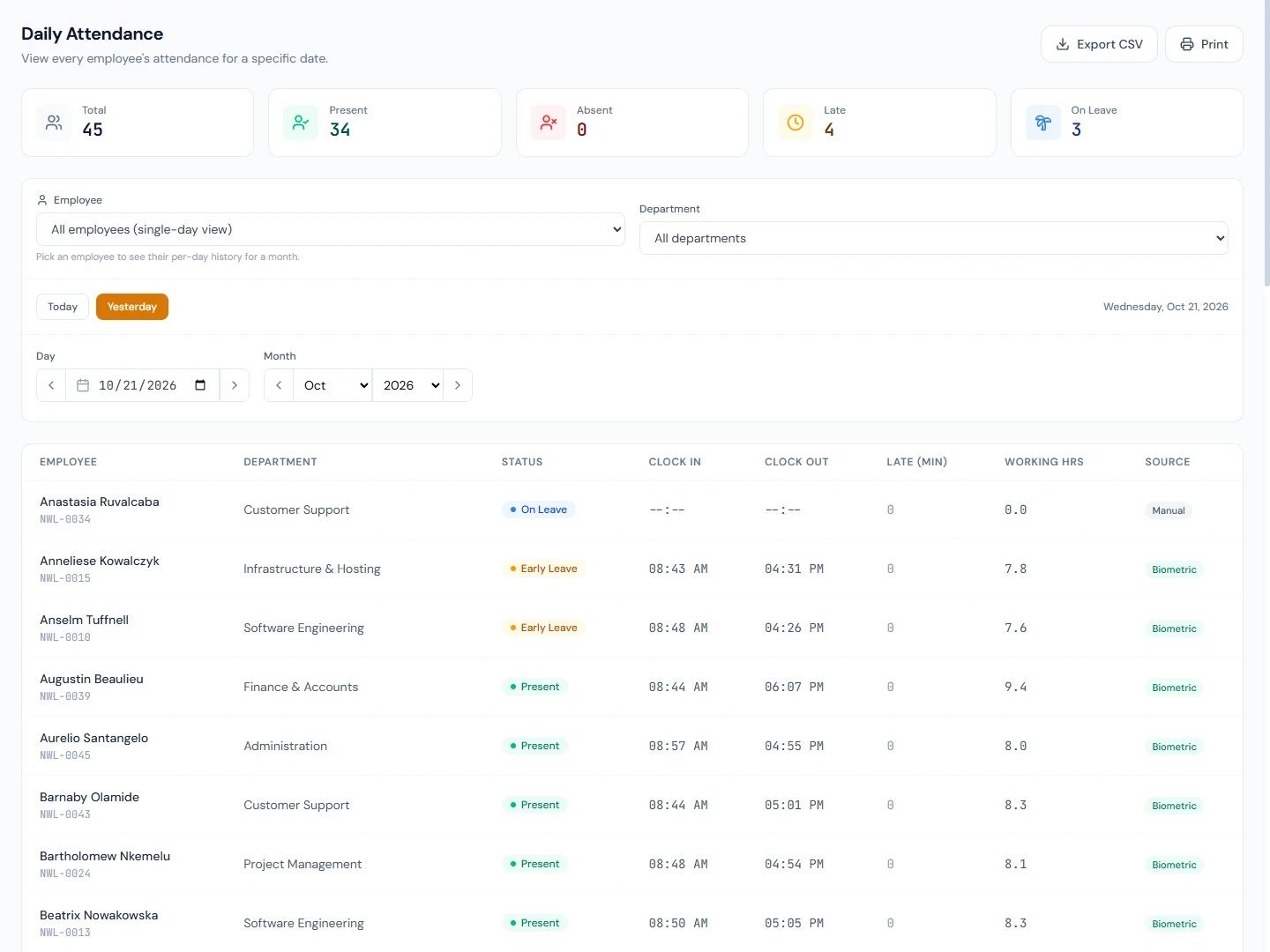
Pick a name in the Employee dropdown and the page becomes that person's month: the title takes their name, This month and Last month chips and a month stepper replace the day controls, the cards become Present, Absent, Late, On Leave and Total Hrs, and the table lists Date, Status, Clock In, Clock Out, Late (min), Working Hrs and Source for every day. Days after today read Upcoming; days on an exempt shift read Exempt. Clear the selection to return to the whole team.
37.2 Statuses and tags: holiday, weekend, rest-day swap, missing clock-out
The status pill is what the day counted as. Present, Late, Early Leave, Half Day and Absent are the graded outcomes of Chapter 34; On Leave comes from an approved leave; Holiday and Weekend are written by the calendar; WFH and Comp Off are marked by HR; Not Marked is a working day nobody has recorded yet.
Three tags sit beside the pill when the calendar and the day disagree.
- Holiday or Weekend appears next to a worked status when the day was a holiday or a rest day: someone came in on a day off. Hover the holiday tag for its name. A row whose status itself is Holiday or Weekend carries no tag.
- Swapped marks a rest day that was worked under a rest-day swap, paid as a normal day; Swap off marks the substitute day taken off in its place. Both name the partner day on hover (Chapter 38).
- Missing clock-out, amber, marks a day with a check-in and no check-out once the shift's end plus the checkout grace has passed. It is a flag, not a status: the day keeps whatever it counted as and pay is untouched. The tooltip says what to do, and the tag links to Regularizations, where the employee's request or HR's correction sets the real out-time (Chapter 39).
Northwind has a few dozen missing clock-outs and no swaps; add one on the monthly marking view to see both swap tags.
37.3 Source column: auto, biometric, manual, import
Source says who answered for the day.
| Source | Meaning |
|---|---|
| Auto | The system wrote it: a calendar row for a weekend, holiday or leave, or an Auto-Present day |
| Biometric | A terminal punch (Chapter 40) |
| Manual | HR marked it on the Mark Attendance page (Chapter 38) |
| Import | The CSV upload (Chapter 38) |
| GPS | A punch from the portal at a site (Chapter 41) |
| Regularized | An approved correction request replaced the day (Chapter 39) |
A day HR edited on Mark Attendance says Manual even when the times came from the terminal, because HR was the last to answer for it; the Force lock, if HR set one, is not visible here but is a column in the monthly CSV export (Manual Override).
37.4 Export and print the attendance register
Export CSV downloads the current view with every column, more than the screen shows: for the daily view, code, names, department, designation, date, status, clock-in and out, late and overtime minutes, working hours, holiday and weekend flags with the holiday's name, the missing clock-out flag, source and remarks; for the monthly view the same per day, with the weekday and the Manual Override flag. It opens in a spreadsheet, and it is the file to send payroll when a figure is questioned.
Print opens the Attendance Register for the day (or Monthly Attendance for the person): numbered rows with the employee, code, department, status, times, late minutes, hours, source and a notes column that carries the holiday, weekend and missing clock-out remarks, headed with the count of employees or days and footed with the generation date. Filter by department first; the printed sheet is the filtered list.
What happens next
- A wrong day is fixed on Mark Attendance (Chapter 38) or through a regularization (Chapter 39); this page shows the result with its new source.
- Payroll reads the month these views summarize (Chapter 55), and the monthly cards are the quickest check of what it will see.
What the employee sees
Their own month in the portal, with the same statuses and sources, and a request form for a correction (Chapter 85). They do not see the team.
Common mistakes
- Reading a missing clock-out as an absence. The day kept its status; the tag asks for the out-time.
- Reading dashes in Clock Out at mid-morning as a problem. The day is in progress.
- Looking for an edit button. The page is read-only by design; Mark Attendance edits.
- Printing the whole company for one department. Filter first.
- Treating Late (min) as the lateness from the shift start. It is the minutes past the grace, which is why a Present day shows none.
- Expecting Upcoming days to fill in early. They are written when they happen.
- Reading a Holiday tag as a holiday row. The tag means the person worked the holiday; the row's status is what they did.
- Sending the printed register when payroll asks for data. Send the CSV; the print sheet omits columns.
Practice
Use your own trial workspace, not a customer's.
- Open Attendance on yesterday and read the five cards against the table. Filter by one department and read them again.
- Find a Late row and a Half Day row and explain each from Late (min) and the thresholds in Attendance Settings.
- Find a row with a Missing clock-out tag, follow its link, and read the regularization queue.
- Pick an employee, step back a month, and read Present, Late, On Leave and Total Hrs. Find an Upcoming day and an Auto row.
- Export the monthly CSV and open it; then Print the monthly sheet and compare the columns.
Quiz
1. What changes when you pick an employee on Daily Attendance?
The page becomes their month: month controls, cards for Present, Absent, Late, On Leave and Total Hrs, and one row per day with Upcoming for future dates.
2. What does a Missing clock-out tag do to the day?
Nothing to its status or pay. It flags a check-in with no check-out after the checkout grace and links to Regularizations for the fix.
3. When does a Holiday tag appear, and when does a Holiday status?
The tag appears beside a worked status when the day was a holiday; the status is the calendar's row for a holiday nobody worked.
4. Which sources can a row carry?
Auto, Biometric, Manual, Import, GPS and Regularized: the calendar or Auto-Present job, a terminal, HR's marking, the CSV upload, a portal punch at a site, and an approved correction.
5. What does the CSV have that the printed register does not?
Every column: overtime minutes, the holiday and weekend flags, the holiday name, remarks, and in the monthly file the weekday and the Manual Override flag.