Chapter 4 — Creating your workspace
Everything in Operentra happens inside a workspace: one company, its people, its records, its payroll, kept apart from every other company on the platform. This chapter creates yours. It is the first hands-on chapter, and the workspace you make here is the one you will use for every practice task from now on.
What this chapter covers
- 4.1 Signing up: company, country, currency, time zone, and what the country decides
- 4.2 Email verification and approval states
- 4.3 The trial, the pricing page, team size and billing cycle
- 4.4 Redeeming a lifetime licence code
- 4.5 Creating an additional workspace
The concept
A workspace is a company's private tenancy. Its boundary is absolute: nobody in one workspace can see another's data, and a person who works for two companies on Operentra has two separate memberships, one in each.
Three things are decided when the workspace is created and shape everything after:
- The country sets the statutory rules: the fiscal year, which tax and social-security rules payroll applies, the public holidays suggested each year, the bank catalogue, the leave set the workspace starts with, the wording of the employment contract, and the labels on country-specific fields such as the national ID. Chapter 3 explained why this matters; here is where it is chosen.
- The currency labels every salary, payslip and report. It is a label, not a converter: amounts are stored as entered.
- The time zone decides when a day starts and ends for attendance, when scheduled jobs run, and the clock times shown on punches.
The country and the currency are locked after sign-up. Changing either later would silently corrupt existing records, so the profile screen refuses; a genuine change is a support request. The time zone can be changed in the company's regional settings. Choose the first two carefully.
How Operentra handles it
Your sign-in email is one account across the whole platform. The account can hold memberships in several workspaces, with different roles in each, and a company switcher appears in the top bar whenever that is the case. Signing up creates two things at once: the workspace, and your membership in it as its first super admin.
A new workspace is provisioned with working defaults: the standard roles and permissions, email templates, leave types, a shift, salary components, and the statutory data for its country where Operentra ships it. It starts on a 14-day free trial of the Growth plan, with no card required, and the dashboard shows a setup checklist (Chapter 7) until the basics are in place.
Whether the workspace is usable the moment you submit depends on two gates the platform operator controls: email verification and operator approval. Both, either, or neither may be on.
Walkthrough
4.1 Signing up
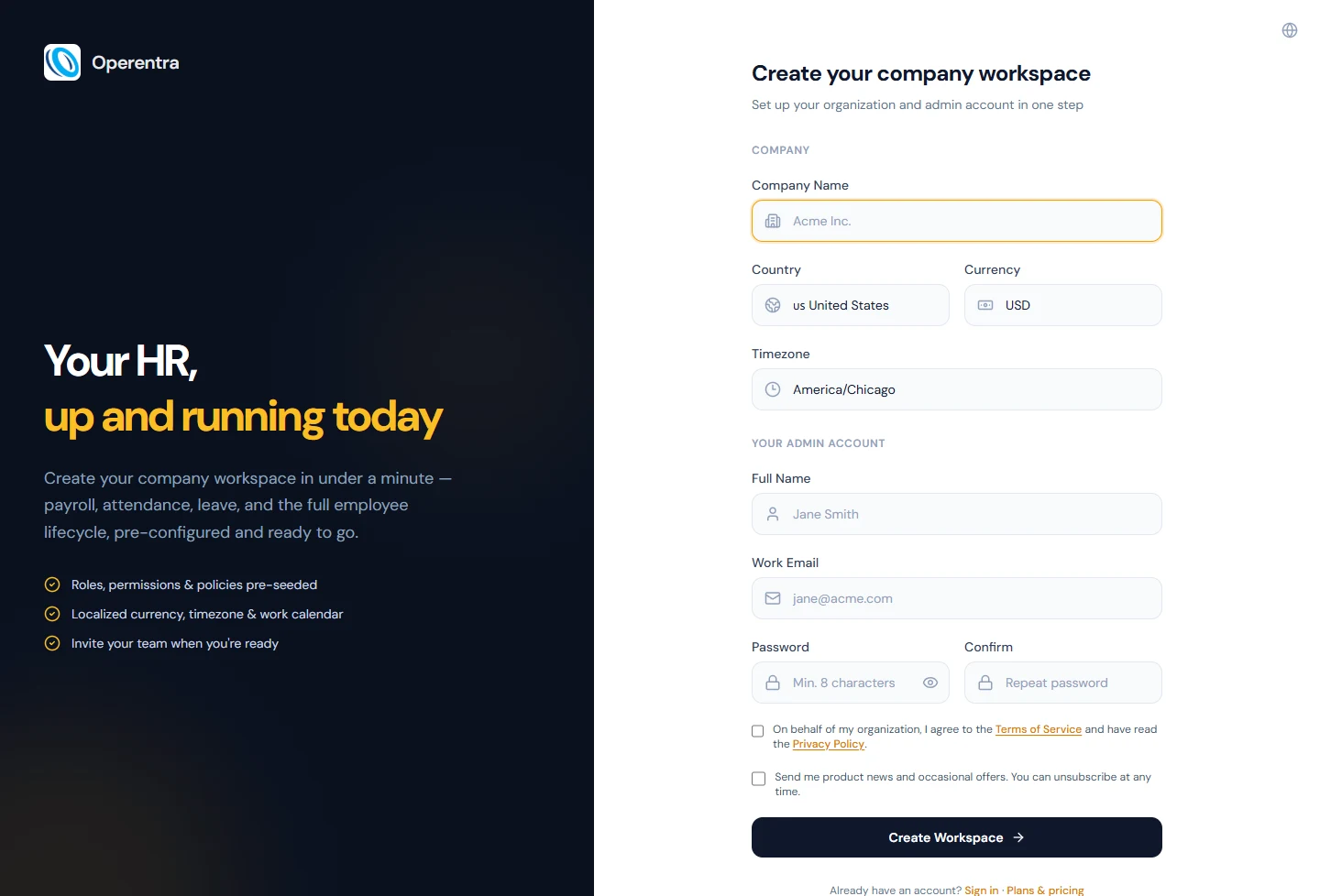
Open app.operentra.com/register. The form has two groups of fields.
Company
| Field | What to enter |
|---|---|
| Company name | The name your employees know, 2 to 255 characters. The legal name goes on the company profile later. |
| Country | Pre-selected from your device's time zone when that points to one country (nothing is looked up from your network address). Check it; it is locked after sign-up. |
| Currency | A three-letter code, pre-filled from the country. Locked after sign-up. |
| Time zone | Detected from your browser. Choosing a different country switches it to that country's main zone unless your current one is already in that country. Change it if your team works elsewhere. |
Your admin account
| Field | What to enter |
|---|---|
| Full name | Your name, as the workspace's first administrator. |
| Work email | Your sign-in email. If this address already has an Operentra account, enter that account's existing password: the new workspace is added to the same account instead of creating a second login. If that account already runs a workspace, the plan rule in 4.5 applies. |
| Password | At least 8 characters, typed twice. |
Below the fields: the terms checkbox, which is required, and a marketing opt-in, which is off by default. Select Create Workspace.
Use the address you want to sign in with for years. It identifies your account across every workspace you will ever belong to, and changing it later is a confirmed, every-session-signed-out operation (Chapter 6).
If the form is replaced by a Signups are closed screen, the operator has paused new workspaces for the moment. Existing accounts still sign in.
4.2 Email verification and approval states
What you see after submitting depends on the gates:
- Straight in. With neither gate on, the workspace is active, you are signed in, and you land on the admin dashboard.
- Check your email. With email verification on, a verification link is sent to your address. Open it; the page finishes activation and offers Sign in. The link expires after 24 hours, and the pending screen has Resend email if it does not arrive.
- Awaiting approval. With operator approval on, the workspace exists but stays inactive until the operator approves it. You are emailed the moment it goes live.
Both gates can apply together: you verify your email first, and the workspace then waits for approval. The verification page says which state you are in: "company is ready", "awaiting approval", or a failed link.
4.3 The trial, the pricing page, team size and billing cycle
Every new workspace starts on a 14-day trial of the Growth plan, with no credit card. The trial banner in the admin panel counts the days down for billing admins, and reminders go out 7 days and 1 day before it ends. You pick a plan during or after the trial. When it ends without one, the workspace becomes read-only: everyone can look, nobody can save, and a banner tells billing admins to choose a plan and everyone else to ask their administrator.
The plans are on app.operentra.com/pricing, which is public, so you can read it before you sign up and from the links on the sign-up and sign-in pages. On it:
- A team-size stepper sets how many employees you are pricing for. Plans are priced per employee per month, with a ten-seat minimum.
- A Monthly / Yearly toggle. Yearly billing is ten months' price for twelve, shown as two months free.
- Three plan cards: Starter (core people operations: records, attendance, leave and employee self-service), Growth (adds payroll, tax, biometric attendance, recruitment and performance; marked "Most popular"), and Enterprise (adds your own domain, multi-company access, GPS attendance with field visits, backups and priority support). Each card lists the base features and crosses out the ones it lacks.
- A note that payment is handled by Stripe, and a FAQ on the trial, billing, team changes, cancelling and currencies.
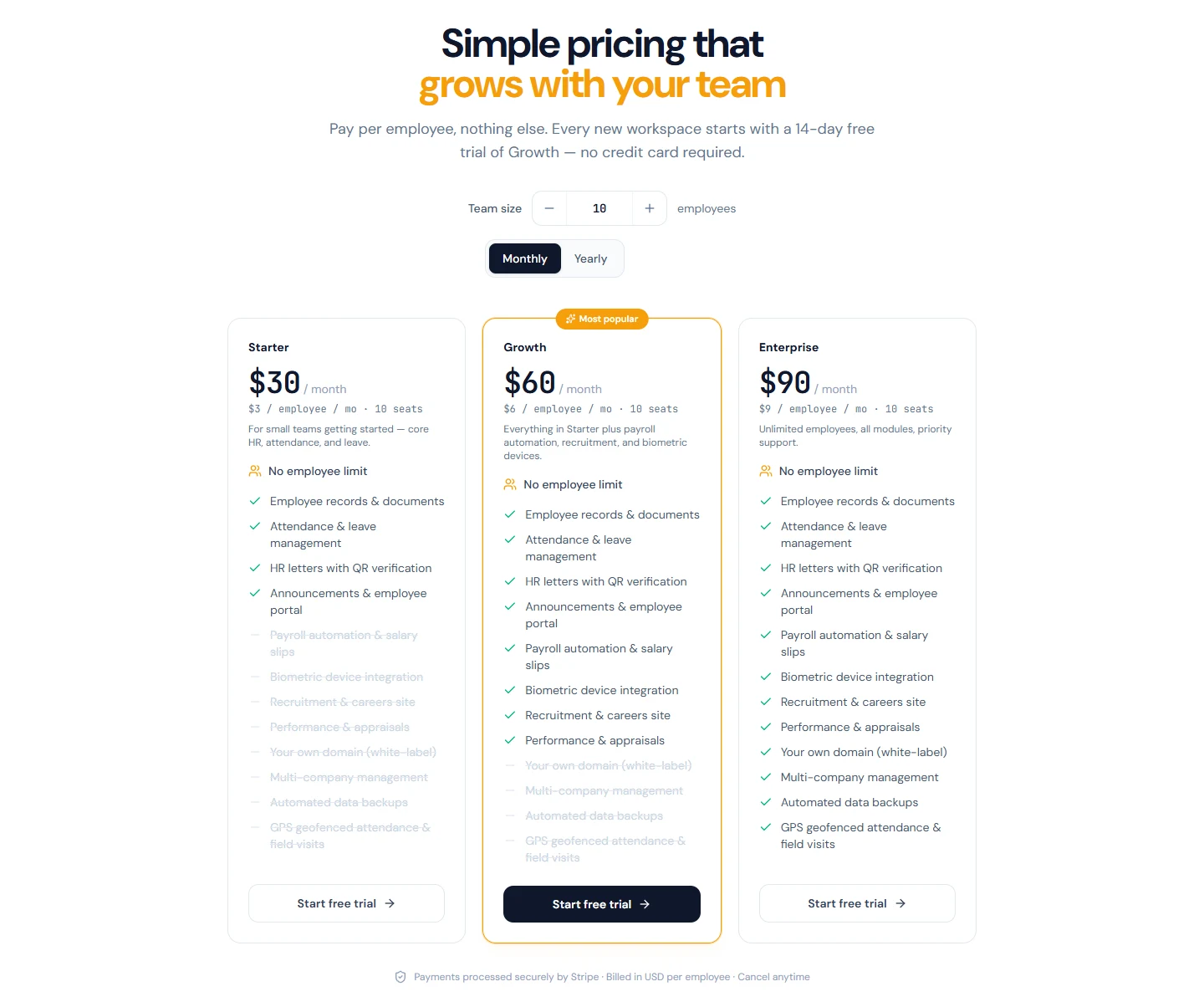
Start free trial on a card begins sign-up with that plan. If you are already signed in to a paid workspace with billing access, the page sends you to your billing screen instead. Chapter 93 covers plans, seats and invoices in depth; for now, note which plan has the features the chapters ahead use. The Payroll, Performance and Recruitment parts need Growth; biometric devices need Growth; GPS attendance and field visits need Enterprise.
4.4 Redeeming a lifetime licence code
Operentra is also sold as a lifetime licence through AppSumo, in tiers that cap the number of employees. A licence is redeemed with a code:
- The buyer arrives at
/redeem/<code>. Signed out, this opens the sign-up form with the code already applied; signed in, it offers Sign out and redeem or Stay signed in. - On the sign-up form the code is checked at once. A valid code shows the plan and its employee limit as "plan — lifetime deal"; an invalid one says whether it is unknown, refunded, or already redeemed.
- Sign-up then proceeds as in 4.1, and the workspace starts on the lifetime plan instead of a trial.
A code bought through AppSumo's own activation flow lands on
/appsumo/activate first, which exchanges AppSumo's one-time code for the
licence and hands over to the redeem page. A licence can only be applied to a
new workspace from the form; applying one to an existing workspace is a
support request.
4.5 Creating an additional workspace
Once you have an account, a second company does not need a second sign-up. Open the user menu in the top bar and choose Create a workspace. Under the form, the page shows "n of limit workspaces used".
Starter and Growth include one workspace per login. Your first workspace is always allowed. Once your account runs a workspace (holds Super Admin in it), it may open another only when a workspace it runs is on Enterprise, or on a custom plan that includes Multi-company. That workspace must also be in good standing: an expired trial, a canceled subscription, a suspended workspace or a deactivated membership does not count, while one whose payment is overdue still does. The same rule applies when you sign up again with an existing email and its password, with one exception: signing up with a valid, unused AppSumo code (4.4) opens its workspace under your login whatever plan you run, because the code pays for it, though the limit on workspaces per account still applies. Until the rule is met, Create a workspace stays in the menu, and its page explains the rule instead of showing the form: "Another workspace needs Enterprise". From a workspace you run, See plans opens Billing to upgrade; from anywhere else the page tells you to switch to a workspace you run and open Billing there.
The rule covers only the workspaces you run. Being invited into another company, as an employee or as a user, is never limited, and the company switcher works on every plan (Chapter 15).
The form is the company half of sign-up — name, country, currency, time zone, terms — because the account half already exists. No email verification is needed: the address was verified when the account was created. Submitting either switches you into the new workspace or, where the operator approves workspaces, shows Workspace submitted for approval.
For the other refusals the menu item is hidden, and the page, if opened, says why: sign-ups are closed, you have reached the limit of workspaces one account may administer, you are signed in as someone else (impersonating), or the account is not linked to a personal identity.
What happens next
- The workspace is provisioned with its defaults, and you are its super admin. Chapter 7 walks the setup checklist that now sits on the dashboard.
- You receive the verification email (if the gate is on) and, later, the trial reminders. Employees receive nothing yet; invitations go out only when you create their records (Chapter 16).
- The trial clock is running. Nothing is lost when it ends — the workspace goes read-only, not away — but plan it so you are not choosing a plan in a hurry.
Common mistakes
- The wrong country. It is locked after sign-up, and it drives payroll, holidays, the fiscal year and the contract. Check the pre-selected value before you submit.
- The wrong currency, for the same reason. A company in Dubai that pays in dirhams needs AED, whatever currency the founder thinks in.
- A personal email for the first admin that later has to be handed over. Sign up with the address that will run the company's HR.
- A second sign-up under another email for a second company, which creates a second account with a second password. Use Create a workspace from the user menu instead, and the company switcher ties them together. On Starter or Growth it needs the upgrade described in 4.5 first.
- Letting the verification link expire. It lasts 24 hours; the pending screen can resend it.
Practice
- Sign up for your workspace at app.operentra.com/register. Use your real company, or a fictional one if you are studying on your own. Before you submit, check the country, the currency and the time zone, and write down why each matters.
- Verify your email if asked, and sign in. You should land on the admin dashboard with a setup checklist; leave the checklist for Chapter 7.
- Open the pricing page and set the team-size stepper to your headcount. Note which plan includes payroll and which includes GPS attendance, and what the yearly toggle changes.
- Open the user menu and choose Create a workspace. Your trial is on Growth, so the page explains why another workspace needs Enterprise. Read it and note where See plans leads; do not upgrade for this.
Quiz
1. Which two sign-up choices cannot be changed afterwards from the company profile, and why?
Answer
Country and currency. Both are load-bearing: the country drives the statutory pack, holidays, fiscal year and documents; the currency labels every stored amount. Changing either would corrupt existing records, so a change is a support request.
2. You already have an Operentra account and are starting a second company. What should you do, and what should you not do?
Answer
Use Create a workspace from the user menu, which adds the new workspace to your existing account and makes the company switcher appear. It opens the form only when a workspace you already run is on Enterprise, or on a custom plan with Multi-company; on Starter or Growth the page explains the upgrade instead. Do not sign up again under another email, which would create a second, separate login.
3. The sign-up form says "Check your email" and nothing arrives. What happens if you do nothing for two days?
Answer
The verification link expires after 24 hours. Use Resend email on the pending screen to get a fresh one.
4. What does the workspace become when the 14-day trial ends without a plan?
Answer
Read-only. Everyone can still sign in and read; nothing can be saved; a banner tells billing admins to choose a plan.
5. A buyer has a lifetime licence code and an existing workspace. Can they apply the code to it from the sign-up form?
Answer
No. The form applies a code to a new workspace only. Applying one to an existing workspace is a support request, and the redeem page says so.