Chapter 33 — Company assets
Every laptop, phone, SIM and badge a company hands out is money walking around the building, and the question "who has it?" comes up at the worst times: a resignation, a theft, an audit, a replacement. Operentra keeps a register of the items, a history of every handover, and a few reminders so that the answer is a lookup rather than an email thread. This chapter is the register from the first category to the leaver's clearance.
What this chapter covers
- 33.1 Asset categories
- 33.2 Adding assets
- 33.3 Issuing assets: condition, expected return
- 33.4 Returns: intact, damaged, lost
- 33.5 Asset detail, statuses and assignment history
- 33.6 The asset register: export and print
- 33.7 Overdue reminders and the daily HR handover digest
- 33.8 What employees see
The concept
An asset register answers three questions about each item: what is it, what state is it in, and who has it. The first is the inventory (tag, model, serial, cost, warranty); the second is a status that changes over the item's life (in the cupboard, out with someone, in repair, written off); the third is custody, and custody has a history. A register that stores only the current holder loses the one thing an HR team actually needs later: the chain, with dates and conditions at each end.
Three habits make the register worth keeping.
Tag everything the day it arrives. An untagged laptop is a cupboard item nobody can issue, and a tag written later rarely matches the sticker.
Record the handover both ways. The condition at issue and the condition at return are what settle a damage dispute; a note at each end ("with charger and sleeve", "cracked screen") is the evidence.
Set a return date only when you mean it. A permanent laptop has no return date and should not be nagged about; a loaner does and should.
How Operentra handles it
- Assets in the menu is the register: categories, items, and the issue and return cycle. My Assets in the portal is the employee's side of it.
- Categories group items; eight are seeded (Laptop, Computer, Phone, SIM, RFID / Access Card, Monitor, Headset, Other) and you can add your own.
- Five statuses (Available, Issued, Maintenance, Retired, Lost) and four conditions (New, Good, Fair, Poor). Issued is reserved: an item becomes Issued only by issuing it and leaves Issued only by returning it.
- Issuing records the holder, the condition at issue, an optional expected return date and a note, and emails the employee. Returning takes an outcome, intact, damaged or lost, which decides where the item lands, and emails the employee a record.
- History: every issue and return is an assignment row with both ends, kept per asset and per employee; an asset's deletion is soft so the history survives.
- Two jobs on workspace time: overdue-return reminders from 09:00 for assignments past their expected return date, and an HR digest at 18:00 of the day's handovers.
- Who:
assets.manage(Super Admin, HR Manager, HR Officer) runs the register;assets.view_all(plus Accountant and Department Head) reads it;assets.view_own(every role) is the portal page. - Connected: the onboarding checklist's "Issue assets" task closes itself once anything has been issued (Chapter 32), and the offboarding clearance's "Assets returned" item flags itself while anything is still out (Chapter 82).
Walkthrough
Northwind's register holds 85 items in five categories, most of them laptops: a MacBook or ThinkPad for nearly everyone with a few spares, some monitors, phones, headsets and SIMs, bought from two suppliers over the last three years. Forty-six are out with people, eight have come back, a handful are in Maintenance or Retired, and none is Lost. Nothing has an expected return date, so nothing is overdue.
33.1 Asset categories
Assets › Categories lists each category with its icon name, a description, how many assets it holds, and Active or Inactive. New Category asks for a name (unique in the workspace), an optional icon (a Lucide icon name such as Laptop or Tablet), a description and an Active switch. Northwind uses the seeded eight; three of them, Computer, Other and RFID / Access Card, hold nothing yet.
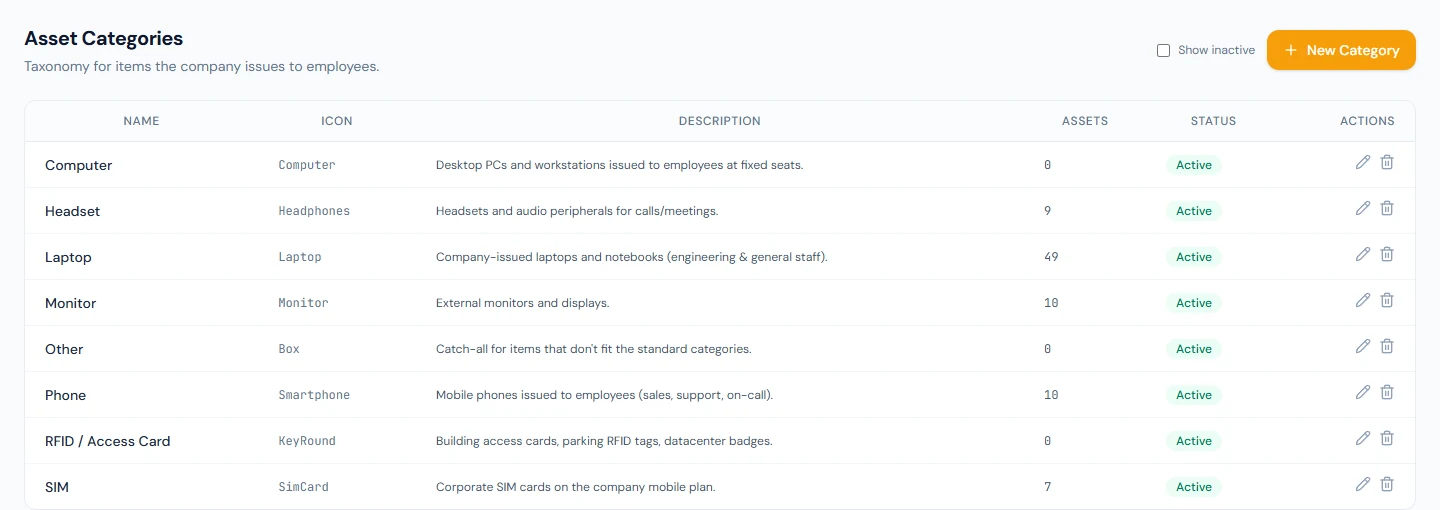
Deleting a category that still has assets does not delete it; the confirmation says so ("In-use categories will be deactivated instead") and the category becomes Inactive, hidden from the picker and from the list until Show inactive is ticked, so the assets that point to it keep their category. Only an empty category is removed outright.
33.2 Adding assets
Assets › All Assets is the register; Add Asset opens the New Asset form:
| Field | Notes |
|---|---|
| Asset tag | Your own label, unique in the workspace; the placeholder suggests LAP-014. Northwind's run NWL-AST-0001 onwards |
| Category | One of the active categories |
| Name | The model, such as ThinkPad X1 Carbon Gen 11 |
| Serial number | Optional; searchable |
| Condition | New, Good, Fair or Poor; Good by default |
| Purchase date, Purchase cost, Warranty expiry, Vendor | Optional. The cost is recorded, not depreciated; the warranty date is shown, not alerted on |
| Notes | Free text |
Saving creates the asset as Available and opens its detail page. A tag must be unique among live assets and also cannot repeat a deleted asset's tag: deletion is soft, and the old row keeps its tag so that history reads correctly. Choose the next number instead.
33.3 Issuing assets: condition, expected return
An Available asset shows Issue on its row in the register and on its detail page. The Issue Asset dialog has four parts:
- Employee: search by name, code or email among active employees (a New or separated person cannot receive an asset).
- Issued condition: "Inherit asset condition" by default, or state it, so the history records what left the cupboard.
- Expected return: optional, and the only thing that makes the overdue reminders of 33.7 apply. Leave it blank for a permanent handout.
- Notes: "Accessories, charger, sleeve, etc." is the placeholder and the right idea.
Issue flips the asset to Issued with the employee as current holder, and the employee receives "You have been issued: ThinkPad X1 Carbon (NWL-AST-0047)" with the tag, name, category, serial, issue date, condition, expected return and your note, and a link to My Assets.
33.4 Returns: intact, damaged, lost
An Issued asset shows Return on its detail page. The Return Asset dialog asks for an outcome, which decides where the item lands:
| Outcome | The asset becomes |
|---|---|
| Returned (intact) | Available, back in the pool |
| Returned (damaged) | Maintenance, for review; its condition becomes Poor unless you state one |
| Lost / not returned | Lost, with the assignment closed as lost |
Returned condition defaults to "No change" (the condition the asset is left in is recorded on the history row too), and Notes are for "cracked screen" or "missing charger". Confirm Return closes the assignment and emails the employee "Return confirmed" with the outcome, the final condition and your note; the email says it is their record of the handover and to contact HR within 7 days if anything is wrong.
An item in Maintenance comes back into service by editing its status to Available, or leaves for good as Retired; a Lost item that turns up is edited back to Available the same way.
33.5 Asset detail, statuses and assignment history
The detail page carries the status pill, the category and condition, and four buttons that depend on state: Issue (Available only), Return (Issued only), Edit, and Delete, which is disabled while the asset is issued ("Return the asset before deleting"). Below are the serial, vendor, purchase date and cost, warranty expiry, and, for an issued item, the current holder, the issue date and the expected return.
Edit changes every field, with one rule: the Status dropdown is locked while the item is issued ("Return the asset to change status"), and Issued itself cannot be chosen by hand, because the only way into and out of Issued is the issue and return cycle. Available, Maintenance, Retired and Lost can be set freely.
Assignment History lists every holder with the issue and return dates, the condition at each end, a status badge (Active, Returned, Damaged, Lost) and the notes from both ends, newest first. Northwind's returned rows all read "Returned on role change."
Delete is a soft delete: the asset leaves the register, its history stays readable from the employee's side, and its tag stays reserved (33.2).
33.6 The asset register: export and print
The register lists Tag, Name, Category, Condition, Status and Current Holder, newest first, with a search box (tag, name or serial), a category filter and a status filter; the Action column offers Issue on Available rows. There is no paging, so a filter is the way to work a large register.
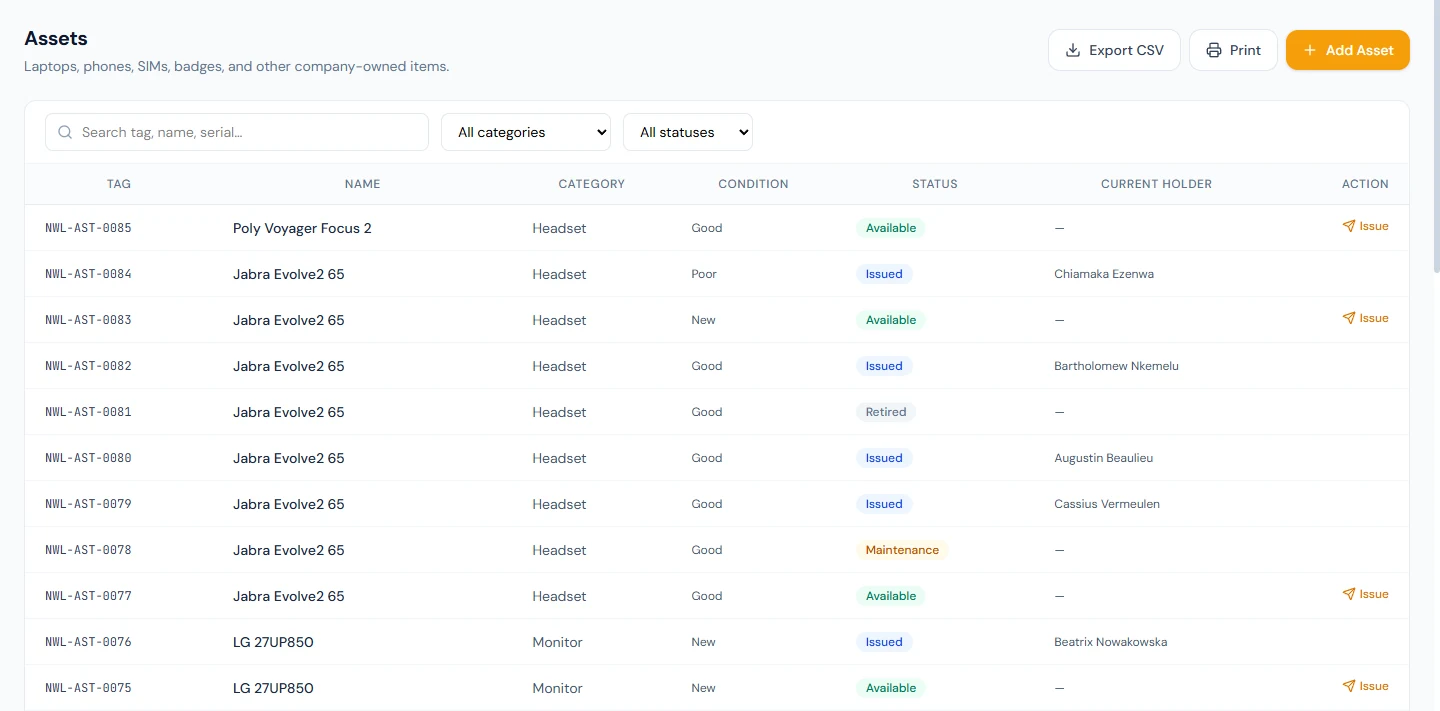
Export CSV downloads the current filter with the same six columns; Print opens the Asset Register sheet, titled, counted ("85 assets") and laid out for paper, which is what an auditor or an insurer asks for. Filter first: the printed sheet is the filtered list.
33.7 Overdue reminders and the daily HR handover digest
Two jobs run on each workspace's own clock.
Overdue return reminders. From 09:00 workspace time, every active assignment whose expected return date is before today earns its holder one email per day: "Overdue: please return ThinkPad X1 Carbon (NWL-AST-0047)", with the issue date, the expected date and the number of days overdue. The reminders stop when the item is returned, and are never sent to someone who is no longer active. Nothing is sent for an assignment without an expected return date, which is why Northwind's register, with none set, is silent.
Daily HR handover digest. At 18:00 workspace time, everyone with
assets.manage receives "Asset handover digest — 21 Oct 2026 (3
events)": counts of issued, returned, and damaged or lost, then the
two lists with tags, names and holders, covering the 24 hours since
the previous digest. On a day with no handovers nothing is sent, and a
workspace in which nobody holds the permission gets none.
Both emails, and the issue and return confirmations, are templates on Settings › Email Templates with their own switches (Chapter 79), and each is also a bell notification in the Assets category for its recipient.
33.8 What employees see
My Assets in the portal has two sections. Currently Holding lists each item out with the employee: tag, asset and category, issue date, expected return, condition on issue and your notes. History lists what they held before, with the dates held, the outcome badge and the notes. Both are read-only; a return is something HR records when the item is in hand, and there is no request flow for new equipment. A login with no employee record sees "No employee profile linked" instead.
What happens next
- Onboarding ticks "Issue assets" on its next open once anything has been issued to the new hire (Chapter 32).
- Offboarding flags "Assets returned" until the leaver's active assignments are closed, by return or by lost (Chapter 82); the overdue email mentions clearance for the same reason.
- The register is the inventory, not the accounts: purchase cost is stored for reference and nothing depreciates it, and there is no bulk import, so a workspace with a spreadsheet of equipment enters it item by item or through the API.
What the employee sees
The issue and return emails as they happen, the overdue reminder when a dated loan runs over, and My Assets in the portal with the two lists above. They cannot report a loss or request a return from the portal; they tell HR, who records it.
Common mistakes
- Setting an expected return date on a permanent laptop. The holder is reminded every morning from the day after. Leave it blank.
- Editing the status to Lost on an issued item. The dropdown is locked; use Return with "Lost / not returned" so the assignment is closed and the employee is told.
- Reusing a deleted asset's tag. It is reserved. Take the next number.
- Deleting a category to tidy up. With assets in it, it is deactivated, not deleted, and stays on the old items; that is the intended result.
- Expecting the digest at the end of a UTC day. It is 18:00 in the workspace's timezone and covers the 24 hours before it.
- Issuing to a New employee. They are not offered; the record must be Active first (Chapter 18), which is why the onboarding checklist puts the contract before the assets.
- Reading "Returned (damaged)" as a write-off. It parks the item in Maintenance; retire it by hand if it is beyond repair.
- Looking for depreciation or a request workflow. Neither exists; the register tracks custody, not book value.
Practice
Use your own trial workspace, not a customer's.
- Open Assets › Categories, add "Tablet" with the icon Tablet, then add an asset in it with a tag, serial, cost and warranty date. Read the detail page.
- Issue it to an active employee with a condition, an expected return date of yesterday and a note. Open Settings › Email Templates and preview the issued email.
- Return it as damaged with a note and no condition. Read the asset's status and condition, then the history row.
- Edit the asset back to Available, issue it again, and try Delete. Then return it intact and delete it; try to add a new asset with the same tag.
- Filter the register to one category, export the CSV and open the Print sheet. Then sign in as the employee and read My Assets.
Quiz
1. What are the only ways into and out of the Issued status?
Issue and Return. The Edit dialog locks the status while an item is issued and never offers Issued as a choice.
2. Where does each return outcome leave the asset?
Intact to Available; damaged to Maintenance, with the condition Poor unless one is stated; lost to Lost.
3. When does an employee receive an overdue reminder?
From 09:00 workspace time, once a day, while an active assignment's expected return date is in the past, provided they are still active. Without an expected return date there is no reminder.
4. Why can a deleted asset's tag not be reused?
Deletion is soft: the row and its history remain, and the tag stays on the row so the history reads correctly.
5. Who receives the handover digest, and when is it skipped?
Everyone holding the manage-assets permission, at 18:00 workspace time; it is skipped on a day with no issues or returns, or when nobody holds the permission.