Chapter 38 — Marking attendance manually
Whatever captures attendance, HR ends up editing it: a terminal that missed a badge, a team on site all day, a half day taken with permission, a Sunday worked and a Wednesday taken off instead. Mark Attendance is the one editor for a day, and it has two shapes, the team on one date and one person across a month. This chapter is what each button writes, why the status sometimes refuses to be what you picked, and how the CSV upload fills a month from a spreadsheet.
What this chapter covers
- 38.1 Daily mode: whole team, one date
- 38.2 Monthly mode: one employee, whole month; the Force lock
- 38.3 Rest-day swaps
- 38.4 Bulk upload by CSV
The concept
Marking by hand is where attendance stops being evidence and starts being judgement, so a good editor keeps the two apart. The punches are what happened; the status is what the policy makes of it. Normally the first decides the second, and the editor should say so by refusing to let a 10:30 clock-in sit under a Present status. But policy sometimes overrides evidence, deliberately: a person kept Present after a hospital morning, a person marked Absent for a disciplinary reason although a punch exists. That override should be explicit, visible and recorded, never a quiet edit. And whatever HR writes should say that HR wrote it.
How Operentra handles it
- Attendance › Mark Attendance opens in daily mode: every employee for one date, with status, clock-in, clock-out and a remark per row, and Submit Attendance writes only the rows you changed. Picking an employee switches to monthly mode: every day of a month for one person, with Save writing only the rows you changed.
- The status is punch-authoritative. When a row has a clock-in and the Force lock is off, the saved status is what the rules make of the times: Present, Late, Half Day, Absent or Early Leave. The calendar statuses (On Leave, Holiday, Weekend, WFH, Comp Off) are never recomputed.
- Force pins the status you chose while keeping the real times on record; ✕ next to a time clears the punch instead.
- Everything HR saves is source Manual; a row HR did not touch keeps its source.
- Rest-day swaps are recorded from the monthly view: a worked weekly-off or holiday against a substitute day off in the same month, paid as if the two had been swapped (Chapter 34).
- Bulk upload takes a CSV of employee code, date, status, times and remarks, up to two thousand rows, checks every row before anything is written, and imports one date at a time so a failed date does not undo the others.
- Who:
attendance.markfor the page and swaps (Super Admin, HR Manager, HR Officer),attendance.bulk_markfor the upload (Super Admin, HR Manager).
Walkthrough
Northwind's record is terminal punches with HR's leave days on top, so the page is mostly for exceptions: the few dozen missing clock-outs, the odd day on site, a half day with permission, the five days HR has already pinned with Force. Nothing here is a swap yet.
38.1 Daily mode: whole team, one date
Mark Attendance opens on today with a department filter and one row per employee: a status dropdown, Clock In and Clock Out fields, and a remark. Rows are pre-filled from what already exists, so a terminal day shows its punches and its graded status.
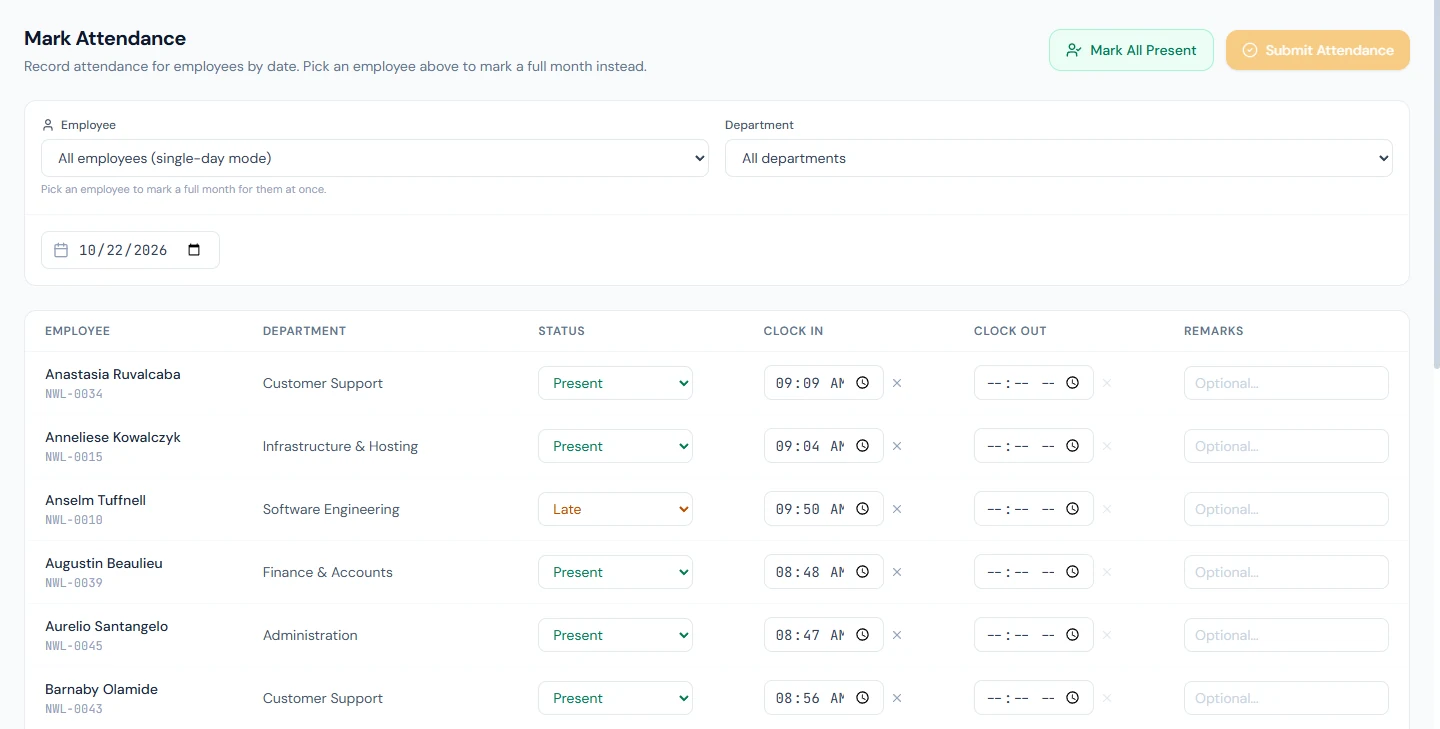
Mark All Present marks every row that is not already Present or On Leave as Present, filling each person's own shift hours where no time is entered; a terminal punch already Present and an approved leave are left exactly as they are. Every row you change is counted on the button, Submit Attendance (3), and Submit writes only those rows, each as source Manual, and confirms "Attendance marked successfully for all employees." A row you did not touch keeps its source and its status, so correcting one person in a department of forty changes one row. With nothing changed, Submit says "No changes to save. Edit a row first."
The statuses offered are the eleven of Chapter 37 minus the two the system writes itself. A remark typed on a row is saved with the day and shows in the CSV export and the printed register.
38.2 Monthly mode: one employee, whole month; the Force lock
Pick an employee and the page becomes their month: one row per day with the same fields, plus a Force checkbox and a Swap Rest Day button. Edited rows are tinted, and Save (N) counts them; only those are written, one at a time, and the confirmation says how many days were updated. Not Marked, Upcoming and Exempt rows cannot be saved as they are; set a status first. Mark All Working Days Present fills every working day that is not already Present, on leave, a weekend or a holiday, with the shift's hours for that day.
Two validations stop a bad row: a graded status needs a clock-in ("Clock-in required for 14 Oct 2026"), and the clock-out must be after the clock-in.
The status follows the punches. Leave Force off, save a row with a clock-in at 10:30 on a nine o'clock shift, and the status comes back Half Day whatever you picked, because the rules in Chapter 36 grade the time; save an Absent row with a punch at 09:02 and it comes back Present. This is deliberate: the times are evidence, and the page will not let a status contradict them silently. The calendar statuses are different: On Leave, Holiday, Weekend, WFH and Comp Off are kept exactly as chosen.
Force is the explicit override. Tick it and the status you chose is pinned while the times stay on record: the hospital morning kept Present, the policy Absent kept Absent over a punch. The checkbox's tooltip says the same, and the Mark Attendance page is the only place the lock can be set; the daily view shows nothing of it and the monthly CSV carries it as Manual Override. A Forced day is also protected from the terminal sync: a later batch of punches updates the times but never the status.
✕ next to a time clears the punch and saves the row with none, which is the right fix for a bogus time (an Auto-Present 09:00 on a day the person was away) where Force would be the wrong tool: the problem is the evidence, not the policy.
38.3 Rest-day swaps
Swap Rest Day on the monthly view opens the swap dialog: this month's swaps, each with its worked and off days and a remove button, and a form with Worked rest day, Substitute off day and an optional reason ("covered Sunday delivery run" is the placeholder). Add Swap records it. The rules are strict and the dialog says which one failed: the two dates must differ, both must be in the same month, the worked day must be a weekly-off day or a holiday for that employee's shift, the substitute must be a working day, and a day can be in one swap only.
The swap does not change the attendance rows; it changes how they are read. The worked day is paid as a normal working day by its status, the substitute is paid as a rest day, and every view tags the two with Swapped and Swap off naming each other (Chapter 37). Mark the worked day Present with its times as usual; the swap does the rest.
38.4 Bulk upload by CSV
Attendance › Bulk Upload takes a file with six columns, employee code, date, status, clock-in, clock-out and remarks, and Download Template gives you one with two sample rows in your own code format. Dates are YYYY-MM-DD, times HH:MM in the company's timezone whatever your computer's, and the status is one of present, absent, late, half_day, early_leave, work_from_home or compensatory_off; leave, holiday and weekend are not importable, because they come from the leave module and the calendar. A file may cover many days and up to two thousand rows.
Choosing a file runs the Check first: a table of every row with its line number, employee, date, status, times and a verdict, Ready or a reason (no employee with this code, date must be YYYY-MM-DD, clock- out is not after clock-in, this employee and date appear earlier in the file, remarks longer than 500 characters). Nothing is written until every row is Ready; fix the file and choose it again. Import N rows then writes the file one date at a time through the same path as the monthly Save, so the statuses are graded from the times and the rows carry source Import. A date that fails is reported on its own ("14 Oct 2026: 3 rows not saved") and the other dates stay imported.
What happens next
- Daily Attendance shows the result at once with its new source (Chapter 37); payroll reads the month as it now stands (Chapter 55).
- A Forced day stays Forced until HR unticks it; the terminal sync and the recompute that follows a shift change leave the status alone.
- A regularization (Chapter 39) is the employee's route to the same edit, with a manager's approval and an audit remark.
What the employee sees
The edited day in their portal month with its new status and times, and Manual as its source. They are not notified of a manual edit; a regularization is the flow that tells them.
Common mistakes
- Using Mark All Present to fix one person. It changes everyone who is not Present or on leave; edit the one row instead.
- Trusting the filled times for an irregular day. Mark All Present fills the shift's hours; a day someone left early needs its real clock-out.
- Fighting the status. It follows the punches by design. Clear the punch if the time is wrong, Force if the policy says otherwise.
- Forcing a bogus time. Force keeps the time on record. Use ✕.
- Marking a worked Sunday Present and expecting pay. The calendar still sees a rest day; record the swap.
- Importing leave or holidays by CSV. Not importable; the leave module and the holiday list own them.
- Uploading and walking away. Read the per-date failures in the result; the other dates are in.
- Leaving Force on after the reason has passed. The day stays pinned through every recompute.
Practice
Use your own trial workspace, not a customer's.
- Open Mark Attendance for yesterday, filter one department, and read the pre-filled rows and their sources in Daily Attendance after a Submit.
- Pick an employee, set a clock-in of 10:40 on a past day with Present chosen and Force off, save, and read the status that came back. Then tick Force, choose Present, save, and read it again.
- Clear a punch with ✕ on a day with an Auto-Present time and save.
- Record a rest-day swap for a past weekend and a weekday in the same month; read the two tags in Daily Attendance; remove the swap.
- Download the CSV template, add a row with a bad date and one with an unknown code, upload it, read the Check, fix it, and import.
Quiz
1. What does Submit Attendance write in daily mode?
Only the rows you changed, each as source Manual, with the status re-derived from the times unless Forced; untouched rows keep their source and status.
2. Why can a saved status differ from the one you picked?
With a clock-in present and Force off, the rules grade the times and the graded status is saved. The calendar statuses are kept as chosen.
3. When is Force the right tool, and when is ✕?
Force when the time is real but policy decides otherwise; ✕ when the time itself is wrong.
4. What must be true of a rest-day swap's two dates?
Different days in the same month; the worked one a weekly-off day or holiday for the employee's shift, the substitute a working day; each in one swap only.
5. What happens when one date in a CSV import fails?
That date's rows are reported as not saved and the other dates stay imported; nothing is written at all until the Check shows every row Ready.