Chapter 31 — Employment contracts
Part 6 is the paperwork that turns a hire into an employee: the contract they accept, the onboarding that follows, and the policies they acknowledge. This chapter is the contract itself. Operentra treats it as a record with a status, a number and a salary that payroll agrees with, and as a document the employee reads and accepts in the portal, which is what activates them. Chapter 18 covered the activation; this chapter covers everything else about the agreement, from the first draft to the day it expires.
What this chapter covers
- 31.1 Contract types and when to use each
- 31.2 Creating a contract (the salary prerequisite)
- 31.3 Activating and previewing the agreement
- 31.4 Employee electronic acceptance and the legal record
- 31.5 Download formats: digital, stamp-paper overlay, plain print
- 31.6 Witnesses
- 31.7 Renewing (and renewal history), terminating, revoking acceptance
- 31.8 Expiring contracts
- 31.9 Contract templates: clone, edit, languages, placeholders
The concept
An employment contract does three jobs. It states the terms both sides agreed: role, pay, hours, leave, notice, the clauses that protect the company's information. It proves the agreement happened: a signature, a date, and evidence that the person who signed was the person named. And it has a life: a start, often an end, renewals, and a termination that is recorded rather than assumed.
The failures are familiar. A contract that states a salary payroll does not pay. A signed copy that cannot be found at the tribunal. A fixed-term agreement that quietly ran out two years ago while the person kept working. A template copied from another company, or another country, that cites a law that does not apply here.
Operentra's design answers each: the salary on the contract comes from the salary assignment, not a text box; the acceptance is recorded with the time, address and device, and the paper copy can be uploaded beside it; an hourly job marks lapsed contracts expired and a page lists the ones about to; and the agreement template is chosen for the workspace's country and cites that country's law, or none.
How Operentra handles it
- Four types: Permanent, Fixed Term, Probationary, Consultant. Five statuses: Draft, Active, Renewed, Terminated, Expired.
- No contract without a salary assignment. The gross salary is pre-filled from the employee's current assignment and the contract links to that structure; the form will not submit without one.
- A draft becomes Active by HR's hand, which also issues the appointment letter. Acceptance by the employee is separate: it records the signature evidence and activates a New employee, and it works on the latest contract whatever its status.
- Acceptance locks the terms. An accepted contract, or one with a signed paper copy uploaded, cannot be edited; Revoke Acceptance clears the evidence, with a logged reason, to unlock it.
- The agreement is a template rendered with live data: the employee's post, salary, shift hours, working days, attendance rules, leave policies, reporting line, the country's statutes, the witnesses and the acceptance stamp. The workspace's own clone of the standard agreement wins; else the library agreement for the country pack; else the generic one, in the workspace's document language.
- Three PDF variants where stamp paper is used, two elsewhere.
- Renewal replaces: the old contract becomes Renewed and a new Active one starts where it ended, with a history entry.
- Expiry is automatic: every hour, an Active contract whose end date has passed in the workspace's time zone becomes Expired, and a settled leaver's contract becomes Expired or Terminated.
- Who:
contracts.viewto see;contracts.createto draft and renew;contracts.updateto edit, activate, terminate, upload a signed copy, set witnesses and revoke. Templates follow the same three. Super Admin, HR Manager and HR Officer hold view and create; update is Super Admin and HR Manager. - No emails. The contract module sends none; the employee finds the agreement in the portal, and the appointment letter issued at activation lands under their Letters.
Walkthrough
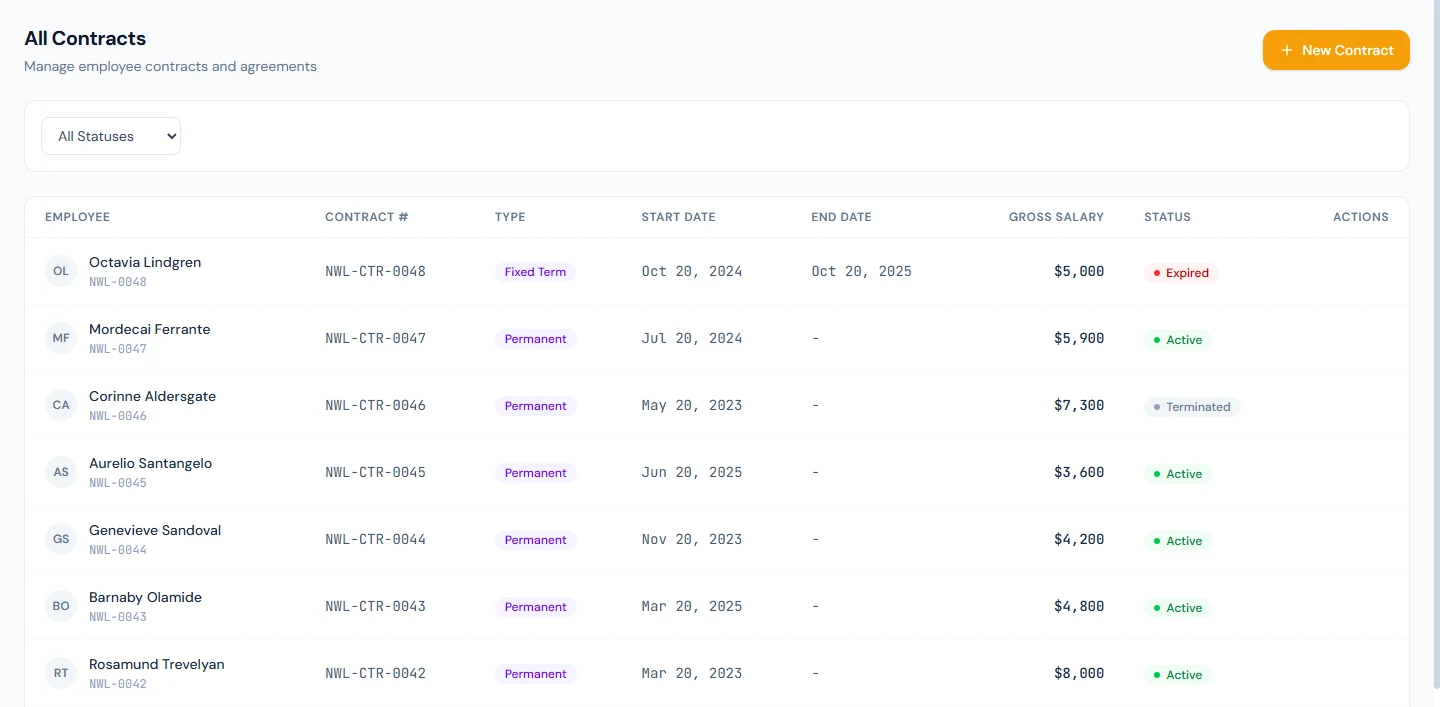
Northwind Labs has 51 contracts. 44 are permanent and active and one is fixed term (Rosalind Whitlock, NWL-0032, a contract content writer whose agreement ends on 20 December 2026), all accepted electronically. The two newest hires' contracts, Lucia Ferrero's (NWL-0049) and Clementine Hargrove's (NWL-0050), are Active and await their acceptance. The leavers' are closed: Corinne Aldersgate's and Mordecai Ferrante's Terminated, and Octavia Lindgren's (NWL-0048) first twelve-month term Renewed into a second, NWL-CTR-0048-2, which ran to the last working day, 20 July 2026, and is Expired. None has a paper copy or witnesses.
31.1 Contract types and when to use each
| Type | Use it for | End date |
|---|---|---|
| Permanent | Open-ended employment | None |
| Fixed Term | A role that ends on a date: a project, a cover, a season | Required |
| Probationary | A trial period written as its own agreement, to be replaced on confirmation | Usually the probation end |
| Consultant | A contractor or consultant engagement | Usually set |
The type changes nothing in payroll or attendance; those read the employee record and the salary assignment. It changes three things: whether an end date is required (Fixed Term), what the agreement is headed, and whether the contract will one day expire on its own (anything with an end date). Most workspaces use Permanent with probation months on it rather than a separate Probationary contract; Northwind does.
31.2 Creating a contract (the salary prerequisite)
Contracts › New Contract (or the Create contract link on an employee's activation checklist, which arrives with the employee chosen) opens the form:
| Field | Notes |
|---|---|
| Employee | Search by name. Current employees and New (pending activation) hires; people who have left are excluded. |
| Contract type | The four above. |
| Start date | Pre-filled with the joining date. |
| End date | Required for Fixed Term; "Leave empty for permanent contracts". Must be after the start. |
| Probation Period (Months) | Pre-filled from the employee's probation end date when one is set (Chapter 24). |
| Gross Salary | Pre-filled from the current salary assignment, with the structure named under it. Editable, but a changed figure is flagged: "Changed — this contract will state a different figure from payroll." |
| Terms and Conditions | Free text, printed in the agreement's terms section when filled. |
| Pre-existing intellectual property | Inventions, works or know-how the employee owned before joining and keeps, one item per line. The agreement's Schedule A prints it; left empty, the schedule reads "None disclosed". |
Choosing an employee with no salary assignment turns the form amber: the salary cannot be invented, Assign a salary structure links to Payroll › Employee Salaries (Chapter 52), and Create stays disabled. This is deliberate: a signed contract stating a figure payroll never reconciled is the worst document in an HR file.
Create Contract saves it as Draft with a number in the form CON-2026-00049 (the year and a sequence per workspace; Northwind's demo numbers follow their own NWL-CTR pattern because they were imported). On its page, Edit beside Pre-existing intellectual property changes the declaration while the contract is not yet accepted or signed, and not terminated or renewed; the witnesses have their own dialog (31.6). The page has no form for the other terms, so check them before you create. Nothing has reached the employee yet.
31.3 Activating and previewing the agreement
Open the contract. The detail page shows the status pill, the employee and contract numbers, type, start and end, probation end (derived from the start date and the probation months), gross salary, the terms, the pre-existing intellectual property declaration ("None disclosed" when empty), the witnesses block, the signed-copy block and the renewal history. Four actions sit at the top: View Agreement, Download, Activate (drafts only), and later Renew, Terminate and Revoke Acceptance.
View Agreement renders the document as the employee will see it: a banner saying whether it has been accepted, then the agreement on the workspace letterhead: parties, post and reporting line, start date and probation clause, salary table from the assignment, working days and hours from the employee's shift, the attendance rules from Settings (grace period, late thresholds and their consequences), the paid-leave table from the employee's leave group (its Pay column reads "Paid", or the share for a type paid at a reduced rate, such as "50%"; Chapter 45), overtime, confidentiality and intellectual property, the post-employment restraint, governing law with the country pack's statutes, the electronic-acceptance clause, the signature blocks, and Schedule A — Pre-Existing Intellectual Property, which prints the declaration from the contract, each item on its own line, or "None disclosed". The template is chosen for the workspace: its own clone if it made one, else the library agreement for its country (a UAE workspace gets the Decree-Law agreement), else the generic agreement, in the document language with English as the fallback. Open in new tab gives the full page.
Read it before activating. Everything in it is live data, so an employee with no shift gets "as per company schedule", a leave group with no paid types gets an empty table, and a missing reporting manager leaves that line blank; fix the record, not the document. Schedule A says that anything not disclosed in it is company property, so ask the employee what they bring and record it before they accept.
Activate (with a confirmation) makes the draft the live agreement: status Active, and an appointment letter issued from the workspace's active appointment-letter template with the designation, department, salary, start date and reporting manager, under the employee's Letters (Chapter 76). Only a draft can be activated. Activation does not notify the employee and does not need their acceptance; the two are independent, which is why Northwind's imported contracts are Active and accepted while a fresh hire's is typically Active first and accepted a day later.
31.4 Employee electronic acceptance and the legal record
The employee opens My Employment Agreement in the portal (Chapter 18 covered the activation side). The page shows the contract number and status, the agreement document, and an acceptance panel that stays disabled until they have scrolled to the end: a checkbox, "I have read, understood, and agree to be legally bound by the terms and conditions of this Employment Agreement, including the confidentiality, data security, intellectual property, and non-compete clauses", and Accept & Continue, with a confirmation that names the statute.
What is recorded: the acceptance time, the IP address and the browser string, on the contract, and an acceptance stamp rendered into the digital agreement: "This Agreement was electronically accepted by" the employee's name and identity number, the date, the IP address and the device string. The portal and the agreement name the law that makes the acceptance binding when the country pack has one: for a United States workspace, the Electronic Signatures in Global and National Commerce Act (E-SIGN) and the Uniform Electronic Transactions Act (UETA) as enacted in the State of employment; for the United Arab Emirates and others, theirs; for a country without a modelled pack, the acceptance is recorded as a fact and no statute is claimed. The detail page shows a Signed badge with the tooltip "Electronically accepted — terms are locked".
Acceptance applies to the employee's most recent contract, Draft or Active, and can happen once; a second attempt is refused. A New employee becomes Active on acceptance and their pro-rata leave is allocated (Chapter 18).
The paper route is the same evidence from the other side: Upload signed copy on the detail page takes the scanned agreement (PDF, JPG or PNG) and the date signed, locks the contract the same way, and activates a New employee. A contract can hold both an electronic acceptance and a signed copy; the badge tooltip then reads "E-signed and physically signed".
31.5 Download formats: digital, stamp-paper overlay, plain print
Download opens "Download Agreement": the same content in formats for different uses.
| Variant | For | What differs |
|---|---|---|
| Digital Copy | Email, the HR file, the employee's archive | Full colour on the letterhead, with the logo and the company seal; the acceptance stamp once accepted; witnesses only if set |
| Plain Print Copy | Printing on white paper to sign in ink | Black and white, simplified letterhead, no backgrounds; witness lines always printed, blank if none set |
| Stamp Paper Overlay | Printing onto pre-stamped judicial paper | The top of page one left blank for the stamp; monochrome, serif. Offered only where the country pack says contracts are executed on stamp paper (Pakistan); a US workspace never sees it |
The employee's portal download is always the digital copy. The file is named after the contract number with a suffix for the print variants, and every variant carries the same clauses; the difference is presentation.
31.6 Witnesses
Set Witnesses (or Edit Witnesses) on the detail page takes two slots, each either picked from the employee list or entered by hand: full name, identity number, and an optional designation. Witnesses appear on the printable copies always, as filled or as blank lines for handwriting, and on the digital copy once set. They are part of the terms: once the contract is locked by an acceptance or a signed copy, witnesses cannot be changed without revoking first.
Use them when the agreement will be signed on paper and your practice or jurisdiction expects attestation. A workspace that only ever uses electronic acceptance can leave them empty; the digital copy then shows no witness block at all.
31.7 Renewing (and renewal history), terminating, revoking acceptance
Renew is offered on an Active or Expired contract. The dialog asks for the new end date (after the current end date, or after the start if there is none), an optional new salary, and a required reason. Renewing does three things in one step: writes a renewal entry on the old contract (previous and new end dates, previous and new salary, the reason, who and when), marks the old contract Renewed, and creates a new Active contract starting where the old one ended with the same type, structure, terms and pre-existing intellectual property declaration, the new salary if one was given, zero probation months and a fresh number. The old contract's page keeps the Renewal History table.
Two things renewal does not do. It does not change the salary assignment: a new salary on the renewal is the contract's figure, and payroll needs its own increment (Chapter 57) or the two will disagree. And it does not ask the employee to accept again: the new contract is Active at once, the portal now shows it as the latest agreement with "Pending electronic acceptance", and whether you ask for that acceptance is your policy.
Terminate is offered on an Active contract, with a confirmation that says it cannot be undone. It sets the status to Terminated and nothing else: no reason is recorded, no letter is issued, and the employee's status is untouched. Terminating a contract is a record of the agreement ending early; the employment ends through offboarding (Chapter 82), which writes its own status when the settlement closes.
Revoke Acceptance appears on a locked contract. The dialog shows what is on file (electronic acceptance with its date, a signed copy with its date), warns that it clears both and that the employee will need to accept the updated contract again, and asks for a reason of at least five characters, which is written to the server log. After revoking, the declaration and the witnesses are editable again; the uploaded file stays in storage and only its reference is cleared. This is for a contract created in error or a salary that needs correcting before the person starts; it does not reverse an activation.
31.8 Expiring contracts
Contracts › Expiring lists Active contracts whose end date falls within a window: 7, 15, 30, 60 or 90 days, 30 by default, with a countdown pill per row (red inside a week, orange inside fifteen days, amber inside thirty) and a link to each contract. "All contracts are safe within the next 30 days" is the empty state. Northwind's one fixed-term contract, ending in December, appears only when the window is widened to 60 or 90 days.
Nothing is emailed from this list; it is HR's queue, to be checked as part of the monthly routine. Decide each row: Renew, Terminate, or let it run out.
Letting it run out is now handled. Every hour, Operentra marks any Active contract whose end date is before today in the workspace's time zone as Expired: the last day of the term is still active on that day, and Expired follows the next morning. A workspace with no time zone set is skipped rather than guessed, so Company Profile's time zone (Chapter 8) matters here too. An expired contract can be renewed, and a settled leaver's Active contract is closed as Expired (end of term) or Terminated (any other separation) by the same job, or by the settlement itself.
31.9 Contract templates: clone, edit, languages, placeholders
Contracts › Templates is the gallery behind View Agreement. It lists the workspace's own templates and the system library relevant to its country: the "Standard Employment Agreement" design in English, Arabic, French, German and Spanish for a generic workspace, or the country pack's own design where one exists (a UAE workspace sees its Decree-Law agreement in English and Arabic instead). Library rows carry a System template badge and are read-only: "Shared read-only template maintained by the platform. Clone it to create your own editable copy."
Clone copies the design into the workspace, every language variant at once, as "Standard Employment Agreement (Copy)" or under the same name. Rename the clone to exactly "Standard Employment Agreement" and mark it active, and it becomes the agreement every new render uses for this workspace; keep the "(Copy)" name and it is a template you can link to a contract through the API but not from the form, which has no template picker. A cloned template records which library version it came from; later improvements to the library no longer reach it.
Add Template and Edit open a form with a name, a contract type and the content as HTML with double-brace placeholders: the hint names the employee's first name, the gross salary, the company name and the job description as examples, and the library agreement is the full reference for everything else the renderer supplies (parties, salary table, working hours, attendance rules, leave policies, legal block, witnesses, acceptance stamp, variant flags). Preview renders any template, saved or not, with sample data and the workspace's real name and logo, at desktop, tablet and mobile widths. Delete removes an own template; a library row cannot be deleted or edited in place.
Each language variant is a row of its own; the renderer picks the variant for the workspace's document language and falls back to English, and stamps the contract with the language it was first rendered in, which it keeps even if the document language changes later.
What happens next
- Activation issues the appointment letter; acceptance or a signed copy activates a New employee and allocates leave (Chapter 18).
- The contract and payroll stay two records. The salary assignment is what pays; the contract is what was agreed. The form flags a difference at creation and the detail page shows the figure; keep them equal with an increment (Chapter 57) rather than an edit.
- Onboarding reads the contract: the "Create employment contract" and "Contract accepted or signed" tasks on the new hire's checklist close themselves when the contract exists and is accepted (Chapter 32).
- Offboarding closes it: a settled separation marks the contract Expired or Terminated (Chapter 82).
What the employee sees
| Moment | Portal |
|---|---|
| Contract created or activated | Nothing until they open My Employment Agreement; no email |
| Opening the agreement | The document, a "Pending electronic acceptance" banner, the acceptance panel after scrolling to the end, the statute named when there is one |
| After accepting | "Agreement Accepted" with the date; the digital PDF to download; the acceptance stamp in it |
| Appointment letter | Under Letters, issued at activation |
| Renewal | The new contract as the latest agreement, again pending acceptance |
Common mistakes
- Typing the salary. The figure is pre-filled from the assignment for a reason. If it is wrong, fix the assignment, then create the contract.
- Activating without reading the agreement. Everything in it is live data; a missing shift or leave group produces a thin document. View Agreement first.
- Expecting acceptance to require activation, or the reverse. They are independent. Activate so the appointment letter issues and the contract is the live one; the employee accepts when they read it.
- Editing a locked contract. The declaration and witnesses are frozen by the acceptance or the signed copy. Revoke with a reason, edit, and ask for a fresh acceptance.
- Renewing with a new salary and no increment. The contract says one figure and payroll pays another. Do the increment with the same effective date.
- Terminating a contract to end an employment. It only closes the agreement. Separation, clearance and settlement live in offboarding.
- Leaving the time zone unset. The hourly expiry skips workspaces with none; fixed-term contracts then stay Active past their end.
- Assuming a template from the library is editable. It is read only. Clone it on Contracts › Templates, edit the clone, and the clone is used for every new render.
- Leaving the declaration empty for someone who brings their own work. Schedule A then reads "None disclosed", and the agreement treats anything not disclosed as company property. Fill it in before they accept.
Practice
Use your own trial workspace, not a customer's.
- Pick a test employee without a salary assignment. Open Contracts › New Contract, choose them and read the amber notice. Assign a salary (Chapter 52), return, and watch the fields pre-fill.
- Create a Fixed Term contract ending three months out, with two lines under Pre-existing intellectual property. Open it, View Agreement, and find the four places that came from somewhere else than the form: the shift hours, the attendance rules, the leave table, the governing law. Then find your two lines in Schedule A.
- Activate it. Open the employee's Letters and find the appointment letter. Open Download and note which variants your workspace offers.
- Sign in as the employee, open My Employment Agreement, scroll to the end and accept. Back as HR, read the Signed badge tooltip and note that Edit beside the declaration has gone, then Revoke Acceptance with a reason and find it back.
- Renew the contract with a later end date and a reason. Open the old contract and read its Renewal History; open the new one and note its status, number and probation months. Then open Contracts › Expiring at 90 days.
Quiz
1. Why does the form refuse an employee with no salary assignment?
Because the contract's gross salary comes from the assignment, so the signed document and payroll state the same figure. The form offers a link to assign one and keeps Create disabled until it exists.
2. What is the difference between activating a contract and the employee accepting it?
Activating is HR's step: the draft becomes the live agreement and the appointment letter is issued. Accepting is the employee's step: the signature evidence is recorded, the terms lock, and a New employee becomes Active. Either can happen first.
3. What does a renewal create, and what does it leave alone?
A renewal entry on the old contract, the old contract marked Renewed, and a new Active contract starting where the old one ended. It does not change the salary assignment and does not require a new acceptance.
4. When does an Active fixed-term contract become Expired?
The hourly job marks it Expired once its end date is before today in the workspace's time zone, so the last day of the term is still active. A workspace with no time zone is skipped.
5. Which download variants does a United States workspace see, and why not the third?
Digital Copy and Plain Print Copy. The Stamp Paper Overlay is offered only where the country pack says agreements are executed on judicial stamp paper, which the US pack does not.