Chapter 78 — Announcements
A new office opens, open enrolment closes on Friday, the travel policy changes. HR needs a place to say it once, to the right people, and know it reached them. Email alone scatters these notices across inboxes; an announcement board keeps the current ones in one place in the portal, with an email for the ones that cannot wait.
What this chapter covers
- 78.1 Creating an announcement: audience, priority, category
- 78.2 Scheduling, expiry, pinning, email notification
- 78.3 Draft, published, archived; categories
- 78.4 What employees see and read tracking
The concept
Good internal communication targets its audience, says how much it matters, and has a shelf life. A notice for the Denver office should not reach London; an urgent one should look urgent; and last quarter's all-hands link should leave the board once it is stale. Fewer, better-aimed announcements get read; a board everyone ignores is worse than none.
How Operentra handles it
- Announcements in the admin menu has All Announcements, Create and Categories; employees read them under Announcements in the portal and in the Recent Announcements panel of their portal home.
- An announcement has a title, a body, a priority (Normal, Important or Urgent), an optional category, and an audience: all employees, or chosen departments, branches, roles or people.
- Publish At schedules it; Expires At ends it; Pin keeps it at the top; Send Email Notification emails the audience when it goes live, with a bell notification for those who sign in.
- It is a draft until published, and is archived when done.
- Who:
announcements.manageto write and publish (Super Admin, HR Manager, HR Officer); every role reads them.
Walkthrough
Northwind has seven announcements: "Northwind Labs opens the Denver office" and "Open enrollment closes 15 November", pinned; three more published; "Spring charity run results", archived; and "Security training — mandatory by year end", a draft.
78.1 Creating an announcement: audience, priority, category
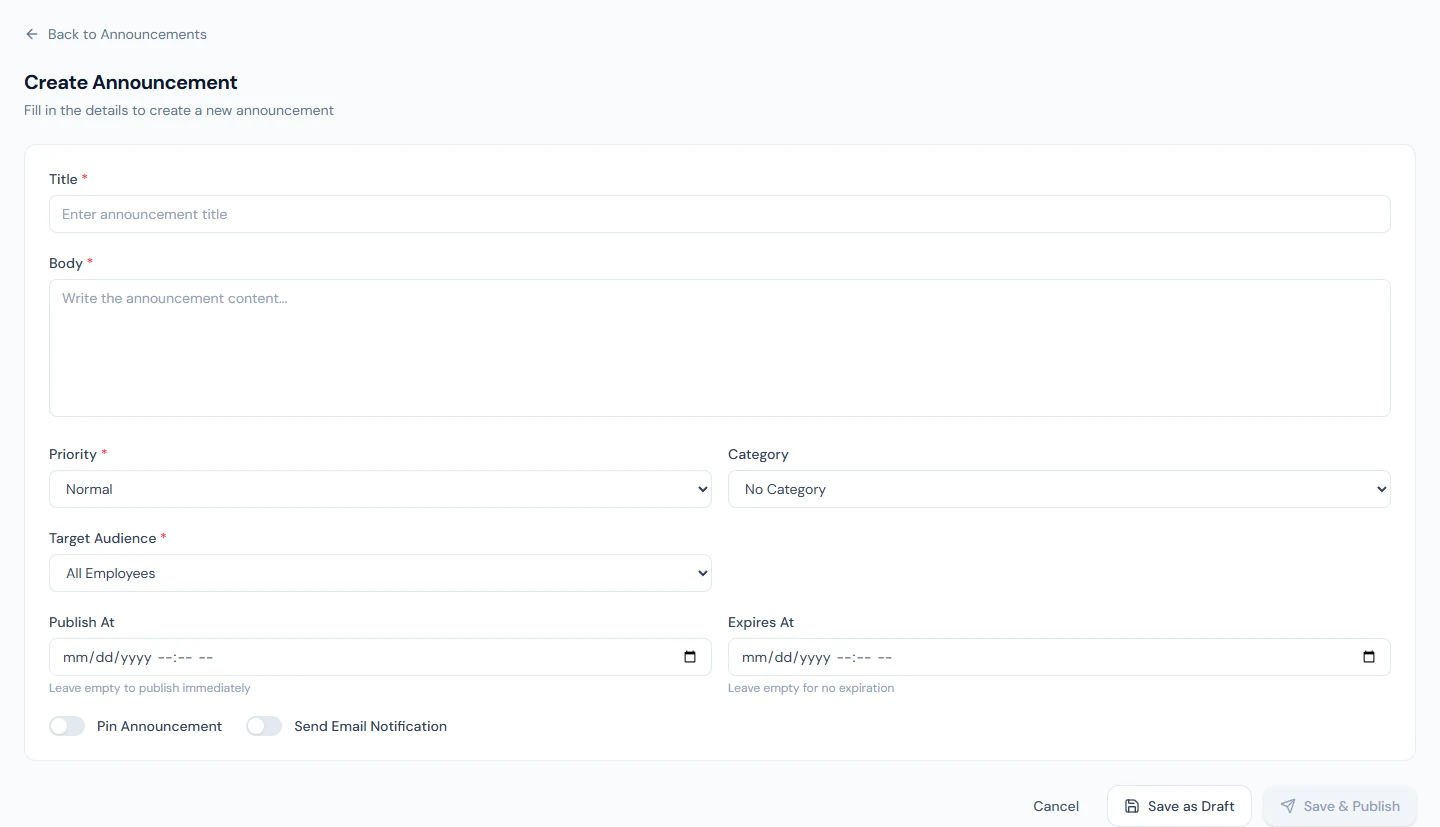
Announcements › Create asks for a Title, the Body (plain text; line breaks are kept), the Priority (Normal, Important, Urgent), an optional Category, and the Target Audience:
| Audience | Who sees it |
|---|---|
| All Employees | Everyone |
| Department | Employees of the departments ticked |
| Branch | Employees of the branches ticked |
| Role | Users holding the access roles ticked (Department Head, HR Manager, …) |
| Specific Employees | The people ticked |
Role means an access role (Chapter 14), not a job title. An announcement for the security training would go to everyone; a note about the Denver office car park to that branch only.
78.2 Scheduling, expiry, pinning, email notification
Publish At holds a published announcement back until that time ("Leave empty to publish immediately"); Expires At removes it from the board at that time ("Leave empty for no expiration"). Both are entered in your local time. Pin Announcement keeps it above the rest. Send Email Notification emails each person in the audience once, when it goes live: at publication, or within ten minutes of a scheduled Publish At. The email, "… — Northwind Labs, Inc.", carries the title and the first lines as written, with the rest of the email in each recipient's language; those who sign in also get a bell notification. Only active employees with an email address are mailed.
78.3 Draft, published, archived; categories
Save as Draft keeps it private; Save & Publish asks "Save and publish this announcement?" and makes it visible to its audience (from Publish At, if set). The list, with tabs All, Draft, Published and Archived, offers Publish and Edit on a draft, Archive on a published one and Delete on any, which removes it for good. A scheduled or expired announcement still reads Published; it is simply not on the board outside its dates. Archive it when it no longer matters.
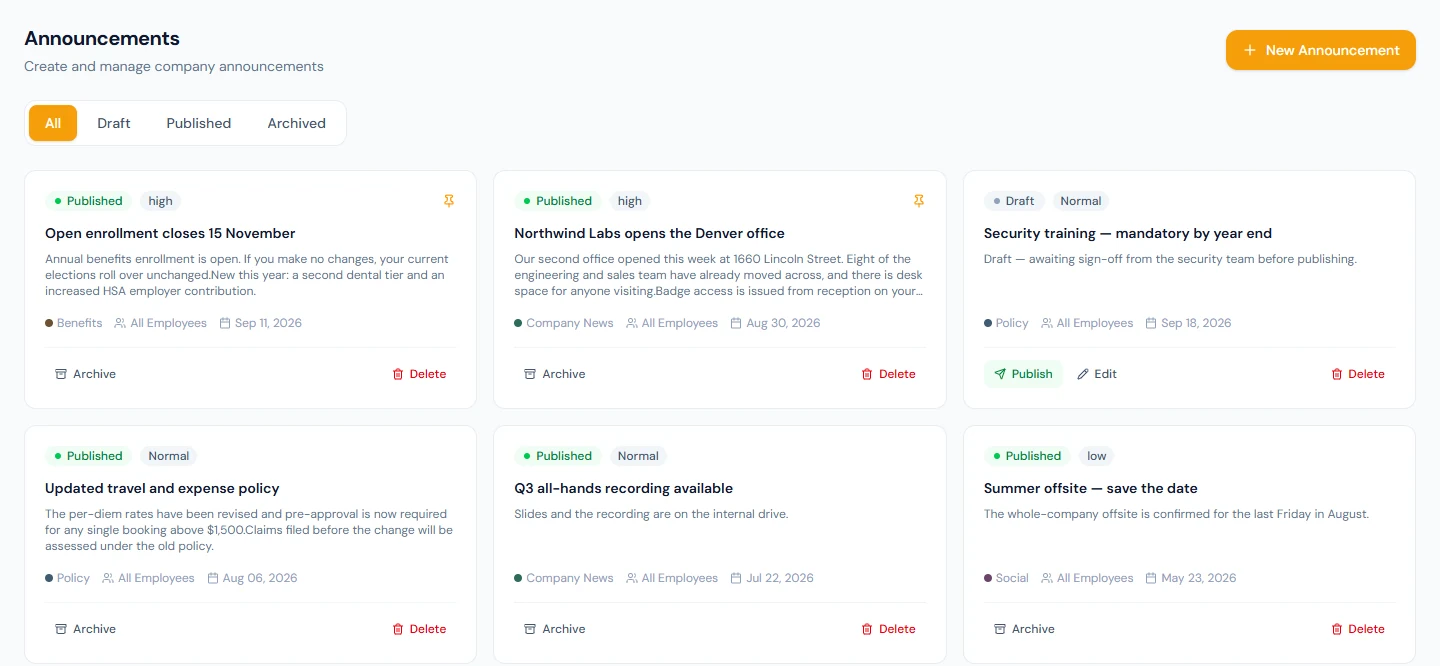
Categories ("Organize announcements with color-coded categories") have a name and a colour: Northwind uses Company News, Policy, Benefits and Social. Deleting a category leaves its announcements uncategorised.
78.4 What employees see and read tracking
The portal's Announcements page lists the live announcements for the person signed in, pinned first, then newest, each with its priority, category, date and author (or "by a former employee" when the author's data has since been erased, Chapter 92; the announcement itself stays); Read opens the full text and any expiry date. The portal home's Recent Announcements shows the five newest from the same list. Opening an announcement with Read records that the person read it; the record is kept, but no screen shows it to admins yet, so do not rely on it. For a policy everyone must confirm, ask for an explicit acknowledgment instead.
What happens next
- Chapter 79 covers the emails Operentra sends, the announcement email among them.
What the employee sees
The announcements meant for them, pinned ones first, on the portal home and the Announcements page, and an email for the ones sent with a notification.
Common mistakes
- Everything to everyone. Target the audience, or people stop reading.
- Everything urgent. Keep Urgent for what is.
- No expiry on time-bound notices. Stale items crowd the board.
- Scheduling a draft. Publish At only applies once it is published; publish it with the future date.
- Email on every announcement. Save it for what cannot wait.
- Treating "read" as agreement. A read is not an acknowledgment.
Practice
Use your own trial workspace, not a customer's.
- Create a category and an announcement for one department, scheduled for an hour from now, with an email.
- Publish it; sign in as someone in that department and someone outside it, and compare their boards before and after the hour.
- Pin it, then archive it, and check the board again.
Quiz
1. What does "Role" target?
Users holding the chosen access roles, not job titles.
2. When is a scheduled announcement emailed?
When it goes live: within ten minutes of its Publish At, once.
3. What happens at Expires At?
It leaves the board; its status stays Published until it is archived.
4. Who receives the email?
Active employees in the audience with an email address; those who sign in also get a bell notification.
5. Can admins see who has read an announcement?
Not yet: reads are recorded but not shown.