Chapter 93 — Plans and billing
An HR system is paid for, and HR is often the team that owns the subscription. Knowing how the bill is worked out avoids surprises: why it rose after a hiring month, why a feature shows a lock, what happens when a trial ends or a card fails. This chapter covers the plans, the trial, seats, the Billing page and the states a workspace can be in.
What this chapter covers
- 93.1 Plans and what they include
- 93.2 The free trial
- 93.3 Seats: what you pay for
- 93.4 The Billing page: plan, cycle, seats, invoices
- 93.5 Offer codes and lifetime licences
- 93.6 Cancelling, and what read-only means
The concept
Most HR software is priced per employee per month, so the bill follows the size of the workforce. Two details decide what you really pay: who counts as an employee (do leavers? new hires not yet started?) and the minimum the plan bills. Plans differ by the modules they unlock; the right one is the smallest plan that covers the work you do in the system, not the one with the longest list.
How Operentra handles it
- Three public plans, billed per employee, with a 10-seat minimum; yearly billing costs ten months instead of twelve:
| Plan | Per employee a month | Adds |
|---|---|---|
| Starter | $3 | Employee records, attendance, leave, self-service |
| Growth | $6 | Payroll, biometric devices, recruitment, performance |
| Enterprise | $9 | Custom domain, backups, GPS attendance and field visits, more than one workspace under one login (Multi-company) |
- A feature your plan lacks stays visible in the menu with a lock; opening it explains which plans include it.
- Who counts: every employee who has not left (new hires included); people who have left stay on file and are never billed.
- Billing & Subscription (
company.settings: Super Admin, HR Manager) shows the plan, seats, next payment and invoices. Payments are handled by Stripe.
Walkthrough
The Billing page of a trial workspace, from the admin menu.
93.1 Plans and what they include
The plan table above is the whole difference between plans; everything not listed (records, attendance, leave, documents, contracts, onboarding, offboarding, letters, announcements, reports for the modules you have, the portal, the API) is on every plan. Payroll is the usual reason to move from Starter to Growth. Multi-company is what lets someone who runs this workspace open another under the same login (Chapter 4); being invited into another company is never limited. A locked page says "not part of your current plan" and highlights the plans that include it.
93.2 The free trial
A new workspace starts a 14-day free trial of Growth, with no card (Chapter 4). The Billing page shows "Free trial ends in N days" and the date. Choose a plan before it ends to keep working; if you do not, the workspace becomes read-only (93.6) until you do.
93.3 Seats: what you pay for
The bill is seats × price per employee, where seats is the highest of: your current headcount (everyone who has not left), the seats you chose to hold, and the plan's 10-seat minimum. The Billing page shows the Billed seats, any spare seats ("Your next 2 hires won't raise the bill") and what each new employee adds. Headcount is synced every night, so a month of hiring shows on the next invoice; someone who leaves stops counting once the exit is complete.
Manage seats lets you hold extra seats ahead of hiring (never fewer than your current headcount). An increase is charged straight away for the rest of the period and takes effect once that payment clears; a decrease costs nothing now and shrinks the next invoice.
93.4 The Billing page: plan, cycle, seats, invoices
Billing & Subscription, "Your plan, seats, invoices, and payment settings", shows:
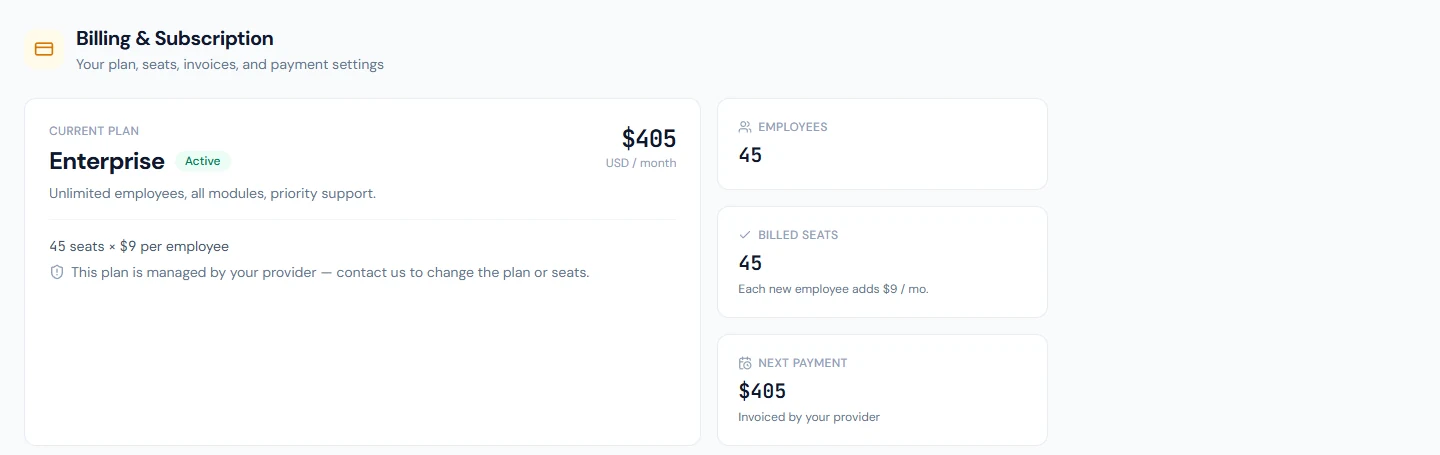
- Current plan with its status (Trial, Active, Payment overdue, Canceled, Expired), what you pay ("10 seats × $6.00 per employee") and when it renews or ends;
- Change plan and Switch to yearly/monthly billing: changes apply at once, and Stripe invoices or credits the difference for the current period;
- Manage seats (93.3);
- Payment methods & billing portal, Stripe's page for cards and billing details;
- Invoice history, each invoice with its period, status and a PDF.
If a payment fails, the page says "Your last payment failed" and asks for a new payment method; Stripe retries the charge and the workspace keeps working meanwhile.
93.5 Offer codes and lifetime licences
Under Have an offer code?, a valid code gives the first month or months free: choose a plan, add a card (nothing is charged that day), and billing starts when the free months end, unless you cancel before. The page then shows "Free until" with the date.
Workspaces bought through a lifetime-licence deal see their tier ("lifetime licence") and its employee limit instead of seats; they can move to a paid plan at any time. Workspaces whose plan is arranged directly with the provider see "Managed by provider".
93.6 Cancelling, and what read-only means
Cancel subscription asks the main reason and cancels at the end of the period you paid for: full access continues until then, and Keep my subscription undoes it. Nothing is deleted.
A workspace whose trial ended, or whose subscription ended, is read-only: everyone can still sign in and see everything, and HR can export its data (Chapter 92), but nothing can be changed, except the billing page itself, so choosing a plan brings it straight back, and each person's own profile in the portal. The Billing page says why and since when, for an ended trial: "This workspace is read-only until you choose a plan — your data is safe and nothing has been deleted."
What happens next
- Chapter 94 starts Part 17 with the integrations hub.
What the employee sees
Nothing about billing. In a read-only workspace, the portal can be read but requests cannot be submitted.
Common mistakes
- Choosing by the longest feature list. Pick the smallest plan that covers the modules you use.
- Forgetting leavers count until their exit is complete. Finish offboarding (Part 13) so they drop off the bill.
- Holding seats you will not use. The bill uses the higher of headcount and held seats.
- Letting the trial lapse during setup. Choose a plan before day 14; read-only stops all changes until you do.
- Cancelling to pause. Cancellation ends at the period's close; consider a smaller plan instead.
Practice
Use your own trial workspace, not a customer's.
- Open Billing and note your trial end date, seats and price per employee.
- Open a locked page (Payroll on Starter, for example) and read which plans include it.
- Add two test employees and watch the headcount on the Billing page after the nightly sync.
Quiz
1. What are you billed for?
Seats × price per employee, where seats is the highest of headcount, seats you hold, and the 10-seat minimum.
2. Do employees who have left count?
No. Everyone who has not left counts, new hires included.
3. Which plan first includes payroll?
Growth.
4. What happens when the trial ends without a plan?
The workspace becomes read-only: viewable and exportable, nothing can change, until a plan is chosen.
5. When does a cancellation take effect?
At the end of the period already paid for; it can be undone until then.