Chapter 16 — Adding an employee
Part 3 built the frame: the company, its structure, its money and its people with access. Part 4 fills it with employees. Everything that comes later hangs off the record you create in this chapter: the contract is written for it, attendance is marked against it, leave is taken from it and payroll pays it. Get the record right and the rest of the system has something true to work from.
What this chapter covers
- 16.1 What belongs in a personnel file, and what to have ready
- 16.2 Personal details, and the identity field that follows your country
- 16.3 Contact details, email language and a phone with a country code
- 16.4 Portal access: invitation or no portal login, and the address rule
- 16.5 Employment details: department, designation, type, dates and manager
- 16.6 The daily-report and loan switches
- 16.7 Shift and leave group
- 16.8 Emergency contact, present address and bank account
- 16.9 Saving, and what happens after you save
The concept
A personnel file is the set of facts an employer must hold about each person it employs. The same six groups appear in every country:
| Group | What it holds | Why the employer needs it |
|---|---|---|
| Identity | Legal name, date of birth, the government number the country uses | Tax filings, right-to-work checks, contracts |
| Contact | Email addresses, phone | Reaching the person, and sending them what the law says they must receive |
| Employment terms | Job title, department, type of engagement, start date, manager | Everything downstream: pay, leave, approvals, seniority |
| Pay routing | Bank account | Paying salary |
| Emergency contact | Name, phone, relationship | Duty of care on a bad day |
| Address | Where the person lives | Letters, tax jurisdiction, verification |
Three habits separate good files from bad ones. Collect what you can justify. Identity numbers and dates of birth are sensitive; hold them because you need them, not because a form has a box. Take facts from the source. The employee knows their own address, phone and bank account better than HR does, so the best process lets them enter and confirm those themselves, with HR approving rather than typing. Keep one system of record. A spreadsheet copy of the file is a second truth that will drift.
Two dates matter more than any other field. The joining date is the anchor for proration of the first salary, the start of probation, leave accrual and seniority. The probation end date is the deadline by which someone must decide whether the hire has worked out. Both are easy to type and expensive to get wrong.
Finally, creating a record is not the same as the person starting work. A record can exist weeks before the first day, while the computer is being prepared and the contract is being written. Chapter 18 covers how a new record becomes an active employee.
How Operentra handles it
Add Employee lives at /admin/employees/create. You reach it from the
Add Employee button on All Employees (/admin/employees) or from the
dashboard's quick action. It needs the employees.create permission,
which Super Admin, HR Manager and HR Officer hold out of the box.
The form has seven sections: Personal Information, Contact Information, Portal Access, Employment Details, Emergency Contact, Present Address and Bank Account. Only six fields are required everywhere: first name, last name, department, designation, employment type and joining date. One more, the present address, becomes required when you choose No portal login.
Saving does more than insert a row. The employee code is generated from the format in Chapter 12, a shift is assigned, a portal membership or invitation is created, and an onboarding pipeline with twelve tasks is opened. The record starts in the status New (Pending Activation) and stays out of payroll, attendance and leave until it is activated (Chapter 18).
Two other doors lead to the same record: bulk import from a CSV file (Chapter 17), and Convert to Employee on a hired candidate in Recruitment, which opens this very form with the candidate's details filled in (Part 5).
On a paid plan the record counts as a seat from the moment it is saved. Saving is refused, with a message pointing to Billing, when the trial has ended, when the subscription is cancelled, or when a bespoke plan's headcount cap has been reached. Standard plans have no cap: hiring raises the bill rather than hitting a wall.
Walkthrough
16.1 Before you open the form
Have five things ready, all from Part 3: the department and designation the person will hold (Chapter 9), the employment type, the bank they are paid through if you already know it (Chapter 11), the employee code format (Chapter 12), and the sign-in policy that decides which email address receives invitations (Chapter 13).
The running example for this chapter: Northwind Labs is hiring Harriet Okoro as a Software Engineer in Software Engineering, starting on the first Monday of next month, reporting to Imani Castellanos, a Senior Software Engineer. Harriet will use the portal, so Harriet will be invited.
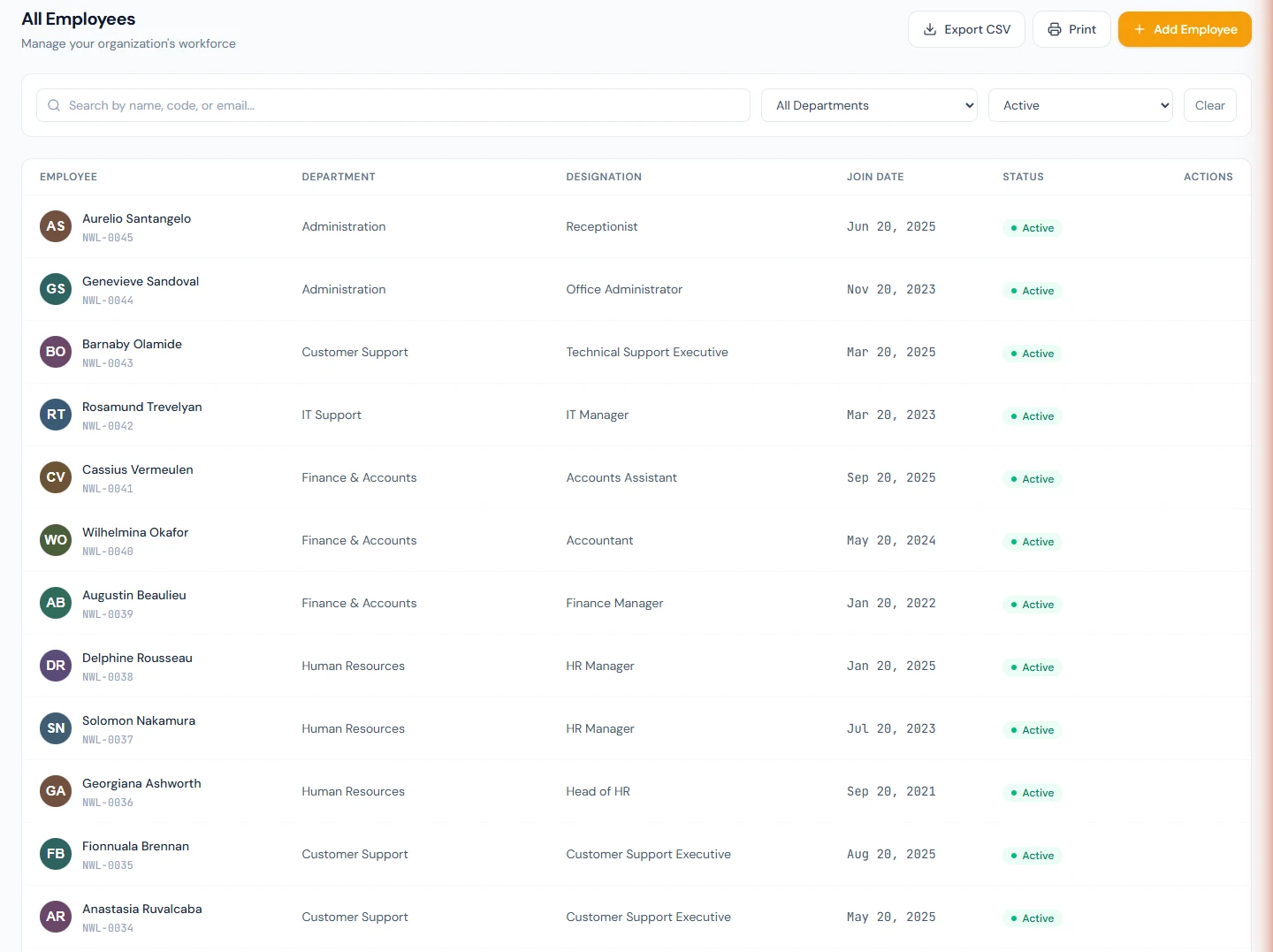
Open Employees › All Employees and click Add Employee.
16.2 Personal details
| Field | Required | Notes |
|---|---|---|
| First Name, Last Name | Yes | As they appear on the person's identity document. |
| Identity number | No | Labelled for your country: Social Security Number in a US workspace, Emirates ID in the UAE, National Insurance number in the UK. The server checks the country's shape (nine digits for a Social Security Number, with dashes and spaces ignored) and refuses a number already held by another employee in the workspace. |
| Nationality | No | Free text. |
| Date of Birth | No | Used for the birthday wish and shown on the profile. |
| Gender | No | Male, Female, Other. Also used to word the emergency-contact message correctly. |
| Marital Status | No | Single, Married, Divorced, Widowed. |
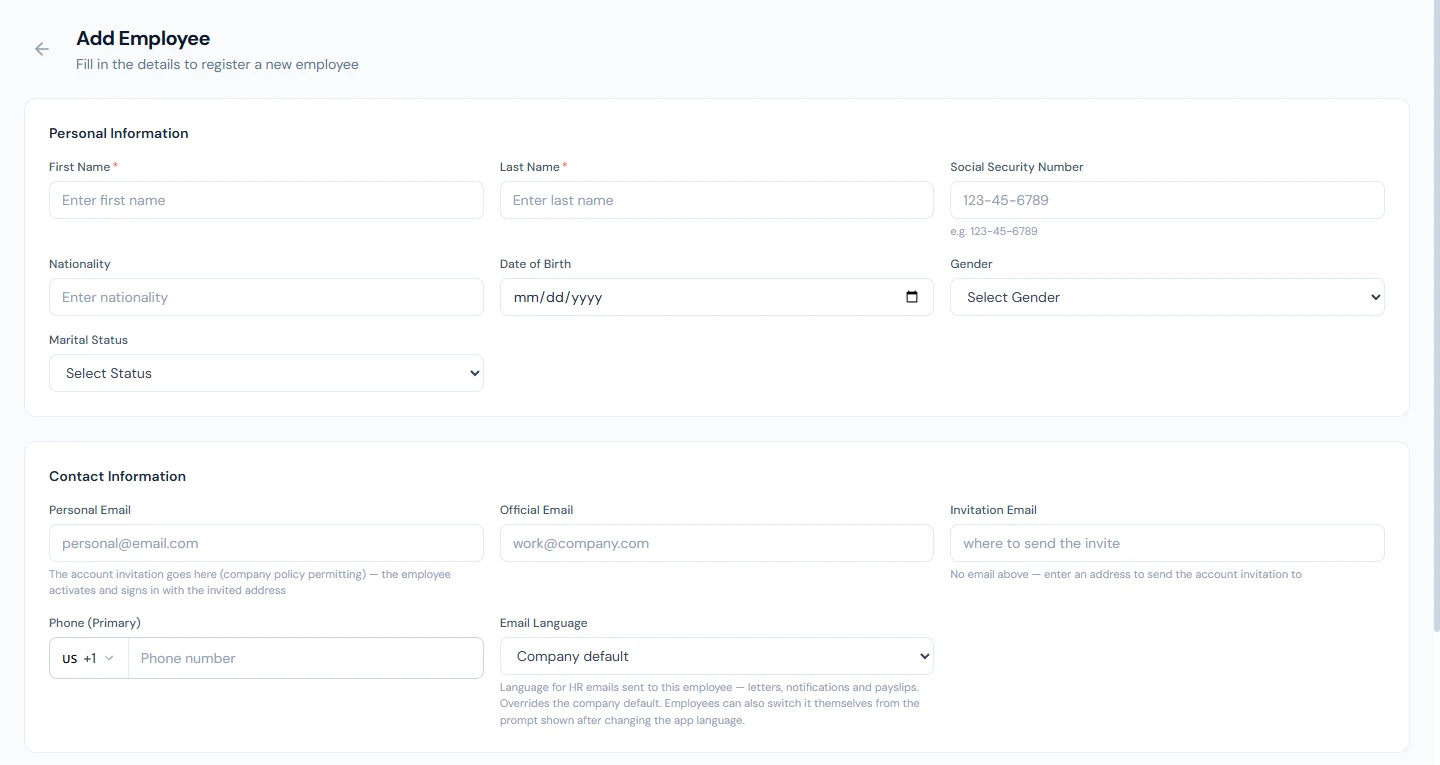
Some countries' records carry fields that others never collect: a father's name, or a separate tax registration number. The form shows those only where your workspace's country uses them, and keeps showing one that already holds a value. A US workspace never sees them.
For Harriet, Northwind enters the name and leaves the Social Security Number for Harriet to supply; it is sensitive, and Harriet can add it from their own account.
16.3 Contact details
| Field | Notes |
|---|---|
| Personal Email | The person's own address. Under the default sign-in policy, the invitation goes here. |
| Official Email | The company mailbox, if one exists already. Under the "official email only" policy, the invitation goes here. |
| Invitation Email | Appears only while Invite to portal is selected and both addresses above are empty: an address to send the invitation to. |
| Phone (Primary) | A country picker and a number. The picker starts on your workspace's country and the country is stored with the number, so later text messages and verification codes reach the right place. |
| Email Language | Company default, or one of the content languages (English, Arabic, French, German, Spanish). Overrides the workspace default for HR emails to this person: letters, notifications, payslips. Employees can change it themselves later. |
Which address gets the invitation is decided by the sign-in policy from Chapter 13: under Flexible, personal first, then official, then the invitation address; under Official email only, official first, then the invitation address. The invited address becomes the person's sign-in email, so pick the one they should sign in with.
Northwind enters Harriet's personal address, because the company mailbox does not exist yet, and leaves Email Language on Company default.
16.4 Portal access and the address rule
The Portal Access card offers two choices, and the choice changes what the rest of the form demands.

Invite to portal (recommended, and the default). An activation invitation is emailed when you save. The person activates their own account, then completes their profile from their own side and submits it for your approval (Chapter 21). Because they will enter their own address, the Present Address section is optional.
No portal login. The person never signs in. A credential-less membership is created so they count and appear on the Users page with a No portal badge (Chapter 14); HR enters every detail and the record counts as approved from the start. Because nobody else will enter it, the Present Address section becomes required: line 1, city and country. The form and the server both refuse the record without it. You can invite the person later from the Users page whenever they need access.
Choose No portal login for people who genuinely will not use the portal: a role with no screen, a short engagement, a record kept for the books. Choose Invite to portal for everyone else. Never choose No portal login just to skip typing an address; that is the one case where the address is mandatory.
One edge to know. If you choose Invite to portal and leave all three email fields empty, nothing is sent and no membership is created at all. Adding an email to the profile later does not send an invitation either. In that situation, add the person's login from the Users page (Chapter 14, section 14.4), which links the user to the employee and sends the invitation from there.
16.5 Employment details
| Field | Required | Notes |
|---|---|---|
| Department | Yes | From Chapter 9. |
| Designation | Yes | From Chapter 9. The designation carries the daily-report default used below. |
| Employment Type | Yes | A new workspace starts with Permanent, Probation, Contract and Intern, plus any you add. The type is a label for reports and contracts; it does not set any dates by itself. |
| Joining Date | Yes | The anchor date: the shift starts from it, onboarding tasks are timed from it, the first salary is prorated from it and probation is counted from it. |
| Probation End Date | No | Fill it for anyone on probation. The Probations page lists people by this date, reminds you before it arrives, and records the confirmation (Chapter 24). Without it the person is on probation in name only. |
| Reporting Manager | No | Any employee, shown with their code. Leave, attendance-correction, overtime and expense requests route to this person for approval. Choose No Manager and such requests fall to the HR approvers who can see everyone. |
Two cautions on the manager. The list shows everyone in the workspace who has not been deleted, departed people included, so check the code you pick. And a manager approves from the portal, so a manager without a login cannot approve anything.
For Harriet: Software Engineering, Software Engineer, Permanent, the first Monday of next month, no probation end date (Northwind does not run probation for engineers), reporting to Imani Castellanos.
16.6 The daily-report and loan switches
Daily Reports decides whether the person must file a daily work report in the portal, a Performance feature (Part 11). The default follows the designation's own setting; Required and Exempt override it for this one person. An exempt person's portal refuses the report, and the missed-report sweep ignores them.
Loans & Advances decides whether the person may apply for a loan or salary advance from the portal (Part 9). Allowed to apply is the default; Not allowed to apply makes the portal refuse the application. Use it for short engagements and anyone whose contract says no advances.
Northwind leaves both on their defaults.
16.7 Shift and leave group
Shift offers Use company default, naming the default shift, or any shift you have created (Part 7). A new workspace's default is Office Shift, 09:00 to 17:00 with Saturday and Sunday off. The server always assigns a shift from the joining date, the one you picked or the default, and there is no way to opt out. The reason is blunt: a person with no shift is never marked present by the attendance automation, so every day of the month reads as absent and payroll deducts almost the whole salary with a correct-looking payslip. Staff who are exempt from clocking in still hold a shift; the exemption is a property of the shift itself. Later changes go through Assign Shift on the profile, which keeps the dated history (Chapter 19).
Leave Group offers Inherit from shift or a specific group (Part 8). The default shift points at the default group, Office Staff, so most people can inherit. Pick a group only for someone whose leave entitlement differs from their shift-mates.
Harriet takes the company default for both.
16.8 Emergency contact, present address and bank account
Emergency Contact / SOS. A name, a phone with its country, and a relationship chosen from a fixed list: father, mother, husband, wife, son, daughter, brother, sister, cousin, friend, relative or other. The relationship is what this person is to the employee, and it is used to word the message sent to the contact, so pick Mother for the employee's mother.
Present Address. Line 1, city and country. Required for No portal login, optional for invited people. If you fill any of the three for an invited person, fill all three.
Bank Account. Pick a bank from your catalogue (Chapter 11), then the account title, the account number and, where the country uses one, the IBAN. Nothing is saved unless a bank is picked, and once a bank is picked the title and number are required. This account is what the bank payment file pays into (Part 9). If you do not have the details yet, leave the whole section empty; the employee can add the account from their profile and you approve it (Chapter 21).
Northwind leaves all three sections for Harriet to complete.
16.9 Saving
Click Create Employee. The form confirms "Employee created successfully!" and returns to All Employees, where the new row carries the next code in your format (Northwind's would be NWL-0051) and the status New (Pending Activation). A banner above the list counts the people pending activation and offers to show them; the detail page shows the activation checklist, which Chapter 18 walks through.
What happens next
Saving starts a chain. Each step is independent: if one fails, the record still exists and the log records what did not happen.
- The status is New. The person is held out of payroll, attendance and leave until their employment contract is accepted in the portal or a signed copy is recorded, or you activate them from the list (Chapter 18).
- A shift is assigned from the joining date: the one you picked, or the company default.
- A membership is created. For an invited person, an unclaimed login with the Employee role and an invitation email, "You're invited to join Northwind Labs, Inc. — activate your account", valid for seven days. The row shows as Invited on the Users page, with a resend action if it expires. For No portal login, a membership with no credentials and a No portal badge.
- An onboarding pipeline opens with twelve tasks timed from the joining date: a pre-joining email seven days before, preparing the computer two days before, then on day one the login, the salary structure, the contract, the contract's acceptance, biometric enrolment, issuing assets and orientation, a welcome email the day after, a leave-group check three days in, and a probation review thirty days in. Several close themselves when the matching record appears. The pipeline starts as Preparing if the joining date is still ahead, otherwise as Day 1, and everyone who manages onboarding receives a "New onboarding" email (Part 6).
- A converted candidate is marked hired, and the job opening closes as filled once its headcount is reached (Part 5).
- Integrations hear about it. Workspaces that subscribe to employee events through the public API receive an employee-created event (Part 17).
What the employee sees
Harriet receives the invitation. The Activate My Account button opens a page headed "Join Northwind Labs, Inc." and "Welcome, Harriet Okoro", showing the address Harriet will sign in with. A new address chooses a password of at least eight characters, confirms it and clicks Activate & sign in; an address that already has an Operentra account from another workspace enters its existing password and clicks Link & sign in instead (Chapter 15). Either way Harriet lands in the portal, signed in.
Harriet's profile page then shows an amber notice: "Northwind Labs, Inc. is waiting for your profile — complete it and submit for approval". Harriet fills in their personal details, phone, address and bank account, and clicks Submit for approval. The submission lands in your Profile Approvals queue, where you compare it field by field and approve it (Chapter 21). Until the contract is issued and accepted, Harriet's portal is that of a new joiner: a profile to complete and, when HR issues it, a contract to read and accept (Chapter 18).
A No portal login employee sees nothing. If you ever need to check something from their side, Sign in as user on the Users page opens the portal as them, audited (Chapter 14).
Common mistakes
- Inviting with no email anywhere. Nothing is sent and no membership exists. Add the address and create the login from the Users page.
- Choosing No portal login to avoid typing an address. That is exactly when the address is required. Choose Invite to portal and let the person enter it.
- A wrong joining date. The shift, the onboarding timeline, the first salary's proration and probation all move with it. Fix it from Edit before the first payroll run.
- A Probation employment type with no Probation End Date. The type is a label; the date is what the Probations page reads. Without it nobody is reminded.
- Picking a bank and leaving the number blank. The server refuses the whole record. Fill title and number, or leave the bank unpicked.
- Typing the identity number in another country's shape. The server names the digit count it expects. A number already on another record is refused as a duplicate.
- Expecting "no shift" for someone who does not clock in. A shift is always assigned. Exemption from clocking in is set on the shift, not by leaving the field blank.
- Choosing a departed person as reporting manager. The list includes everyone not deleted. Check the code.
Practice
Use your own trial workspace.
- Add an employee with Invite to portal, giving a second email address you control as the personal email. Note the code the record receives.
- Add a second employee with No portal login. Try to save it with the Present Address empty and read the refusal, then complete it.
- Return to All Employees and read the pending-activation banner. Open Access Control › Users (Chapter 14) and find one row marked Invited and one marked No portal.
- Open Onboarding and find the two pipelines. Check which tasks have already closed themselves.
- Edit the first employee: pick a bank, leave the account number blank, and save. Read the message. Then try an identity number one digit short.
- From the second mailbox, open the invitation, activate the account, complete the profile and submit it. Find the submission under Profile Approvals.
Quiz
1. Which fields must be filled for an invited employee, and what changes when you choose No portal login?
Answer
First name, last name, department, designation, employment type and joining date. No portal login adds the present address: line 1, city and country.
2. Both email fields are empty, Invite to portal is selected, and you type an address into Invitation Email. Where does the invitation go under the Flexible policy, and under Official email only?
Answer
To the typed address in both cases. Flexible tries personal, then official, then the invitation address; Official email only tries official, then the invitation address. With the first two empty, both reach the typed address.
3. You leave Shift blank. What does Operentra do, and why does it refuse to leave the person without one?
Answer
It assigns the company default shift from the joining date. A person with no shift is never marked present automatically, so every day reads as an absence and payroll deducts almost the whole salary.
4. A new hire's joining date is three weeks away. What status does the onboarding pipeline start in, and when is the pre-joining email due?
Answer
Preparing, because the joining date is still ahead. The pre-joining email is due seven days before the joining date.
5. You created an employee yesterday. Why are they not on today's attendance register or in next week's payroll?
Answer
They are New (Pending Activation). The record stays out of payroll, attendance and leave until their contract is accepted or signed, or they are activated from the list, which Chapter 18 covers.