Chapter 90 — Reports
Every earlier part of this course produced records: attendance, leave, payroll, loans, appraisals. Reports turn those records into answers: how many people we employ, who is absent most, what payroll cost this month, who is behind on a loan. This chapter is a tour of the Reports section, page by page, with what each figure counts, so the answers you give are the right ones.
What this chapter covers
- 90.1 The Reports section and who can use it
- 90.2 Employee reports
- 90.3 Attendance reports
- 90.4 Leave reports
- 90.5 Payroll and tax reports
- 90.6 Loan and appraisal reports
- 90.7 Downloading and reading reports well
The concept
A report is only as good as two things: the data under it, and the definition behind each number. "Headcount" can mean everyone on the books, everyone working today, or everyone paid this month; "absent" can mean days recorded as absent or every working day nobody turned up. Before you send a figure to a manager, know which one you are looking at, the period it covers, and who is included. Reports are also personal data: a salary report is as sensitive as the payroll itself.
How Operentra handles it
- Reports in the admin menu has seven pages, each with tabs, filters and a table, and an Export CSV button on every tab:
| Page | Tabs | Plan |
|---|---|---|
| Employee Reports | Directory, Headcount, Demographics, New Hires, Anniversaries, Attrition | Every plan |
| Attendance Reports | Monthly Summary, Late Arrivals, Absenteeism, Overtime | Every plan |
| Leave Reports | Utilization, Balances, Applications | Every plan |
| Payroll Reports | Monthly Summary, Component Breakdown, Bank Transfer File, FY Summary | Payroll |
| Tax Reports | Monthly Deductions, YTD Summary, Slab Analysis | Payroll, where income tax is withheld |
| Loan Reports | Outstanding, Repayment Schedule, Defaulters, Disbursements | Payroll |
| Appraisal Reports | Ratings Distribution, Cycle Completion, Increment Recommendations | Performance |
- Each page's All Reports link opens the hub, a card per page.
- Reports read the same records as the rest of Operentra: attendance counts days the way Daily Attendance does, and leave balances the way the leave screens and the portal do.
- Who:
reports.all(Super Admin, HR Manager, Accountant). Managers see their team through the dashboard and the attendance and leave pages instead (Chapter 89); employees get no reports, but their own tax certificates in the portal (Chapter 86).
Walkthrough
Signed in to Northwind as the HR Manager.
90.1 The Reports section and who can use it
Open Reports and any page; filters sit above the table and apply as you change them. Most pages offer Department (the person's current department), and either a Month and Year, a From and To date (often Last 30 days), or a Fiscal Year. When a report cannot load, the tab says so rather than showing an empty table, so "no rows" really means none.
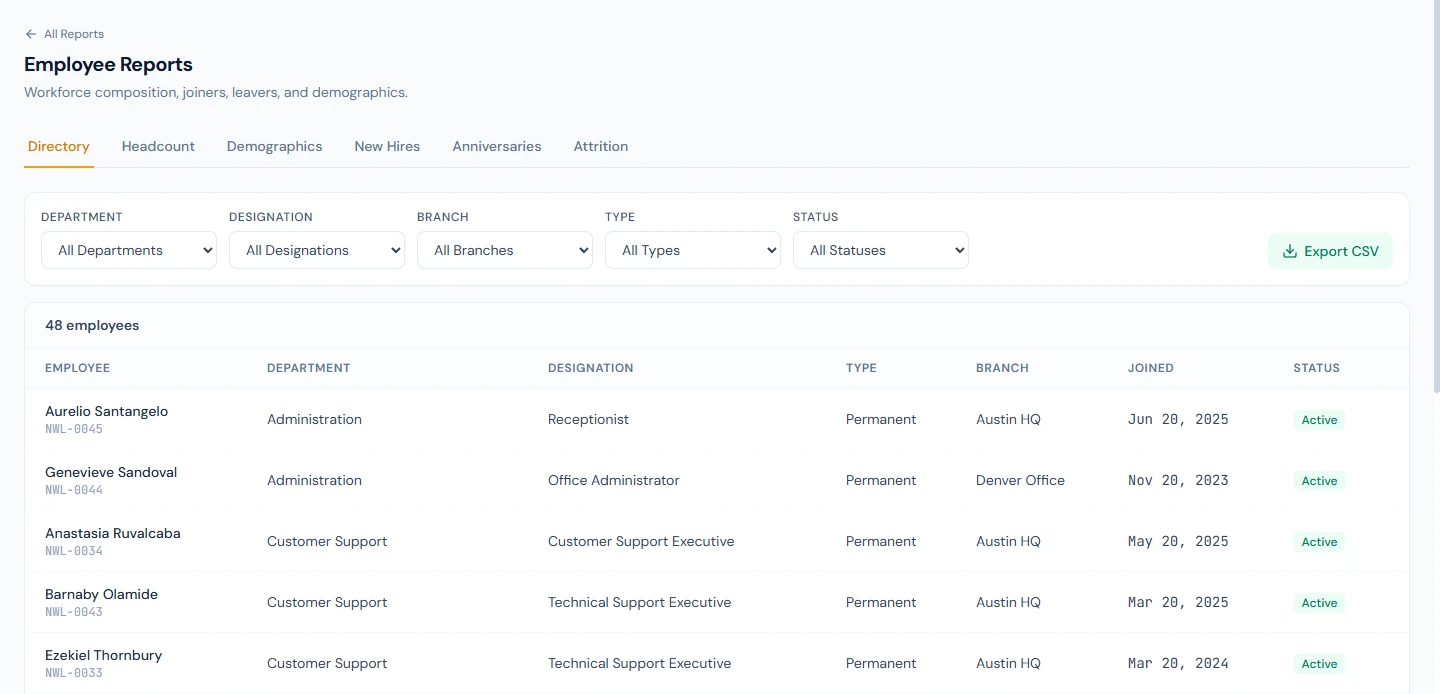
90.2 Employee reports
- Directory: every employee with department, designation, type, branch, joining date and status, filtered by any of them. Its CSV adds contact details and the national ID number, so store it with care.
- Headcount: people still employed, grouped by department, designation, branch, employment type, status or gender, with Active, Not active (new, on leave or suspended), Total and each group's share. People who have left are not counted.
- Demographics: active employees by gender, marital status, age group, blood group and nationality; "Not Recorded" shows how much data is missing.
- New Hires: joiners in a period (from 1 January by default).
- Anniversaries: birthdays and work anniversaries in the next 30 days, or any horizon up to a year.
- Attrition: separations in a period with type, reason, tenure and settlement, and the average tenure; cancelled separations are left out.
90.3 Attendance reports
- Monthly Summary: for one month, each person employed during it with Present, Absent, Late, Half-Day, Leave, Holidays, overtime and work hours. Absences include working days nobody marked, exactly as Daily Attendance shows them, and work from home and early leave count as present.
- Late Arrivals: every late day in the period, the clock-in in the workspace's time and the minutes late.
- Absenteeism: people with absences or leave in the period, sorted by absent days, with Working Days and the share absent.
- Overtime: overtime hours per person; where overtime needs approval, only the approved hours count (Chapter 39).
90.4 Leave reports
- Utilization: for a fiscal year, each person and leave type with Allocated, Accrued (for types that accrue monthly or quarterly), Carried, Used, Encashed and Balance. The balance is the one the employee sees in the portal.
- Balances: the same balances with one column per leave type.
- Applications: every application overlapping the period, with its status, and counts by status.
90.5 Payroll and tax reports
Payroll Reports default to last month:
- Monthly Summary: each payslip of the month's run with Gross, Earnings, Deductions (tax and loan instalments included), Tax, Loan and Net, and the payment method; tiles for the totals and Net Pay. While the run is still in draft or review, an amber notice says the figures can change (Chapter 55).
- Component Breakdown: the total of each salary component that month.
- Bank Transfer File: who is paid by bank transfer, their primary account and net pay, and how many lack bank details. It is a list to check; the file the bank accepts is made from the payroll run (Chapter 58).
- FY Summary: each month of the fiscal year with its run's status and totals, including employer cost.
Tax Reports appear only where income tax is withheld through payroll: Monthly Deductions (who was taxed and how much), YTD Summary (gross, taxable and tax for the year from approved runs, with tax adjustments) and Slab Analysis (how many employees fall in each slab by projected annual taxable income). Annual certificates are issued from Tax › Certificates (Chapter 63).
90.6 Loan and appraisal reports
Loan Reports: Outstanding (balances of active and paused loans, or any status), Repayment Schedule (instalments due in a range of months), Defaulters (active loans with instalments past due that no payroll run has taken) and Disbursements (loans approved in a period).
Appraisal Reports, filtered by cycle: Ratings Distribution of finalized appraisals, Cycle Completion (how many appraisals are pending, in progress, self-assessed, awaiting final or finalized) and Increment Recommendations from finalized appraisals (Chapter 69).
90.7 Downloading and reading reports well
Export CSV downloads the tab with the current filters, every row,
in a file that opens correctly in Excel, Arabic and accented names
included. Column headings are the data's field names, such as
employeeCode, and amounts keep their decimals.
Before sharing a number, check four things: the period and filters (especially Department, which uses each person's current department), who is included (employed during the period, active today, or all), the run status for payroll figures, and whether the receiver should see personal data at all.
What happens next
- Chapter 91 covers the audit trail: activity, login, email and SMS logs.
What the employee sees
Nothing from these pages; their own figures are in the portal (Part 14).
Common mistakes
- Comparing figures with different populations. Headcount counts people employed now; Monthly Summary counts people employed during that month.
- Quoting payroll figures from a run still in review. Wait for approval, or say they may change.
- Mailing the Directory CSV around. It carries ID numbers and contact details.
- Using the Bank Transfer File as the bank upload. It is a check list; the bank file comes from the payroll run.
- Filtering by department after a transfer and expecting history. The filter uses each person's current department.
Practice
Use your own trial workspace, not a customer's.
- Compare Attendance › Monthly Summary for one person with their month in Daily Attendance.
- Compare Leave › Utilization for one person with their portal balance.
- Export Headcount by department and open it in a spreadsheet.
Quiz
1. Who can open Reports by default?
Super Admin, HR Manager and Accountant (reports.all).
2. Does Monthly Summary count a working day nobody marked?
Yes, as absent, as Daily Attendance shows it.
3. Which Headcount column holds people on leave or suspended?
Not active; people who have left are not counted at all.
4. What does an amber notice on Payroll Monthly Summary mean?
The month's run is not yet approved, so its figures can still change.
5. Is the Bank Transfer File what you upload to the bank?
No; it is a list to check. The bank's file is generated from the payroll run.