Chapter 9 — Organisation structure
An employee record answers five structural questions: where the person works, which team they belong to, what their job is called, what band that job is paid in, and what kind of engagement it is. Operentra holds the answers as five lists — branches, departments, designations, pay grades and employment types — and every employee points into them. This chapter builds the lists before Part 4 adds the people.
What this chapter covers
- 9.1 Branches: head office, codes, the map link used in interview emails
- 9.2 Departments: hierarchy, parent departments, cost centres, delete rules
- 9.3 Designations: levels, pay grades, job descriptions, daily-report exemption
- 9.4 Pay grades: salary bands
- 9.5 Employment types: residential roles, accommodation and meals
The concept
Chapter 2 defined the terms. Here is why they are separate lists rather than free-text fields on each employee:
- A list gives one spelling. "Engineering", "Eng" and "engineering" are three departments to a report and one to a human; a list makes them one to both.
- A list carries attributes. A department has a cost centre; a designation has a level and a job description; a branch has an address. Attach them once and every employee inherits them.
- A list can be protected. A department with people in it cannot be deleted; the people would be left pointing at nothing.
The structure also drives behaviour elsewhere: the department headcount chart on the dashboard, the org chart, holiday calendars per branch, the job description that lands in each employment agreement, and the branch map that candidates see in their interview invitation.
How Operentra handles it
All five lists live under Company Setup in the sidebar, at routes
beginning /admin/company/. Seeing them needs company.view; adding and
editing needs company.settings. A new workspace starts with starter
departments and job titles, which is why the setup checklist (Chapter 7)
may already tick those steps; this chapter replaces the starters with your
own.
Two things are easy to confuse and are kept apart on purpose. An employment type (this chapter) describes the engagement: permanent, contract, intern, a residential role. A contract type (Chapter 31) is a property of the written contract: permanent, fixed term, probationary or consultant. An employee has one of each.
Walkthrough
9.1 Branches
Open Company Setup → Branches. The table lists each branch with its name, code, city, phone, type (Head Office or Branch) and status. Branches can be edited but not deleted.

Add Branch asks for:
| Field | Notes |
|---|---|
| Branch Name | Required. |
| Code | Required: a short identifier, for example AUS-01. |
| City, Phone, Email, Address | Optional contact details. |
| Google Maps URL | Optional. Paste a share link from Google Maps. It becomes a View on map link on interview confirmation pages and in the emails candidates receive. |
| Head Office | Only one branch can be the head office; setting a new one clears the previous. |
Northwind has two: Austin HQ, the head office, and the Denver Office. Set the map link on every branch where interviews happen; a candidate who cannot find the building is a candidate who is late.
9.2 Departments
Open Company Setup → Departments. The page shows the departments as a tree, indented under their parents, with each one's code, parent, number of active employees and status.
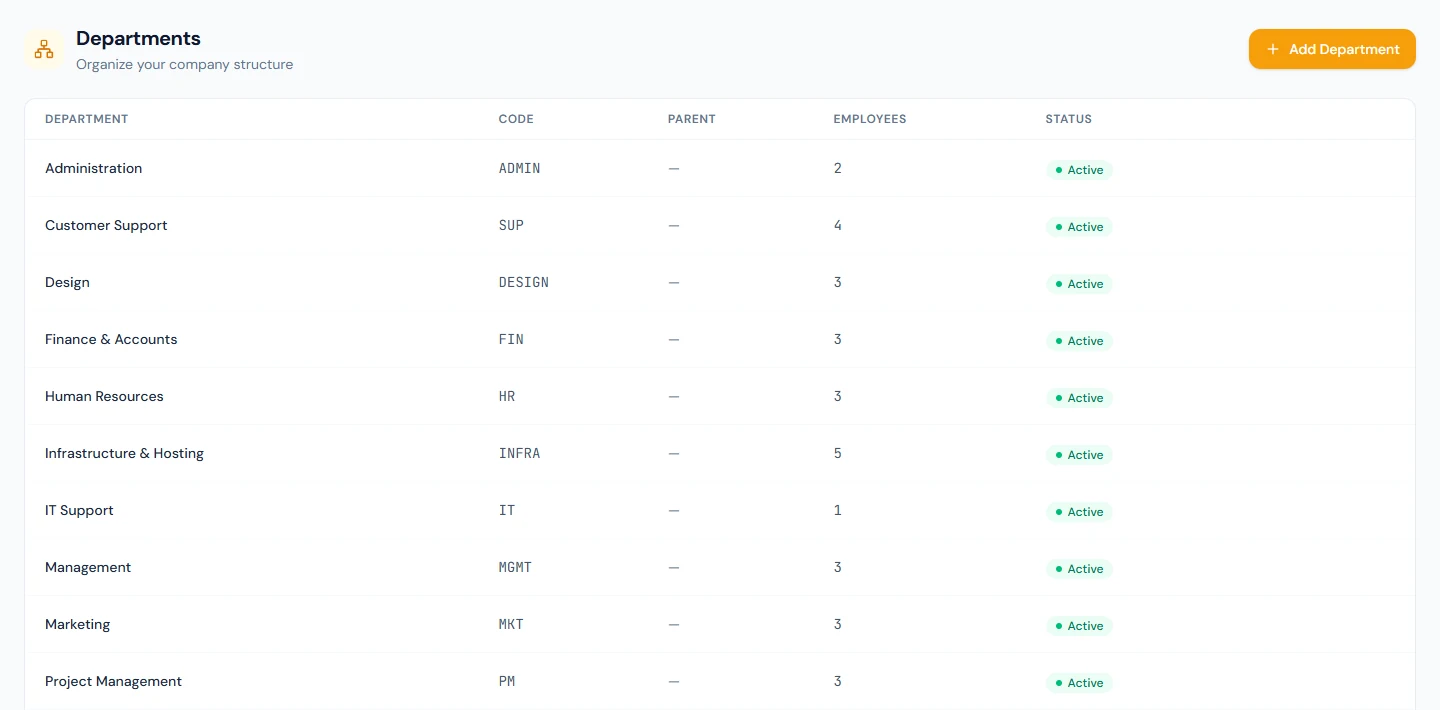
Add Department asks for:
| Field | Notes |
|---|---|
| Department Name | Required. |
| Code | Required, for example ENG. |
| Parent Department | Leave as top-level, or nest the department under another to build the hierarchy. |
| Cost Center | Optional accounting reference, for example CC-001, which finance uses to charge the department's cost. |
A department that still has active employees cannot be deleted: Delete says so and names the count until its people are reassigned. An empty department deletes after a confirmation.
Northwind's twelve departments are flat, one level, each with a code: Management, Engineering, Infrastructure, Design, Product Management, Sales, Marketing, Support, HR, Finance, IT and Admin. Build the hierarchy your finance team reports by, not the one on the slide; the headcount chart and the cost reports follow it.
9.3 Designations
Open Company Setup → Designations. The table is sorted by level and shows each designation's name, code, level and status.
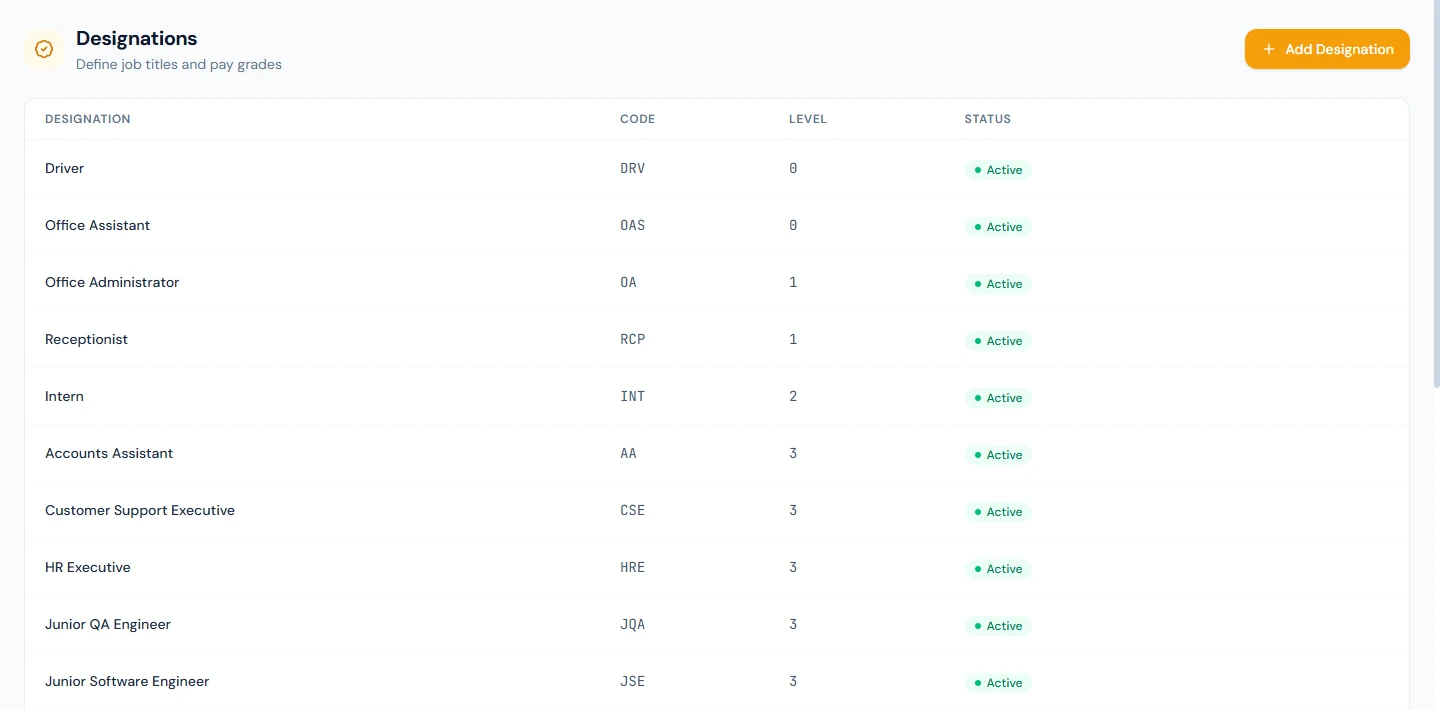
Add Designation asks for:
| Field | Notes |
|---|---|
| Designation Name | Required, for example Senior Software Engineer. |
| Code | Optional short code. |
| Level | Optional number that orders roles by seniority. |
| Pay Grade | Optional link to a pay grade (9.4). |
| Job Description | Optional, and worth writing: it appears in the employment agreement of every employee who holds the designation. |
| Exempt from daily reports | For roles that should not be asked for a daily work report or penalised for missing one, such as a driver or a security guard. Can be overridden per employee. |
Write the job description as it should read in a contract, because that is where it goes. Imani's agreement at Northwind carries the Senior Software Engineer description word for word.
9.4 Pay grades
Open Company Setup → Pay Grades. Each grade is a name with a minimum and maximum salary, in the workspace currency. Attach a grade to a designation to document the expected range for the role.
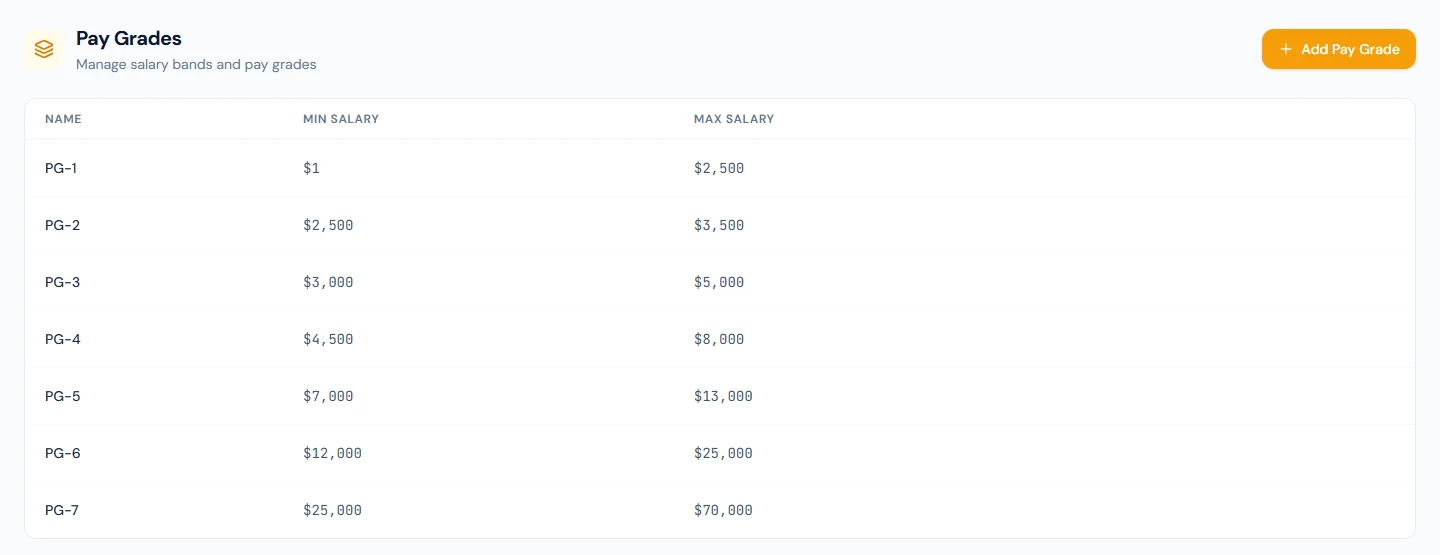
A grade is documentation, not enforcement: Operentra does not refuse a salary outside the band. Its value is in offers and increments, where "what do we pay a Senior Software Engineer?" has an answer on file before the negotiation starts.
9.5 Employment types
Open Company Setup → Employment Types. The table shows each type with its description, a Residential badge where it applies, and the perks it carries (Stay, Meals).
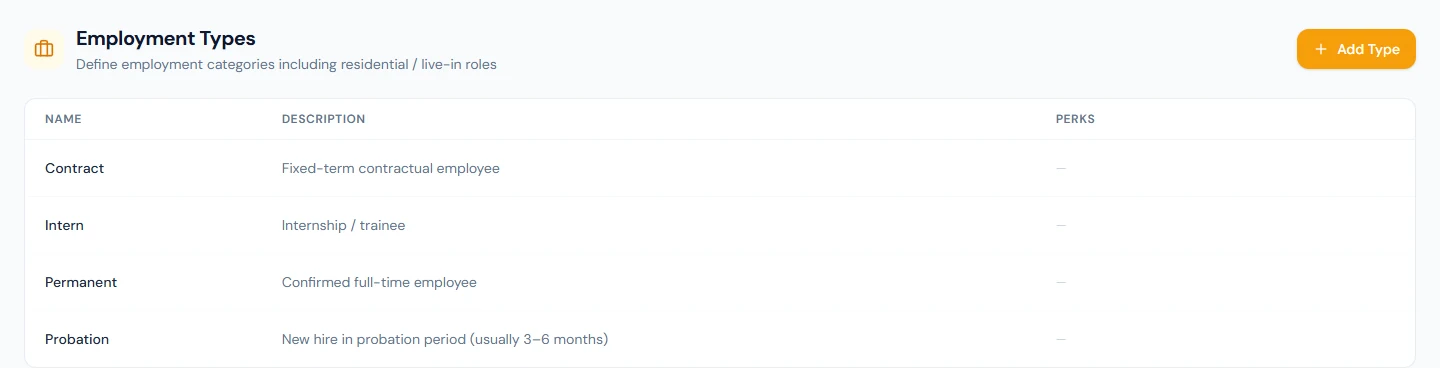
Add Type asks for:
| Field | Notes |
|---|---|
| Name | Required, for example Permanent, Contract, Intern. |
| Description | Optional. |
| Residential / on-site | For live-in roles who stay on the company's premises. |
| Accommodation provided | A perk flag. |
| Meals provided | A perk flag. |
Every employee record names an employment type, so the list should cover every way the company engages people before Part 4. Northwind uses Permanent, Probation and Contract; a company with live-in staff adds a residential type with its perks.
What happens next
- Departments and designations appear in the employee form (Chapter 16), the directory filters, the org chart and the dashboard's headcount chart.
- A designation's job description is pulled into each employment agreement created from then on (Chapter 31). Agreements already issued keep their text.
- A branch's map link goes into interview confirmations (Chapter 29), and holidays can be set per branch (Chapter 43).
- Nothing is emailed by this chapter.
What the employee sees
Their own branch, department and designation on their portal profile and on their payslips and letters; the job description in their contract. They never see the lists themselves or the pay grades.
Common mistakes
- Keeping the starter departments and job titles because the checklist ticked them. They are placeholders.
- A department per manager. Departments are cost and reporting units; reporting lines are the employee's reporting manager (Chapter 16), which can cut across them.
- Skipping the job description and discovering the gap when the first contract is generated.
- Deleting and recreating a department to rename it. Edit it; a delete is blocked while it has people, and a recreated one is a different record to every report.
- Using employment type to mean contract type. They are different fields answering different questions.
Practice
In your workspace:
- Add every branch, with its code and a Google Maps link, and mark the head office.
- Replace the starter departments with your own, with codes and cost centres, nested where finance reports that way. Try to delete one that has an employee once Part 4 is done, and read the refusal.
- Add your designations with levels, and write the job description for at least three of them as you would want it to read in a contract.
- Add two pay grades and attach them to designations.
- Check the employment types cover every kind of engagement you have, including residential roles if you have them.
Quiz
1. Where does a designation's job description end up?
Answer
In the employment agreement of every employee who holds the designation, from the time it is written onward.
2. Why can a department with active employees not be deleted?
Answer
Its employees would be left pointing at a department that no longer exists. Reassign them first; an empty department deletes after confirmation.
3. What is the Google Maps URL on a branch used for?
Answer
It becomes a "View on map" link on interview confirmation pages and in the emails candidates receive.
4. Does a pay grade stop you entering a salary outside its band?
Answer
No. A grade documents the expected range for a designation; it does not enforce it.
5. An employee is "Permanent" by employment type and holds a "Fixed term" contract. Is that a contradiction?
Answer
Not necessarily; it may be a data error worth checking, but the two fields answer different questions. Employment type describes the engagement; the contract type describes the written contract.