Chapter 10 — Fiscal years
A fiscal year is a short chapter because the screen is small, and an important one because so much hangs on it: which year a payslip's tax belongs to, when leave is allocated and carried forward, how reports are grouped, and which tax table payroll uses. Get it right once and the rollover takes care of the rest, every year, on its own.
What this chapter covers
- 10.1 Why the fiscal year matters
- 10.2 Creating fiscal years and setting the current one
- 10.3 The automatic rollover and what it triggers
The concept
Chapter 2 defined the fiscal year as the twelve months a company's accounts and tax reporting are organised around. Which twelve depends on the country: January to December in the United States, July to June in Pakistan, April onward in the United Kingdom and India. The country pack sets the start month, and the sign-up country (Chapter 4) therefore decides it.
Three HR processes are keyed to it:
- Tax. Income-tax tables are published per tax year, the year-to-date figures that withholding and tax certificates rely on reset at the year boundary, and the annual statement an employee receives covers one year.
- Leave. An annual entitlement is granted for a year; unused days are carried forward or paid out when the year turns.
- Reporting. Payroll and tax reports are grouped by year, and a payslip states the year it belongs to.
A company therefore needs an unbroken sequence of fiscal years, one of them current, and the next one ready before the current one ends.
How Operentra handles it
Company Setup → Fiscal Years holds the sequence. Exactly one year is current; years cannot overlap; setting a new current year clears the flag on the old one. Payroll records each run's fiscal year, tax slabs are entered per fiscal year, year-to-date tax is tracked per fiscal year, and leave allocation runs per fiscal year.
The next year is created for you. A daily platform job watches every workspace's current year and, just after midnight in the workspace's time zone on the day after it ends, opens the next one and runs the leave allocation for it, carry-forward included. You keep the manual Add Fiscal Year for history and for the two cases where the job deliberately stops.
Walkthrough
10.1 Why the fiscal year matters
Open the dashboard and look at System Info: it names the current fiscal year. Then open Tax → Tax Slabs (if your country withholds income tax) and note that the tables are listed per fiscal year; a year with no table cannot be paid. Finally open Leave → Groups and note the allocation year. The same year appears in all three places, which is the point: one setting, read everywhere.
At Northwind the fiscal year is the calendar year. The workspace holds FY 2024, FY 2025 and FY 2026, with 2026 current.
10.2 Creating fiscal years and setting the current one
Open Company Setup → Fiscal Years. The table lists each year with its name, start, end, a Current badge on the active one, and its status. Years can be added, edited and, after a confirmation, deleted.
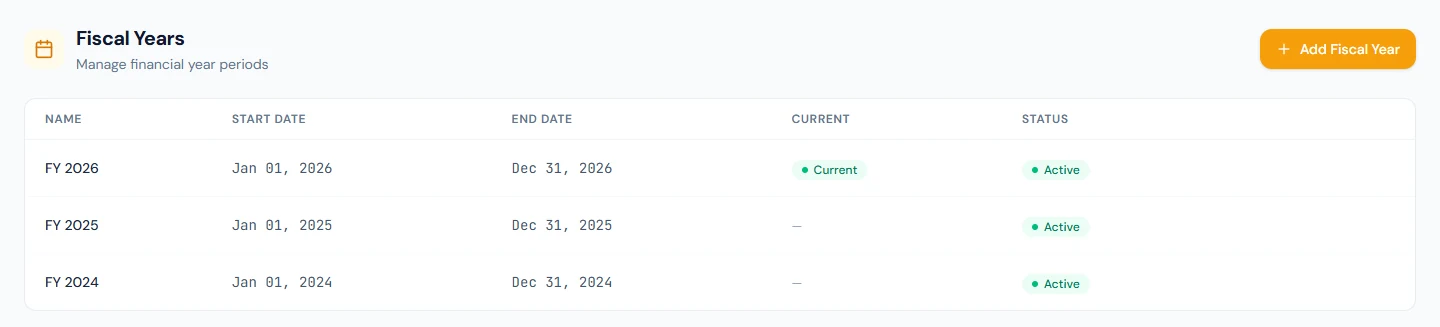
Add Fiscal Year asks for:
| Field | Notes |
|---|---|
| Name | Required, for example FY 2026 or FY 2026-27. |
| Start Date | Required. |
| End Date | Required, and after the start date. |
| Set as current fiscal year | Marks this year as the active period. Only one year can be current; setting this clears the previous one. |
Two rules are enforced: years cannot overlap, and there is exactly one current year. A new workspace already has its first year, opened at sign-up on the country's calendar; you add earlier years only when you import payroll history (Chapter 64), and later years only in the two repair cases below.
10.3 The automatic rollover
You rarely open the next year by hand. Just after midnight on the day after the current year's end date, in the workspace's time zone, a platform job:
- creates the next year, starting the day after the previous end date and running one year minus a day, so a July–June or April–March calendar is preserved exactly;
- marks it current;
- runs the leave allocation for it straight away, including carry-forward from the year that has just closed (Chapter 47).
Because the job follows the workspace's own clock, a Chicago workspace's new year becomes current just after midnight in Chicago, so work done on the evening of the year's last day still belongs to the old year.
If you had already created the next year yourself, the job adopts it rather than creating a duplicate, and allocates its leave only if the year has no allocations yet.
The job stops and leaves the fix to you in two cases, and says so on the Fiscal Years page:
- your fiscal years have a gap around today's date: it will not invent a partial bridging year to close the hole;
- your newest fiscal year is more than 15 years in the past: it will not mass-create that many years at once.
In both cases, add the missing years by hand, set the right one current, and the job resumes from there.
In a country with progressive income tax, a freshly rolled year needs that year's tax slabs before payroll can run; the payroll pre-flight refuses approval until they exist. Where Operentra ships the tables, they arrive with the year; where it does not, entering them is the first job of the new year. Chapter 63 covers it.
What happens next
- Payroll runs, tax records, tax certificates and leave balances created from now on are stamped with the current year.
- The rollover sends nothing by email. Its visible effects are the new year on this page, the new allocations on the leave balances, and the Tax Slabs page asking for the new year's table where that applies.
What the employee sees
The fiscal year on their payslips and tax certificates, and their leave balance resetting with carry-forward when the year turns. Nothing else.
Common mistakes
- Setting a year current by hand mid-year to "fix" a report. Everything stamped from that moment carries the new year; move back and you have a split year.
- Creating years that overlap by a day (31 December to 1 January of the same year). The form refuses, but the intent is usually a wrong end date.
- Letting the rollover happen without the tax table. The first payroll of the year is blocked at approval; enter the table in the first week.
- Deleting an old year that payroll history still refers to. Keep the sequence unbroken.
Practice
In your workspace:
- Open Fiscal Years and read the current year's dates. Check them against your country's tax year. If they are wrong, the country at sign-up was wrong; stop and raise it before going further.
- Find the current fiscal year in two other places: the dashboard's System Info and the Tax Slabs page (if your country has one).
- Work out the date the rollover will next run for your workspace, and put a reminder a week before it to check the tax table and the leave policies.
Quiz
1. Who decides the fiscal year's start month: the administrator or the country?
Answer
The country pack, through the country chosen at sign-up. The administrator can add and edit years, but the calendar they follow comes from the country.
2. What three things does the automatic rollover do?
Answer
Creates the next year (same calendar, one year minus a day), marks it current, and runs the leave allocation for it with carry-forward from the closed year.
3. In which two cases does the rollover stop and wait for you?
Answer
When the fiscal years have a gap around today's date, and when the newest year is more than 15 years in the past.
4. The year has rolled over and the first payroll is refused at approval. What is the likely cause?
Answer
No income-tax table exists for the new fiscal year. Enter the year's tax slabs (or wait for the shipped ones where Operentra provides them) and approve again.
5. You already created next year by hand. What does the job do on rollover day?
Answer
Adopts the year you created instead of making a duplicate, marks it current and runs the leave allocation, unless that year already has allocations.