Chapter 27 — Your careers site
Every workspace has a public careers site from the day it is created. Nobody designs it, hosts it or logs into it: it is rendered by Operentra from your published postings, carries your name and logo, and takes applications straight into the pipeline. This chapter is what a candidate sees, what a search engine sees, and what happens the moment someone clicks Submit.
What this chapter covers
- 27.1 The public job list and job pages
- 27.2 Search-engine job listings and sitemap
- 27.3 The apply form and thank-you page
- 27.4 Careers site on your custom domain
The concept
A careers page has one job: turn a stranger's interest into an application with the least friction and the fewest surprises. Three things decide whether it does.
It must be findable. Most candidates do not start at your site; they start at a search engine or a job board. A page that search engines can read as a job, with the title, location, pay and date in a form they understand, is listed in job searches without you paying a board.
It must be honest. What the page says is what the candidate holds you to in the first interview: the location, the remote policy, the range. A page that oversells produces a pipeline of people who leave at the offer.
It must be short to complete. Every extra field costs applicants, and the strongest ones, who have options, are the first to leave. Name, email, CV, a line about why: enough to start the conversation, and the rest comes in the interview.
How Operentra handles it
- The site is rendered on the server from your data, not built or hosted by you: a landing page listing open roles by department, a page per role with its own address, a thank-you page, and a sitemap. Your logo, name and website link come from Company Profile and Branding (Chapters 8 and 13).
- Only Open openings with a published posting appear. Everything in Chapter 26 about status and publishing is what controls the site; there is no separate switch.
- Each job page carries search-engine markup: the structured data search engines use to list jobs, a description tag, and a canonical address. The sitemap lists the landing page and every live role.
- The apply form creates the candidate and the application in one step and emails the candidate a receipt. A second application from the same email address joins the same candidate record instead of making a duplicate.
- On the shared Operentra address your site lives at a URL that names your workspace; on your own domain it lives at /careers.
- Nothing requires a login. Candidates never see Operentra's sign-in; the only link to the application is the one they send themselves.
Walkthrough
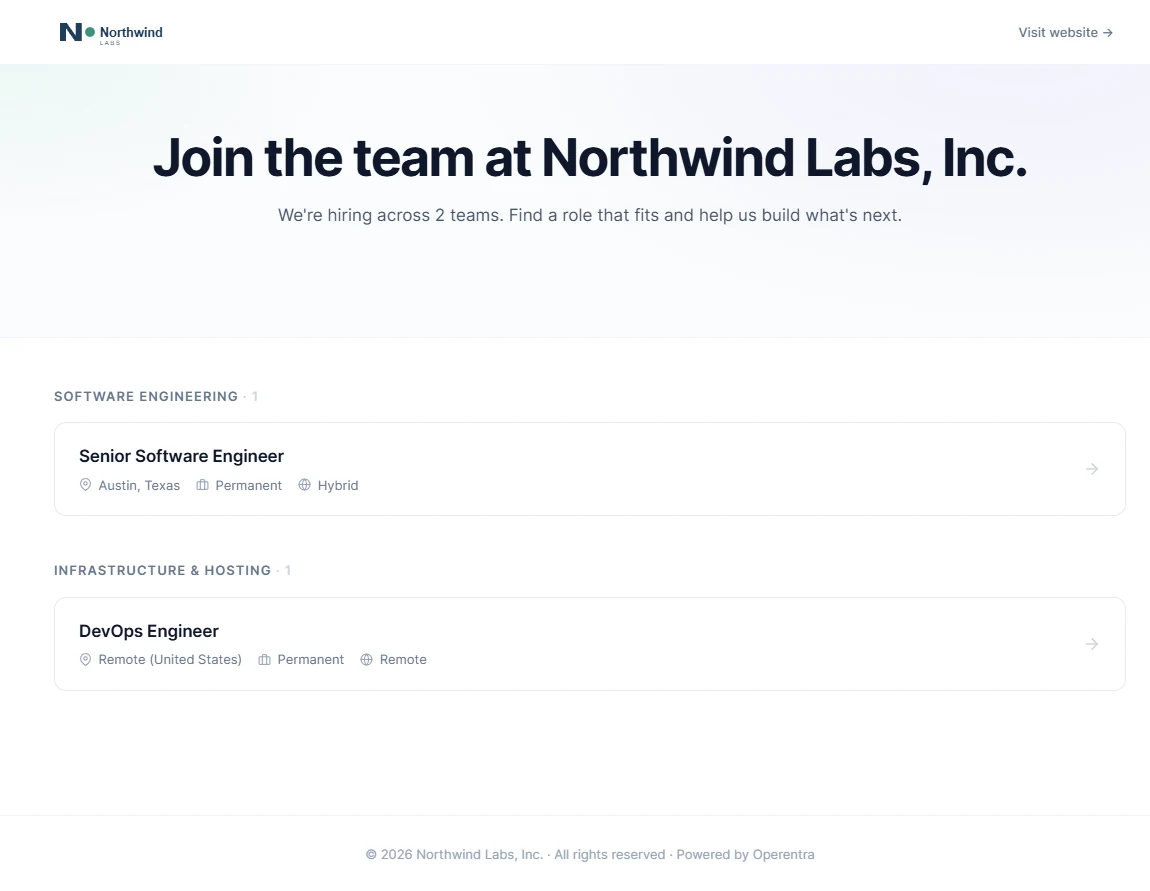
Northwind Labs has two roles live: Senior Software Engineer (Austin, Texas, hybrid) and DevOps Engineer (Remote, United States).
27.1 The public job list and job pages
View careers page on Recruitment › Job Openings opens the landing
page in a new tab. On the shared address it is /careers/c/ followed
by your workspace id; the link already carries the id, so copy it from
the address bar when you share it. The page shows your
logo (or name) with a "Visit website" link when Company Profile has a
website, a hero reading "Join the team at Northwind Labs, Inc." with
"We're hiring across 2 teams", and one group per department with a
card per role: title, location, employment type and remote policy.
Departments come from the openings; a role with no department is
grouped under "Other openings". With nothing published the page says
"No open positions right now" and offers the company email from
Company Profile for speculative applications.
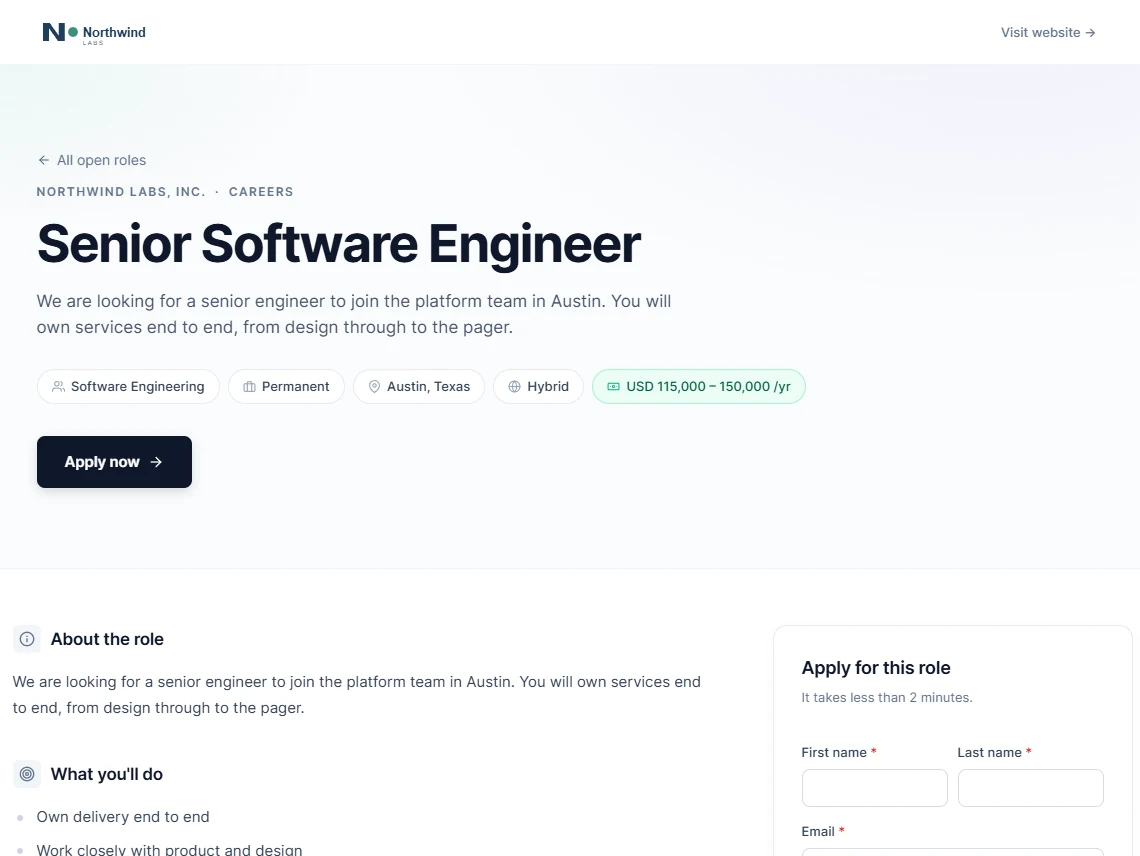
Each card opens the job page at /careers/ followed by the slug: the
title, the
first sentence or two of the description as a tagline, badges for
department, employment type, location, remote policy and, when the
posting shows it, the salary range with its period ("USD 115,000 –
150,000 /yr"), then the four sections from the posting under "About
the role", "What you'll do", "What we're looking for" and "Benefits &
perks", the apply form, and share buttons for LinkedIn, X and
Facebook. Every load of this page adds one to the posting's view
count (Chapter 26).
The job page is reachable by anyone with its address, whichever workspace it belongs to; the landing page is yours alone.
27.2 Search-engine job listings and sitemap
Three things make the site findable without a job board.
Structured data. Each job page embeds a JobPosting record in the format search engines read: the title, the plain-text description, the date it was published, the hiring organisation with your website and logo, the location (or a remote flag when the policy is Remote), the employment type mapped to the standard values (intern, part-time, contractor, temporary, full-time), and the salary range with its currency and unit, only when the posting shows the range. This is what lets a search engine list the role in its jobs results.
Page metadata. Each page has its own title ("DevOps Engineer — Northwind Labs, Inc.") and a description built from the title, the company and the start of the description, which is what appears under the link in search results. Write the first 160 characters of the posting's description for that reader.
The sitemap at /sitemap.xml lists the landing page and every
live role with the date it was published, so crawlers find new roles
without waiting to stumble on them. Submit it once in your search
engine's webmaster tools; it updates itself.
Two things to know. Indexing takes days, not minutes, after you publish; and a role you unpublish stays in search results until the engine recrawls and finds the page gone. The interview, offer and thank-you pages are marked not to be indexed.
27.3 The apply form and thank-you page
The form sits at the bottom of every job page under "Apply for this role — It takes less than 2 minutes":
| Field | Rule |
|---|---|
| First name, Last name | Required. |
| Required. The key that identifies the candidate. | |
| Phone | Optional, with the country code. |
| LinkedIn URL | Optional; must be a web address. |
| Current employer | Optional. |
| CV / Resume | Optional; PDF or Word, up to the workspace's upload size limit (Chapter 12). |
| Cover letter | Optional, up to 5,000 characters. |
A privacy line states that the company may store the details for recruitment purposes. Submit does four things at once:
- Finds or creates the candidate by email address within your workspace. A new address makes a new candidate; a known one updates the phone, employer, LinkedIn and CV on the existing record and keeps HR's notes.
- Creates the application on that opening with the source "careers page". If the same person already applied to this role, the cover letter is updated and the stage is left alone: a rejected candidate who applies again stays rejected rather than reappearing at the top of the board.
- Emails the candidate "We received your application for DevOps Engineer": the position, department, location and date, and a line promising a reply within 7 to 10 business days if the profile matches. That promise is in the template; edit it on Settings › Email Templates if it is not one you keep.
- Shows the thank-you page: "Application received! We've sent a confirmation to … and our team will be in touch soon", with a link back to your open roles.
The application appears at once in the Applied column of the opening's Applications tab and on the Candidates page (Chapter 28). Nobody at the company is emailed about a new application; the board is where you look.
The form is rate-limited against abuse, and only roles that are Open and published accept it: a submission to a page that was just unpublished fails rather than creating an application for a closed role.
27.4 Careers site on your custom domain
On the shared address, the landing page must carry your workspace id
in its URL because nothing else says which workspace /careers means.
A custom domain removes that. Once Settings › Workspace › Custom
domain has a domain verified and active (an Enterprise feature:
you add a CNAME and a verification record, Operentra attaches the
domain and issues the certificate), the whole careers site is served
under it: the landing page at careers.yourcompany.com/careers or
whatever host you chose, each job under /careers/ by its slug, the sitemap
listing those addresses, and the structured data naming your domain
as the canonical home of each role. Links you have shared on the
Operentra address keep working.
Decide the domain before you start sharing links. The addresses in your LinkedIn posts, in the structured data and in the search index all change with it.
What happens next
- The application is in the pipeline at Applied, with its source, cover letter and CV, and the candidate record behind it (Chapter 28).
- The candidate hears nothing more until you act: a move to Screening sends nothing; an interview, an offer or a rejection each send their own email (Chapters 28 to 30).
- The page keeps counting views and keeps appearing in search results until the opening leaves Open or the posting is unpublished.
- CVs live with the candidate, downloadable from the candidate and application pages by anyone with recruitment access.
What the employee sees
Nothing in the portal. The careers site is for outsiders; an employee who wants to refer someone sends them the job link, and the referral is recorded by HR adding the candidate with the source "Referral" (Chapter 28).
Common mistakes
- Sharing
/careerson the shared address. Without your workspace id in the URL it shows a different workspace's roles. Use the link from "View careers page". - Expecting the role to appear in search the day it is published. Indexing takes days. Submit the sitemap once and wait.
- Hiding the salary and wondering why the listing looks thin. The structured data carries the range only when the posting shows it; job searches that filter by pay skip roles without one.
- Writing the description's first lines about the company. They become the tagline and the search snippet. Lead with the role.
- Treating a second application from the same email as a new person. It is the same candidate record, updated; look at their applications list before you screen them again.
- Leaving the receipt email's promise unchanged. "Within 7 to 10 business days" is a commitment the template makes on your behalf. Edit it or keep it.
- Asking for a login or a form on another site. Candidates have no account and need none; the job page is the whole flow.
- Changing the custom domain after links are out. Every shared address and every indexed page changes with it.
Practice
Use your own trial workspace, not a customer's.
- Open Recruitment › Job Openings › View careers page and copy the address. Note where your workspace id sits in it.
- Open one of your live roles. Find the five badges under the title and check them against the posting. View the page source and find the JobPosting block.
- Open
/sitemap.xmlon the same host and count the roles listed against the number of published openings. - Apply to your own test role with a demo name and a demo email address. Read the thank-you page, then find the application in the Applied column and the candidate on the Candidates page.
- Apply again with the same email and a different cover letter. Confirm there is still one candidate and one application, and that the cover letter changed.
Quiz
1. Which roles appear on the careers site?
Openings in Open status whose posting is published. Nothing else: a draft, on-hold, filled or cancelled opening is not listed, and neither is an Open one whose posting is still a draft.
2. What does the structured data on a job page include, and when does it carry the salary?
Title, description, publish date, hiring organisation, location or remote flag, employment type and the salary range with its currency and unit. The salary is included only when "Show salary range on the public posting" is on.
3. A candidate applies to the same role twice. What happens?
The email address matches the existing candidate, whose details are refreshed. The application is updated (cover letter) but its stage is left as it was; a rejection stands.
4. Who is notified when an application arrives?
Only the candidate, with the receipt email. HR sees the new card in the Applied column; nobody at the company is emailed.
5. Why does the landing page URL carry the workspace id on the shared address?
Because /careers on the shared Operentra address cannot know which
workspace it is for. On your own custom domain the host names you, so
the site lives at plain /careers.