Chapter 76 — HR letters
A salary certificate for a car loan, an experience certificate for a new employer, a promotion letter for the file: HR letters are small documents with large consequences, read by banks, embassies and the next employer, often years later. They must say the right thing, carry the company's name and seal, and be provable. This chapter is how they are written, issued, requested and kept.
What this chapter covers
- 76.1 Letter types
- 76.2 Issuing a letter: auto-filled data, custom fields
- 76.3 Issued letters: PDF, email, resend
- 76.4 Letter requests from employees: issue or reject
- 76.5 Letter templates: clone, languages, placeholders, preview
The concept
An HR letter is a statement of fact on the company's behalf. Three things make one trustworthy: it is drawn from the record (dates, designation and salary come from the employee file, not memory), it is identifiable (a reference number, a date, the company's letterhead and seal), and it can be checked by whoever receives it (Chapter 77). Most letters follow a fixed wording per type, so a template does the writing and HR checks the facts.
How Operentra handles it
- HR Letters in the admin menu has Issue Letter, Issued Letters, Requests and Templates; employees have Letters in the portal.
- Twelve letter types, each with standard templates in English, Arabic, French, German and Spanish that a workspace uses as they are or clones and edits.
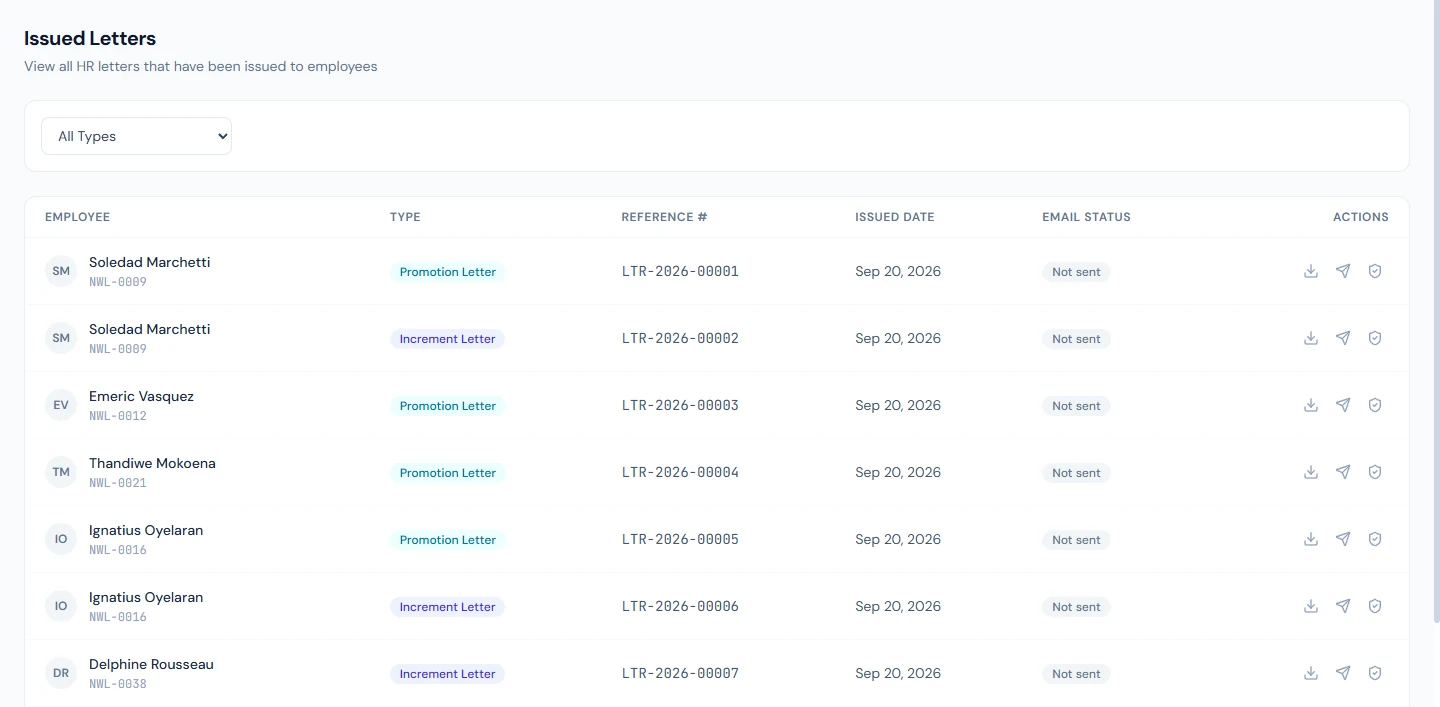
- Issuing fills the letter's fields from the employee record and the current salary; HR checks them, adds custom fields if needed, and issues. Each letter gets a reference number, LTR-2026-00001 and so on, and its PDF carries a verification QR code.
- Employees request experience and salary certificates, appointment and offer letters from the portal; HR issues or rejects each request, and the employee is emailed either way.
- Other actions issue letters on their own: promotions, transfers, increments and decrements, confirmations, and the experience certificate at final settlement.
- Who:
hr_letters.manageto issue and manage templates (Super Admin, HR Manager);hr_letters.manage_requeststo handle requests (Super Admin, HR Manager, HR Officer); employees view their own letters and request new ones (every default role except Accountant).
Walkthrough
Northwind has issued twenty-nine letters, for increments, promotions and transfers, through those actions; Soledad Marchetti's promotion letter is LTR-2026-00001. Five requests have come in from the portal.
76.1 Letter types
| Type | Typical use |
|---|---|
| Experience Certificate | For a leaver's next employer: dates and role |
| Salary Certificate | For a bank, landlord or embassy: current salary |
| Offer Letter, Appointment Letter | The terms of a new job |
| Confirmation Letter | The end of probation |
| Promotion Letter, Transfer Letter | A new role or location |
| Increment Letter, Decrement Letter | A salary change |
| Warning Letter, Termination Letter | Discipline and separation |
| Custom | Anything else, from a template the workspace writes |
The types are fixed. Each has fields for its facts: an increment letter has Previous Salary, New Salary, Effective Date and Reason; a warning letter has Reason, Previous Warnings, Expected Improvement and Deadline.
76.2 Issuing a letter: auto-filled data, custom fields
HR Letters › Issue Letter asks for the Employee, the Letter Type and the Template. Each standard design is listed once per language ("Standard Salary Certificate · EN", "… · AR"), and the template's language decides the letter's wording and date format. For an Experience Certificate the search also finds people who have left.
Choosing the employee fills the Letter Data for the type from the record: designation, department, joining date, reporting manager, branch, and for salary letters the current gross salary. Every field stays editable; check them against the file before issuing. Add Custom Field adds a name and a value for a template that uses one. Issued Date defaults to today. Issue Letter stores the letter with the next reference number for the year, and returns to Issued Letters. Issuing does not email the letter; that is a separate step.
76.3 Issued letters: PDF, email, resend
Issued Letters lists every letter with the employee, type, reference number, issued date and Email Status (Sent or Not sent), filtered by type. Download PDF opens the letter on the company's letterhead with its logo, seal (Settings › Branding), the reference number, a verification QR code and a footer naming the company. Send Email emails the PDF to the employee's work address, else their personal one; Resend Email sends it again. The shield icon opens the letter's verification record (Chapter 77). An issued letter cannot be edited or deleted: a wrong letter is revoked through its verification record and issued again.
The PDF is produced each time it is opened, from the stored data and the template, so a template edit changes how old letters look; keep the template's facts and wording stable once letters are out.
76.4 Letter requests from employees: issue or reject
In the portal, Letters has Issued Letters (every letter issued to them, to download) and My Requests. Request a Letter offers Experience Certificate, Salary Certificate, Appointment Letter and Offer Letter, with a Purpose ("e.g. Bank loan application, Visa interview"), an optional Addressed To and Additional Notes. One request per type can be pending; the employee can cancel it until HR acts. Everyone who handles requests is emailed and notified.
HR Letters › Requests lists them, pending first. Marisol Echevarria (NWL-0017) asks for a salary certificate for an "Auto loan application", addressed to "First National Bank of Texas". Issue opens Issue Letter with Marisol, the type and the purpose filled in; issuing marks the request Issued, emails Marisol the letter, and the certificate opens "First National Bank of Texas" where the standard wording says "To Whom It May Concern". Reject needs a reason, which the employee sees and is emailed: Barnaby Olamide's mortgage request came back with "Please re-submit with the lender's reference number."
76.5 Letter templates: clone, languages, placeholders, preview
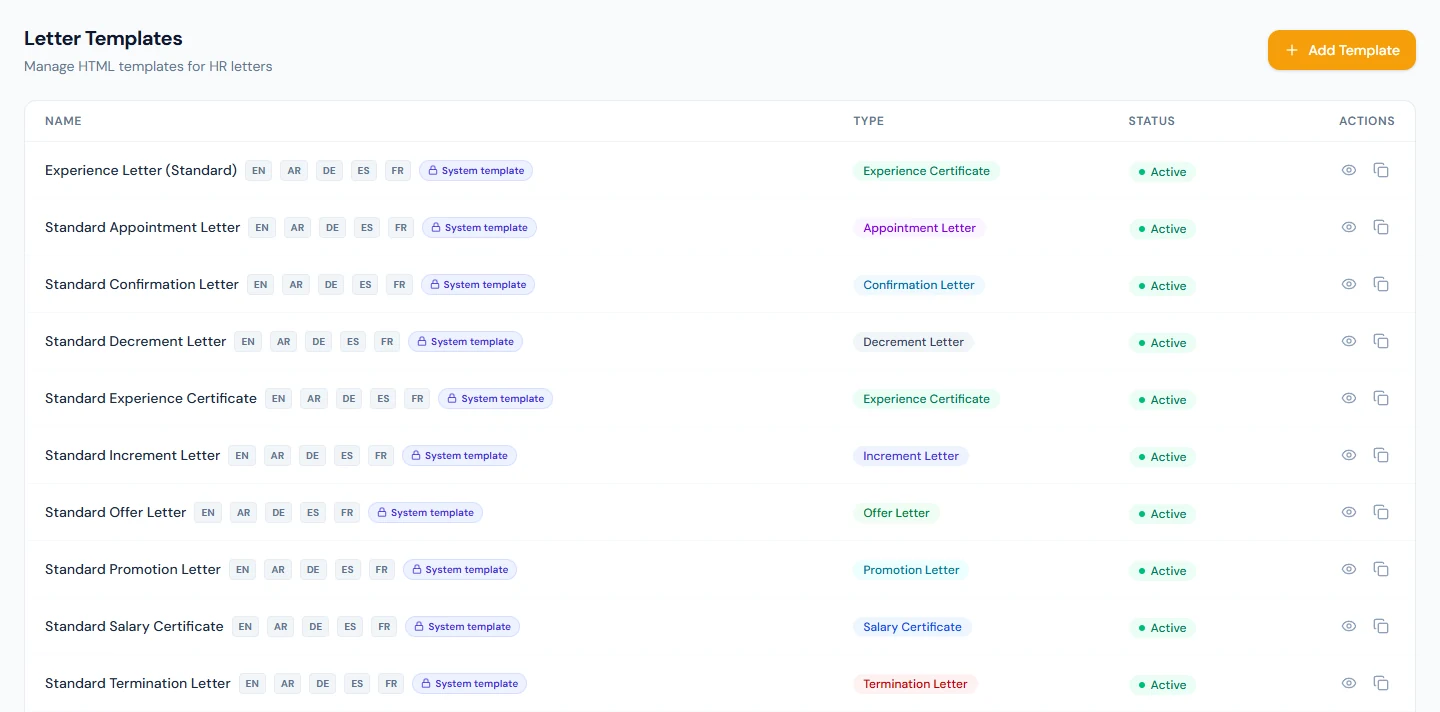
HR Letters › Templates lists the standard templates, marked System template with a chip for each language, and the workspace's own. A standard template is read-only: Clone copies all its languages into editable workspace templates. Add Template takes a Name, a Type and the Content (HTML Template); a template the workspace writes from scratch is treated as English, for its dates and footer.
Templates use placeholders, each a name written between double curly braces: employee.firstName, employee.employeeCode, referenceNumber, date (the issue date), company.name, every field of the type such as designation, newSalary or effectiveDate, and any custom field by its name. The editor's hint shows the exact form. Preview shows the template with sample data and the company's real name, logo and seal, at desktop, tablet and mobile widths. Delete deactivates a workspace template: letters already issued keep it, and it can be turned back on from Edit.
Letters issued on their own use the workspace's template for the type, in the document language where there is one, else the standard one: a promotion or transfer letter when one is recorded (Chapter 24), an increment or decrement letter with a salary change (Chapter 57), a confirmation letter when probation is confirmed with "Auto-issue confirmation letter" ticked, and the experience certificate when a leaver's final settlement is completed with it ticked (Chapter 82). They appear in Issued Letters like any other; send them from there.
What happens next
- Chapter 77 shows how anyone holding a letter can check it.
What the employee sees
Letters in the portal with every letter issued to them, their requests with status and any rejection reason, and an email when a letter is sent or a request rejected.
Common mistakes
- Issuing without checking the auto-filled facts. They come from the record; a wrong record makes a wrong letter.
- Picking the template in the wrong language. The language decides the wording; check the chip.
- Editing a template that letters already use. Old letters change with it; clone and edit a new one instead.
- Forgetting to send. Issuing does not email; the status says Not sent until someone does.
- Rejecting without a usable reason. The employee only knows what the reason says.
- No seal or logo uploaded. Letters go out on a plain page; set them in Settings › Branding.
Practice
Use your own trial workspace, not a customer's.
- Issue a salary certificate to an employee and compare every field with their record.
- Download the PDF, then send it by email and check the status.
- As the employee, request an experience certificate addressed to a company; as HR, issue it and read the opening line.
- Clone a standard template, change its wording, and preview it.
Quiz
1. Where do a letter's facts come from?
The employee record and the current salary, filled in when the employee is chosen and checked by HR before issuing.
2. What decides the language of a letter?
The template chosen: each standard design exists once per language.
3. Which letters can employees request?
Experience Certificate, Salary Certificate, Appointment Letter and Offer Letter.
4. What happens when HR issues a request?
The request is marked Issued and the letter is emailed to the employee.
5. Which actions issue letters on their own?
Promotions, transfers, increments and decrements, confirmations with the auto-issue option, and final settlements with the experience certificate option.