Chapter 7 — The dashboard and the setup checklist
The admin dashboard is the first screen after sign-in and the one HR comes back to all day. In a new workspace it also carries a checklist of the eleven things to do before the company can really run. This chapter tours the dashboard, explains how each checklist step is judged complete, and ends the "getting started" part of the course by setting the order the next part follows.
What this chapter covers
- 7.1 Dashboard tour
- 7.2 The setup checklist: the eleven steps and how each one completes
- 7.3 Plan-locked steps, and dismissing the card
- 7.4 The holiday-suggestion banner
The concept
A dashboard answers "what needs my attention today?" before any page is opened: who is present, what is waiting for approval, what is about to expire. It is a reading surface, not a working one; every number on it is a link to the page where the work happens.
A setup checklist is different. It exists because a new HR system is unusable until a chain of prerequisites is in place, and the chain has an order: there are no payslips without salary structures, no leave balances without leave groups, no attendance without a decision about how it is captured. A good checklist judges each step from the real data (not from a box you tick) and never blocks you, so you can work in any order and still see what is left.
How Operentra handles it
The dashboard at /admin is built from live data each time it opens: the
headcount and presence figures, the queues waiting on HR, the alerts, and
the company's own announcements and birthdays. If part of it fails to load,
a banner says so and the cards show defaults rather than nothing.
The checklist is the Finish setting up your workspace card at the top. Its steps come from the server, which checks each one against the workspace's records, so a step ticks itself the moment the condition is met. Steps for features outside the plan are shown locked and left out of the count. The card can be dismissed, and retires itself when everything it counts is done.
Walkthrough
7.1 Dashboard tour
Sign in to your workspace and read the dashboard top to bottom.
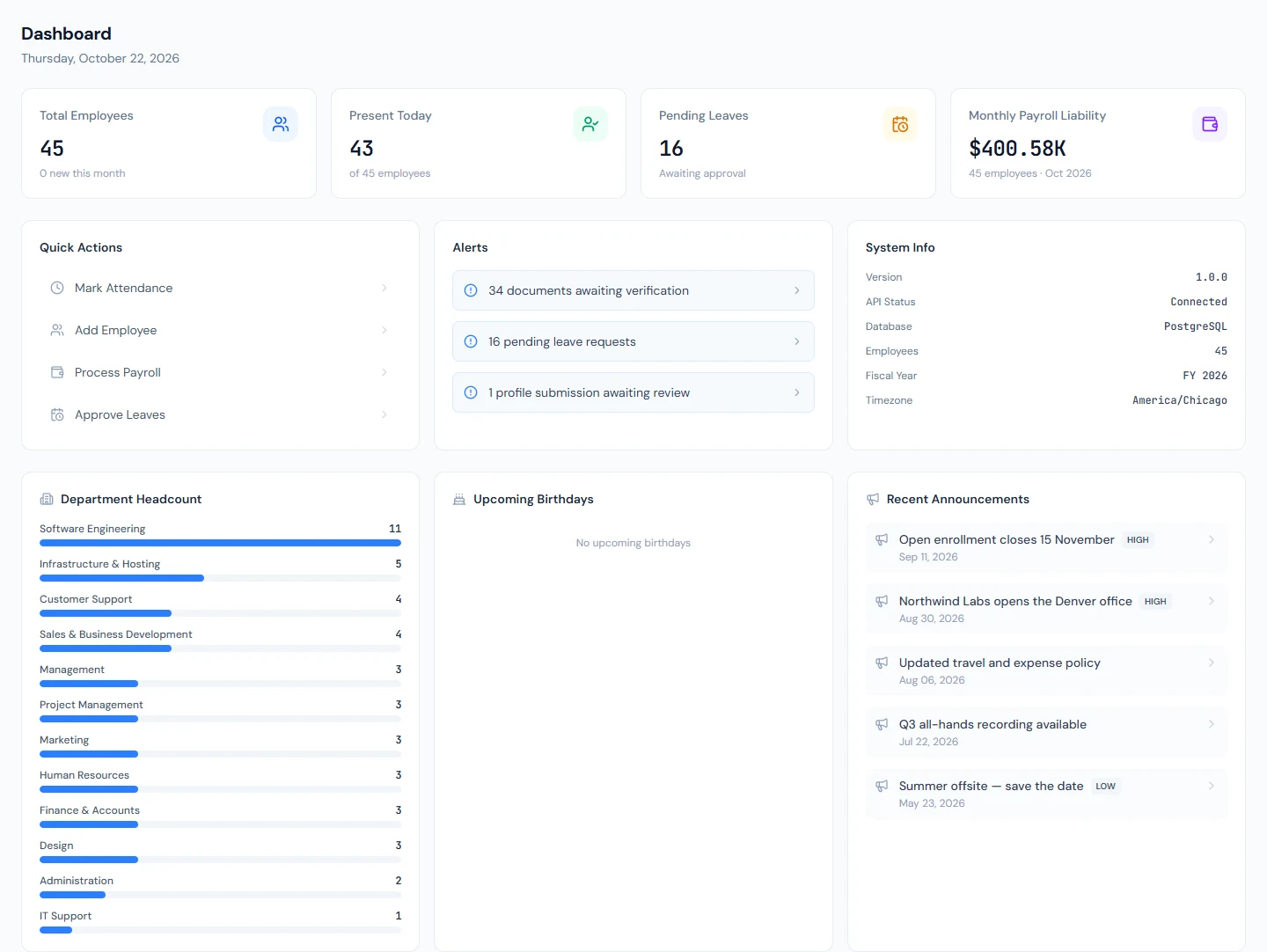
Stat cards. Four, each a link:
- Total Employees, with the month's trend ("+n new this month" or "−n exited").
- Present Today, as "of n employees".
- Pending Leaves, the requests waiting for a decision.
- Monthly Payroll Liability: the current run's status, or the headcount and month when no run exists. It carries a lock when payroll is not on the plan.
Quick Actions. Mark Attendance, Add Employee, Process Payroll (lockable) and Approve Leaves: the four things HR does most, one click each.
Alerts. Four queues, each linking to its page, or All Clear when every one is empty: contracts expiring within 30 days, documents expiring within 30 days, pending leave requests, and profile submissions awaiting review (the other end of Chapter 6's Share card).
System Info. The version, the API and database status, the employee count, the current fiscal year and the company time zone. Glance at the last two in a new workspace: both are decided by sign-up, and both are easy to get wrong.
Department Headcount. A bar per department, largest first. Empty departments do not appear, which makes it a quick check that everyone has been placed.
Upcoming Birthdays and Recent Announcements, the latter with an Important or Urgent badge where the announcement carries one.
On a fresh workspace most of this is empty or zero; at Northwind every card has something in it. The tour is worth repeating once Part 4 has filled the workspace with people.
7.2 The setup checklist
The card shows "x of y steps complete" with a progress bar. Each step has a Go button to the right screen and a check once it is done. The steps, and what completes each one:
| # | Step | Complete when | Screen |
|---|---|---|---|
| 1 | Complete your company profile | The logo and the address are set. They appear on payslips, letters and contracts. | Company → Profile |
| 2 | Set up departments | At least one department exists. | Company → Departments |
| 3 | Add job titles | At least one designation exists. | Company → Designations |
| 4 | Create a salary structure | A structure exists that splits a salary into basic, allowances and deductions. | Payroll → Structures |
| 5 | Add a company bank account | An operating account exists. A fund account (your provident fund's) does not count. | Company → Bank Accounts |
| 6 | Add your employees | Employee records exist. | Employees → Add |
| 7 | Review your leave groups | The leave groups set up from the country's entitlements have been looked at. | Leave → Groups |
| 8 | Assign employees to a leave group | Employees are in a group. An employee with no leave group has no leave balance. | Employees |
| 9 | Review your public holidays | The calendar holds at least one holiday for the current year. | Holidays → Suggestions |
| 10 | Choose how attendance is captured | Every method you chose would actually record a punch. Shown only when the plan includes biometric devices or GPS. | Attendance → Settings |
| 11 | Run your first payroll | A payroll run has been processed. | Payroll → Process |
Some steps show as complete right after sign-up, because the workspace ships with starter departments, job titles and salary components. Review those defaults rather than trusting the tick; Chapters 9 and 51 go through them.
Two steps deserve a closer look.
Step 9, holidays. The country's public holidays are fetched for you, but they arrive as suggestions awaiting your approval, not as calendar entries. Until you accept them, those dates are ordinary working days: a shift set to auto-present marks everyone present on a public holiday, and payroll counts it as a normal day. The step ticks once the calendar has a holiday for the current year, and the sync runs per year, so it comes back every January. Chapter 43 covers holidays.
Step 10, attendance capture. When the plan includes a biometric terminal or GPS attendance, the checklist asks how your team records attendance. Go opens Attendance Settings, where you tick every method you use (the office terminal for office staff, GPS for field staff; HR marking is always available and needs no device). Choosing is half the step: it ticks only when each chosen method would record a punch, which for a terminal means at least one active device, and for GPS means it is switched on, a site exists, and employees are assigned to it. Until then the step says what is missing. New workspaces start on an auto-present shift, which marks everyone present without a punch; after you choose a device or GPS, the settings card offers to switch those shifts to punch-required, and nothing changes until you confirm. Part 7 covers attendance.
Each employee you add starts as New (Pending Activation) and is left out of payroll, attendance and leave until activated, which happens when their employment contract is accepted. Step 6 ticks when records exist; Chapter 18 is activation.
7.3 Plan-locked steps, and dismissing the card
A step for a feature the plan does not include shows a lock instead of a Go button and is left out of "x of y", so a Starter workspace can reach a complete checklist without payroll. The lock leads to the upgrade path, as locks do everywhere (Chapter 5).
The × on the card dismisses it, for every administrator, not just you. Dismiss it only when the remaining steps are genuinely deferred; the steps themselves still matter, and nothing else on the dashboard reminds you of them. When every counted step is done, the card retires itself.
7.4 The holiday-suggestion banner
Separately from the checklist, a banner appears on the dashboard whenever suggested holidays are waiting: "n upcoming holidays need your review", with Review Suggestions leading to the holidays page. It appears in a new workspace, and again each year when the next year's holidays are fetched. Reviewing them is a few minutes' work and prevents a month of wrong attendance; do it when the banner appears.
What happens next
- Completing a step does not send anything; the checklist only reads. The steps themselves do: adding employees sends invitations (Chapter 16), running payroll produces payslips (Chapter 55).
- The suggested order of work is the checklist's order, and it is also Part 3's order: company profile, then departments and job titles, then a salary structure and a bank account, then employees, leave groups and holidays, then the first payroll.
What the employee sees
Nothing of this. The dashboard and the checklist are admin-only; the portal has its own dashboard (Chapter 83), with the employee's own attendance, leave and announcements.
Common mistakes
- Trusting a pre-ticked step. Starter departments, job titles and salary components complete the step without matching your company.
- Accepting no holidays because the step looked optional. Auto-present shifts then mark everyone present on holidays, and payroll pays the day as worked.
- Choosing a capture method and stopping. The step stays open until the device or the GPS site exists; the card says which.
- Dismissing the card for everyone to tidy your own screen.
- Running the first payroll before employees are activated. Pending employees are left out, and the run looks complete.
Practice
In your workspace:
- Read every stat card and alert and open each one. Note which are empty and why.
- On the checklist, list the steps already ticked and open each one to see what default data ticked it. Decide which defaults you will replace in Part 3.
- If a holiday banner is showing, open Review Suggestions and read the list; do not accept anything yet, Chapter 43 does that properly.
- Check System Info: is the current fiscal year the one you expect, and is the time zone right? If either is wrong, Chapters 8 and 10 fix them.
Quiz
1. Why does step 5 refuse to tick when the only bank account is the provident fund's?
Answer
Payroll is paid from an operating account, and the bank payment file is built from it. A fund account holds the fund's money, not the company's, so it does not count.
2. The holidays step is still open, and the workspace runs on auto-present shifts. What happens on the next public holiday?
Answer
Everyone is marked present and the day is paid as worked. Suggested holidays are not on the calendar until they are accepted.
3. A step shows a lock instead of Go. Does it count toward the progress bar?
Answer
No. Steps for features outside the plan are left out of the count, so the checklist can complete without them.
4. Who stops seeing the card when you dismiss it?
Answer
Every administrator. Dismissing is workspace-wide.
5. Step 6 is ticked, but the first payroll run came out empty. What is the likely cause?
Answer
The employees exist but are still New (Pending Activation). They are left out of payroll, attendance and leave until their contracts are accepted.