Chapter 5 — Finding your way around
You have a workspace. Before setting anything up, learn the building: where the two entrances are, how the sidebar decides what you see, how to reach any page in three keystrokes, and what the banners and blocked pages mean when they appear. Everything in this chapter is the same on every screen, so an hour here saves a question in every later chapter.
What this chapter covers
- 5.1 The admin panel and the employee portal, and switching between them
- 5.2 The admin sidebar: sections, permissions, locked items
- 5.3 Ctrl+K menu search
- 5.4 The top bar: company switcher, language switcher, notifications, user menu
- 5.5 Banners: trial and read-only, payment failed, invitations, email language, impersonation
- 5.6 Blocked pages: plan locks, "Not applicable in your country", no permission
- 5.7 Conventions: toasts, confirmations, pagination, CSV export, printing
- 5.8 Using Operentra on a phone; printing registers
- 5.9 Opening the documentation
The concept
An HR system has two audiences with opposite needs. The people who run HR need every record and every control. The employees need their own records and a few requests, and must never see anyone else's. Operentra answers this with two faces of one workspace, and with permissions that decide, item by item, what each person sees. What is not permitted is not shown; what the plan does not include is shown locked; what does not apply in the country is said to be not applicable. Reading those three signals correctly is most of finding your way around.
How Operentra handles it
Where you land after sign-in depends on your roles. Anyone holding an admin
role (super admin, HR manager, HR officer, accountant or department head)
lands in the admin panel at /admin; everyone else lands in the
employee portal at /portal. A person can have both: an HR manager who
is also an employee switches between the two from the user menu.
The admin sidebar is built from your permissions: each item appears only if you hold its permission, and an item for a feature outside the plan stays visible with a lock. The portal does the opposite with plan features and hides them. Both faces share one top bar, one set of banners, one language switcher and one notification centre.
Walkthrough
5.1 The admin panel and the employee portal
The admin panel is the working side: the sidebar on the left, the top bar, and the page in the middle. The employee portal has its own, shorter sidebar: dashboard, attendance, leave, salary, documents, requests, and the manager views for people who have direct reports.
To cross over, open the user menu (your avatar, top right):
- In the admin panel, Employee Portal appears if you have an employee record of your own.
- In the portal, Admin Panel appears if you hold admin permissions.
Part 14 of the course walks the portal as an employee sees it. For now, know that it exists and that your employees will only ever see that side.
5.2 The admin sidebar
The sidebar is organised by module: Dashboard, Company Setup, Employees, Contracts, Attendance, Field Visits, Leave, Holidays, Payroll, Cheques, Tax, Loans & Advances, Announcements, HR Letters, Appraisals, Assets, Onboarding, Offboarding, Expenses, Recruitment, Performance, Reports, Access Control, Logs and Settings. Platform operators also see an Operator Console.
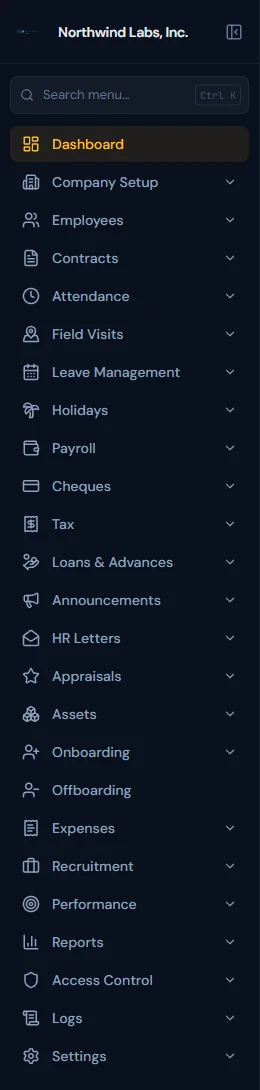
Three rules decide what you actually see:
- Permission. An item appears only if one of your roles grants its permission. A department head's sidebar is a fraction of a super admin's.
- Plan. An item for a feature your plan does not include stays in the list with a lock icon and a tooltip saying it is not included; clicking it leads to the upgrade path rather than the page.
- Country. The Tax section appears only in countries where income tax is withheld through payroll.
The sidebar collapses to icons to make room; a search icon in the collapsed state does what the search box does when expanded.
5.3 Ctrl+K menu search
At the top of the sidebar is Search menu…. Press Ctrl K (⌘K on a Mac) from anywhere in the admin panel to jump to it; if the sidebar is collapsed, it opens first.
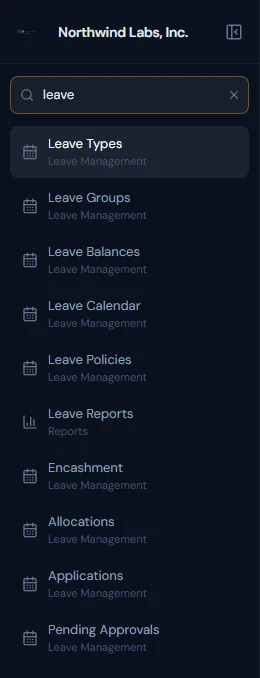
Type a word or two. The search covers about 120 destinations, matching each page's label and its common synonyms, so "payslip" finds Salary Slips and "roles" finds the role editor. Every word you type must match; up to twelve results are shown, ranked, each labelled with its section. Only pages you have permission for, and that apply in your country, appear; a locked feature shows its lock. Arrow keys move, Enter opens, Esc clears and then leaves the box.
This is the fastest way to move around Operentra, and the course will say "open X" from here on and leave the route to you.
5.4 The top bar
From left to right:
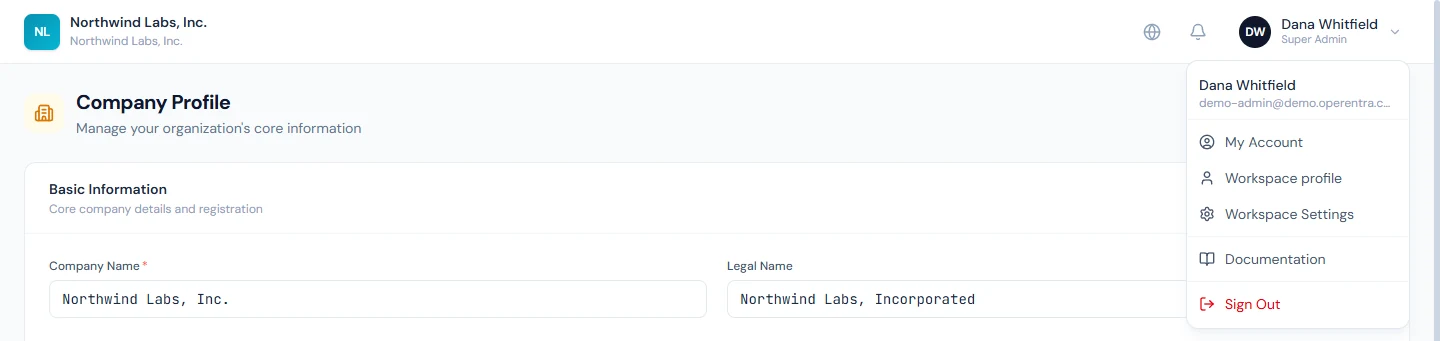
- Company switcher. With one company it is just the company's name and logo mark. With several, it opens Your companies, listing each with your roles there, a check on the current one, and "No access" on any you cannot enter. Switching signs you into that company and reloads into its admin panel or portal according to your roles there. If that company requires two-factor sign-in and you have not set it up, you are sent to your security settings first. A search box appears once you belong to seven or more companies.
- Language switcher (the globe). English, Arabic, French, German and Spanish. It changes the screen language only, and the choice is remembered in your browser. Arabic turns the whole layout right-to-left. The language your emails arrive in is a separate setting (5.5).
- Notifications (the bell). Opens your notifications, with View all leading to the full list in whichever side you are on.
- User menu (your avatar). Your name, email and first role, then: My Account, Workspace profile, Workspace Settings (with the settings permission), the switch to the other face (5.1), Create a workspace (when you may open another, or when doing so needs a plan upgrade, which its page explains; Chapter 4), Documentation, and Sign Out.
5.5 Banners
Banners appear across the top of the page when something needs saying. You will meet five:
- Trial and read-only. Billing admins see "n days left" during the trial, and "Your last payment failed — Update billing" when a payment fails. Everyone sees the read-only banner once the trial has ended or the subscription is not active: the workspace can be read but nothing can be saved. Billing admins get Choose a plan; others are told to contact their administrator. The same banner appears the first time a save is refused.
- Invitations. One banner per pending invitation to another company: "company has invited you… as roles". Accept switches you in; Decline is the only way to remove it. An employee who declines only declines the login; the employment record stays.
- Email language. Shown when your emails arrive in a language other than the one on your screen; any of the five screen languages can be your email language too. Get them in language instead switches them; dismissing is remembered per language.
- Impersonation (amber). "You are signed in as name (email) — actions you take are recorded." It appears when an administrator with the right permission signs in as another user to see what they see, survives a page reload, and Return to your account ends it. Chapter 14 covers when to use it.
5.6 Blocked pages
Three different screens say "not here", and each means something different.
- Not in your plan. A page for a feature the plan does not include is replaced by "Feature isn't included in your plan". Billing admins get See plans (which opens billing with that feature selected) and Back to dashboard; everyone else is told to ask their workspace admin. In the portal the wording is "isn't available in this workspace". If the plan changes while you are working, a dialog says so and refreshes the plan before you continue.
- Not applicable in your country. An income-tax page in a country that levies no income tax says exactly that, instead of offering an upgrade. There is nothing to buy; the page does not apply.
- No permission. "You don't have access to this page", naming the permission needed, with Back to dashboard. The fix is a role change (Chapter 14), not a plan change.
Inside pages the same three signals appear in miniature: a dashed locked card with See plans, an Upgrade pill or lock icon on a control, and controls that are simply absent when you lack the permission.
5.7 Conventions every screen shares
- Toasts. Short messages at the corner of the screen: green for success, red for errors, blue for information, each with a dismiss button. Any save that fails tells you why in a toast, so watch the corner when something does not seem to happen.
- Confirmations. Anything destructive or irreversible (delete, publish, lock a payroll run) asks first, and the most dangerous actions make you type the name of what you are deleting.
- Pagination. Long lists are paged; the page size is shown at the foot of the list with the controls.
- CSV export. Reports and most lists have an Export that downloads what you are looking at, filters applied, as a CSV file for a spreadsheet.
- Printing. Registers and documents have a Print control. Printing hides the sidebar, top bar and banners, so what comes out is the register alone.
- Dates and money follow the workspace: the date format and currency set on the company profile, and punch times in the company's time zone.
5.8 Phones and printing
Operentra works in a phone browser. The sidebar becomes a drawer behind the menu button at the top left, tables scroll sideways, and phone-number fields offer a country picker. Employees use the portal this way far more than admins use the admin panel; attendance, leave requests and payslips all fit a phone. Printing from a phone works the same way as from a desktop, through the browser's print function.
5.9 Opening the documentation
Documentation in the user menu opens, in a new tab, the admin guide
(/docs/admin/) from the admin panel or the user guide (/docs/) from the
portal. This course lives beside them at /docs/academy/, and the docs home
page links all three. The admin guide is the reference to keep open while
you work: one page per screen, in the same order as the sidebar.
What the employee sees
Nothing in this chapter is visible to an employee except the portal, the top bar and the banners that apply to them: the read-only banner, an invitation to another company, and the email-language banner. They never see a plan lock (locked features are hidden in the portal) and never see the admin sidebar.
Common mistakes
- Reading a lock as a permission problem, or the reverse. A lock means the plan; "You don't have access" means your roles. The fix is different.
- Giving someone an admin role so they can see the admin panel, when all they needed was a report or a portal view. Roles are the subject of Chapter 14; until then, the super admin is enough.
- Confusing screen language with email language. The globe changes what you see; the banner changes what you receive.
- Dismissing a toast without reading it. It was the error message.
- Working in the wrong company after a switch. The company name in the top bar is the only cue; check it before a payroll run.
Practice
In your workspace:
- Press Ctrl K and open five pages by search alone: the company profile, departments, salary structures, leave groups and the audit log. Note the section each result is labelled with.
- Find the sidebar item for a feature your plan does not include and read its tooltip. Click it and read the plan-lock page. Go back.
- Switch the screen language to Arabic, look at the layout, and switch back. Then dismiss the email-language banner if one appeared.
- Open the user menu. Note which of its items you have and which you lack, and why (no employee record yet; settings permission held).
- Open the documentation from the user menu, then come back to this course.
Quiz
1. After sign-in, what decides whether a person lands in the admin panel or the portal?
Answer
Their roles. Anyone with an admin role (super admin, HR manager, HR officer, accountant, department head) lands in the admin panel; everyone else lands in the portal.
2. A sidebar item shows a lock icon. What does that mean, and what does it not mean?
Answer
The feature is not included in the workspace's plan. It does not mean the person lacks permission; a missing permission hides the item altogether.
3. What does the "Not applicable in your country" page mean?
Answer
The page concerns income tax, and the workspace's country levies none through payroll. There is nothing to upgrade to; the page simply does not apply.
4. The globe in the top bar is set to French, but an employee's emails arrive in English. Why?
Answer
The globe changes the screen language only, and only in that browser. Email language is a separate setting, offered by the email-language banner and set on the profile.
5. What is the fastest way to reach the role editor without knowing where it is in the sidebar?
Answer
Press Ctrl K, type "roles", and press Enter on the result.