Chapter 20 — The employee directory
The directory is the front door to every record in Part 4. It is also the list people outside HR ask for most: finance wants a headcount by department, a manager wants their team on paper, an auditor wants the roster as of a date. This short chapter covers finding a person in it, reading what the list tells you at a glance, and taking a copy out as a spreadsheet or a printout without losing anyone on the way.
What this chapter covers
- 20.1 Finding people: search, filters and the list itself
- 20.2 Export CSV and Print: what each copy contains
The concept
A directory answers two questions: who is here, and who was here when. The first is served by search and filters; the second is why exports exist. Every copy you hand out is a snapshot that stops being true the next time someone joins or leaves, so a good directory makes it obvious what a copy covers (which filter, which date) and keeps the sensitive fields out of the copy by default. An export that carries identity numbers and home addresses into a spreadsheet on a shared drive is the most common way HR data leaks, and it is almost never needed: the people who ask for a list want names, codes, teams and titles.
The other discipline is to search the record, not your memory of it. A directory indexed on first name, last name, code and email finds the person whether you remember "Okoro", "NWL-0051" or the address they write from, and it finds them under the status they are actually in. Filtering by status is also how you audit hygiene: records still New weeks after joining, people marked On Leave who came back, leavers never separated.
How Operentra handles it
- Where it lives. Employees › All Employees, at
/admin/employees. The sidebar entry needsemployees.view_all, which the Super Admin, HR Manager, HR Officer and Accountant roles hold. Department heads do not see the directory; their team is in the portal (Chapter 89). The command palette (Chapter 5) reaches it under "staff list", "directory" or "roster". - One list, filtered three ways. A search box, a department drop-down and a status drop-down, combined. Export and Print always take the whole filtered list, however many pages it runs to.
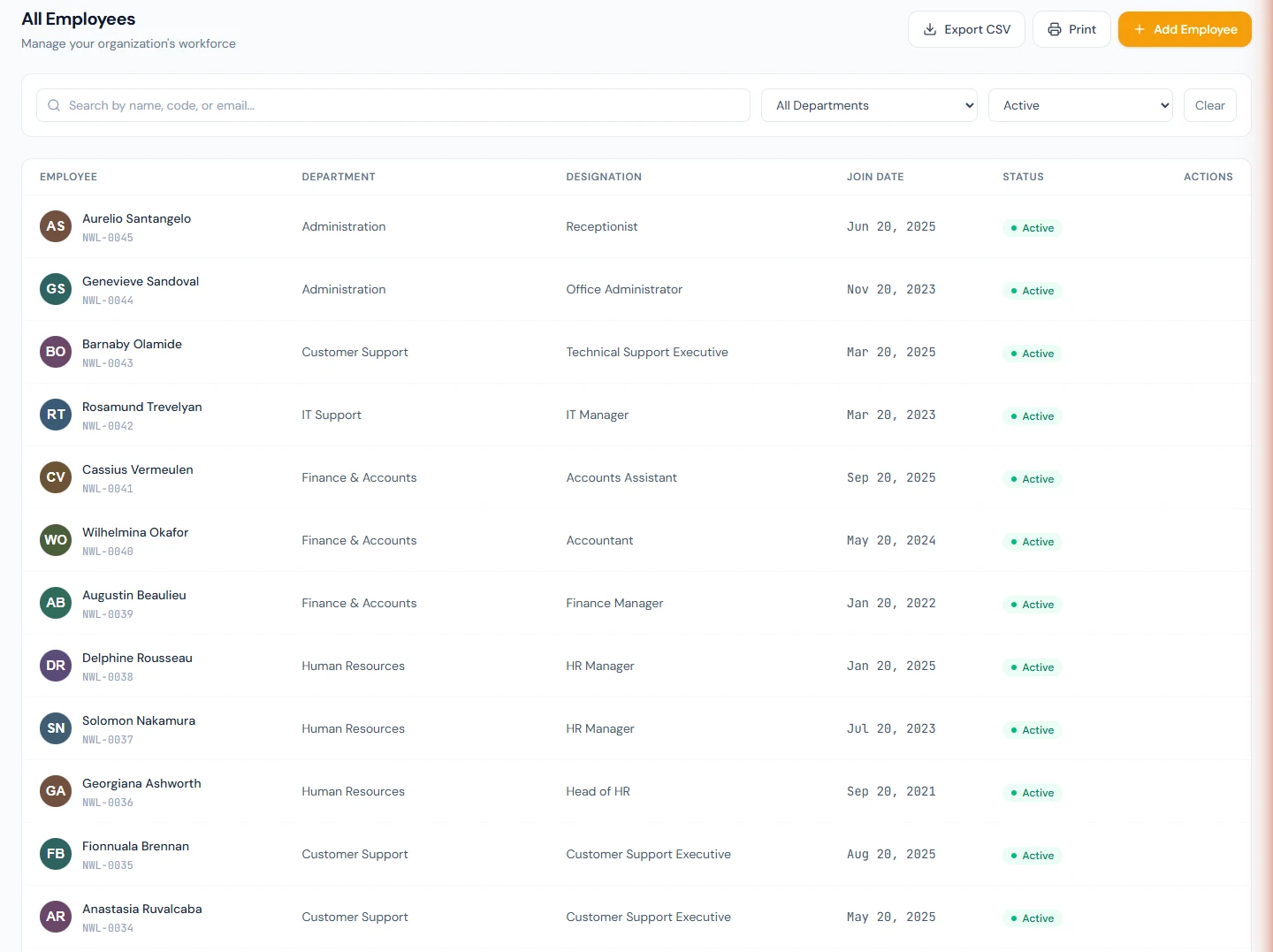
- Newest first. The list is ordered by when the record was created, most recent at the top, 25 to a page. There are no column sorts.
- The list is also where bulk activation lives. The amber pending-activation banner and the blue activation bar were covered in Chapter 18 and are not repeated here.
- Copies carry no sensitive fields. Both the CSV and the printout hold the code, name, department, designation, join date and status, and nothing else.
Walkthrough
20.1 Finding people: search, filters and the list itself
The page is headed All Employees, "Manage your organization's workforce", with Export CSV, Print and Add Employee on the right. The first two appear only once the current filter has at least one person in it.
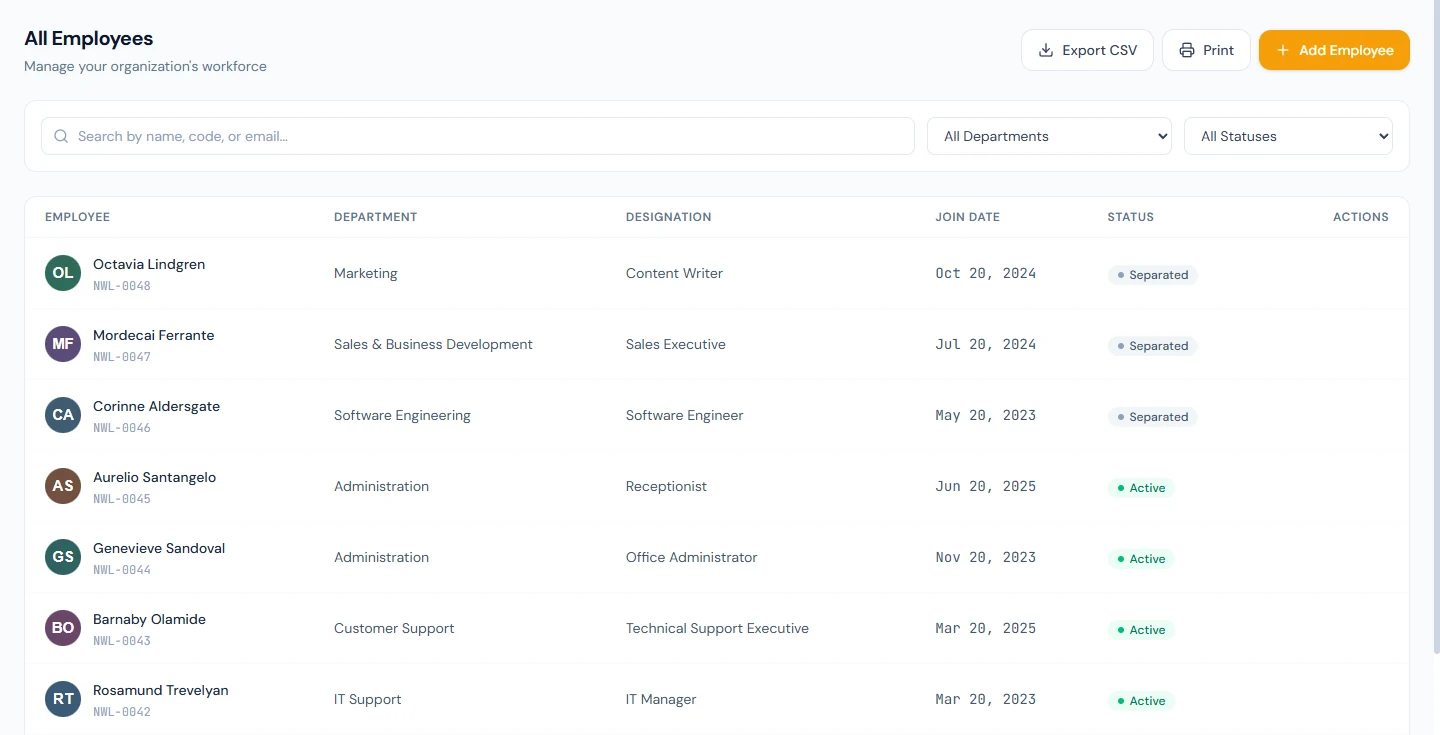
Below the header, when any record is still pending activation and you are not already looking at them, sits the amber banner from Chapter 18. Then the filter card.
Search matches as you type, a third of a second after you stop. Each word you type has to appear somewhere in the person's first name, last name, employee code, identity number, personal email or work email, and matching ignores case. So all of these find Harriet Okoro:
| You type | Why it matches |
|---|---|
| okoro | the last name |
| Harriet Okoro | each word matches a name field |
| NWL-005 | the start of the code, together with NWL-0050 and NWL-0052 to NWL-0055 |
| harriet.okoro@ | the personal email |
What it does not search: department and designation names (use the drop-downs), phone numbers, and addresses. The small ✕ in the box clears it.
All Departments narrows to one department; All Statuses narrows to one of the eight statuses, including New (Pending Activation) and Separated. When either drop-down is set, a Clear button appears beside them; it resets the two drop-downs and leaves the search text alone. Changing any filter returns you to page one.
The table has six columns: Employee (photo or initials, the name, and the code beneath it), Department, Designation, Join Date (written short, 05 Jan 2026), Status as a coloured badge, and Actions. The name is a link to the profile. On a wide screen the three action icons, View, Edit and Delete, appear when the pointer is over the row; on a narrow screen they are always visible. View and Edit open the profile and Edit Employee from Chapter 19. Delete asks the same question as the profile's Delete and does the same thing, including closing the person's login; the page reloads afterwards.
Under the table, when the filter runs past 25 people, a footer reads "Showing 1 to 25 of 50 results" with page controls. The count is the one to quote when someone asks how many people match.
An empty result shows "No employees found" and, if you have no records at all, an invitation to add the first one.
Example. Northwind's support desk grew by four in Chapter 17. To see the whole desk, HR sets All Departments to Customer Support and leaves the status open: the four new agents are at the top, because they are the newest records, with the agents who were already there below them. To check that nobody on the desk is still pending, HR sets the status to New (Pending Activation) while keeping the department: an empty list is the answer wanted. Clear resets both.
20.2 Export CSV and Print: what each copy contains
Both buttons work on the current filter and walk through every page of it, so a list of 140 people yields 140 rows, not the 25 on screen.
Export CSV downloads a file named employees.csv with seven columns: Code, First Name, Last Name, Department, Designation, Join Date and Status. Three things to know about it.
- It opens cleanly in Excel, Numbers and Google Sheets; the file is written so that accented names survive.
- Dates and statuses are written the way the screen shows them, in the language you are using: "05 Jan 2026" and "On Leave", not a machine date and a code. It is a people list for humans, not an import file; the import format is the sample from Chapter 17.
- It carries no identity numbers, emails, phones, addresses or bank details. If a request needs those, it needs a conversation about why, not a wider export.
Print hands the page to your browser's print dialog, and what prints is not the screen. It is a register headed with your company logo and name, the title Employee Directory, and the count of people in the filter, over a plain table of six columns: Employee, Code, Department, Designation, Join Date and Status. A footer line records the date it was generated. In the print dialog, choose landscape for the table to breathe, and Save as PDF when the copy is going by email rather than to paper.
Example. Finance asks Northwind for the active headcount by department at the end of the quarter. HR sets All Statuses to Active, leaves the department open, clicks Export CSV, and sends the file: one row per active person, with a Department column finance can pivot on. For the team list the head of Customer Support pins up, HR sets that department and clicks Print; the register carries the company name and the date it was generated, so next quarter's copy is recognisably newer.
What happens next
- Nothing changes in Operentra when you search, filter, export or print. The copy is yours, and so is its protection: store it where the people on it would expect, and delete it when the request is served.
- A Delete from the row is the delete of Chapter 19: the record is hidden everywhere and the person's login is closed.
What the employee sees
- Employees do not see the directory. A manager sees their own team in the portal (Chapter 89).
- Nobody is told that a list was exported or printed.
Common mistakes
- Exporting with a filter still set. The file quietly holds only the filtered people. Read the count in the footer, or clear the filters, before you export.
- Expecting the CSV to re-import. It is a readable list; dates and statuses are words. The import sample in Chapter 17 is the file that goes back in.
- Expecting an alphabetical list. The directory is newest first. Export to a spreadsheet and sort there.
- Searching for a department or a title. The search box reads names, codes, identity numbers and emails. Departments have their own drop-down; designations have none, so export and filter in the sheet.
- Deleting from the row by accident. The icons appear on hover and Delete is the red one on the right. The confirmation is the only guard, and the login closes with the record.
- Treating the printout as an emergency list. It has no phone numbers or emergency contacts; those live on each profile and in the Verifications screen (Chapter 23).
- Quoting the page count as the headcount. "Showing 1 to 25 of 50" means 50. The dashboard (Chapter 7) counts active employees only.
Practice
Work in your own trial workspace.
- Type the last two digits of a code into the search and read which records match and why.
- Type a person's full name, first and last, and confirm they are found. Type their email address and confirm the same.
- Set a department filter and a status filter together. Note the count in the footer, then click Clear and note what it did and did not reset.
- With a filter set, click Export CSV. Open the file and count the rows against the footer.
- Click Print, choose landscape, and save a PDF. Read the header and the footer line.
- Filter the status to New (Pending Activation) and decide whether anyone listed should still be there.
Quiz
1. You export the directory while the status filter is set to Active. Who is in the file?
Only the active employees: Export CSV and Print always take the current filter, every page of it. Clear the filters first for the whole workspace.
2. Which six fields appear on the printed register, and which personal fields are deliberately absent?
Employee, Code, Department, Designation, Join Date and Status. Identity numbers, emails, phones, addresses and bank details are not printed or exported.
3. Typing "Harriet Okoro" finds Harriet, but typing "Software Engineering" finds nobody. Why?
Search matches each word against first name, last name, code, identity number and the two email addresses. Department names are not searched; the department drop-down filters by them.
4. The list shows your newest hire at the top rather than at the letter of their surname. Is something wrong?
No. The directory is ordered by creation date, newest first, and has no column sorting. Export to a spreadsheet when you need another order.
5. Can the CSV you exported be used to import those people into another workspace?
Not as it is. It carries display dates and status words and only seven columns. The bulk import of Chapter 17 expects its own sample's columns and dates written as YYYY-MM-DD.