Chapter 66 — Expense claims
Employees spend the company's money all the time: a taxi to a client, a conference ticket, a monitor for a home office. Each purchase needs a receipt, a check by someone who knows whether it was needed, a check by someone who knows the policy, and a payment back to the employee. Without a system that is a pile of paper and a spreadsheet; with one, it is a claim that moves through two approvals and lands in payroll on its own.
What this chapter covers
- 66.1 Expense categories
- 66.2 The employee's claim: line items, receipts, draft, submit
- 66.3 Manager approval (Team Expenses)
- 66.4 HR approval and the payroll adjustment
- 66.5 Rejecting; claim statuses
- 66.6 Expense register: export and print
- 66.7 Expense emails
The concept
An expense claim is a request for reimbursement: the employee spent their own money on company business and asks for it back. It is not pay, so it is not taxed as income, provided the spending was for the business and is backed by a receipt. Good practice has three checks. The employee itemises what was spent and attaches proof. The manager confirms the spending was needed for the work. HR or finance confirms it is within policy and arranges payment. Paying claims through payroll, rather than by separate transfers, keeps one payment a month and one record of it.
How Operentra handles it
- Expense › Categories holds the categories line items are filed under; every workspace starts with eight.
- My Expenses in the portal is where employees write claims: a title, one or more line items with category, date, amount and receipt, saved as a draft or submitted.
- Team Expenses in the portal shows a manager the claims their direct reports have submitted, to approve or reject.
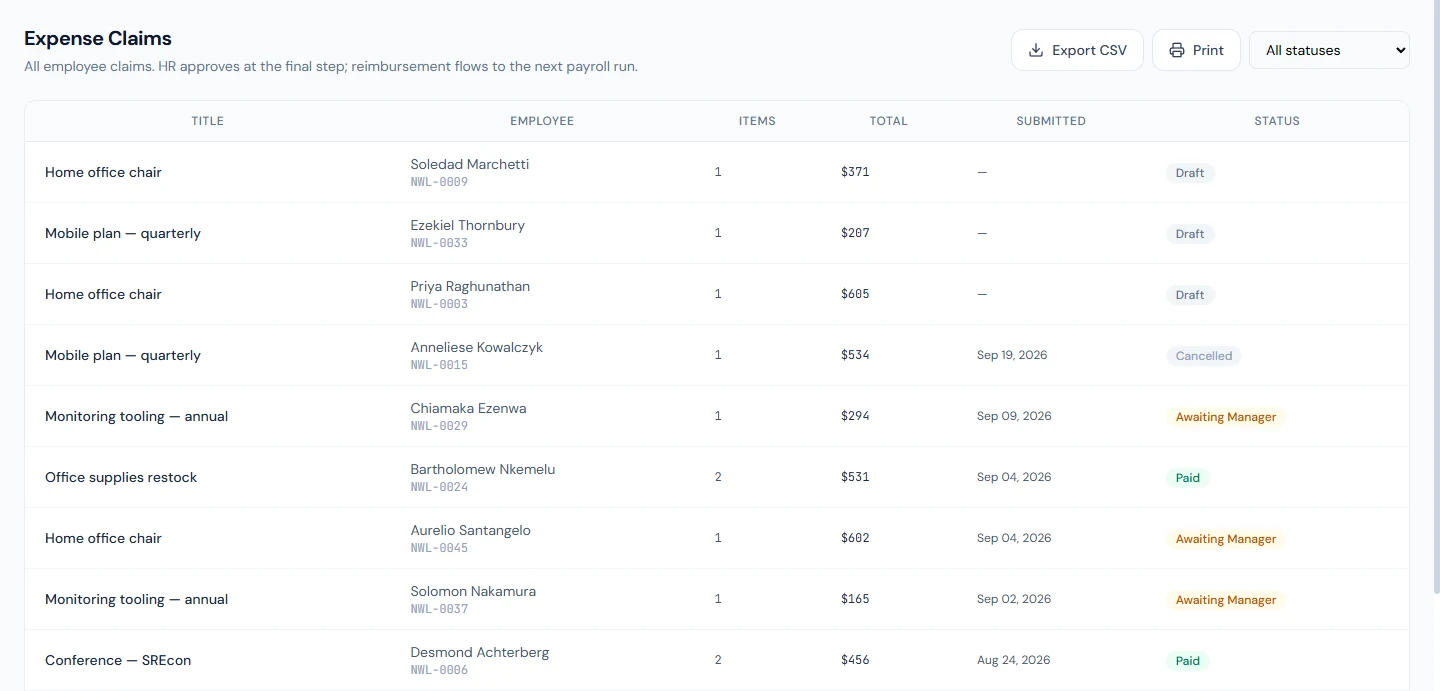
- Expense › Claims lists every claim for HR, who gives the final approval or rejects.
- HR approval creates a non-taxable payroll addition for the claim's total; when the run paying it is locked or paid, the claim is Paid.
- Who:
expenses.submit_ownfor one's own claims (every default role);expenses.approve_teamfor Team Expenses (HR Manager, Department Head);expenses.managefor final approval, rejection and categories (HR Manager, Accountant);expenses.view_allfor the list (HR Manager, HR Officer, Accountant). The Super Admin holds all.
Walkthrough
Northwind has claims in every status. Solomon Nakamura (NWL-0037), who reports to Georgiana Ashworth, has a quarterly mobile plan of 340.23 awaiting Georgiana, and a SREcon conference ticket of 852.73 that Georgiana has approved and that now awaits HR.
66.1 Expense categories
Expense › Categories lists the categories employees choose for each line: Travel, Meals & Entertainment, Office Supplies, Software & Subscriptions, Training & Conferences, Communications, Client Hospitality and Other. New Category takes a name, an optional icon and description, and whether it is active. Categories exist for reporting and review: a reviewer reads "Client Hospitality, 109.25" differently from "Office Supplies, 109.25". Delete removes a category no line uses; one already in use is deactivated instead, so past claims keep their category while new lines can no longer choose it. Show inactive brings them back into view.
66.2 The employee's claim: line items, receipts, draft, submit
In the portal, My Expenses › New Claim opens the form. The claim has a title ("Client visit — May 2026") and an optional description; each line item has a category, the date of the spending, the amount in the workspace currency, an optional description, and a receipt: a photo or scan (JPEG, PNG or GIF), a PDF or an Office document. Add line adds another item; the total adds up as lines are entered.
Save draft keeps the claim private to the employee, who can come back and edit it. Submit for approval sends it to the reporting manager. Only a draft can be edited: once submitted, the claim is fixed, and a mistake is put right by cancelling it and submitting a new one. The employee can cancel a claim while it is a draft or waiting on an approver, never once HR has approved it.
66.3 Manager approval (Team Expenses)
Team Expenses in the portal lists the claims the manager's direct reports have submitted, oldest first, with the items, total and date. View items shows the lines and receipts; Approve sends the claim to HR (Awaiting HR), and Reject asks for a reason the employee will see. Only the employee's reporting manager (Chapter 19) can act on it, and only while the claim is waiting on them.
The menu item appears only for people whose role holds the team approval permission. Northwind's reporting managers, Georgiana among them, are on the Employee role, so to work Solomon's 340.23 claim from the portal Georgiana needs a role with that permission, such as Department Head (Chapter 14). Until then, HR can approve the claim directly from Awaiting Manager.
66.4 HR approval and the payroll adjustment
Expense › Claims lists every claim with the employee, code, items, total, date submitted and status, filtered by status. Opening Solomon's SREcon claim shows the reporting line, the manager's approval and every line with its receipt. HR Approve asks to confirm "HR-approve 852.73 reimbursement? This creates a payroll adjustment for the current month." On confirming, the claim is Approved and a payroll addition of 852.73, not taxable, is created for the employee with the reason "Expense reimbursement:" and the claim's title, in the current month or, if that month's run is already locked or paid, the next open one (Chapter 56). The claim shows the adjustment and its month. A claim with a zero total cannot be approved, and no one approves their own claim while someone else can: Solomon holds HR Manager, but this claim is for someone else to approve.
HR can approve a claim that is still awaiting its manager; that skips the manager's check, so do it only when the manager cannot, and note why. When the month's run is locked or paid, the claim becomes Paid and the employee sees "(already paid)" on it.
66.5 Rejecting; claim statuses
Reject on the claim, by HR at either approval stage or by the manager at theirs, needs a reason, which the employee sees on the claim. A rejected claim is closed; the employee submits a corrected one. The statuses, as each screen shows them:
| Status | Meaning |
|---|---|
| Draft | Being written; only the employee sees it |
| Awaiting Manager | Submitted; waiting on the reporting manager |
| Awaiting HR | The manager approved; waiting on HR |
| Approved | HR approved; the payroll addition exists |
| Paid | The run that reimbursed it is locked or paid |
| Rejected | Turned down, with a reason |
| Cancelled | Withdrawn by the employee |
66.6 Expense register: export and print
The Expense › Claims list is the register. Filter it by status, then Export CSV for the accountant, with title, employee code and name, items, total, date and status, or Print for a register with totals, for example of every claim Approved this month before the run is processed.
66.7 Expense emails
Four emails follow a claim, each a template under Email Templates (Chapter 79):
| When | To |
|---|---|
| Submitted | The reporting manager, and users whose role gives final approval (HR Manager and Accountant by default) |
| Approved by the manager | Users whose role gives final approval |
| Approved by HR | The employee |
| Rejected | The employee, with the reason |
What happens next
- Payroll (Chapters 55 and 56) pays the addition with the month's salary; the slip shows it as its own line.
- Reports: claims export from the register; payroll reports show the additions (Chapter 65).
What the employee sees
My Expenses with each claim's status; on an approved claim, the payroll month that reimburses it, and "(already paid)" once that run is settled; the reason on a rejected one; and the reimbursement on their slip.
Common mistakes
- Reporting managers without the approval permission. Team Expenses never appears for them; give team leads a role that has it, or HR ends up approving everything.
- Approving from Awaiting Manager as routine. It skips the manager's check; keep it for when the manager cannot act.
- No receipt on a line. The claim can still be submitted; reject it with a clear reason rather than approving it.
- Expecting to edit a submitted claim. Only drafts are editable; cancel and resubmit.
- Deleting a category in use. It is only deactivated; past claims keep it.
- Paying a claim by bank transfer as well. HR approval already puts it in payroll; a second payment pays it twice.
Practice
Use your own trial workspace, not a customer's.
- Add a category and deactivate one you will not use.
- In the portal, write a claim with two lines and receipts, save it as a draft, then submit it.
- As the employee's manager, with a role that has the team approval permission, approve it from Team Expenses.
- As HR, open it, approve it, and find the addition on the payroll Adjustments page.
- Submit a second claim and reject it with a reason; read it as the employee.
- Filter the register to Approved and print it.
Quiz
1. Why is a reimbursement not taxed as pay?
It repays money the employee spent on the company's business; it is not income, provided it is for the business and backed by a receipt.
2. Who sees a claim in Team Expenses?
The employee's reporting manager, if their role holds the team approval permission, while the claim is waiting on them.
3. What does HR approval create?
A non-taxable payroll addition for the claim's total, in the current month or the next open one.
4. When does a claim become Paid?
When the payroll run that pays its addition is locked or paid.
5. Can an employee edit a submitted claim?
No; only drafts can be edited. They cancel it while it is still waiting and submit a corrected one.