Chapter 17 — Importing employees in bulk
Chapter 16 added one person through a form. A company moving to Operentra from a spreadsheet, another system or a payroll bureau has forty, or four hundred. Bulk import is the form in a loop: one file, one click, and every row goes through the same save, with the same checks and the same consequences. This chapter is about preparing that file so the loop runs clean, and reading what it reports when it does not.
What this chapter covers
- 17.1 When to import, and what to have ready
- 17.2 The sample CSV, built for your workspace
- 17.3 Required and optional columns, and the values they accept
- 17.4 Preparing the file in a spreadsheet
- 17.5 Preview and import
- 17.6 Reading the results
- 17.7 Fixing errors and importing again
- 17.8 Assigning salaries by CSV
The concept
A data migration moves records from where they are into where they will live. HR migrations fail for dull reasons, not dramatic ones: a column heading spelt differently, a date a spreadsheet rewrote in its own format, a department name that does not match the list, a file imported twice. The discipline that prevents them is the same in every system:
| Rule | Why |
|---|---|
| Start from the system's own template | Its headings are the contract. Anything else is guesswork. |
| Use codes, not descriptions, for anything that must match a list | "Customer Support" and "Customer Support Dept." are two strings to a computer. |
| Give every row a stable identifier | It is the only way to tell "already imported" from "a second person with the same name". |
| Test with a small file first | Five rows reveal the heading typo. Five hundred bury it. |
| Keep the result | Which rows went in, which did not and why. It is the audit trail of the migration. |
An import creates records; it does not activate people, pay them or write their contracts. Those steps come after, in Chapters 18 and 31, and the import's job is to leave the records ready for them.
How Operentra handles it
Bulk Import lives under Employees › Bulk Import
(/admin/employees/import). It needs the employees.import permission,
which Super Admin and HR Manager hold out of the box; HR Officer does
not. The page has two tabs, Import Employees and Assign
Salaries, and both work the same way: download a sample file, fill it,
select it, check the preview, import, read the results.
Each imported row is saved exactly as Chapter 16 saves the form. The employee code is generated from the format in Chapter 12, the default shift is assigned from the joining date, a person whose email address the sign-in policy accepts is invited to the portal, an onboarding pipeline with its twelve tasks is opened, the record starts as New (Pending Activation), and on a paid plan it counts as a seat. Four things differ from the form:
- Fewer required fields. Five instead of six: first name, last name, department, designation and joining date. A blank employment type means Permanent.
- The present address is optional. A row without one is still created, and the results flag it so you can complete it later.
- Portal access is not a choice. Anyone with an address the sign-in policy accepts is invited; anyone else gets no login at all until you add one for them from the Users page (Chapter 14). There is no "No portal login" in a CSV.
- No profile to complete. An imported person's profile counts as approved on arrival, so they are not asked to fill it in when they first sign in. Corrections go through the change-request flow of Chapter 21.
Rows are independent. They are processed one after another, an error in one never undoes the others, and there is no undo for the file as a whole. The page sends the file in batches of fifty rows and shows its progress, so a large migration neither exceeds what one request may carry nor waits on a single long call.
Walkthrough
17.1 When to import, and what to have ready
Import when you have more people than you want to type, and when their details already exist somewhere as a table. For one or two hires, the form in Chapter 16 is faster and asks fewer questions of your data.
Before you start, have the structure in place from Part 3: the departments and designations the rows will point at (Chapter 9), with their codes to hand, and the employment types as named under Company Setup. Then check the employee code format (Chapter 12), because the codes the import hands out cannot be changed afterwards, and the sign-in policy (Chapter 13), because it decides which address each invitation goes to.
The running example: Northwind Labs is bringing its outsourced support desk in-house. Four agents who worked for the contractor become Northwind employees on the first of next month, all in Customer Support as Customer Support Executives, all Permanent. The contractor sent a spreadsheet with names, personal emails, phone numbers and the Social Security Numbers Northwind's payroll will need.
17.2 The sample CSV, built for your workspace
Open Employees › Bulk Import and click Download Sample CSV on the
Import Employees tab. The file is employee-import-sample.csv, and it
is built for the workspace you are in, not copied from a fixed example:
- its identity column follows your country's document, so in Northwind the note under the column list reads "nationalId takes each employee's Social Security Number" and the sample values are in SSN format;
- its
countrycolumn carries your workspace country; - a
fatherNamecolumn appears only where your country records one; - the salary sample on the other tab uses your own employee code prefix.
The sample has three rows: a full row, a second full row, and a row with only the required columns filled, so you can see both what is possible and what is enough. Its addresses and phone numbers are deliberately fictional (reserved example domains, the 555 range), and its first row shows how a value containing a comma is written in quotes.
Open it in a spreadsheet and look at the header row. Those headings are the contract. The importer reads each value by its heading, so the order of the columns does not matter and extra columns are ignored, but a heading that does not match exactly, down to the capital letters, is a column that silently does not exist.
17.3 Required and optional columns, and the values they accept
The column chips above the file picker list every heading, with the five required ones marked by an asterisk. What each accepts:
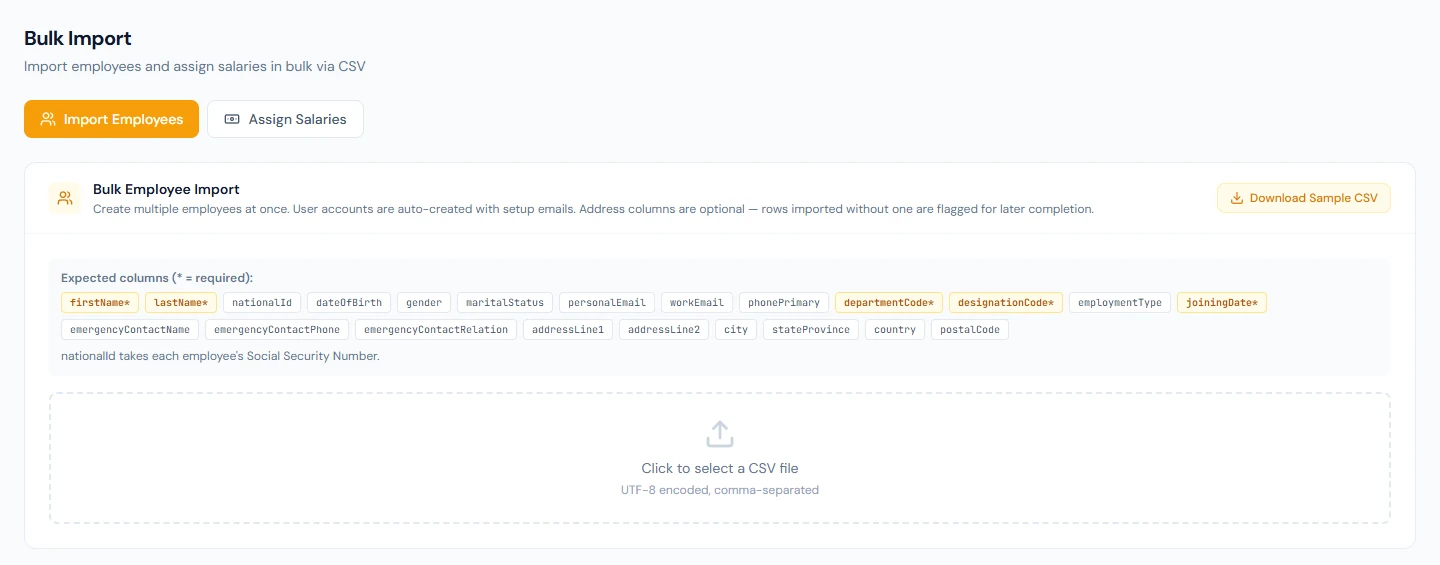
| Column | Required | Accepts |
|---|---|---|
firstName, lastName | Yes | Text. Together they are the name the results show. |
departmentCode, designationCode | Yes | The code or the name from Chapter 9, in any case. Only active departments and designations match. |
joiningDate | Yes | A date written YYYY-MM-DD. |
employmentType | No | The name of one of your types (Permanent, Probation, Contract, Intern, or one you added), in any case. Blank means Permanent. A name you do not have fails the row. |
nationalId | No | The identity number your country uses, validated by its rule: nine digits for a US Social Security Number, with dashes and spaces ignored. A number already on file skips the row. |
dateOfBirth | No | A date written YYYY-MM-DD. |
gender | No | male, female or other. |
maritalStatus | No | single, married, divorced or widowed. |
personalEmail, workEmail | No | Email addresses. Chapter 13's policy decides which one the invitation goes to; under the locked policy only the work email counts. |
phonePrimary | No | A phone number, stored as written. Include the country code, as the sample does. |
emergencyContactName, emergencyContactPhone, emergencyContactRelation | No | The relation must be one of father, mother, husband, wife, son, daughter, brother, sister, cousin, friend, relative or other. |
addressLine1, addressLine2, city, stateProvince, country, postalCode | No, as a set | Either leave all six blank or fill at least addressLine1 and city. A blank country takes the workspace country. |
fatherName | No | Shown only where the country records it. |
Values in the lists (gender, marital status, relation, employment type)
are matched without regard to case, so Female and female are the
same. Anything outside a list fails the row with a message that names
the allowed values.
Two rules deserve emphasis because spreadsheets break them without
telling you. Dates must stay YYYY-MM-DD: a cell a spreadsheet has
helpfully rewritten as 15/01/2024 is not a date to the importer and
fails the row. And a value that contains a comma, which address lines
often do, must be wrapped in double quotes, or the comma splits it into
two columns and everything to its right shifts.
Northwind's file, then, needs a header row copied from the sample and
four rows with: the agent's names; nationalId from the contractor's
sheet; personalEmail and phonePrimary; departmentCode SUP;
designationCode CSE; employmentType Permanent; joiningDate the
first of next month. Everything else can stay blank for now, including
the addresses, which the agents' own records will have to supply later.
17.4 Preparing the file in a spreadsheet
Fill the rows in the spreadsheet you are used to, then save as CSV
UTF-8 (comma delimited). The picker accepts only .csv; a workbook
saved as .xlsx will not be offered. The page strips the invisible mark
some spreadsheets put at the start of a UTF-8 file, so names with
accents survive the trip.
Before saving, check three things:
- The header row is unchanged. No renamed headings, no "First Name"
where the sample says
firstName. - Date columns show
YYYY-MM-DD. If your spreadsheet keeps reformatting them, set those columns to text before pasting the dates in. - Every value with a comma is in quotes. Opening the saved CSV in a plain text editor shows this at a glance.
Keep one migration to one file of a few hundred rows at most. The page sends it in batches of fifty, but the import creates every record, invitation and onboarding pipeline as it goes, and a file you can read through is a file whose results you can check.
17.5 Preview and import
Click the dashed box, choose the file, and the page reports how many
rows it parsed and shows a preview: the first three rows and the first
six columns, under the headings exactly as your file spelt them. Use it
as a sanity check. If the first column shows a whole line of values
separated by semicolons, the file is not comma separated. If a heading
reads First Name where the sample says firstName, you have found the
reason every row is about to fail.
Click Import 4 Rows. The confirmation says "Import 4 row(s)? This action cannot be undone." Confirm, and the button counts the batches as they go up, "Importing… 50 of 480 rows" on a large file. For four rows that is a moment; for four hundred it is a progress label worth watching.
17.6 Reading the results
Three cards summarise the run: Created, Skipped and Errors. Below them, a table lists every row with its row number, name, status and message. Row numbers are the spreadsheet's own: the header is row 1, so the first person is row 2.
A row can end in one of three states:
- created: the record exists. The message names the code it was given, "Created as NWL-0052", or, for a row with no address, "Created as NWL-0052 — no present address on file; complete it from the employee profile". Note the codes: they are what the salary tab and the activation list go by.
- skipped: the identity number is already on file, "Social Security Number 123-45-6789 already exists", and the row was left alone. This is the import's one deliberate safety: a row with an identity number cannot be imported twice.
- error: the row was not created, and the message says why. A department or designation that does not match, an employment type you do not have, a date that is not a date, a value outside a list, an incomplete address, an identity number that fails the country's rule, or the plan refusing another seat.
If a batch fails outright, for instance when the connection drops, the page says how many rows were processed before it stopped and lists them, so the file you retry with can leave them out.
Northwind's first run: three created, one error. Rafael Ortega's row reads "Designation not found" and names "Customer Support Exec", because the contractor's sheet carried a description where the code should be.
17.7 Fixing errors and importing again
Fix the file, but import only the rows that failed. The rule follows from how skipping works: a row with an identity number already on file is skipped, but a row without one is created again, and Operentra has no other way to tell a repeated row from a second person with the same name.
The wrong way to fix Northwind's error is to correct Rafael's code and import the same four-row file again. Beatriz and Ingrid are skipped because their numbers are on file; Rafael is created; and Kwame Mensah, whose Social Security Number the contractor had not yet collected, is created a second time. Now there are two Kwames, each with a code, a shift, an invitation and an onboarding pipeline.
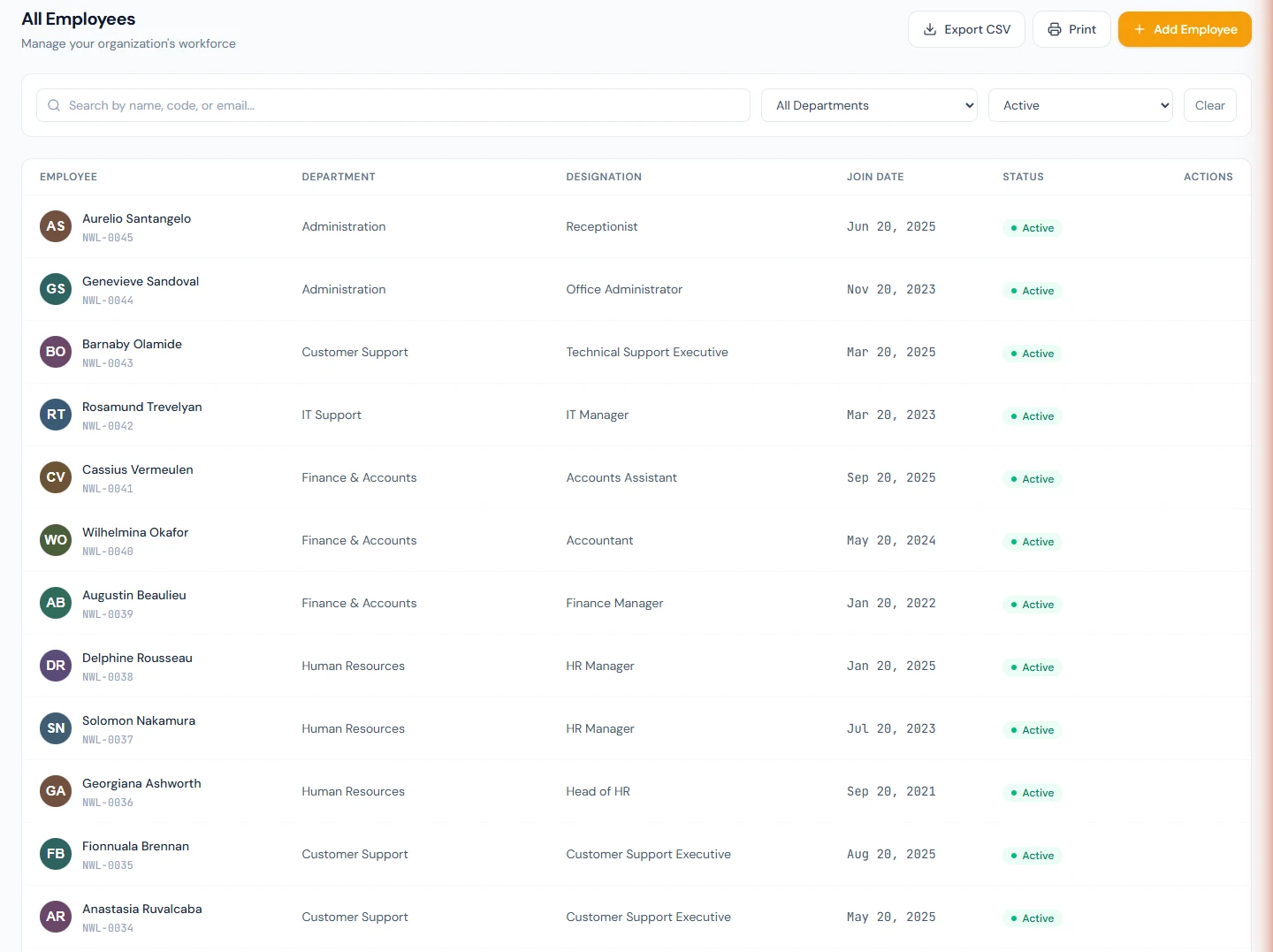
The right way is a file with the header row and Rafael's corrected row alone. One row in, one created, and the support desk is complete: NWL-0052 to NWL-0055 on All Employees, each in the status New.
If the wrong way has already happened, delete the duplicate from its profile (Chapter 19) before it is activated and collects any history.
17.8 Assigning salaries by CSV
Switch to the Assign Salaries tab. It sets the gross salary of
existing employees by their code, which is why the import's results
name the codes. Its sample, salary-assignment-sample.csv, has four
columns:
| Column | Required | Accepts |
|---|---|---|
employeeCode | Yes | The code as shown on All Employees. |
grossSalary | Yes | The monthly gross in the workspace currency, before deductions. A plain number; a thousands separator such as 4,200 is tolerated, but not a currency symbol. |
effectiveDate | No | YYYY-MM-DD. Blank means today. |
reason | No | Free text kept on the assignment. Blank means "Bulk salary assignment". |
For each row, any salary the person already had is closed the day before the new effective date and a new assignment is created. The salary structure, the thing that splits gross into basic, allowances and deductions (Chapter 52), is the one the person already has, or for a first salary the workspace's oldest active structure: in a US workspace, "Standard US (Federal Withholding)", which the country pack seeded. Payroll later splits the gross by whatever the structure says at the time it runs, so a salary assigned here is paid exactly like one assigned by hand.
Three things it does not do. It records no increment, sends no email and issues no letter, so it is for first salaries and migrations, not for raises; raises go through Chapter 57 so that they leave the paper trail a raise should. It refuses employees who have left. And it cannot assign a structure of your choosing; for that, use Payroll › Employee Salaries.
Northwind's file:
employeeCode,grossSalary,effectiveDate,reason
NWL-0052,4200,2026-11-01,Support desk transfer
NWL-0053,4300,2026-11-01,Support desk transfer
NWL-0054,4200,2026-11-01,Support desk transfer
NWL-0055,4400,2026-11-01,Support desk transfer
Import it the same way. The cards read Assigned, Skipped and Errors, and each row's message confirms the amount, "Salary 4,200 assigned". The assignment is the first step of each person's activation checklist (Chapter 18) and the figure the employment contract is pre-filled with (Chapter 31).
What happens next
Every created row starts the chain of Chapter 16, so with four rows the chain runs four times:
- Four records in the status New, held out of payroll, attendance and leave until each is activated (Chapter 18).
- Four shifts assigned from the joining date, the company default unless you change them.
- Invitations for everyone with an email address, each valid for seven days, sent to the address the sign-in policy picks. On the Users page the four show as Invited. A person without an address has no row there at all until you invite them.
- Four onboarding pipelines, each with twelve tasks timed from the joining date, and an onboarding notice to everyone who manages onboarding for each one. A migration of two hundred people is two hundred notices; switch that trigger off under Settings › Email Templates beforehand if that is not what you want (Chapter 79).
- Four seats on a paid plan, from the moment the rows are created.
- Four employee-created events for integrations subscribed through the public API (Part 17).
The salary tab adds nothing to that chain beyond the assignment itself.
What the employee sees
The same as in Chapter 16: an invitation, "You're invited to join Northwind Labs, Inc. — activate your account", a claim page that sets a password or links an existing login, and then the portal. One difference: no banner asks them to complete their profile, because an imported record is treated as approved. What they see is what HR imported, including the gaps. The missing address is theirs to propose through My Profile, and HR's to approve (Chapter 21).
Someone imported without an email address sees nothing, and will not until HR adds a login for them from the Users page.
Common mistakes
- Renaming a heading. "First Name" is not
firstName. Every row fails with "First name and last name are required", because the column the importer looks for is not there. - Letting the spreadsheet format the dates.
15/01/2024fails the row;YYYY-MM-DDdoes not. Set date columns to text before pasting. - Descriptions in the code columns. "Customer Support Exec" matches nothing. Use the code or the exact name from Chapter 9.
- Importing the whole file again after fixing one row. Rows without an identity number are created twice. Re-import only the rows that failed.
- Leaving identity numbers out when you have them. The number is what makes a re-run safe and what payroll will need anyway.
- Half an address. A city without a line 1 fails the row. Fill both or leave all six columns blank.
- A thousands separator in a salary written with quotes removed.
4,200inside quotes is read as 4200;4,200without quotes splits into two columns. Write4200. - Expecting the salary tab to give a raise. It assigns; it does not record an increment or tell anyone. Raises are Chapter 57.
Practice
Work in your own trial workspace.
- Download the sample CSV from the Import Employees tab and open it in a text editor. Find the quoted value in the first row and note why it is quoted.
- Replace the three sample rows with three people of your own, using
codes from your Chapter 9 structure,
YYYY-MM-DDdates, and an identity number in your country's format for two of them. Give the third no identity number. - Put a deliberate typo in one designation code. Import the file. Read the results: two created with their codes, one error naming the missing designation.
- Correct the typo and import the whole file again. Count the people on All Employees, then explain the count. Delete the duplicate from its profile.
- Import a file with only the corrected row. Confirm the count.
- On the Assign Salaries tab, assign a monthly gross to all three by code, with the effective date set to their joining date. Open one profile and find the assignment.
- Open Users and note who is Invited, and who has no row at all.
Quiz
1. Which five columns must every row of an employee import carry?
firstName, lastName, departmentCode, designationCode and
joiningDate. Employment type is optional in the import and defaults to
Permanent, unlike the form in Chapter 16, where it is required.
2. A row is reported as "skipped". What happened, and is it a problem?
Its identity number is already on file, so the row was left alone and no second record was created. It is the import's safety against repeating a file, not a fault. Check that the existing record is the same person.
3. One row in a file of twenty failed. What is the safe way to fix it?
Correct the row and import a file containing the header and that row only. Re-importing all twenty would create again any row that has no identity number, because only the identity number lets Operentra recognise a repeat.
4. A salary is assigned by CSV to someone who already has one. What happens to the old one?
It is closed the day before the new effective date, and the new assignment starts on that date with the same salary structure. No increment is recorded, no email is sent and no letter is issued.
5. Which of these are optional in an import but required on the Add Employee form?
The employment type, and the present address for a person with no portal login. The import defaults the type to Permanent and flags a missing address in its results instead of refusing the row.