Chapter 6 — Your account and sign-in security
Before you set up a company, set up yourself. In Operentra, you are not a row in a company's employee list; you are an account that companies attach memberships to. This chapter is about that account: the profile you own, the credentials that open every workspace you belong to, and the second factor that stops a stolen password from being enough.
What this chapter covers
- 6.1 My Account versus your workspace profile
- 6.2 Completing your personal profile and sharing it with employers
- 6.3 The Employments tab
- 6.4 Changing your sign-in email
- 6.5 Changing your password; forgotten passwords; the first-time setup email
- 6.6 Two-factor authentication
- 6.7 Session expiry and signing back in
The concept
Two records describe the same person, and they are owned by different parties.
The account belongs to the person. It holds their sign-in email and password, their two-factor enrolment, and a personal profile: name, identity numbers, contact details, emergency contact, addresses, bank account. It travels with them from company to company.
The employee record belongs to the company. It is the employer's copy of those details, plus everything the employment adds: code, department, designation, salary, contract, attendance, leave. Payroll, letters and verifications run on this copy, never on the account directly.
The two meet through sharing: the person edits their own profile and chooses which employers to send the changes to; HR reviews and accepts, and only then does the employer's copy change. Chapter 1 called this "employees maintain their own details, HR approves"; this is the mechanism.
Security belongs to the account. One password and one authenticator cover every workspace the person belongs to, so changing either affects all of them at once.
How Operentra handles it
My Account lives at /profile, opened from the user menu. It is a page
apart from any workspace: it carries the platform's brand rather than the
company's, has no company switcher, and offers Back to workspace (to the
admin panel or the portal, by your role) and Sign out. Three tabs: My
Profile, Employments and Sign-in & Security.
Inside a workspace, the portal's My Profile (/portal/profile) is the
employer's approved copy, read-only apart from the email-language selector,
with a banner pointing to My Account for changes. Chapter 84 covers that
screen as an employee sees it.
Walkthrough
6.1 My Account versus your workspace profile
Open the user menu and choose My Account. The header shows your initials, name and email. Note what is absent: no sidebar, no company name. You are looking at yourself, not at a company.
Now open the user menu again and choose Workspace profile. This is the portal's My Profile: the company's copy. It will be empty for an administrator who has no employee record, which Dana at Northwind does not; for an employee it shows the approved details and a banner saying changes are made from My Account.
6.2 Completing your personal profile and sharing it
On the My Profile tab, a completeness meter counts nine items: full name, national ID, date of birth, gender, personal email, phone, emergency contact, address and bank account. It names what is still missing. If an employer is waiting for your first submission, a banner says so.
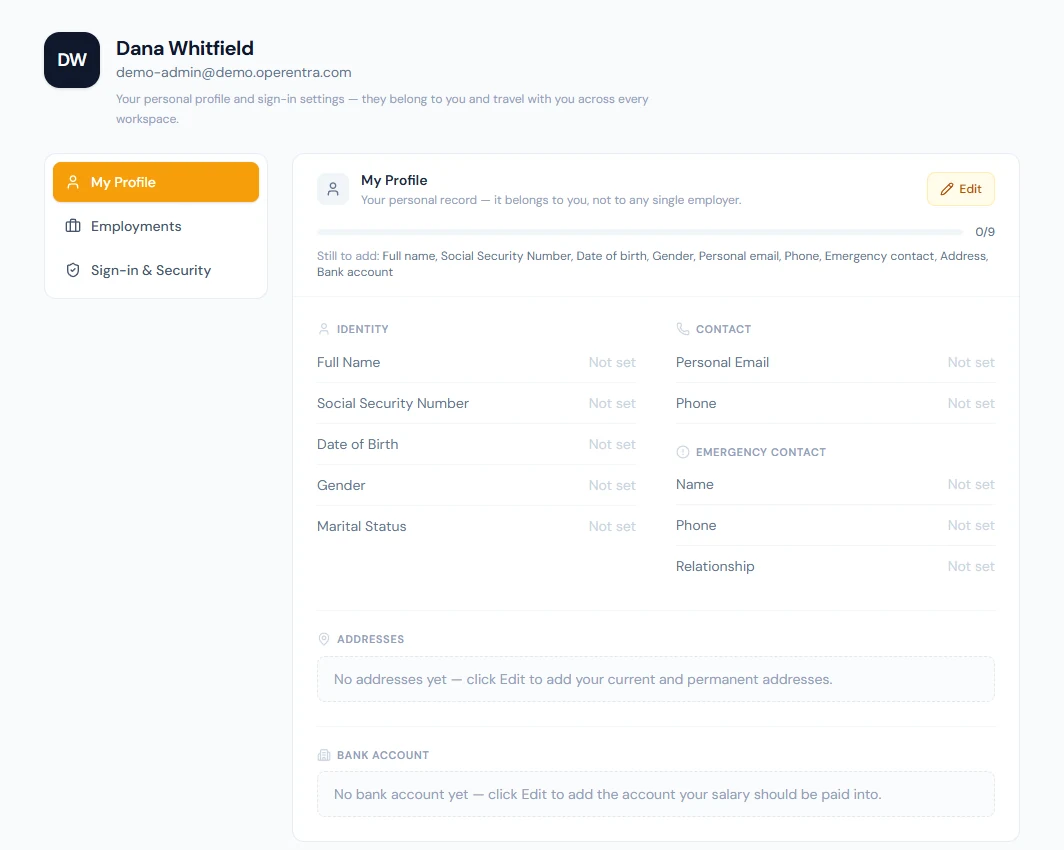
Edit opens every field: names (with father's name where the country records it), national ID and tax registration, date of birth, gender, marital status; personal email and phone with a country picker; the emergency contact's name, phone and relationship; one or more addresses, each marked Current or Permanent; and a bank account, chosen from the company's bank list or typed, with branch, account title, number and IBAN. Save stores it on your account. Nothing has reached any employer yet.
The Share with your employers card appears when your profile differs from what an employer holds. It lists each such company with how many fields differ, a checkbox, and a "Not shared" badge; a company already reviewing a submission shows "Awaiting review". Tick the employers you want to update and Submit for approval. If nothing differs, the card says there is nothing to submit, so you cannot send HR an empty review.
What HR does with it is Chapter 21. From this side: an approved submission updates the employer's copy; a returned one comes back with a note, your edits intact, to correct and share again. Either way you are emailed.
6.3 The Employments tab
Every employment your account has held, across companies: the workspace, whether it is current or ended, the designation, department and employment type, and the joining and separation dates. "This workspace" marks the one you came from. Ended employments stay listed, because they belong to your account, not to the employer who ended them.
6.4 Changing your sign-in email
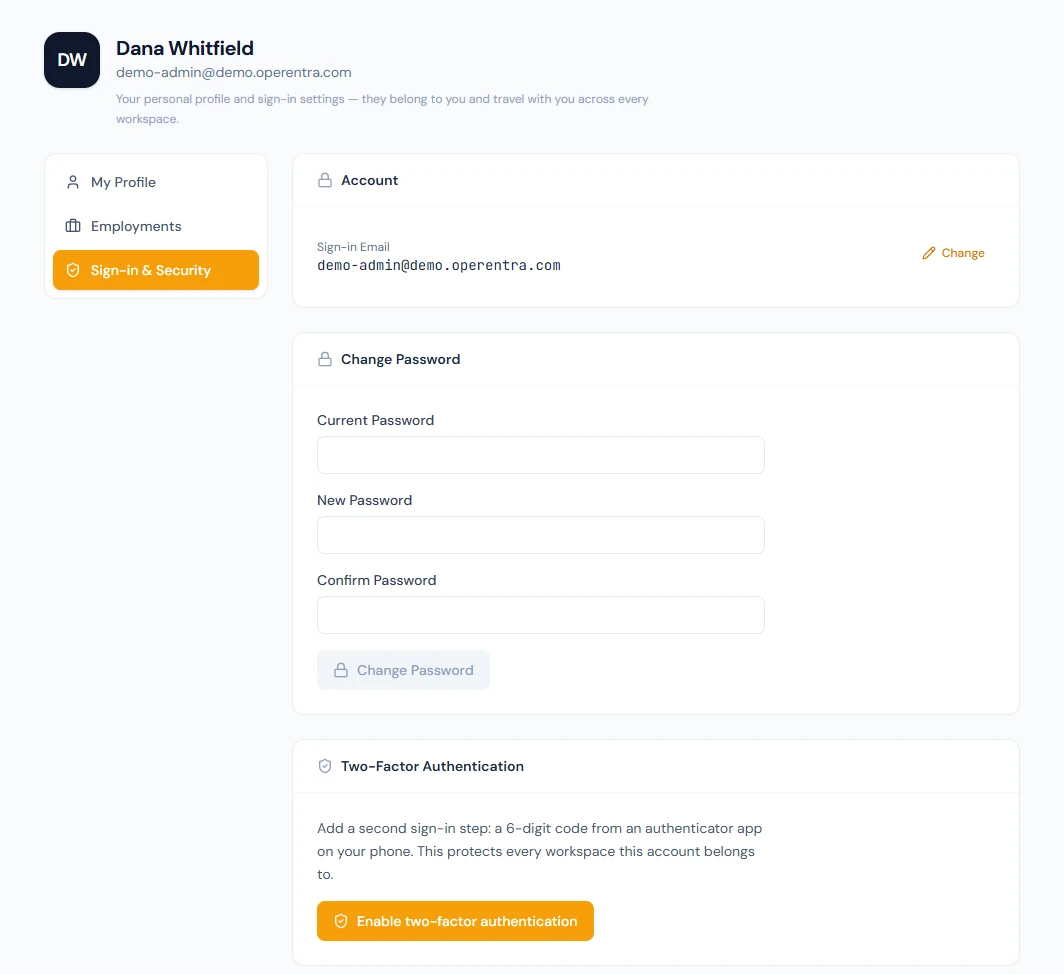
On Sign-in & Security, the sign-in email card has a Change button. It asks for the new address and your current password, then emails a confirmation link to the new address (valid for 60 minutes) and a heads-up to the old one. Nothing changes until the link is opened. When it is, the address changes for every company at once and every session is signed out, including the one you clicked from; you sign in again with the new address.
Two things can block it:
- A workspace sign-in policy of official email only, which locks the address while you are an active member there. The card then shows "Managed by organisation" and no Change button. Chapter 13 sets the policy; Chapter 14 covers the per-person exception an admin can grant.
- A membership that is being offboarded. If you signed in with a company address and are leaving, switch to a personal address during the grace period, or the account goes dormant when the membership closes.
6.5 Changing your password, and getting back in
Change password asks for the current password and the new one twice (at least 8 characters). Because the password opens every workspace, changing it signs you out of all of them.
If you have forgotten it, use Forgot password on the sign-in page. It asks for your email and always answers "If an account exists…", so it never reveals whether one does. The reset link lasts 60 minutes; the reset page asks for the new password twice and sends you to sign-in a few seconds after success.
A person who was invited but never finished setting up (no password yet) uses Resend setup email on the sign-in page instead. The first-time setup link lasts 48 hours.
Five wrong passwords in a row lock the account for 30 minutes, in every workspace it belongs to, and the sign-in page says how many minutes remain. A password must be at least eight characters. These are platform rules, not workspace settings; Chapter 12 covers the one sign-in policy a workspace does choose.
6.6 Two-factor authentication
Two-factor authentication (2FA) adds a second step after the password: a six-digit code from an authenticator app on your phone (Google Authenticator, Authy, 1Password, Microsoft Authenticator; anything that does TOTP). It is available on every plan and protects the account: enrol once and every sign-in, in every workspace, asks for the code.
Enabling it. On the Two-Factor Authentication card, choose Enable. Scan the QR code, or type the manual key, into the app; enter the six-digit code the app shows. Then the recovery codes appear, once: copy them all or download the text file, store them somewhere safe (a password manager is the right place), and tick that you have. Each recovery code signs you in once if your phone is unavailable.
Living with it. The card shows "Enabled since" and how many recovery codes remain, in amber when three or fewer are left. New recovery codes needs your password and a code and invalidates the old set at once. Disable needs your password and a code. Five wrong codes lock the 2FA step for 15 minutes, separately from the password lockout.
Losing it. With recovery codes left, sign in with one, then disable and re-enable to enrol the new phone. With none left, a workspace administrator holding the reset permission clears your enrolment from Access Control → Users; you sign in with the password alone and enrol again. The reset is confirmed, recorded in the login audit trail and emailed to you, and because 2FA is account-level it removes the protection from your other workspaces too. Chapter 14 covers who should hold that permission.
When the company requires it. A workspace can make 2FA mandatory (Chapter 12). Members who have not enrolled are taken through setup at their next sign-in, before they reach the workspace; switching into the workspace from another company is blocked until they do; and the Disable button refuses, naming the company that requires it. Enrolling once, from any workspace, satisfies the mandate.
Every 2FA event (challenge, success, failure, enable, disable, reset) is in the login audit trail with the IP address and device, and security emails go out on enable, disable and reset. Sessions opened by an administrator impersonating a user do not prompt for that user's 2FA; impersonation has its own permission and its own trail.
6.7 Session expiry and signing back in
A session that goes quiet is refreshed automatically, across open tabs, without you noticing. When a session really ends (its lifetime running out, a password change, an email change, a sign-out from elsewhere), you land on the sign-in page with Your session has ended and the reason when there is one. Signing back in returns you to the page you were on, as long as it is within your own area.
What happens next
- Sharing a profile change puts a submission in front of HR in each company you ticked; you are emailed when it is approved or returned.
- Changing the sign-in email sends a confirmation to the new address and a notice to the old one. Changing the password signs every workspace out.
- Enabling, disabling or resetting 2FA sends a security email, and every event lands in the login audit trail.
What the employee sees
Exactly this. My Account is the same page for an employee, an HR manager and the super admin; the only difference is which workspace Back to workspace returns them to. An employee's portal also shows the employer's copy under My Profile, which is where your approvals (Chapter 21) land.
Common mistakes
- Editing My Account and expecting payroll to change. Nothing reaches an employer until it is shared and approved.
- Skipping the recovery codes. They are shown once. Without them and without the phone, you need an administrator.
- Giving the 2FA reset permission to everyone with Users access. It removes the protection from a person's every workspace; treat it like impersonation.
- Signing up employees with the company's address and never telling them to switch before they leave. The account goes dormant with the membership.
- Changing the sign-in email from a shared computer and leaving the confirmation link in someone else's inbox tab. The link lasts an hour.
Practice
In your own account, not a colleague's:
- Open My Account and read the completeness meter. Fill in the missing items until it reaches nine of nine. Note that no employer is listed on the Share card yet, because your workspace has no employee record for you.
- Enable two-factor authentication. Save the recovery codes in a password manager. Sign out and back in to see the code step.
- Generate new recovery codes and confirm the count resets. Keep 2FA on for the rest of the course.
- Open Sign-in & Security and read the sign-in email card. Do not change the address; note what it would take to.
- From the sign-in page, open Forgot password and read the message it gives for any address. Close it without sending.
Quiz
1. An employee updates their bank account in My Account. When does payroll start using it?
Answer
Only after the employee shares the change with that employer and HR approves the submission. My Account is the employee's own record; payroll runs on the employer's copy.
2. What does changing your password do to your other workspaces?
Answer
Signs them all out. One password covers the whole account.
3. You have lost your phone and all your recovery codes. What is the way back in?
Answer
A workspace administrator with the 2FA reset permission clears your enrolment. You sign in with the password alone, then enrol again. The reset is audited and emailed to you.
4. Why does the Change button disappear from the sign-in email card for some people?
Answer
A workspace they belong to enforces the official-email-only sign-in policy. The card shows who manages the address instead. An admin can grant a per-person exception.
5. The company has just made 2FA mandatory. What happens to a member who has not enrolled?
Answer
At their next sign-in they are taken through 2FA setup before they reach the workspace. They cannot disable it while they belong to a workspace that requires it, and enrolling from any workspace satisfies the mandate.