Chapter 11 — Banks and company bank accounts
Payroll ends in a file sent to a bank. Before that can happen the company needs to tell Operentra which banks exist, which of its own accounts pays salaries, and what the bank's upload format looks like. This chapter sets up all three. The last part, the payment-file designer, needs the Payroll feature on your plan; read it even if you are on Starter, because it explains what the bank file is.
What this chapter covers
- 11.1 The bank catalogue, and adding a bank that is missing
- 11.2 Company bank accounts: operating versus fund accounts, the primary account
- 11.3 The payment-file designer (plan feature: Payroll)
The concept
Three things carry a bank's name in payroll, and they must agree:
- The employee's account, where their net pay goes. It names a bank, a branch, an account number and, in many countries, an IBAN.
- The company's account, where the pay comes from. A company usually has more than one; one of them is the payroll account.
- The bank file, the batch the company uploads to its bank's portal that says "from this account, pay these people these amounts on this date". Every bank has its own format: a CSV with particular columns, a fixed-width text file, a file with a header and a trailer that carry totals. The company's bank, not the employee's, decides the format.
A bank catalogue gives all three one spelling and the routing details that the file needs. A company also sometimes holds money that is not its own, such as a provident fund's balance, in a separate account; that account must never be the one salaries are paid from.
How Operentra handles it
Banks (/admin/company/banks) is the list employees' accounts and
payment files refer to. Where Operentra ships a catalogue for the
workspace's country, it appears pre-filled and locked; banks you add
yourself are private to the workspace and editable.
Bank Accounts (/admin/company/bank-accounts) holds the company's own
accounts, each with a purpose: operating accounts pay salaries and
one of them is primary; a fund account receives a contribution fund
(Chapter 61) and is never offered as a paying account. The setup checklist
(Chapter 7) ticks its bank-account step only for an operating account.
Each account can carry its own payment-file format, designed on screen
from a header, a row and a trailer template with {{variable}}
placeholders, and previewed live. When a payroll run is locked or disbursed,
Download Bank File renders the file for the account you pay from
(Chapter 58).
Walkthrough
11.1 The bank catalogue
Open Company Setup → Banks. The table lists each bank with its name, short name, routing code, SWIFT/BIC, IBAN bank code and source: catalogue or added by you.
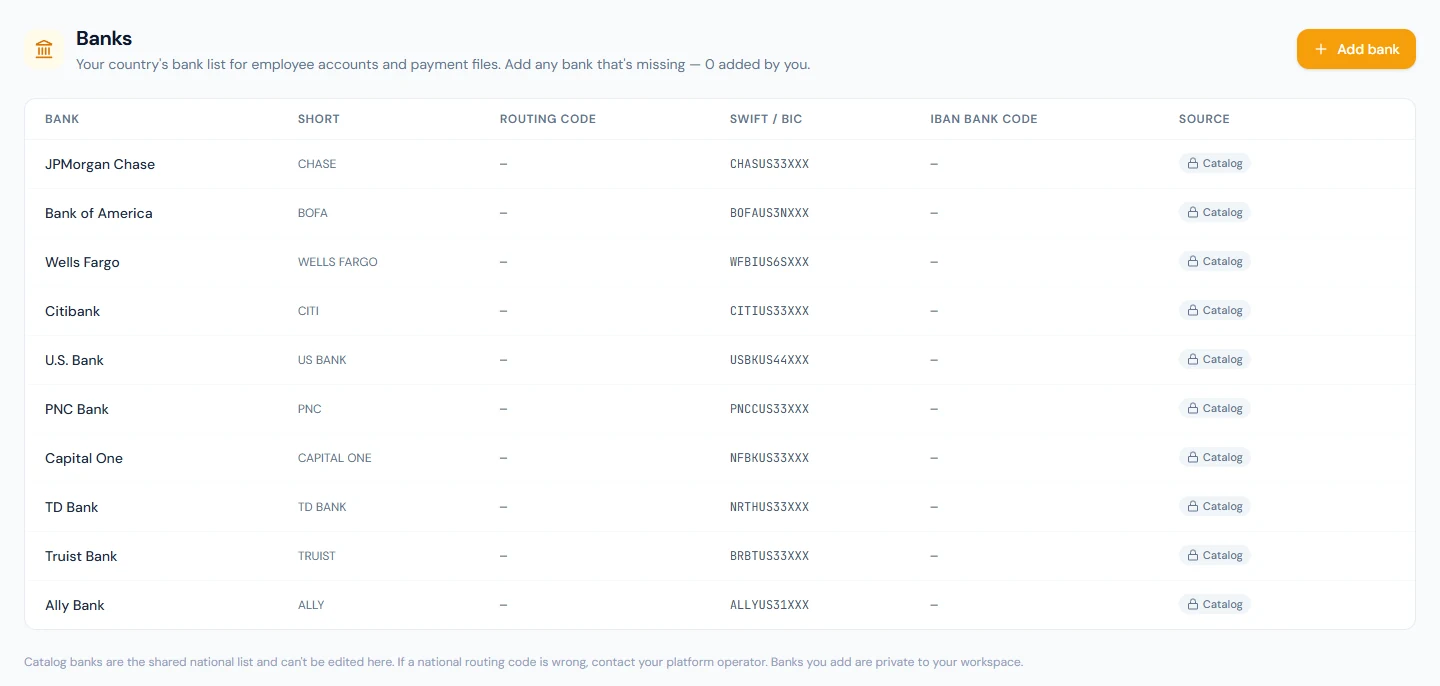
- Catalogue banks are the shared national list for your country. They are locked; if a routing code is wrong, tell your platform operator rather than working around it.
- Banks you add are private to your workspace. Choose Add bank for a local bank that is not in the list, and give its bank name, the short name (the label used on payment files), its routing code, its SWIFT/BIC and its IBAN code where the country uses IBANs. You can edit or remove these later.
A US workspace's catalogue lists the national banks (JPMorgan Chase, Bank of America, Wells Fargo and the rest); the routing code is the bank's ABA routing number and there is no IBAN, so that field stays empty. Northwind banks with two regional banks that are not in the catalogue, First National Bank of Texas and Silverline Commercial Bank, and added both.
11.2 Company bank accounts
Open Company Setup → Bank Accounts. The table shows each account's bank and branch, title, number and IBAN, its type (Primary or Secondary, with a Fund account badge where it applies), a Design link to its payment-file format (locked without the Payroll feature), and an edit action. Accounts cannot be deleted.
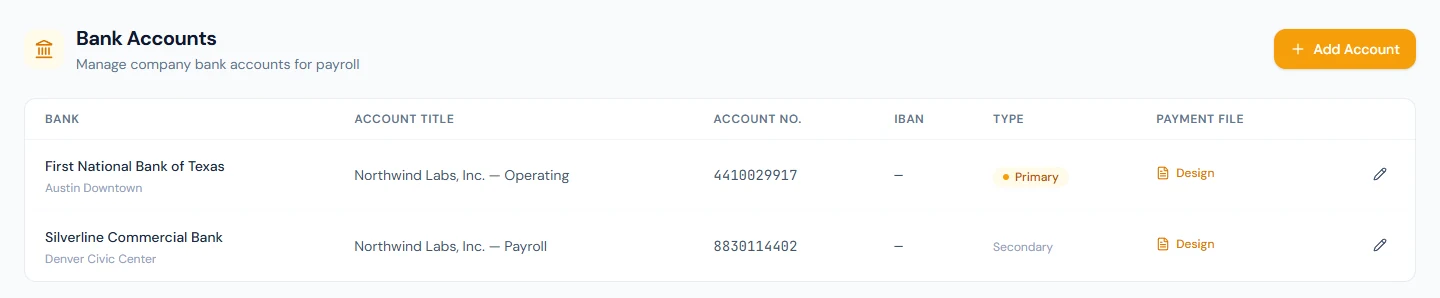
Add Account asks for:
| Field | Notes |
|---|---|
| Bank | Required, from the bank list. Add a bank that's not listed opens the add-bank form without leaving the page. |
| Branch Name | Optional. |
| Account Title | Required. |
| Account Number | Required, and unique within the workspace. |
| IBAN | Optional, where the country uses them. |
| SWIFT Code | Optional; pre-filled from the bank where known. |
| Purpose | Operating pays salaries. Fund account receives a contribution fund, such as the provident fund's own account, and is never offered as the account salaries are paid from. |
| Primary account | The account used for payroll by default. Only one can be primary, and a fund account cannot be. |
Northwind has two operating accounts, the First National Bank of Texas one marked primary. Dunebridge, the course's Dubai example, adds a third: the staff provident fund's account at Dubai Islamic Bank, with the fund purpose, which Chapter 61 fills.
11.3 The payment-file designer
Select Design on an account. The designer has three parts.
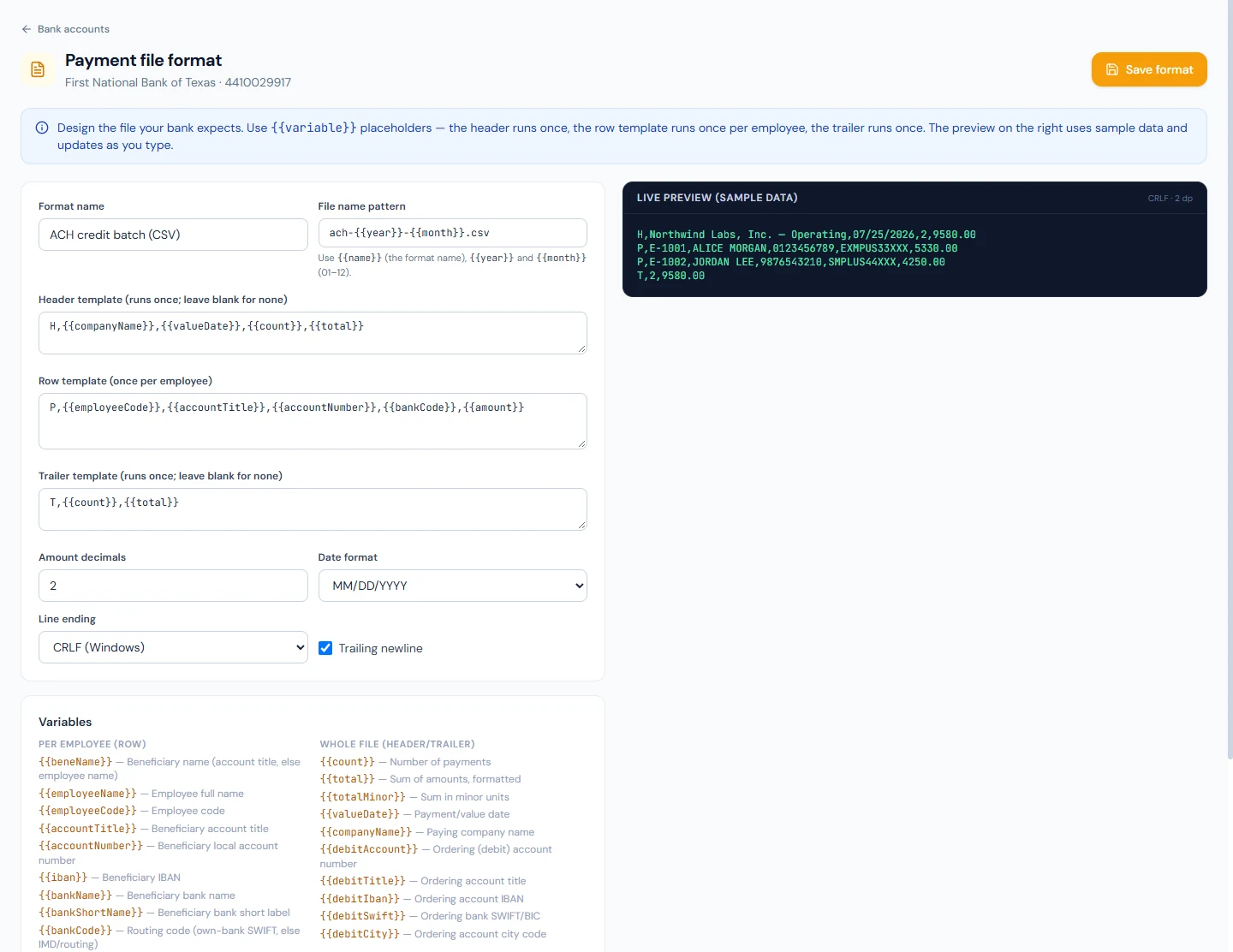
The editor.
| Field | Notes |
|---|---|
| Format name | How the format is referred to, for example "ACH credit batch (CSV)". |
| File name pattern | The name of the downloaded file. It takes variables too; the default is {{name}}-{{year}}-{{month}}.csv. |
| Header template | Rendered once at the top. Optional; many CSV formats have a column-name line here, fixed-width formats a batch header. |
| Row template | Required. Rendered once per employee paid. |
| Trailer template | Rendered once at the end. Optional; the place for counts and totals. |
| Amount decimals | 0 to 6. |
| Date format | Five choices for how dates are written. |
| Line ending | LF or CRLF, as the bank's system expects. |
| Trailing newline | Whether the file ends with a line break. |
Templates are plain text with {{variable}} placeholders. Nothing in a
template is executed; a placeholder is replaced and everything else is
copied as typed, so the format is exactly what you see.
The variables. Two scopes. Per employee (for the row template):
the beneficiary name (beneName, the account title or else the employee's
name), employeeName, employeeCode, accountTitle, accountNumber,
iban, bankName, bankShortName, bankCode (the routing code, or the
SWIFT where the employee banks with the paying bank), swift, amount
(net pay to the configured decimals), amountMinor (net pay in cents, no
point) and isOwnBank (1 when the employee banks where the company does).
Whole-file (for the header, the trailer and the file name): count,
total, totalMinor, valueDate, companyName, and the paying account's
debitAccount, debitTitle, debitIban, debitSwift and debitCity.
The filters. A placeholder can carry filters after a pipe:
{{accountNumber|pad:17:0}} pads to 17 characters with zeros on the left,
padEnd:22: pads on the right with spaces, trunc:35 cuts to 35
characters, and upper and lower change case. Filters chain with more
pipes. An unknown filter leaves the value unchanged rather than failing.
Padding and truncation are what make fixed-width formats possible.
The preview. A dark panel renders the format with sample data as you type, so a misplaced comma or a wrong field order is visible before any real file is made. Save format stores it on the account.
A CSV format for a bank portal might be a header line of column names, a
row of {{employeeName}},{{bankCode}},{{accountNumber}},{{amount}}, and no
trailer. A fixed-width format pads every field to its column width and uses
the trailer for the record count and total. Build the format from the
bank's own specification; the preview tells you when it matches.
What happens next
- Employee records (Chapter 16) pick their bank from the same list, so a bank added here is available to them at once.
- When a payroll run is locked or disbursed, Download Bank File on the run asks which company account to pay from and the value date, renders that account's format, and shows who will be paid and who is skipped and why before you download (Chapter 58). If the format uses the branch city code, the dialog asks for it and remembers it.
- A fund paid into your own fund account adds one row per fund to the file, moving the fund's total from the salary account (Chapter 61).
- Nothing is emailed by this chapter.
What the employee sees
Their own bank account on their profile, chosen from the same bank list, and the pay arriving. They never see the company's accounts or the format.
Common mistakes
- Marking the fund account primary, or paying salaries from it. The form refuses the first; keep the second impossible by giving the fund account the fund purpose.
- Designing the format from memory. Use the bank's specification; a rejected upload on pay day is the expensive way to find a missing column.
- Two decimals where the bank wants none. Many fixed-width formats take
amounts in minor units;
amountMinorexists for them. - Adding a duplicate bank with a different spelling instead of using the catalogue entry. Employees then split across two "banks" and the routing code is typed twice.
- Forgetting the line ending. A portal that expects CRLF and receives LF rejects the whole file.
Practice
In your workspace:
- Open Banks and check whether your company's bank and your employees' common banks are listed. Add any that are missing, with their routing codes.
- Add your payroll account as an operating, primary account. If you run a provident or similar fund with its own account, add that with the fund purpose and notice that the primary checkbox is disabled.
- If your plan includes Payroll: open Design on the primary account, obtain your bank's bulk-payment file specification, and build the format in the editor until the preview matches it line for line. Save it.
- If your plan does not include Payroll: read the designer section again and write down what your bank's file would need.
Quiz
1. What is the difference between an operating account and a fund account?
Answer
An operating account is the company's own money and can pay salaries; one of them is primary. A fund account holds a contribution fund's money, is never offered as the account salaries are paid from, and cannot be primary.
2. Which bank decides the payment-file format: the employee's or the company's?
Answer
The company's. The file is uploaded to the paying bank's portal, so the format belongs to the account it is paid from.
3. What does {{accountNumber|pad:17:0}} produce?
Answer
The account number padded on the left with zeros to 17 characters, which is how fixed-width formats keep columns aligned.
4. A payroll run is locked. Where is the bank file made, and what does the dialog ask for?
Answer
On the run's detail page, with Download Bank File. It asks which company account to pay from and the value date (and a branch city code if the format uses one), then previews who is paid and who is skipped before the download.
5. A catalogue bank's routing code is wrong. What do you do?
Answer
Report it to the platform operator. Catalogue banks are locked; adding a duplicate with the right code splits employees across two entries.