Chapter 71 — Tasks
Most work arrives as tasks: reconcile the quarter's accounts, plan the campaign calendar, check the phone lines every morning. A task with a deadline, a size and a grade is the cleanest evidence a manager can have, because it says what was asked, by when, how hard it was and how well it was done. This chapter is how tasks are set, sized, done and graded, and how routine work repeats on its own.
What this chapter covers
- 71.1 One-off tasks: AI weight proposal, confirming weight, grading
- 71.2 Recurring task schedules, grace hours, penalties, "Spawn now"
- 71.3 The employee's My Tasks page
- 71.4 Reminders and overdue notices
The concept
Not all tasks are equal, and a score that counts them as equal rewards picking easy ones. Each task needs a weight set before the work starts, agreed by the person who asks for it, so the size cannot be argued after the fact. The grade has two parts: quality, which only a person can judge, and timeliness, which the clock can. Routine work is different: the same small job every day or week, where doing it on time is the whole point, so it grades itself.
How Operentra handles it
- Performance › Tasks holds one-off tasks: a title, description, assignee, deadline and priority. The AI proposes a weight in points (1 to 100); the manager confirms or changes it, and only then does the employee see the task.
- The employee starts and completes the task in My Tasks with a note; the manager grades quality from 1 to 5 stars; timeliness comes from the deadline. The points go to the merit ledger.
- Performance › Recurring Tasks holds schedules (daily, weekly or monthly at a time of day, with grace hours) that create a task for each assignee on their working days; doing it in time scores full points, missing it costs the recurring-miss penalty.
- Emails announce new tasks, remind before the deadline, nudge once overdue, tell the manager a task is done and the employee it is graded.
- Who:
performance.reviewto create, confirm, grade and cancel tasks (Super Admin, HR Manager, Department Head), limited to one's direct reports unless the role also sees everyone's performance; recurring schedules need that company-wide view as well; every employee works their own tasks (performance.view_own).
Walkthrough
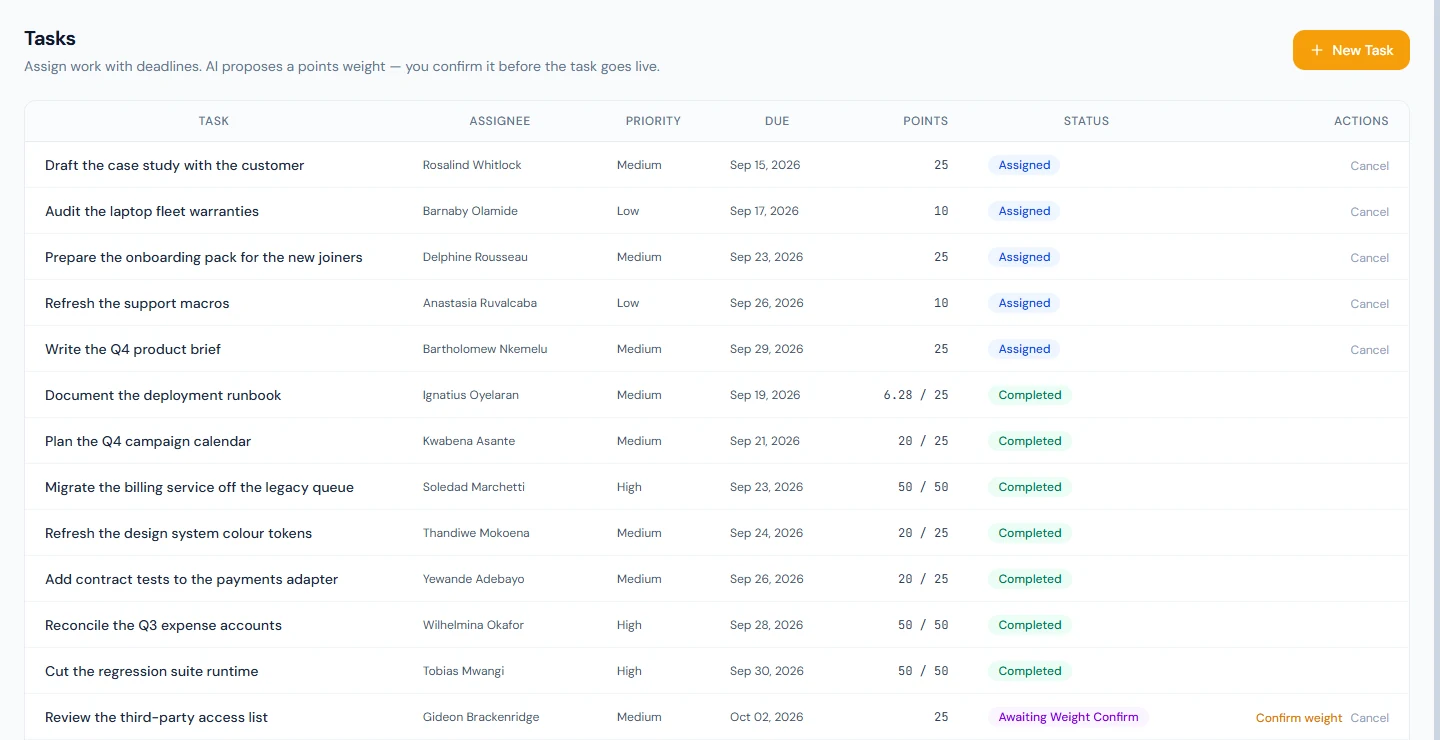
Northwind has about thirty one-off tasks in every state, and one recurring schedule, "Weekly status write-up", every Friday at 10:00 for four people.
71.1 One-off tasks: AI weight proposal, confirming weight, grading
New Task asks for the Title, Description, Assignee, Due date & time and Priority. Create saves it as Awaiting Weight Confirm: the AI reads the title, description, priority and the assignee's role and proposes a weight, from 1 to 15 for a trivial job up to 71 to 100 for a major piece of work. With AI off, the proposal is 10, 25 or 50 by priority. Two of Northwind's tasks wait here, "Review the third-party access list" among them.
Confirm weight shows "AI proposed … points" and Total points (max obtainable); editing the number marks it as set by the manager. Confirm & Assign makes the task Assigned, visible to the employee and emailed to them.
When the employee completes it, the task is Submitted — Needs Grading and the manager is emailed. Grade shows the completion note and a Quality rating from 1 to 5 stars. The points earned are the weight × the quality (the stars out of 5, refined by up to 0.15 by the AI when it is on) × timeliness: full when done by the deadline, falling with lateness to half at the Review SLA (24 hours by default, Chapter 75) and to nothing at twice it. A task both created and completed on the assignee's off days earns the off-day multiplier. Grade & Score makes the task Completed and emails the employee. Kwabena Asante's "Plan the Q4 campaign calendar", 25 points, done before its deadline and graded 4 stars, earned 20; Wilhelmina Okafor's "Reconcile the Q3 expense accounts", 50 points at 5 stars, earned all 50.
A task can be cancelled until it is completed. A one-off task left open past its deadline is not penalised for that: it simply earns less when it is done.
71.2 Recurring task schedules, grace hours, penalties, "Spawn now"
New Schedule asks for the Task title and a Description of what counts as done, how it Repeats (Daily, Weekly (pick days) or Monthly (day of month), where day 31 fires on the last day of shorter months), the Time of day, the Grace (hours), the Priority, the Point weight (or Let AI propose, once, on save) and the people to Assign to.

Every hour, once a schedule's time of day has passed in the workspace's time zone, Operentra creates that day's task for each assignee who is active and working that day: not on their weekly off, a company holiday or approved full-day leave. The deadline is the time of day plus the grace hours. "Weekly status write-up" fires on Fridays at 10:00 with 4 hours of grace, so it is due at 14:00. Marking it done before then earns its full 10 points; once the deadline passes it is marked Overdue and costs the recurring-miss penalty (3 points by default). Spawn now creates today's due tasks at once instead of waiting for the hour; deleting a schedule keeps the tasks already created.
71.3 The employee's My Tasks page
My Tasks lists the employee's tasks with Priority, Due, Points and Status; tasks still awaiting their weight do not appear. Start moves a task to In Progress; Complete asks for a note ("A specific note helps your manager grade quality fairly") and sends it for grading. A recurring task has Mark done instead, which scores it at once. A task past its deadline is highlighted.
71.4 Reminders and overdue notices
Open one-off tasks get reminder emails before their deadline, by default 24 and 6 hours before (the Task reminder offsets setting, Chapter 75; blank turns them off). Any open task, one-off or recurring, gets one overdue email when its deadline passes. The assignment, completion (to the manager) and grading emails complete the set; each is an email template (Chapter 79).
What happens next
- Chapter 72 is the other daily source, the daily report.
- Chapter 70 shows where the task points land.
What the employee sees
My Tasks with deadlines and points, the emails for each step, and the points in My Performance once graded.
Common mistakes
- Confirming every AI weight unread. The weight is the deal; read it against the work.
- Grading quality for lateness. Timeliness is already counted; grade the work itself.
- Recurring tasks for one-off work. A schedule suits the same job on a rhythm, nothing else.
- No grace on a recurring task. A chore at 10:00 with no grace is missed by 10:59.
- Tasks without deadlines that mean anything. Timeliness only works when the deadline is real.
- Leaving tasks unconfirmed. The employee cannot see a task awaiting its weight.
Practice
Use your own trial workspace, not a customer's.
- Create a task for someone in your team, read the AI's proposal, and confirm a different weight.
- As the employee, start and complete it with a note.
- Grade it 4 stars and find the line in the merit ledger (Chapter 70); work the points by hand.
- Create a daily recurring task at a time an hour from now with one hour of grace, press Spawn now after the time, and mark it done as the employee.
Quiz
1. When does the employee first see a new task?
When the manager confirms its weight; until then it is Awaiting Weight Confirm.
2. How are a graded task's points worked out?
Weight × quality (stars out of 5, refined by the AI when on) × timeliness, with the off-day multiplier for work on an off day.
3. When is a recurring task due?
At its time of day plus the grace hours, on the assignee's working days.
4. What happens to a recurring task left undone?
It is marked Overdue and costs the recurring-miss penalty.
5. Which tasks get reminders before their deadline?
Open one-off tasks, by default 24 and 6 hours before.