Chapter 39 — Corrections and requests
Chapter 38 was HR editing a day. This chapter is the other direction: the employee asking for the edit, with a reason, and someone with the authority deciding. Operentra keeps two such queues, regularizations for a wrong or missing day and overtime requests for extra hours, and behind both the raw punch log that settles what the terminal actually saw. The point of the queues is the audit trail: a day changed this way carries who asked, why, and who agreed.
What this chapter covers
- 39.1 Regularization: employee request, manager, HR approval
- 39.2 Overtime requests
- 39.3 Raw attendance logs (punches)
The concept
A correction request separates three things that a quiet edit mixes: the claim (I was here from nine to five), the evidence (the badge reader did not register), and the decision (the manager believes it). Recording all three is what makes the corrected day defensible a year later, and routing the decision to the person who was there, the manager, rather than to HR, is what keeps HR out of arguments it cannot judge.
Overtime is the same shape with a different stake: the claim is hours, the decision is money, and most policies want the agreement before the hours are credited rather than after.
The punch log is the evidence layer under both. A record is a judgement about a day; a punch is a fact about a moment. Keeping every punch, even the ones that changed nothing, is what lets a dispute be resolved by reading rather than by remembering.
How Operentra handles it
- Regularization requests are filed by the employee from My Attendance: a date, the status they are asking for, optional clock-in and clock-out, and a reason. One open request per day; none at all for someone on an exempt shift.
- Overtime requests are filed the same way: a date, the hours in quarter hours from half an hour up, an optional reason. One open request per day.
- Approvers are the people holding the approve permission for the
employee: a manager decides for their direct reports, and anyone
who also holds
attendance.view_allsees and decides every request in the workspace. A new request is emailed to them. - The queues: Attendance › Regularizations and Attendance › Overtime, each filtered Pending by default with Approved, Rejected and All tabs, each row with Approve and Reject behind a confirmation. A decided request cannot be decided again.
- An approved regularization rewrites the day: the requested status, the proposed times, the source Regularized, a remark "Regularized: " followed by the reason, and the minutes graded from the times; the employee is emailed either way.
- An approved overtime request is what the day's overtime credit is capped at when approval is required (Chapter 36); with Auto-Approve on, a request is approved as it is submitted.
- Attendance › Logs lists every punch for a period: employee, time, In or Out, source, device and IP address.
- Who:
attendance.regularize_requestto file (every role);attendance.regularize_approveandattendance.overtime_approveto decide (HR Manager and Department Head by default);attendance.view_allfor the whole-workspace view and the logs.
Walkthrough
Northwind's queues hold a dozen regularizations in every state, most of them "Badge reader did not register my morning punch", and fourteen overtime requests of one to two and a half hours around the middle of September, six approved, one rejected, seven waiting. The log holds some twenty-three thousand punches, half In and half Out, every one from the terminal.
39.1 Regularization: employee request, manager, HR approval
The request. On My Attendance (Chapter 85) the employee clicks Request Regularization and fills the dialog: the date, the status they are asking for, the clock-in and clock-out they want on record (both optional), and a reason, which is required. Submitting is refused when a request for that day is already pending, and refused outright for an employee on a Punch Not Required shift, whose days are never graded. The approvers receive "regularization requested".
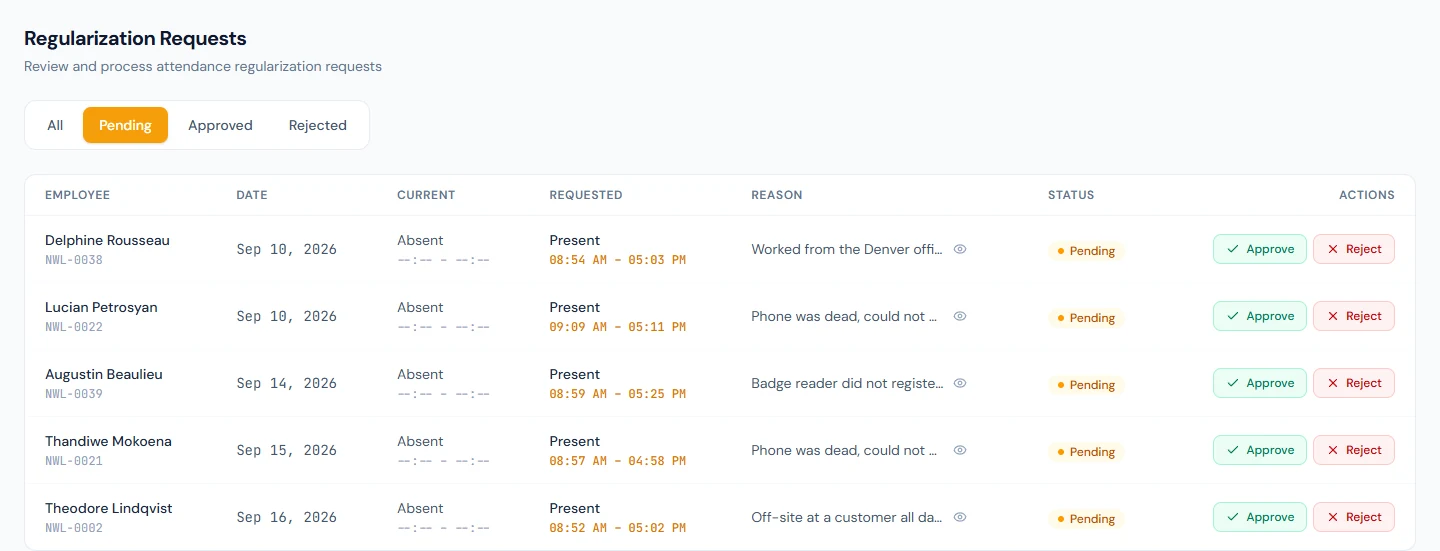
The queue. Attendance › Regularizations opens on Pending; the Approved, Rejected and All tabs show the rest. Each row carries the employee, the date, the day as it stands beside the day as requested (Previous beside New on a decided row), the reason with View full reason when it is long, the status, and Approve and Reject, each asking "Approve regularization request from Imani Castellanos?" before acting.
Who sees which rows is decided by permission, not by page: a manager
with the approve permission sees the requests of the people who
report to them; HR, holding attendance.view_all as well, sees the
workspace. A Department Head therefore approves their own team's
corrections without seeing anyone else's.
The decision. Approve rewrites the day: the status becomes the one requested, the times become the ones proposed, the source becomes Regularized, the remark reads "Regularized:" and the reason, and the late, early-leaving and overtime minutes are graded from the new times under the usual rules, so a proposed 09:40 on a nine o'clock shift is still a Late day. The employee is emailed "regularization approved"; Reject leaves the day alone and emails "regularization rejected". A request once decided stays decided; a second correction is a new request.
39.2 Overtime requests
The request. The same page offers Request Overtime: the date, the hours (quarter hours, half an hour at least) and an optional reason. One open request per day. With Auto-Approve on in Attendance Settings the request is approved as it is submitted and the employee is told; otherwise the approvers receive "overtime requested".
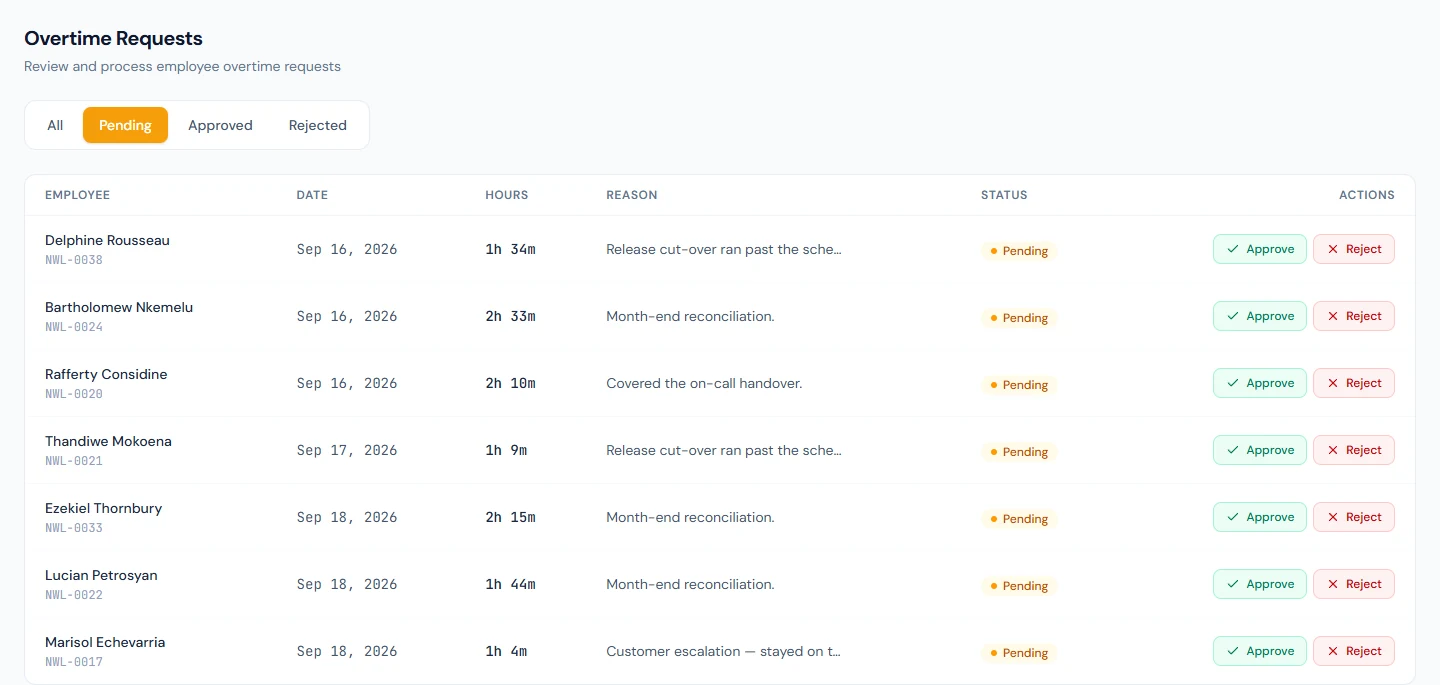
The queue. Attendance › Overtime mirrors Regularizations with an Hours column in place of the before-and-after, the same tabs, the same scope rule and the same confirmations. Approve and Reject each email the employee.
What approval does. Nothing to the day by itself. Overtime is graded from the punches (Chapter 34): the net time beyond the shift, from the minimum up, and when approval is required that figure is capped at the approved hours for the day. The approved request is the cap; the punches are the claim; the day's credited minutes are the smaller of the two, and they appear on the record and the salary slip (Chapter 37). A request for three hours on a day the punches show two credits two. Paying them is still a payroll adjustment (Chapter 56).
Northwind requires approval, so its fourteen requests are the only reason any day in September carries overtime minutes, and only the six approved ones do.
39.3 Raw attendance logs (punches)
Attendance › Logs is the evidence. Pick a month, or a From and To date, and optionally an employee, and the page lists every punch in the period newest first: employee, punch time, Type (In or Out), Source, Device and IP Address, with a count ("1,208 punches") at the top. A terminal punch names its device; a GPS punch carries the phone's address; a manual mark leaves a log entry too. The page is read-only and has no export; it answers "what did the reader see", which is the question under every disputed regularization.
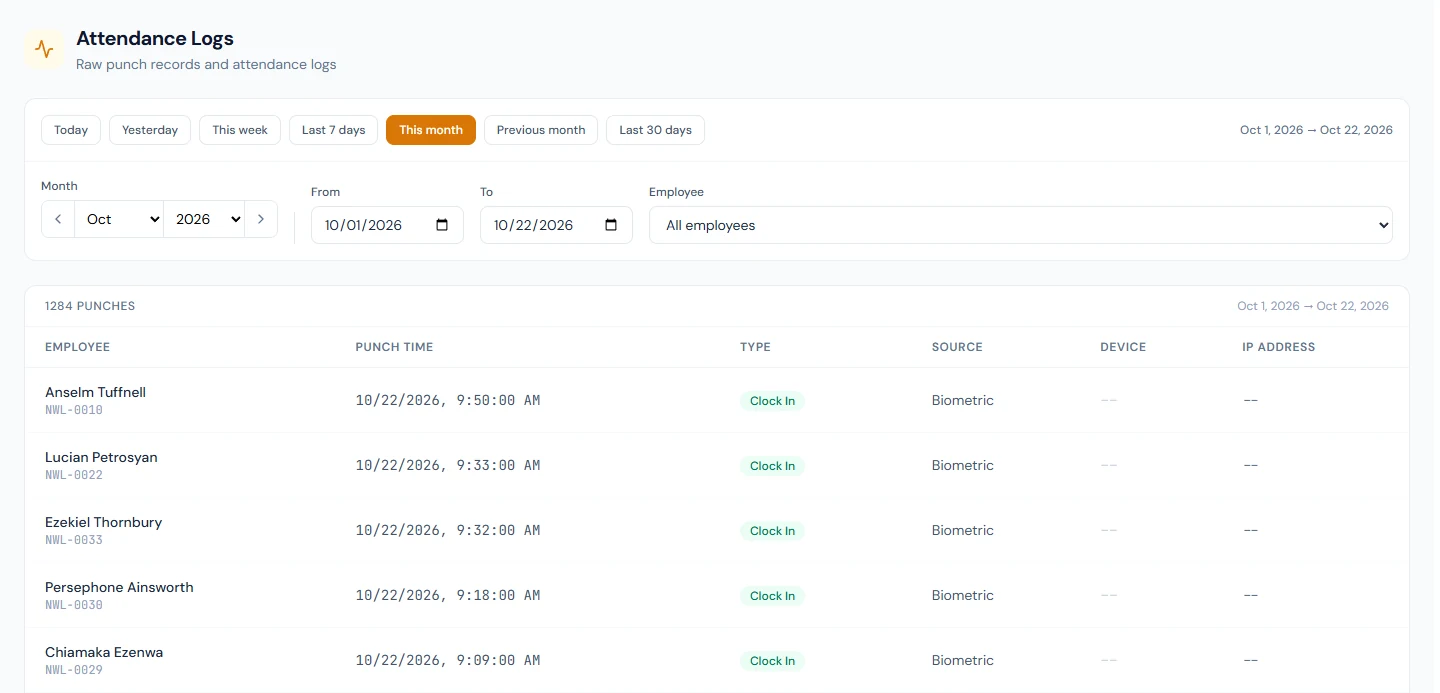
Before any punches exist the page says so: raw attendance punch logs will appear once biometric or web clock-in data is recorded, and Daily Attendance is the place for processed records. Northwind's twenty-three thousand are all terminal punches; the generator that made them did not name the device, so the Device column reads blank there, which a real workspace's will not.
What happens next
- Daily Attendance shows a regularized day with its new source and remark (Chapter 37); payroll reads it as any other day (Chapter 55).
- A regularized day is protected: the terminal sync never overwrites a day whose source is Regularized, so the manager's decision survives the next batch of punches.
- Approved overtime reaches the slip as hours; the adjustment that pays them is Chapter 56.
What the employee sees
The two request buttons on My Attendance, the dialogs above, and an email when a request is decided; the corrected day in their month with Regularized as its source. They do not see the queue or the punch log.
Common mistakes
- Approving a regularization you did not witness. The approve permission goes to the manager for a reason; HR's view-all is for oversight, not for deciding every claim.
- Expecting the approved status to stick regardless of the times. The proposed times are graded; a late proposed clock-in is still Late.
- Approving overtime and expecting pay. The approval caps the credit; the credit is hours on the slip; the pay is an adjustment.
- Approving overtime for a day with no punches. The credit is the smaller of the punches and the approval; without punches it is nothing.
- Filing a second request while one is pending. Refused; decide the first.
- Looking for a correction route for an exempt employee. Their days are not graded, so there is nothing to correct; change their shift if they should be.
- Reading an empty Device column as a missing terminal. Check the source; a GPS or manual punch has no device.
- Deciding from the email. The email announces the request; the queue is where it is decided and where the before-and-after is.
Practice
Use your own trial workspace, not a customer's.
- Sign in as an employee, open My Attendance, and file a regularization for a past day with times and a reason. Try to file a second one for the same day.
- As that employee's manager, open Attendance › Regularizations, read the before-and-after, open the full reason, and approve. Read the day in Daily Attendance.
- As the employee, file an overtime request of 1.5 hours for a day you stayed late. As the manager, approve it, then read the day's overtime minutes and the employee's month summary.
- Switch Auto-Approve on in Attendance Settings, file another request, and read its status without anyone approving it.
- Open Attendance › Logs for last week, filter to one employee, and match the punches to their days in Daily Attendance.
Quiz
1. What does approving a regularization change on the day?
The status and times become the requested ones, the source becomes Regularized, the remark records the reason, and the minutes are graded from the new times. The employee is emailed.
2. Who sees a request in the queue?
Holders of the approve permission see the requests of their direct reports; anyone who also holds view-all sees every request in the workspace.
3. How does an approved overtime request affect the day's credited minutes?
It is the cap when approval is required: the credit is the smaller of the time the punches show beyond the shift and the approved hours.
4. When is a request refused on submission?
When one is already pending for that day, and, for regularizations, when the employee is on a Punch Not Required shift.
5. What does the punch log hold that Daily Attendance does not?
Every individual punch with its time, direction, source, device and IP address, including punches that changed nothing about the day.