Chapter 24 — Career movements
People do not stay where you hired them. They move desks and cities, they are promoted, and the ones you hired on probation either become permanent or do not. Each of those is a dated event with a letter behind it, and each changes what the rest of Operentra believes about the person. This chapter covers the three movement screens under Employees and the automation that watches probation dates for you.
What this chapter covers
- 24.1 Transfers: department, designation, branch
- 24.2 Promotions with or without a salary change
- 24.3 Probation: tracking, confirming, confirmation letter
- 24.4 Automatic probation reminders and probation review cycles
The concept
A career movement is three things at once, and HR work goes wrong when one of them is forgotten.
A change to the record. After a transfer the person reports to a different department; after a promotion their title is different. The record is what every other screen reads, so the change has to land there, not only in a letter.
A dated history. Who was where, when, and why. An audit, a dispute or a reference request asks for it years later, and a record that only shows the current state cannot answer.
A communication. The employee is told, in writing, with the effective date. The letter is the evidence that they were told.
Probation is the same shape with a deadline attached: a date by which a decision is due, a decision, and a letter confirming it. The failure mode is silence: the date passes, nobody decides, and the person is neither confirmed nor let go. Everything that follows in this chapter is built to make that silence visible.
How Operentra handles it
- Three screens under Employees: Transfers, Promotions, Probations.
Each is a dated history with a form on top. Anyone who can see the
directory (
employees.view_all) can read them; recording a transfer or a promotion needsemployees.update(Super Admin, HR Manager, HR Officer); confirming a probation needsemployees.confirm(Super Admin, HR Manager). - A transfer moves department, designation, branch, or any mix. Each field left on "No change" keeps its value. The employee record is updated at once; the history keeps both sides.
- A promotion changes the designation and may note a new salary. The designation changes on the record. The salary figure is printed on the letter and kept on the promotion; payroll is untouched until a salary increment is applied (Chapter 57).
- Both email the employee and issue a letter. The transfer notice and the promotion notice go to the employee with the from → to pairs and the effective date; a transfer letter or a promotion letter is issued from the workspace's active template of that type and appears under the employee's Letters in the portal (Chapter 76).
- Probation is a date on the record. Probation End Date (set on Add or Edit Employee, Chapter 16) puts the person on the Probations page and starts two automatic behaviours: a daily digest to HR from 14 days before the date, and a probation review cycle created 30 days before it when the Probation Review appraisal template is active.
- Confirming stamps a Confirmation Date, issues the confirmation letter and emails the employee with the letter attached. The status stays Active; the employment type is not changed.
- Movements are append-only. There is no edit or delete on any of the three histories. A wrong entry is corrected by recording the right one.
Walkthrough
Northwind Labs has five transfers and six promotions on record, and one active employee on probation: Lucian Petrosyan (NWL-0022), Junior UI/UX Designer in Design, who joined on 20 July 2026 on the Probation employment type. Clementine Hargrove (NWL-0050), an Accountant who joined on 15 October 2026, is on the Probation type too, with a probation end date of 15 January 2027, but is still pending activation, and the Probations page lists active employees only.
24.1 Transfers: department, designation, branch
Employees › Transfers lists every transfer, newest first: the employee, Department (from → to), Designation (from → to), Branch (from → to), the transfer date and the reason. Northwind's history reads like a real one: Sigrid Vandermeer moved from the Denver Office to Austin HQ "to work alongside product"; Barnaby Olamide moved from IT Support to Customer Support and from IT Support Engineer to Technical Support Executive in the same entry; Genevieve Sandoval went the other way, to Denver, "covering the Denver office while it scales up".
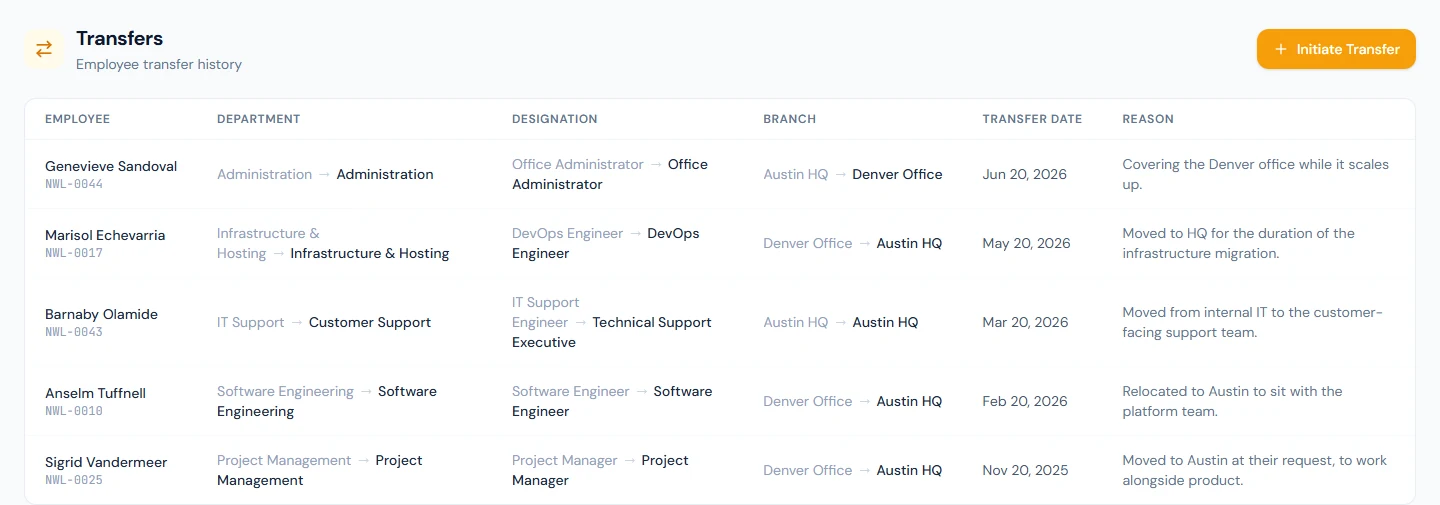
Initiate Transfer opens the form:
| Field | Rule |
|---|---|
| Employee | Required. Current employees only. |
| New Department | Optional. "No change" keeps the current one. |
| New Designation | Optional. "No change" keeps the current one. |
| New Branch | Optional. "No change" keeps the current one. |
| Transfer Date | Required. The effective date on the notice and the letter. |
| Reason | Optional. Printed on the notice and the letter. |
At least one of the three targets must change; the form is refused otherwise with "At least one of department, designation, or branch must be specified". Transfer records it. Immediately:
- the employee record carries the new department, designation or branch;
- the history row appears with both sides of each pair;
- the employee is emailed "Transfer Notification — Northwind Labs, Inc." listing the from and to department and designation, the effective date and the reason;
- a transfer letter is issued from the active transfer-letter template (the Standard Transfer Letter names the from and to location, the effective date and the reason, and states that designation, salary and other terms are unchanged unless communicated otherwise).
Two things a transfer does not do. It does not change the reporting manager: a move to another department under a new head needs the manager changed on the employee record (Chapter 19), or the old manager keeps approving the person's leave. And it does not change the shift: a move between branches on different hours needs a shift assignment (Chapter 19) with the same effective date.
Backdating is allowed; the transfer date is what you type, and the record changes today regardless.
24.2 Promotions with or without a salary change
Employees › Promotions lists every promotion: the employee, Designation Change (old → new), the date, New Salary where one was entered, and the reason. Northwind's six range from Emeric Vasquez, Junior Software Engineer → Software Engineer at 5,900 ("Completed the graduate programme ahead of schedule"), to Delphine Rousseau, HR Officer → HR Manager at 6,380.
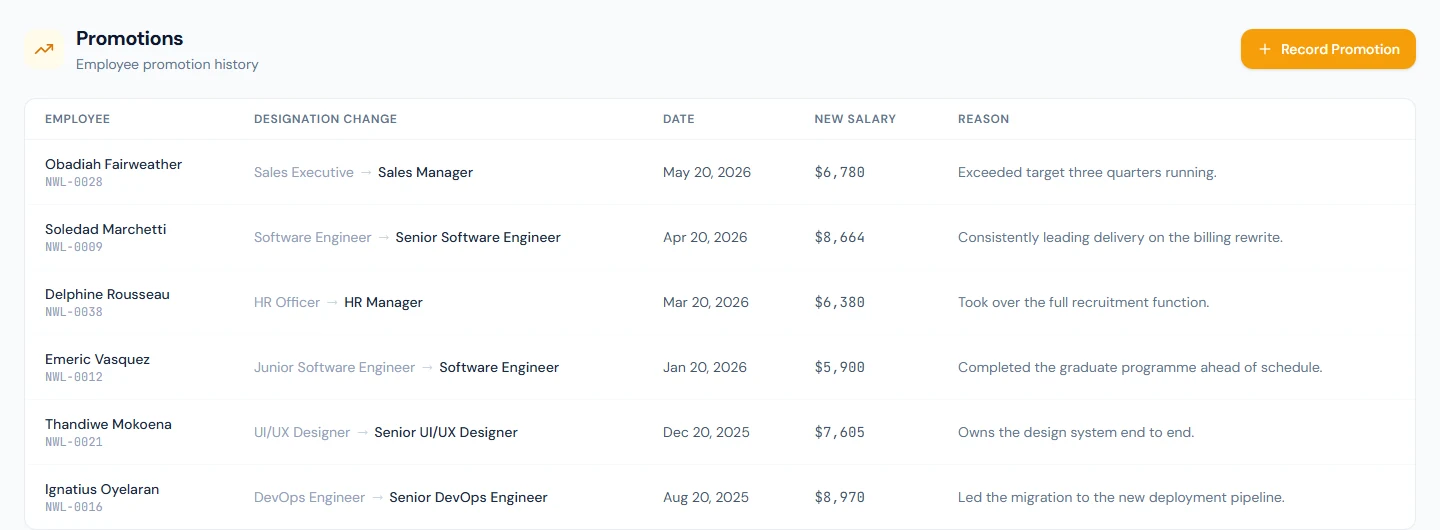
Record Promotion opens the form:
| Field | Rule |
|---|---|
| Employee | Required. |
| New Designation | Required. The department stays as it is; use a transfer if it changes too. |
| Promotion Date | Required. Also the effective date. |
| New Salary | Optional. A number in the workspace currency. |
| Reason | Optional. Printed on the notice. |
Promote records it. The designation changes on the employee record; the employee is emailed "Congratulations on Your Promotion! — Northwind Labs, Inc." with the previous and new designation, the department and the effective date; a promotion letter is issued from the active template (the Standard Promotion Letter shows the two designations, the effective date and, only when one was entered, the revised monthly salary). A first promotion also earns the employee the Star Performer badge on their portal dashboard.
The salary figure is a record, not a pay change. The hint under the field says so: it is printed on the letter and kept on the promotion, and payroll keeps paying the current salary assignment until you apply a salary increment (Chapter 57). Do the increment on the same day with the same effective date, or leave the field blank and let the increment letter carry the number. A letter that promises a figure payroll does not pay is the kind of document that comes back in a dispute.
24.3 Probation: tracking, confirming, confirmation letter
Employees › Probations lists every active employee with a Probation End Date and no Confirmation Date: employee, Joining Date, Probation Ends, Time Left ("28d remaining" in blue, amber inside 14 days, "6d overdue" in red) and a Confirm button. "Include overdue" is ticked by default; untick it to see only the ones still inside their period.

The list is driven by the date alone. Northwind's Lucian is on the Probation employment type, but if Lucian's record has no Probation End Date, Lucian is not listed, no reminder is sent and no review is scheduled. Set it on Edit Employee › Employment Details (three months from joining is the usual clause, and what the contract says): with 20 October 2026 as the date, Lucian appears with the countdown.
Confirm opens "Confirm Lucian Petrosyan". The notice explains that this marks the employee as confirmed and that the confirmation letter is issued through HR Letters and emailed. Two choices:
- Confirmation Date, defaulting to today. Backdate it to the real decision date if the paperwork lagged.
- Auto-issue confirmation letter and email to employee, ticked by default.
Confirm Employee stamps the date on the record (the Employment Details card shows Probation End and Confirmation Date as two rows), issues the Standard Confirmation Letter (employee code, designation, department, date of joining, date of confirmation, and a note that the notice period is now one month either way), and emails "Congratulations — you are now confirmed!" with the letter attached as a PDF. The row leaves the Probations page. Confirming twice is refused: "Employee was already confirmed on 2026-10-20".
What confirming does not touch: the status (already Active), the employment type (still "Probation" until you change it on Edit Employee; reports that group by type are wrong until you do), the contract, and pay.
An employee who should not be confirmed is not handled here: that is a separation (Chapter 82), and until it is recorded the person stays on this page as overdue.
24.4 Automatic probation reminders and probation review cycles
Two things run every morning at 09:15 in the workspace's time zone, without anyone opening the page.
The HR digest. Everyone with employees.confirm receives one email
per workspace, "N employee(s) approaching probation end", listing each
active unconfirmed employee whose Probation End Date is within the next
14 days or already past, with "probation ends 20 Oct 2026 (in 9 days)"
or "ended … (6 days overdue)" per line and a link to the Probations
page. It repeats every day until the person is confirmed, separated, or
the date is cleared; the overdue lines are the point.
The review cycle. Thirty days before an unconfirmed employee's Probation End Date, Operentra creates an appraisal cycle named "Probation Review — Lucian Petrosyan", running from the joining date to the probation end, using the workspace's active Probation Review template, with the reporting manager as reviewer and a single appraisal for the employee (Chapter 69 covers how cycles are completed). It is created once; a workspace that has deactivated or deleted the Probation Review template gets no cycle, and a date set fewer than 30 days ahead still gets one at the next run as long as it has not passed. The onboarding checklist's "Schedule probation review" task (Chapter 18) ticks itself when the cycle exists.
Neither job emails the employee. The digest goes to HR, the cycle goes to the manager's review queue.
What happens next
- Transfers and promotions take effect on the record at once, whatever the dated field says. Attendance, leave approval and payroll read the record: a department change moves the person under the new department's reports from the next page load; a designation change moves them to the new designation's daily-report default (Chapter 19).
- Letters live with the employee. Each issued letter is under HR Letters › Issued for HR and under Letters in the employee's portal, with its reference number and a PDF.
- Confirmation ends the probation automation. The person drops off the Probations page and the digest; an open Probation Review cycle is not closed for you.
- Nothing here changes pay. A promotion with a salary figure needs its increment; a confirmation that comes with a raise needs the same.
What the employee sees
| Moment | Email or bell | Portal |
|---|---|---|
| Transfer recorded | "Transfer Notification — Northwind Labs, Inc." + bell (Joining & leaving) | Employment tab shows the new department, designation or branch; the transfer letter under Letters |
| Promotion recorded | "Congratulations on Your Promotion! — Northwind Labs, Inc." + bell | New designation on the profile; promotion letter under Letters; Star Performer badge on the first promotion |
| Probation confirmed | "Congratulations — you are now confirmed!" with the letter attached + bell | Confirmation letter under Letters |
| Probation review scheduled | — | The self-review appears under Performance when the cycle asks for one |
Common mistakes
- Recording a promotion with a salary and stopping there. Payroll keeps paying the old assignment; the letter promises the new figure. Apply the increment the same day.
- Transferring someone to a new department and leaving the old manager. Leave and regularisation requests keep going to the previous head. Change the reporting manager on the employee record.
- Hiring on the Probation type without a Probation End Date. The person is invisible to the Probations page, the digest and the review scheduler. The date, not the type, drives all three.
- Confirming and forgetting the employment type. The record still says Probation; headcount by type is wrong until Edit Employee changes it to Permanent.
- Expecting the review cycle to appear the day the date is set. It is created by the overnight run, 30 days ahead, and only while the Probation Review template is active.
- Using a promotion to fix a wrongly typed designation. It emails a congratulation and issues a letter. Correct a typo on Edit Employee instead.
- Trying to delete a mistaken transfer. There is no delete. Record the reverse move with a reason that says why.
- Letting overdue probations sit. The digest lists them every day for a reason: an employee past their date with no decision is a dispute waiting to happen. Confirm or separate.
Practice
Use your own trial workspace, not a customer's.
- Open Employees › Transfers and read the history. Pick a transfer that changed only the branch and check the Department and Designation columns show the same value on both sides.
- Record a transfer for a test employee that changes the branch only, with a reason. Open the employee's profile and confirm the branch changed and the reporting manager did not. Open HR Letters › Issued and find the transfer letter.
- Record a promotion for the same person with no salary. Open the issued promotion letter and confirm it has no salary row. Then open Payroll › Increments and note what you would have to do for a raise.
- Give a test employee a Probation End Date 20 days from today on Edit Employee. Open Employees › Probations and read the Time Left pill. Explain to a colleague what will happen on the next two mornings.
- Confirm that employee with today's date and the letter ticked. Open the record's Employment Details and read the two dates; then change the employment type to Permanent.
Quiz
1. A transfer form is submitted with Employee and Transfer Date only. What happens?
It is refused: at least one of New Department, New Designation or New Branch must be set. "No change" on all three is not a transfer.
2. What does the New Salary field on a promotion change in payroll?
Nothing. It is kept on the promotion and printed on the letter. The pay change is a separate salary increment with its own effective date.
3. Who receives the daily probation digest, and which employees are in it?
Users with the confirm-employees permission (Super Admin and HR Manager by default). It lists active, unconfirmed employees whose Probation End Date is within 14 days or already past, every day until each is confirmed, separated or the date is cleared.
4. When is a Probation Review cycle created, and what stops it?
By the overnight run, 30 days before the Probation End Date, once per employee. It needs an active Probation Review appraisal template in the workspace; without one, or with the date already past, nothing is created.
5. After confirming an employee, which three things are still as they were?
The status (Active throughout), the employment type (still whatever it was, typically Probation) and the salary. Change the type on Edit Employee; change pay with an increment.