Chapter 12 — System settings
With the structure, fiscal years and banks in place, a handful of defaults remain that shape how Operentra numbers people, rounds money and protects sign-in. They sit on one screen, System Settings, in four tabs. This chapter also covers Admin Actions, the two jobs an administrator can run on demand instead of waiting for the schedule.
What this chapter covers
- 12.1 Employee code prefix and digits
- 12.2 Payroll defaults: rounding, precision and pay day; the fiscal-year start month
- 12.3 Security: requiring two-factor authentication, and the rules that are fixed
- 12.4 Admin Actions: allocating annual leave and re-checking badges for everyone
The concept
Three ideas carry this chapter.
Identifiers are forever. An employee code is the one label that survives a name change, follows a person through departments and designations, and appears on every document, import file and bank file. A prefix and a digit count are decided once, before the first employee, because a code already issued must never change.
Money is rounded once, deliberately. Payroll produces fractions: 6.2 percent of 4,166.67 is 258.3354. A company decides how far to round and in which direction, and applies that everywhere, so a payslip adds up to the cent and the bank file carries the same figures as the slip.
Policy and mechanism are different things. Whether a company requires a second factor at sign-in is a policy, and the company's to choose. How many wrong passwords lock an account, and for how long, is a mechanism that protects an account that may belong to several companies at once, so it is fixed by the platform and behaves the same everywhere.
A fourth, smaller idea: some things that normally happen on a schedule, such as allocating leave at the start of a fiscal year or checking who has earned a badge, can be run by hand. A well-made batch action is safe to repeat.
How Operentra handles it
System Settings (/admin/company/settings) is under Company Setup →
System Settings, and a shortcut tile on Workspace Settings › Overview
(Chapter 8). Opening it needs the company.settings permission; saving
needs company.update. Super Admin holds both. The screen has four tabs,
General, Payroll, Tax and Security; each row shows a label,
a one-line description and the setting's key in a small chip, and Save
Settings saves the tab you are on. Every value is created at sign-up from
the country pack and the company name, so nothing is blank on the first
visit. Only settings that something in Operentra reads are shown.
Admin Actions (/admin/settings/admin-actions) is under Settings →
Admin Actions. Two cards, each with Run Now; each asks for
confirmation and shows its result on the card when it finishes.
Walkthrough
12.1 Employee codes
Open Company Setup → System Settings. The General tab has two settings.
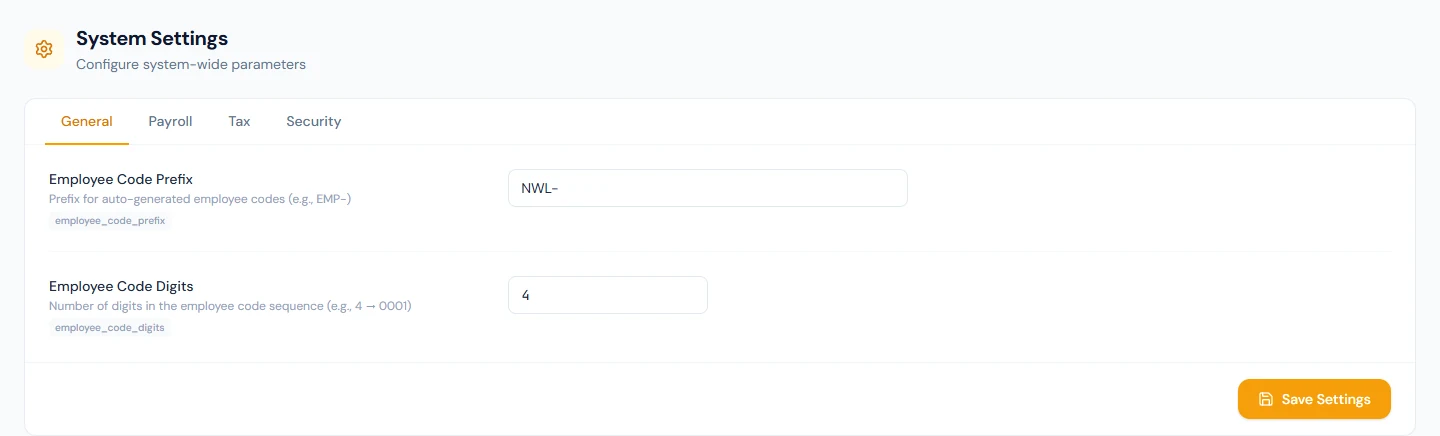
| Setting | What it does |
|---|---|
| Employee Code Prefix | The fixed text at the start of every code. At sign-up it is built from the company name: the initials of the first two words, then -EMP-, so "Falcon Digital LLC" starts as FD-EMP-; a one-word name uses its first two letters. |
| Employee Code Digits | How many digits the running number is padded to. 4 gives 0001. |
How the next code is made: when an employee is added (Chapter 16), Operentra finds the highest existing code that starts with the current prefix, adds one, and pads the number to the digit count. Three things follow from that.
- Codes already issued never change. Editing either setting affects only employees added from then on.
- A new prefix starts a new series at 1. Northwind's people are
NWL-0001onward; change the prefix toNL-and the next person isNL-0001, with both series side by side from then on. - Digits are a minimum, not a cap. When a four-digit series passes 9999 the number simply grows to five digits.
The code is printed on salary slips and HR letters, is the employeeCode
variable in bank payment files (Chapter 11), and heads the employee's own
portal profile. Northwind keeps the demo prefix NWL- and
four digits.
12.2 Payroll defaults
The Payroll tab holds the amounts rules.
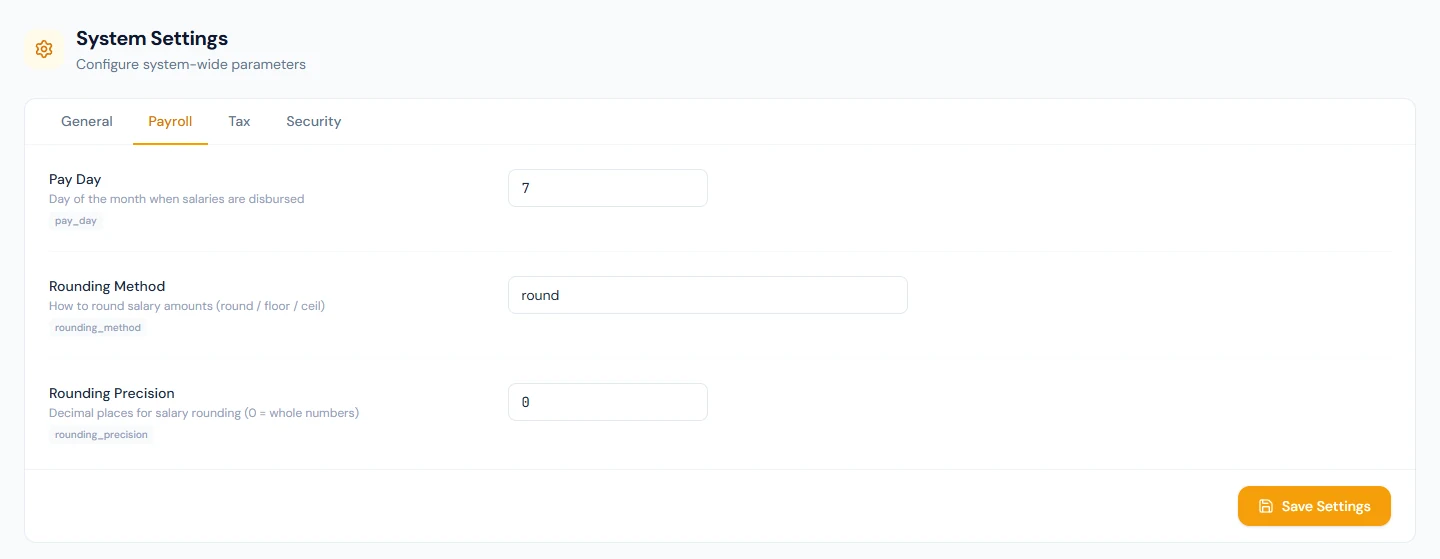
| Setting | What it does |
|---|---|
| Rounding Method | round to the nearest, floor down, or ceil up. Any other value switches rounding off. |
| Rounding Precision | How many decimals to keep. 0 keeps whole units; 2 keeps cents; the most Operentra keeps is 4. |
| Pay Day | The day of the month salaries are paid, as a number. |
Rounding is applied at every step of a payroll calculation, not only at the end: each salary component, each attendance deduction (unpaid leave, absence, late marks), social security, income tax, and then total earnings, total deductions and net pay. That is what makes a slip add up line by line. It takes effect from the next calculation; runs already calculated keep their figures.
Pay Day is information, not a trigger. The employee's portal dashboard counts down to it, and the employment contract prints it as the day pay is due. Payroll itself is started by a person (Chapter 55).
Chapter 53 returns to this tab from the payroll side. The Payroll Settings page it describes writes to the same group, so a switch saved there, such as allowing a run to skip attendance deductions, also appears here.
The Tax tab has one setting, Fiscal Year Start Month, a number from 1 (January) to 12 (December), set from the country at sign-up; a US workspace starts at 1. Fiscal years themselves are rows on the Fiscal Years page (Chapter 10). This month is what Operentra uses when it has to create fiscal years on its own, which the salary history import does when old pay dates fall in years that do not exist yet (Chapter 64).
12.3 Security
The Security tab has one switch, Require two-factor authentication, off by default. Turn it on and, from their next sign-in, every member who has not enrolled is taken through authenticator setup before they reach the workspace; nobody is signed out when you save. While the switch is on, members cannot disable 2FA on their account, and the Disable button tells them which company requires it; a person switching into this workspace from another company is blocked until their account is enrolled, and enrolling from any workspace satisfies the requirement, because 2FA protects the account, not the membership (Chapter 6). Clearing a member's enrolment when they lose their phone is an administrator's action, covered in Chapter 14.
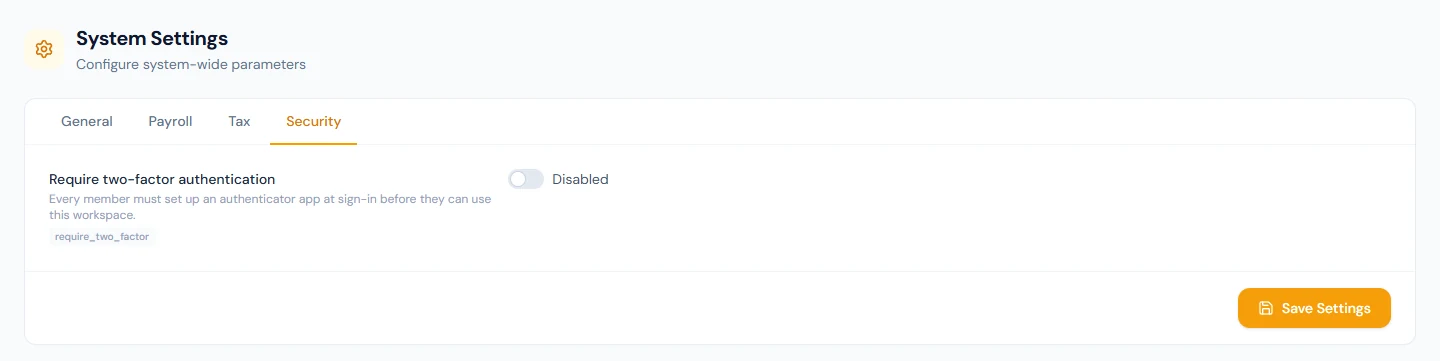
The rules that are not on this tab are fixed by the platform, and the same in every workspace: five wrong passwords in a row lock the account for 30 minutes, across every company it belongs to, and the sign-in page says how many minutes remain; a password must be at least eight characters when it is set or reset; and a signed-in session has a fixed lifetime, refreshed quietly while it is in use. Chapter 6 describes what a member sees when any of these apply.
12.4 Admin Actions
Open Settings → Admin Actions. Two cards.
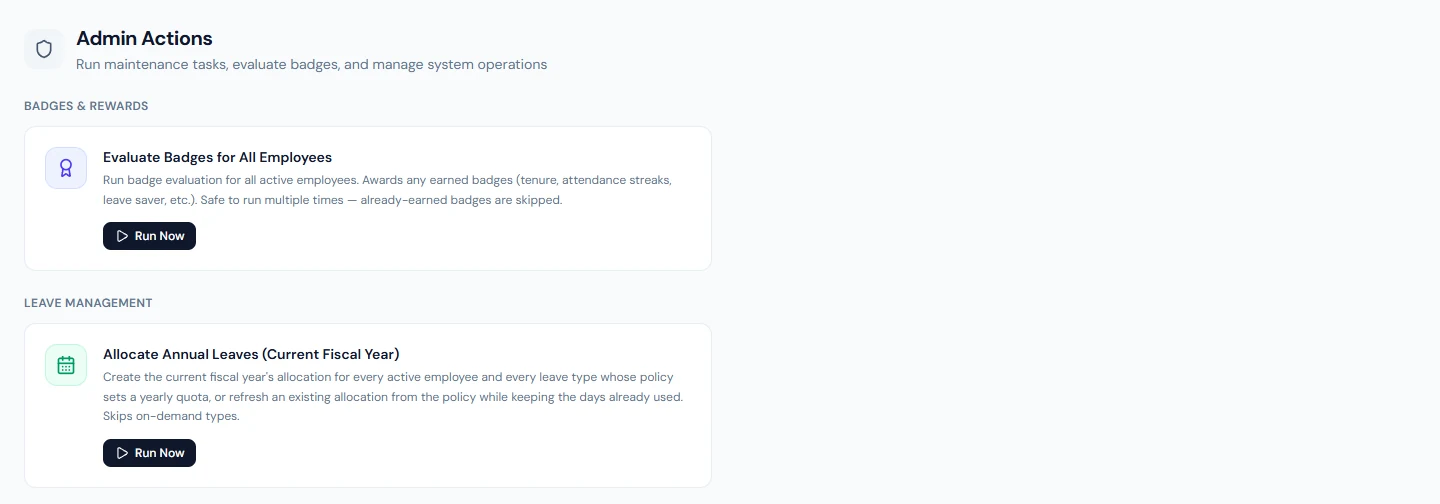
Evaluate Badges for All Employees. Checks every active employee against the badges defined for the workspace and awards whatever has been earned. A badge that can be earned once is skipped if the person already holds it; a badge that repeats, such as a month of perfect attendance, is awarded once per period. The result reads how many employees were evaluated and how many badges awarded. Operentra runs the same check on its own at 2 a.m. on the first of every month; the card is for the moments between, such as after importing attendance history. Chapter 70 covers badges.
Allocate Annual Leaves (Current Fiscal Year). For every active employee and every leave type whose current policy allocates a yearly quota, this creates the allocation for the current fiscal year, or, where one exists, recomputes its allocated and carried-forward days from the policy while keeping the days already used. It applies the policy's rules on the way: gender, employment type, minimum service, membership of the employee's leave group, pro-rata for people who joined during the year, and carry-forward from the previous year up to the policy's cap. Types allocated on demand, such as maternity leave, are left alone. The result reads how many allocations were made and how many rule exclusions were skipped.
Two things stop it. It needs an active current fiscal year (Chapter 10), and it needs at least one leave type whose policy has a yearly quota (Chapter 45); a fresh US workspace has neither leave types nor policies yet, so the card reports that there is nothing to allocate until Part 7. Running it needs the leave-configuration permission as well as the settings permission; Super Admin has both.
The fiscal-year rollover allocates on its own (Chapter 10), so this card is for catching up: after creating or changing a policy mid-year, after adding people in bulk, or after setting up leave for the first time.
What happens next
- The next employee added takes the next code under the current prefix; nothing already issued changes.
- Rounding applies to the next payroll calculation. Locked runs never change.
- Requiring 2FA takes effect at each member's next sign-in; current sessions continue.
- Allocations made by the action appear at once on the Leave Balances page and on each employee's portal; badges awarded appear on their portal dashboard.
- Nothing in this chapter sends an email.
What the employee sees
Their code on their profile, slips and letters; amounts on the slip rounded the way the Payroll tab says; a countdown to pay day on their dashboard; the authenticator setup step at their next sign-in when 2FA is required; new leave balances and any badge earned, on the portal.
Common mistakes
- Changing the prefix after people exist. Two series then run side by side. Decide the prefix before the first employee; if it must change later, accept the split rather than editing codes by hand.
- Leaving precision at 0 in a workspace that pays in dollars and cents. Every component, deduction and total is rounded to the whole dollar. Check the Payroll tab before the first payroll run.
- Expecting Pay Day to run payroll. It only tells people when to expect it.
- Looking on the Security tab for lockout or password rules. They are platform rules; the tab holds the one choice that is the company's.
- Running Allocate to fix one person's balance by hand. It recomputes every allocation from the policy, so an allocation edited by hand is overwritten. Adjust the policy, or the one allocation, instead.
- Running Allocate before leave policies exist. It reports that there is nothing to allocate; set up leave first.
Practice
In your workspace:
- Open System Settings › General. Decide your prefix and digit count now, before you add anyone, and save.
- On the Payroll tab, set the rounding method and precision to match how you pay: 2 decimals for dollars and cents, 0 for whole units. Set your pay day. Save.
- On the Tax tab, confirm the fiscal-year start month agrees with the fiscal years you created in Chapter 10.
- On the Security tab, leave Require two-factor authentication off for now. Enrol your own account first (Chapter 6), then decide the policy in Chapter 14 when you invite your first users.
- Open Admin Actions and run Evaluate Badges. Read the result: in an empty workspace it evaluates nobody and awards nothing, which is the point. Leave Allocate alone until Chapter 47.
Quiz
1. You change the employee code prefix from NWL- to NL- after forty
people are on file. What happens to their codes, and what code does the
next person get?
Answer
Nothing happens to the forty existing codes. The next person gets
NL-0001, because a new prefix starts its own series.
2. A US workspace has rounding method round and precision 0. Payroll
computes an employee's social security at 258.33. What appears on the
slip?
Answer
- Precision 0 rounds every amount to the whole unit, which is why a workspace that pays in cents sets precision 2 before its first run.
3. Which sign-in rule is the workspace's to set, and which are fixed?
Answer
The workspace chooses whether to require two-factor authentication. The lockout (five wrong passwords, 30 minutes), the minimum password length (eight characters) and the session lifetime are platform rules.
4. You run Allocate Annual Leaves a second time in the same fiscal year. What happens to days already taken?
Answer
They are kept. The action recomputes each allocation's allocated and carried-forward days from the policy and leaves used days untouched.
5. Require two-factor authentication is switched on at 3 p.m. Who is affected, and when?
Answer
Every member without 2FA, at their next sign-in, when they are taken through setup before reaching the workspace. Nobody's current session ends. Members cannot disable 2FA while the policy is on, and switching in from another company is blocked until the account is enrolled.