Chapter 19 — The employee profile
Chapters 16 to 18 created records and switched them on. From now on, the page HR opens more than any other is the one those records became: the employee profile. It is where a question about a person gets answered, where a change to their employment is made, and where several other modules quietly read their inputs. This chapter teaches you to read it properly, to change the few things it changes, and to know which of those changes ripple elsewhere.
What this chapter covers
- 19.1 Reading the profile: the header, the cards and what is not on it
- 19.2 Changing employment status, and what each status switches off
- 19.3 Editing the record, setting the photo and deleting
- 19.4 Shift assignment and shift history
- 19.5 Leave configuration: where the leave group comes from
- 19.6 The Biometric card
The concept
Every HR system keeps one master record per person, and everything else hangs off it. Payroll does not store a salary against a name; it stores it against the record, and reads the joining date from the same record to prorate the first month. Attendance does not know what "late" means until it has read the person's shift. Leave does not know what the person is entitled to until it has resolved their leave group. A mistake on the master record is therefore never local: a wrong joining date is a wrong first salary, a wrong reporting manager sends approvals to the wrong desk, a wrong shift marks a punctual person late every day.
Two disciplines follow from that.
Know what each field feeds. Before you change something, know who reads it. The table below is the map for this chapter.
| Card | Who reads it |
|---|---|
| Personal information | Contracts, letters and tax certificates (the legal name and identity number); the birthday greeting, when that email is switched on; leave policies that apply by gender. |
| Contact information | Every email and the portal invitation; the language the person's emails and documents are written in; mobile verification (Chapter 23). |
| Emergency contact | The SOS verification (Chapter 23). Shown to HR only. |
| Employment details | Payroll proration (joining date); approval routing (reporting manager); probation reminders and confirmation (Chapter 24); the directory and the org chart. |
| Address | Contracts and letters; address verification (Chapter 23). |
| Bank account | The bank payment file (Chapter 58). |
| Shift | Every attendance grade: late, early leave, overtime, weekly off days (Part 7); the fallback leave group. |
| Leave configuration | Leave balances and what the person may apply for (Part 8). |
Separate the state of the employment from the events inside it. A person on two weeks' approved annual leave is still an active employee; the leave is an event the Leave module records. A person on a six-month unpaid sabbatical is in a different state of employment, and the status on their record should say so. Systems that blur the two either pay people who should not be paid or stop paying people who should. Operentra keeps them apart, and 19.2 shows exactly what each status does.
How Operentra handles it
- Where it lives. Employees › All Employees, then click a name: the
profile is at
/admin/employees/:id. Opening it needs theemployees.view_allpermission, which the Super Admin, HR Manager, HR Officer and Accountant roles hold. Changing anything on it needsemployees.update(Super Admin, HR Manager, HR Officer); deleting needsemployees.delete(Super Admin and HR Manager only). Department heads do not open profiles here; they see their own team from the portal (Chapter 89). - One record, one editing screen. The profile itself is read-only except for three header actions (Status, Edit, Delete) and two cards that act on their own (Shift and Biometric). Every other field is changed on Edit Employee, which the Edit button opens.
- HR edits take effect at once. There is no approval step for a change HR makes. Changes the employee submits from the portal are the ones that queue for review (Chapter 21).
- Status is a switch, not a note. Several modules select employees by status. Setting a status moves the person in or out of those selections the same day, with no email and no confirmation dialog. Only the moves listed in 19.2 are allowed, and leaving is never one of them: it runs through Offboarding.
- The profile shows the record, not the modules. Documents, the contract, the salary, attendance, leave applications, onboarding tasks and assets each have their own screen. 19.1 lists where each lives.
Walkthrough
19.1 Reading the profile: the header, the cards and what is not on it
Open Harriet Okoro's profile, the record Chapter 16 created and Chapter 18 activated. Across the top sits the header: the photo, or the initials in a grey square until one is set; the name; the status badge, green Active now; and underneath, the code, department and designation separated by bars: NWL-0051 | Software Engineering | Software Engineer. The back arrow returns to the directory. On the right are the three actions: a button reading Status: Active, Edit and Delete. While a record is still New, an amber activation panel sits under the header; Chapter 18 covered it.
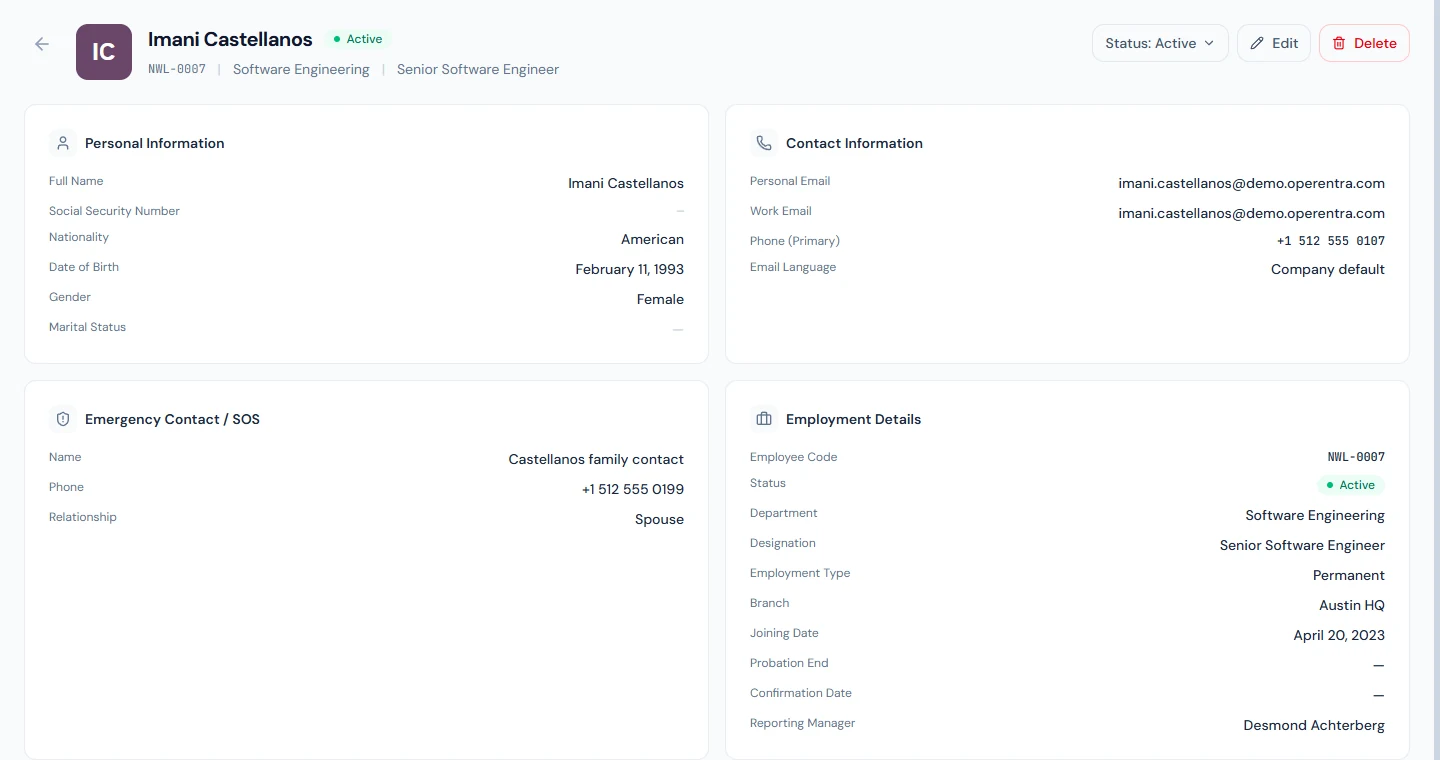
Below the header the record is laid out as cards, two columns on a wide screen.
Personal Information holds Full Name, the identity number under the label your country uses (Social Security Number for a United States workspace), Nationality, Date of Birth, Gender and Marital Status. Two rows appear only where the country records them: Father's Name, and the Pakistani tax number. A value that was never entered shows as a dash. Dates on the profile are written in full, for example 05 January 2026.
Contact Information holds Personal Email, Work Email, Phone and Email Language. Email Language is the language the person's emails and documents are written in; it reads Company default until someone picks a language for them, on Edit Employee or in their own portal settings.
Emergency Contact / SOS holds Name, Phone and Relationship, each reading Not provided until filled. Operentra can verify the emergency number by text message; Chapter 23 covers that.
Employment Details is the card payroll and approvals read: Employee Code, Status (the badge again, with a small question-mark that explains the New state while it lasts), Department, Designation, Employment Type, Branch, Joining Date, Probation End, Confirmation Date and Reporting Manager. Confirmation Date is written by the probation confirmation in Chapter 24; Probation End is the date you entered in Chapter 16.
Shift shows the shift in force today, with a Default tag when it is the company default: its name, timings, break and grace minutes, and the date the assignment took effect. Its two buttons, View History and Assign Shift or Change Shift, are the subject of 19.4.
Leave Configuration shows the leave group the person has ended up in, a coloured tag saying where that group came from, and one row per leave type in the group with the balance for the current year. 19.5 reads it line by line.
Address appears only when at least one address is on file. Each address is headed by its type, Current or Permanent, and lists the address line, city and country.
Bank Account appears only when an account is on file, with a Primary tag, the bank name, account title, account number and IBAN.
Biometric appears on plans that include biometric devices, and is 19.6.
What you will not find on the profile is just as important, because new users look for it here first.
| Looking for | Go to |
|---|---|
| Documents, their verification state and expiry | Employees › Documents, with the employee picked at the top (Chapter 22) |
| The employment contract | Contracts (Chapter 31) |
| The salary structure and assignment | Payroll › Employee Salaries (Chapter 52) |
| Attendance for a day or a month | Attendance (Chapter 37) |
| Leave applications and the leave register | Leave (Chapter 48) |
| Onboarding tasks | Onboarding (Chapter 32) |
| Issued assets | Assets (Chapter 33) |
| The login, its roles and its invitation | Users (Chapter 14) |
19.2 Changing employment status, and what each status switches off
The Status button opens a short menu. The current status is listed first, greyed out, followed by only the statuses the person may move to from it:
| Current status | The menu offers |
|---|---|
| New (Pending Activation) | Active, which is the activation of Chapter 18 |
| Active | On Leave, Suspended |
| On Leave | Active, Suspended |
| Suspended | Active, On Leave |
| Terminated, Resigned or Retired (older records) | Active |
| Separated | No status; Rehire instead (below) |
Nothing moves back to New (Pending Activation), which a record has
only at creation. No leaving status (Terminated, Resigned, Retired,
Separated) is ever offered: under a line at the bottom of the menu,
Start offboarding ("Resignation, termination or retirement") takes
you to Offboarding instead. It is shown to holders of
offboarding.manage for anyone not yet Separated. Separated, which
the offboarding module writes when a final settlement completes, is
final: no status change brings a settled person back. To employ them
again, the same spot on the menu offers Rehire ("Employ them again on
this record") to holders of employees.create. Rehire starts a new
employment on the same record: a new joining date, the person back at
New (Pending Activation) and the activation of Chapter 18 to follow,
with the earlier employment kept and shown on the profile as
Previously employed. Chapter 82 covers it after the settlement. Edit
Employee never changes the status either.
Read before you click: the change is saved the moment you pick an entry. There is no confirmation dialog.
Here is what each status means and what it does.
| Status | Use it for | What changes |
|---|---|---|
| Active | Normal employment | The person is in every payroll run, attendance view, leave allocation and headcount. Picking Active for a New record is the activation of Chapter 18, leave allocation included. |
| On Leave | A long absence during which pay stops: a sabbatical, extended unpaid leave, a long secondment away | Left out of payroll runs, out of the daily attendance view and the attendance jobs, out of leave allocation and out of the dashboard headcount, from the next run or day. The login stays open. |
| Suspended | Barred from duty, usually pending an inquiry | The same exclusions as On Leave. The login stays open. |
| Terminated, Resigned, Retired | Cannot be chosen. Only older records, set to one by hand when the menu still offered them, carry these | The same exclusions, with no separation, clearance or settlement behind them. Such a record offers Active, which also clears the separation date the old change wrote, or Start offboarding to record the exit properly. |
| Separated | Cannot be chosen | Written by offboarding when the final settlement is complete (Chapter 82). The menu offers no status from it, only Rehire. |
Two consequences deserve a plain statement.
On Leave is not for ordinary leave. Two weeks of approved annual leave is an application in the Leave module (Chapter 48); the person stays Active and is paid. Set On Leave only when pay stops for the duration, because the next payroll run will not include them.
Leaving is not a status pick. A separation has a type, a notice date, a separation date, a last working day and a reason, and it opens a clearance checklist and a final settlement. All of that is recorded in Offboarding (Chapter 82), which writes Separated when the settlement completes and leaves the status alone until then. Start offboarding opens Offboarding's New Separation form with the person already chosen, which is also the way to offboard someone On Leave, Suspended or still New, whom that form's own search does not list.
Example. Ingrid Halvorsen, one of the four support agents imported in Chapter 17, is granted six months of unpaid leave to study. On the day it starts, Northwind opens Ingrid's profile and picks On Leave. The badge turns blue. That month's payroll run no longer lists Ingrid, and the daily attendance view stops expecting a punch. The leave balance is untouched; it was allocated at activation and will be waiting. On Ingrid's return, the same menu goes back to Active. Because Ingrid was not New, that is a plain status change: no second allocation, no event beyond the record update.
19.3 Editing the record, setting the photo and deleting
Edit opens Edit Employee at /admin/employees/:id/edit. The header
repeats the status badge, the name and the code; a record that is still
New shows an amber strip with a See what's needed link back to the
profile, because status is not something this form changes.
The form opens with a Photo card. Upload photo (or Change photo once there is one) takes a JPG, PNG or GIF; it is saved the moment you pick the file, with its own confirmation, and replaces whatever was there. The picture then appears wherever the person's name does: the profile header and the directory row.
The sections below the Photo card are the ones you met in Chapter 16, with the same required fields: first name, last name, department, designation, employment type and joining date.
- Personal Information adds nothing new.
- Contact Information has Personal Email, Work Email, Phone with its country code, and Email Language.
- Employment has Department, Designation, Employment Type, Joining Date, Probation End Date, Reporting Manager, the Daily Reports choice, Loans & Advances, and Leave Group. Leave Group is the one new field: leave it blank to inherit the shift's group, or pick one to override it (19.5).
- Emergency Contact / SOS as before.
- Address has an Address Type of Current or Permanent in front of the address line, city and country. The form edits one address at a time; an address of the other type already on file is left alone.
- Bank Account takes the bank from your bank list (Chapter 11), the account title, number and IBAN. The bank must be picked from the list; an account number with no bank is not saved.
Save Changes confirms with "Employee updated successfully!" and returns you to the profile. Some edits have a consequence beyond the field itself.
| You change | What else happens |
|---|---|
| The identity number | It is checked against the format your country uses and must be unique in the workspace; the save is refused otherwise. |
| The phone | Its mobile verification goes back to unverified (Chapter 23). |
| The emergency contact's phone | Its SOS verification goes back to unverified. |
| Any part of an address | That address's verification goes back to unverified. An address you open and save unchanged keeps its verified mark. |
| The bank account | It replaces the account on file. Operentra keeps one account per employee. |
| The leave group | The override applies from now on. Clearing it goes back to inheriting. |
| The joining date | The first month's pay is prorated from it (Chapter 54). Change it only before the first payroll run that includes the person. |
Nothing is emailed to the employee when HR edits their record, and integrations that subscribe to employee changes (Part 17) receive an update.
Some things Edit Employee cannot change, each on purpose:
| Not on the form | Where it is changed |
|---|---|
| Employee code | Fixed at creation (Chapter 12 sets the format). |
| Status | The Status control on the profile (19.2). |
| Branch | A transfer, Employees › Transfers (Chapter 24). |
| Shift | The Shift card on the profile (19.4). |
| The login and its roles | Users (Chapter 14). |
| Documents | Employees › Documents (Chapter 22). |
Delete is the third header action. It asks "Delete Harriet Okoro? This action cannot be undone." and then removes the record from every list, count and seat; closes the person's login and signs out any device they were signed in on; and keeps the row itself so that history which points at it, payroll runs included, stays intact. There is no restore button. The identity number becomes free to use on a new record.
The rule that follows: delete only records that should never have existed, such as a duplicate or a candidate entered by mistake. Someone who has worked a day leaves through Offboarding (Chapter 82), which keeps the record and its history where auditors and the person's own tax certificates expect it.
19.4 Shift assignment and shift history
The Shift card on Harriet's profile shows Office Shift with the Default tag, its timings 09:00 – 17:00, the break and grace minutes, and Effective From the joining date. Chapter 16 did that: every new record is placed on the company default shift from its joining date, because attendance cannot grade a day without one.
The shift decides more than hours. It carries the weekly off days, the grace and late thresholds, the attendance mode (whether punches are required at all), whether attendance affects pay, and a default leave group. Chapter 35 builds shifts; this section is about putting a person on one.
Assign Shift or Change Shift opens a small dialog. It explains itself: the current assignment, if any, will be closed with an effective-to date of the day before the new effective date. Pick the shift from the list, where each entry reads as its name and timings with "(default)" after the company default; a panel under the list previews the timings, break and grace. Effective From defaults to today. Then Assign Shift.
Three things happen that the dialog does not spell out.
- The open assignment is closed the day before, as promised. If the new date is on or before the day the old assignment started, so that the old one would never have been in force, the old row is removed instead of closed.
- If the effective date is in the past, every attendance day from that date to today is re-graded against the new shift: late minutes, early leave, overtime and the day's status can all change. Backdate a shift only when you mean that.
- If the effective date is in the future, the card keeps showing the shift in force today until that date arrives. The new assignment is visible in the history.
Example. Northwind's support desk is moving to afternoon hours. Chapter 35 creates the shift; once it exists, HR opens each agent's profile, clicks Change Shift, picks the afternoon shift and sets Effective From to the first Monday of next month. Until that Monday the agents' cards still read Office Shift; on the Monday the afternoon timings take over, and no past day is touched because nothing was backdated.
View History opens the full trail: one row per assignment with the shift's name and timings, a chip for shifts that mark people present automatically or need no punch, Effective From, Effective To (ongoing when open), and whether the row is in force today (Active), finished (Past) or not yet started (Upcoming). Two corrections are possible here.
- Edit dates. The pencil turns the two dates into fields. Saving re-grades attendance over the affected range, and an amber heads-up says so. A range that would overlap another row of the same person is refused; close or move the other row first.
- Delete assignment. A confirmation lists what it means: the row is removed with no undo; every day it covered is re-graded against whichever shift now applies, another assignment or the company default; attendance rows that a mark-present rule created are not removed; and if this was the current shift, the person falls back to the company default until a new assignment is made.
Use the right tool for the mistake: a wrong date is an edit; a wrong shift from a date onwards is a new assignment from that date, which closes the wrong one; an assignment that should never have been made, and never governed a graded day, is a delete.
19.5 Leave configuration: where the leave group comes from
A leave group (Chapter 46) is the bundle of leave policies a person is entitled to. Operentra resolves the group for each employee in a fixed order, and the Leave Configuration card shows both the answer and the reason, as a coloured tag beside the card title and a line under the group name.
| Tag | Line under the group | Meaning |
|---|---|---|
| Employee Override | Direct override on employee profile | A group is set on the record itself (Leave Group on Edit Employee). It wins over everything. |
| From Shift | Inherited from shift "…" | No override; the person's current shift carries a default group. |
| Company Default | Company default group "…" | No override and the shift has no group; the group marked as default in Leave › Leave Groups applies. |
| Not Resolved | No leave group resolved — employee will see no policies | None of the above. The person cannot apply for leave until one is fixed. |
Harriet's card reads From Shift with Inherited from shift "Office Shift", and the group is Office Staff: Chapter 16 left Leave Group blank, so the group follows the shift. Open Imani Castellanos (NWL-0007) and the tag reads Employee Override, because Northwind's demo records carry the group directly. Both land in the same group; the tag tells you which rule put them there, which is what matters when the shift's group is changed later. Harriet would follow; Imani would not.
Under the group comes one row per leave type whose policy is in force today: a colour dot, the type's name and code, and the entitlement, for example "20 days / year". On the right is the balance for the current fiscal year, written as remaining over allocated, "17 / 20" with the word "remaining" beneath, or not allocated when no allocation exists for this year: the person was not yet activated, allocation has not been run, or there is no current fiscal year. A type that accrues in cycles shows a cyclic chip, its rule ("1d credited per 20 worked", with a cap where one is set), how many days until the next credit and the lifetime total earned. A group with nothing in it says "Group has no policies attached yet."
The balances here are the same ones the person sees in their portal, and they come from the allocation Chapter 18 ran at activation or the yearly allocation of Chapter 47. The card is read-only; the override is set on Edit Employee, and groups themselves are built in Part 8.
Use the override for the exception, not the rule. A contractor on a reduced entitlement, or one person seconded to a team whose shift carries a different group, is an override. If a whole team needs a different group, give it to their shift.
19.6 The Biometric card
On plans that include biometric devices, a Biometric card appears among the others; Chapter 40 covers devices in full, and this is only what the card shows.
- Currently on: the devices the person is enrolled on, or "Not registered on any biometric device."
- Operentra library: the fingerprint templates Operentra holds for the person, one entry per finger. A template can be deleted from the library, with a switch to delete it from the devices too.
- Past bindings: devices the person was removed from, with the date.
- A banner, Previous biometric data on file, appears when there is a library or a history but no current device; Review & restore picks a device and pushes the person's record, and any stored templates, to it, so a returning employee can punch without re-enrolling.
- Remove from all devices deletes the person from every device at once. It makes you type REMOVE first.
Northwind's one device is a placeholder that cannot be reached, so every Northwind profile reads Not registered. The card comes to life in Chapter 40.
What happens next
- A status change takes effect at the next payroll run and the next attendance day. Nothing is emailed to the employee or to HR. Integrations receive an update.
- An edit is live immediately. Verifications reset where the table in 19.3 says so. Nothing is emailed; integrations receive an update.
- A shift change with a past effective date re-grades attendance from that date to today inside the same save. A future date changes nothing until it arrives.
- A leave-group override changes what the person may apply for from now on. It does not create or remove an allocation; Chapter 47 does that.
- A delete hides the record everywhere, frees its seat and closes the login. The row remains in the database.
What the employee sees
- Their portal shows the same personal, contact and employment details (Chapter 84). An edit HR makes is visible at once; they cannot change those fields themselves, but they can submit a change for HR to approve (Chapter 21).
- A status change sends them nothing. Someone set to On Leave or Suspended can still sign in.
- From a shift's effective date, their attendance is judged against the new timings (Chapter 85).
- Their leave balances in the portal are the rows of the Leave Configuration card.
- A deleted employee is signed out on their next request and cannot sign in again.
Common mistakes
- Using On Leave for a fortnight's holiday. The person drops out of the payroll run. Ordinary leave is an application; the status stays Active.
- Looking for Terminated on the Status menu. It is not there, by design. Choose Start offboarding on the same menu, so the exit has a separation record, a clearance and a settlement.
- Deleting a leaver. Their payroll history, slips and certificates lose their anchor in every list. Leavers go through Offboarding, not Delete.
- Changing the joining date after the first payroll. The proration already paid was computed from the old date.
- Backdating a shift without expecting the re-grade. Every day from the date to today is re-marked against the new timings.
- Deleting a shift assignment to fix a date. The edit pencil corrects a date and keeps the history honest; delete is for rows that never governed a day.
- Setting a leave-group override "to be safe". The person stops following their shift. When the team's group changes, they are the one left behind.
- Looking for the branch, the status or the login on Edit Employee. They are changed by a transfer, the Status control and Users.
Practice
Work in your own trial workspace with the record you created in Chapter 16 and activated in Chapter 18.
- Open the profile and read every card. Write down three fields that show a dash and decide whether each should be filled.
- Click Edit, upload a photo, add a work email and set the address type to Permanent with a second address. Save and confirm the Address card now shows both.
- Edit the phone number by one digit and save. Open Employees › Verifications and confirm the mobile verification is back to unverified. Put the number back.
- On the Shift card, click View History and note the effective date of the current assignment. Close it.
- Click Change Shift, pick the same shift and set Effective From to the first of next month. Open the history again: explain to yourself why the card still shows the same shift and why the history now has two rows, one Active and one Upcoming. Then delete the Upcoming row.
- Set the person On Leave, open Attendance › Daily Attendance for today and confirm they are no longer listed, and watch the dashboard's employee count drop by one. Set them back to Active.
- On Edit Employee, set a Leave Group override, save, and read the tag on the Leave Configuration card. Clear the override and read it again.
Quiz
1. An employee is going on three weeks of approved annual leave. What do you change on their profile?
Nothing. Approved leave is an application in the Leave module; the status stays Active and the person is paid as usual. On Leave is for an absence during which pay stops, and it removes the person from the payroll run.
2. An employee resigns. Why does the Status menu not offer Resigned, and what do you do instead?
Leaving is never a status pick, so no record can read Resigned without a separation behind it. Choose Start offboarding on the same menu: it opens a separation with the person already chosen, with its type, notice date, last working day and reason, the clearance checklist and the final settlement, which writes Separated when it completes (Chapter 82). Until then the status stays as it is.
3. You assign a new shift with an effective date three weeks ago. What happens to those three weeks?
Every attendance day from the effective date to today is re-graded against the new shift: late minutes, early leave, overtime and the day's status may change. The previous assignment is closed the day before the new date.
4. The Leave Configuration card reads From Shift. The shift's default leave group is later changed. Does the employee follow?
Yes. From Shift means no override is set, so the person takes whatever group their current shift carries. An employee tagged Employee Override would keep their own group regardless.
5. Which header action closes the person's login, and why should it almost never be used on someone who has worked?
Delete. It hides the record everywhere, frees the seat and closes the login. Someone who has worked has payroll history, slips and certificates anchored to the record; they leave through Offboarding, which keeps all of that in place.