Chapter 23 — Identity verification
An employee record can be complete and still unproven: the address was typed from a form, the phone number from memory, the emergency contact by the employee alone. Identity verification is how Operentra turns those three fields into facts you can rely on when a letter must reach someone, a code must reach their phone, or a family member must be called. This chapter covers the switches, the two flows (post and SMS), the admin page where HR keeps them moving, and the gate an employee meets when a deadline passes.
What this chapter covers
- 23.1 Verification settings: address, document, phone
- 23.2 Address verification by post: letter, code, attempts, reminders, portal block
- 23.3 Mobile number and emergency-contact (SOS) verification by SMS
- 23.4 The Verifications admin page: download letter, generate and regenerate codes, send OTP, mark verified or unverified
- 23.5 What the employee sees: the verification gate
The concept
Verification is proof of control, not proof of truth. A letter that comes back as a code proves someone at that address opened it. A code typed from a text message proves the phone is in the person's hand. A code relayed by the emergency contact proves that contact exists, has the number you hold, and knows they were named. None of this checks a document; that is Chapter 22's job. Verification checks that the channels you would use in an emergency, a dispute or a payroll query actually lead to the person.
Three things decide whether a verification programme works.
A deadline with teeth, started at the right moment. A deadline that runs from nothing the employee did feels like a trap; one with no consequence is ignored. The clean design starts the clock when a letter is requested and makes the consequence a narrow one: the portal, not the job.
A way back when the channel fails. Letters go missing, codes are mistyped, phones are lost. If the only path out of a failed attempt is "request again" on a screen that does not offer it, the person is stuck and HR hears about it as a complaint.
Reset on change. A verified address is only true until the person moves. The moment a number or address changes, its proof must lapse, or the badge means nothing.
How Operentra handles it
- Three switches on Settings › Verification. Address Verification (on by default), Document Verification (on by default; Chapter 22) and Phone Verification (off by default). Address or Phone switched off removes that check from the employee's portal entirely: nothing is listed, nothing blocks.
- Addresses are verified by post. The employee (or HR) requests a verification; Operentra draws a six-digit code and HR downloads a letter carrying it, on the workspace letterhead, to post to the address on file. The employee types the code into the portal. Each code lives 45 days and allows three attempts. A letter requested and not answered within 30 days closes the portal to that employee until it is.
- Phones are verified by SMS. A six-digit code is texted to the mobile number, valid for ten minutes, five attempts, one resend a minute, and a 24-hour lock after five wrong codes. The emergency contact (Operentra calls it the SOS contact) is verified the same way, except the code goes to the contact's phone and the employee enters it. Both need an SMS provider; until one is active, Phone Verification never blocks anyone even when switched on.
- Three states per channel: Unverified, Pending, Verified. Pending means a code has been issued and not yet entered. The states show on the employee's profile and on the admin page.
- Changes undo proof. When HR edits a phone number or an address, or approves a profile change that alters one (Chapter 21), that channel drops back to Unverified. Nothing is emailed; the employee sees the badge change.
- The gate is one page. A blocked employee can still sign in, but every portal route sends them to a single page listing what is outstanding, where they can finish it themselves.
- Who does what. Everyone with the Employees menu
(
employees.view_all: Super Admin, HR Manager, HR Officer, Accountant) can see the Verifications page and its Address tab, download letters and generate codes. The Mobile and SOS tabs needmobile_verification.manage(Super Admin, HR Manager, HR Officer). Marking an address verified or unverified by hand needscompany.settings(Super Admin, HR Manager), as do the switches themselves. SMS providers needsms.manage(Super Admin, HR Manager). - Emails go to the employee only, for addresses: one when a verification starts, reminders on days 7, 14, 21 and 28, each also a bell notification in the Documents & letters category. SMS codes are the only messages for phones; HR is not emailed about any of it.
Walkthrough
Northwind Labs is a US workspace with no verification settings of its own, so it runs on the defaults: address and document verification on, phone verification off, no SMS provider. Of its 50 current addresses, 35 are Verified, 6 are Pending with a letter out, and 9 have never had a letter requested: four active employees', the three leavers' and the two new hires'. A workspace that imports its people starts with every address in that last group: the records exist, the proof does not.
23.1 Verification settings: address, document, phone
Open Settings › Verification. Below the document requirements table (Chapter 22) are three cards, each with a switch that saves on click.
| Switch | Default | What it governs |
|---|---|---|
| Address Verification | On | The letter flow, the 30-day portal deadline, the Address tab, the dashboard banner and the Verifications tab on My Profile. |
| Document Verification | On | Whether uploads need HR review and whether HR is emailed about them (Chapter 22). |
| Phone Verification | Off | The SMS flow for the mobile number and the SOS contact, and the portal gate for both. |
The Address card states the rules: 30 days from the request, three attempts, 45-day code expiry. The Phone card says it stays inactive until an active SMS provider exists; that is the second condition, and the switch alone changes nothing visible.
Decide this before employees sign in for the first time. With Address Verification on, every employee whose address is unverified sees an amber "Address Verification Required" banner on their portal dashboard from day one. If your organisation will not post letters, turn the switch off; an employee whose workspace has it off sees "Address verification is not required by your organization" on the Verifications tab and nothing else.
Turning Phone Verification on with a provider in place has an immediate effect: every current employee with a mobile number on file is gated at their next click until the number is verified, and so is everyone with an emergency contact until the contact is. They can clear it in a minute from the gate page, but tell them first.
23.2 Address verification by post: letter, code, attempts, reminders, portal block
Take Augustin Beaulieu (NWL-0039), whose current address is 439 Maple Ridge Drive, Austin, Texas 78701.
Starting it. Either side can start.
- The employee: from the dashboard banner or My Profile › Verifications, the Current address card shows Unverified and a Request Verification button. Clicking it draws the code, marks the address Pending, starts the 30-day clock and emails Augustin "Address Verification Initiated — Northwind Labs, Inc.", which repeats the address and asks Augustin to contact HR at once if it is wrong, before the letter is dispatched.
- HR: on Employees › Verifications › Address, Augustin's row reads Unverified / Not requested. Generate code and letter does the same thing from this side, including the email.
An address with no first line or no city cannot be started; complete it on the employee record first.
The letter. The row is now Pending with today's date under
Requested. Download letter saves address-verification-NWL-0039.pdf:
an A4 page on the workspace letterhead (logo or name), reference
ADDR-VER-NWL-0039, today's date, Augustin's name and address as the
recipient block, the title "Address Verification Letter", the code in
large type, four numbered steps (sign in, open My Profile or the
dashboard banner, enter the code, click Verify), a warning box with the
code's expiry date and the three-attempt limit, a line asking anyone
who did not request it to contact HR, and a signature block for the
Authorized Signatory of the Human Resources Department with the
workspace seal if one is uploaded (Chapter 13). The letter is in the
workspace's document language; the emails are in Augustin's own.
Print it, post it, and note the date. Operentra does not know when the letter went out; the 30 days run from the request.
Entering the code. When the letter arrives, Augustin opens the same card, now reading Pending with a six-box code field, "Attempts: 0/3" and the days remaining. A correct code turns the card Verified with the date; the row leaves the Address tab. A wrong code costs one attempt and says how many are left.
When it goes wrong.
| Situation | What Augustin sees | What HR does |
|---|---|---|
| Letter never arrived | Pending, days counting down | Regenerate code: a new code, attempts back to zero, the 30 days restart, a new letter to post. The old code stops working. No email is sent for a regeneration. |
| Three wrong codes | "Maximum 3 attempts exceeded. Ask HR to issue a new letter." | Regenerate code and post again. |
| Code older than 45 days | "Verification code has expired. Ask HR to issue a new letter." | The same. |
| Address on the letter is wrong | The employee contacts HR | Correct the address on the employee record. The change resets it to Unverified; start again. |
| Proof obtained another way | — | Mark verified (Super Admin or HR Manager) sets Verified without a letter. Mark unverified cancels a pending request and its deadline. |
Reminders. A daily job, shortly after 09:00 in the workspace's time zone, emails every active employee whose address has been Pending for exactly 7, 14, 21 and 28 days, counted as calendar days in that time zone from the day the letter was requested: "Have You Received Your Verification Letter?", "Address Verification: 16 Days Remaining", "Urgent: 9 Days Left to Verify Your Address" and "Final Warning: Portal Access Will Be Restricted in 2 Days". Each is also a bell notification linking to the address verification page. A workspace that has turned Address Verification off gets none of them. The emails are per-trigger switches on Settings › Email Templates like any other (Chapter 79); muting one mutes the email, not the bell.
Day 30. If a requested letter is still unanswered after 30 days, Augustin's portal closes behind the gate described in 23.5. Nothing happens to Augustin's employee record, attendance or pay; only the portal. Entering a valid code, a regenerated code from HR, or HR marking the address verified reopens it. An address nobody ever requested a letter for never blocks anyone, however old it is.
23.3 Mobile number and emergency-contact (SOS) verification by SMS
Northwind has no SMS provider, so this section describes what the flow looks like once one exists; the Mobile and SOS tabs show an amber notice until then.
The provider. Settings › Integrations opens the hub; the SMS Providers card leads to the provider list (the Phone Verification card on Settings › Verification links there too). Add provider offers Infobip, with three fields: the account's Base URL, the API Key (stored encrypted, masked afterwards) and the Sender ID, an approved name of up to eleven characters or a phone number. Test checks the credentials without sending; Send texts a real message to a number you type, so you can confirm delivery end to end. The first provider becomes the default; several can coexist and every send is logged under Logs › SMS Logs with its purpose, recipient and outcome. Then turn Phone Verification on in Settings › Verification.
Numbers must carry a country code. The phone fields on the employee record store numbers in international form with a country picker, and a code can only be sent to a number that starts with a plus sign. A number typed without one, for instance by an import, has to be corrected before it can be verified.
The mobile number. On the gate page or the pending-verifications page, the "Your mobile number" card shows the number and a Send verification code button. For Emeric Vasquez (NWL-0012), the text reads "Hi Emeric, your verification code for Northwind Labs, Inc. is 482917 (valid 10m)." Emeric types it into the card and clicks Verify. The card then shows Verified.
The SOS contact. The card "SOS / Emergency contact" names the contact and explains that the code will be texted to them. The message to the contact is phrased from their side: "Your husband Emeric Vasquez listed you as emergency contact at Northwind Labs, Inc. Code: 305114 (valid 10m)." The prefix comes from the relationship on file and the employee's gender and is dropped when no sensible wording exists. The contact reads the code to Emeric, who enters it. This proves the contact is reachable and knows they were named, which is the point.
Limits. A code lasts ten minutes; a new one can be sent sixty seconds after the last; five wrong codes lock that channel for 24 hours with the time remaining shown on the card, and only HR can end the lock early, by marking the channel verified or unverified. If the text cannot be sent (the provider rejects it, the number is wrong), the card says so, the failure goes to the SMS log, and the channel stays as it was, so the employee is not left waiting on a code that never went out.
From the admin side. The Mobile and SOS tabs list everyone whose channel is not Verified, with the number, its country flag and the status. Send OTP now sends the same text the employee would trigger (the cooldown applies); the employee still enters the code themselves. Mark verified and Mark unverified set the state directly, for a number confirmed by phone call or a contact met in person.
23.4 The Verifications admin page
Employees › Verifications has three tabs, each with a count badge: Address, Mobile, SOS Contact. An Accountant sees only the Address tab.
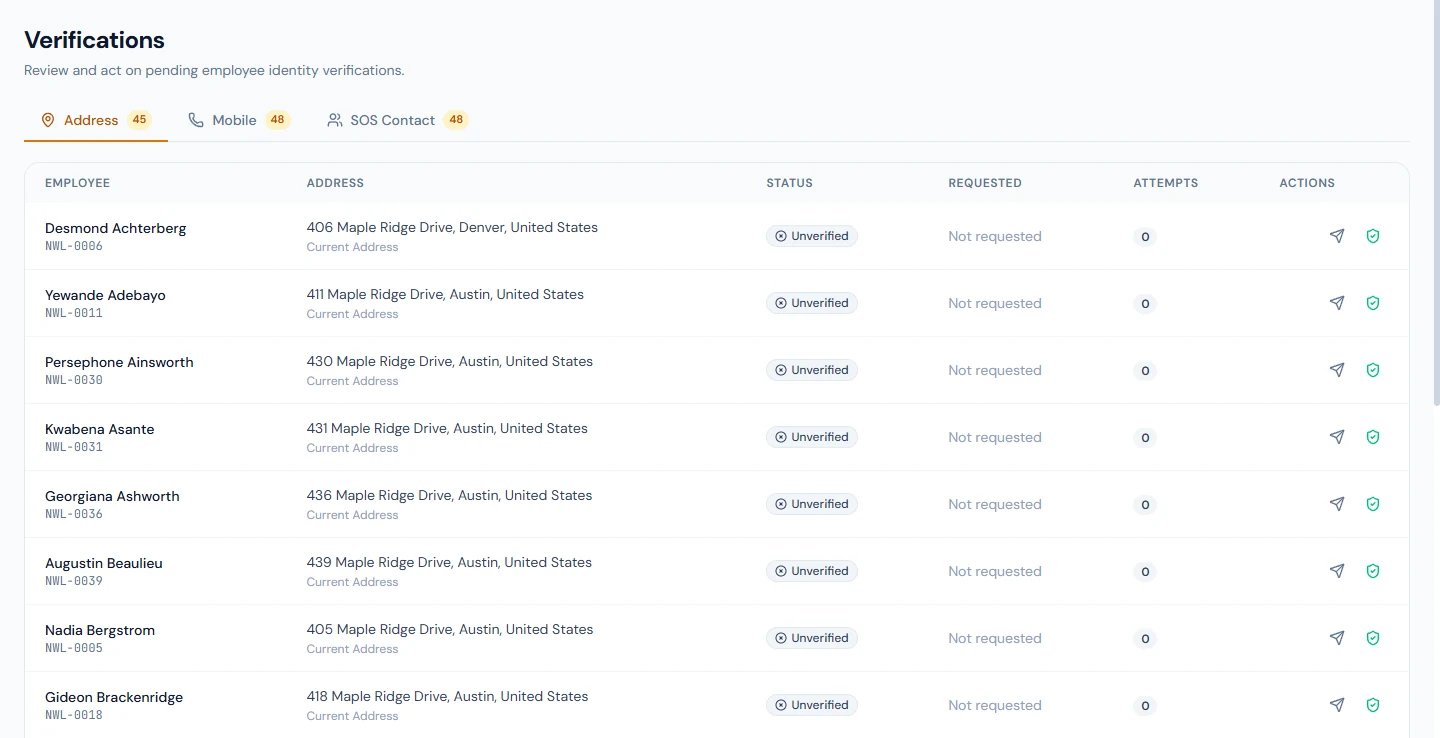
Address lists every address of a current employee that is not
Verified: letters already requested first, oldest at the top, then the
addresses nobody has started. Columns: employee (name and code), the
address with its type (current or permanent), Status (Pending or
Unverified), Requested (the date, or "Not requested"), Attempts (red
once it reaches three), and the actions from 23.2: Generate code and
letter on an Unverified row; Download letter and Regenerate code on a
Pending row; Mark verified on both and Mark unverified on a Pending row
for those with company.settings. When the list is empty it says "All
addresses verified", and now means it. People who have left are not
listed.
Mobile and SOS Contact list employees whose number or contact is not Verified. Above the table an amber notice appears when the workspace cannot actually send: no active SMS provider (with a link to configure one for those allowed to), or Phone Verification switched off, in which case employees are not asked to verify and have nowhere to type a code. While the notice shows, Send OTP now is disabled; Mark verified still works.
There is no verification report or export: the page shows the present state, the SMS Logs page shows what was sent, and the employee's profile shows the verified date.
23.5 What the employee sees: the verification gate
Three places, from mildest to firmest.
The dashboard banner. With Address Verification on and any address not Verified, the portal dashboard shows an amber "Address Verification Required" banner with the days remaining once a letter has been requested. It links to My Profile › Verifications.
My Profile › Verifications. One card per address (current, and permanent if one is on file) with its status, the Request Verification button or the code field, the attempt count and the days remaining, and the verified date once done. Phone verification does not appear here; it lives on the gate page.
The gate. When Address Verification is on and a requested letter is 30 days old, or when Phone Verification is on with an active provider and the mobile number or emergency contact on file is not Verified, every portal page redirects to Complete your identity verification. It greets the employee by name, shows "n of m verified" with a progress bar, and lists one card per outstanding item: the mobile number, the SOS contact, each address. Cards for switched-off checks are not shown at all. Each card can be completed on the spot: send the code and enter it, request the letter or enter its code. When nothing is left the page says "All set" and returns to the dashboard after a moment.
The gate stops at the portal, but it covers all of it: anything the employee would do from the portal, including clocking in there or filing a leave request, waits until the items are cleared. Being marked present by a terminal, being paid, leave already approved, the manager's view of the employee: none of that changes.
What happens next
- Verified is a date, not a permanent state. The profile shows "Verified on 14 Nov 2026". An HR edit to that address or number, or an approved profile change that alters it, puts the channel back to Unverified without a message; the employee sees it the next time they open their profile, and with Phone Verification on, at the gate.
- A pending letter survives everything except a change of address. Attempts, the code and the deadline stay on the record until the code is entered, HR regenerates, or HR marks the address. Regenerating restarts the 30 days.
- People who leave drop off the Address tab and stop receiving reminders; their verification fields are kept on the record.
- The SMS log keeps every send, successful or failed, with the purpose (mobile code, SOS code, test) and the provider's error text, so a "the code never came" complaint can be checked in a minute.
What the employee sees
| Moment | Email or bell | Screen |
|---|---|---|
| Letter requested, by them or by HR | "Address Verification Initiated — Northwind Labs, Inc." + bell | Address card Pending, days remaining |
| Days 7, 14, 21, 28 of a pending letter | The four reminder emails + bells | — |
| Code entered correctly | — | "Address verified successfully!", card Verified with the date |
| Day 30 without a code | — | Every portal page opens the gate |
| Phone code sent | SMS to them (or to the contact) | Card Pending, code field, resend timer |
| HR marks verified by hand | — | Card Verified |
Common mistakes
- Switching Address Verification on and never posting a letter. The employee requests, the clock runs, and on day 30 they are locked out for a letter HR never printed. Check the Address tab weekly, or turn the switch off.
- Reading "All addresses verified" as the job done. It is true only when no current employee has an unverified address. On a freshly imported workspace the tab lists everyone; start with the people whose address you will actually need.
- Correcting a typo in the address after the letter went out. The edit resets the address to Unverified and the code in the post is dead. Correct it before you print, or let the code be entered first and fix the typo afterwards.
- Turning Phone Verification on during working hours without warning. With a provider active, everyone with a number is gated at their next click. Announce it, and have HR ready to mark a channel verified for anyone whose SMS does not arrive.
- Expecting a number without a country code to work. The send fails with "Add your mobile number with country code first". Imported numbers often lack it.
- Marking verified to clear the queue. The override exists for proof obtained another way (a call, a visit). Used as a shortcut it leaves you with badges that mean nothing in the emergency they exist for.
- Expecting reminders to chase the unstarted. Reminders go only to employees with a letter pending. For addresses nobody requested, either HR generates the letter or the request has to be asked for.
- Looking for an expiry or renewal report. There is none; verification records a date and a state. A periodic re-verification is a policy you run yourself by marking addresses unverified.
Practice
Use your own trial workspace, not a customer's.
- On Settings › Verification, confirm Address Verification is on and Phone Verification is off. Read the three card descriptions and note which conditions each switch depends on.
- On Employees › Verifications › Address, pick an employee, click Generate code and letter, then Download letter. Open the PDF and find the reference number, the code and the expiry date in the warning box.
- Sign in as that employee. From the dashboard banner, open My Profile › Verifications and enter a wrong code twice. Read the attempt counter, then enter the right one. Confirm the card shows Verified with today's date and the row has left the Address tab.
- As HR, edit that employee's address (change the postal code) and reopen their profile Verifications tab. Note the state and explain to a colleague why it changed.
- Without an SMS provider, open the Mobile tab. Read the notice, then open Settings › Integrations › SMS Providers and list the three fields you would need from an Infobip account.
Quiz
1. When does the 30-day portal deadline start, and what starts it?
When a verification is requested for the address, by the employee's Request Verification button or HR's Generate code and letter. An address nobody has started never blocks anyone, however long it stays unverified. Regenerating a code restarts the 30 days.
2. An employee has entered three wrong codes. What does the screen say, and what has to happen?
"Maximum 3 attempts exceeded. Ask HR to issue a new letter." HR clicks Regenerate code on the Address tab, which issues a new code, resets the attempts and the deadline, and downloads a new letter to post.
3. Phone Verification is switched on. Why is nobody being asked to verify?
No active SMS provider exists. The switch only takes effect once one is configured; until then employees are not gated and the Mobile and SOS tabs show a notice saying so.
4. Whose phone receives the SOS code, and who enters it?
The emergency contact's phone receives it, worded from their side ("Your husband Emeric Vasquez listed you as emergency contact…"). The employee enters it in their portal after the contact relays it.
5. What does the gate stop, and what does it leave alone?
Only the employee's portal, all of it: every page redirects to the pending verifications page until the outstanding items are cleared, so portal clock-ins and requests wait too. Terminal attendance, payroll, approved leave and HR's view of the record are unaffected.