Chapter 75 — Performance settings, AI and increment recommendations
The merit score is a set of rules, and rules have numbers in them: how long a review may take, what a missed report costs, how much quality counts against volume. This chapter is those numbers, the AI switch and what the AI is and is not shown, and the place where the score turns into money: increment recommendations, which HR reviews, adjusts and applies or dismisses.
What this chapter covers
- 75.1 Every performance setting explained
- 75.2 AI scoring: what it does and what data leaves the system
- 75.3 Increment recommendations: generate, adjust, apply, dismiss
The concept
A scoring system earns trust by being explainable and adjustable. Every number in it should be visible to the people it scores, set by someone accountable, and changed deliberately, not tuned until the results look right. Where software or AI suggests pay decisions, the suggestion must show its working, and a person must make the decision.
How Operentra handles it
- Performance › Settings has four sections: Scoring, Daily Reports, Weekly Sales Report and AI. Point values, SLAs and penalties apply from the next scored event, and lines already in the ledger keep their points; the quality and volume weights apply to every period at once, because the score is worked out from the ledger whenever it is read.
- AI scoring enabled decides whether the AI is used anywhere in performance scoring. The model and key are provided by the platform operator; the workspace only turns it on or off.
- Performance › Increment Recommendations turns the last six months of each employee's score into a suggested raise, by the AI or by fixed bands, for HR to adjust, apply or dismiss.
- Who:
performance.managefor the settings and for generating and dismissing recommendations (Super Admin, HR Manager);payroll.salary_assignto apply one (Super Admin, HR Manager, Accountant).
Walkthrough
Northwind runs the default settings with daily reports on and the off-day multiplier at 1.0, and has forty-four pending recommendations, all computed by the bands because the AI was off when they were generated.
75.1 Every performance setting explained
Scoring
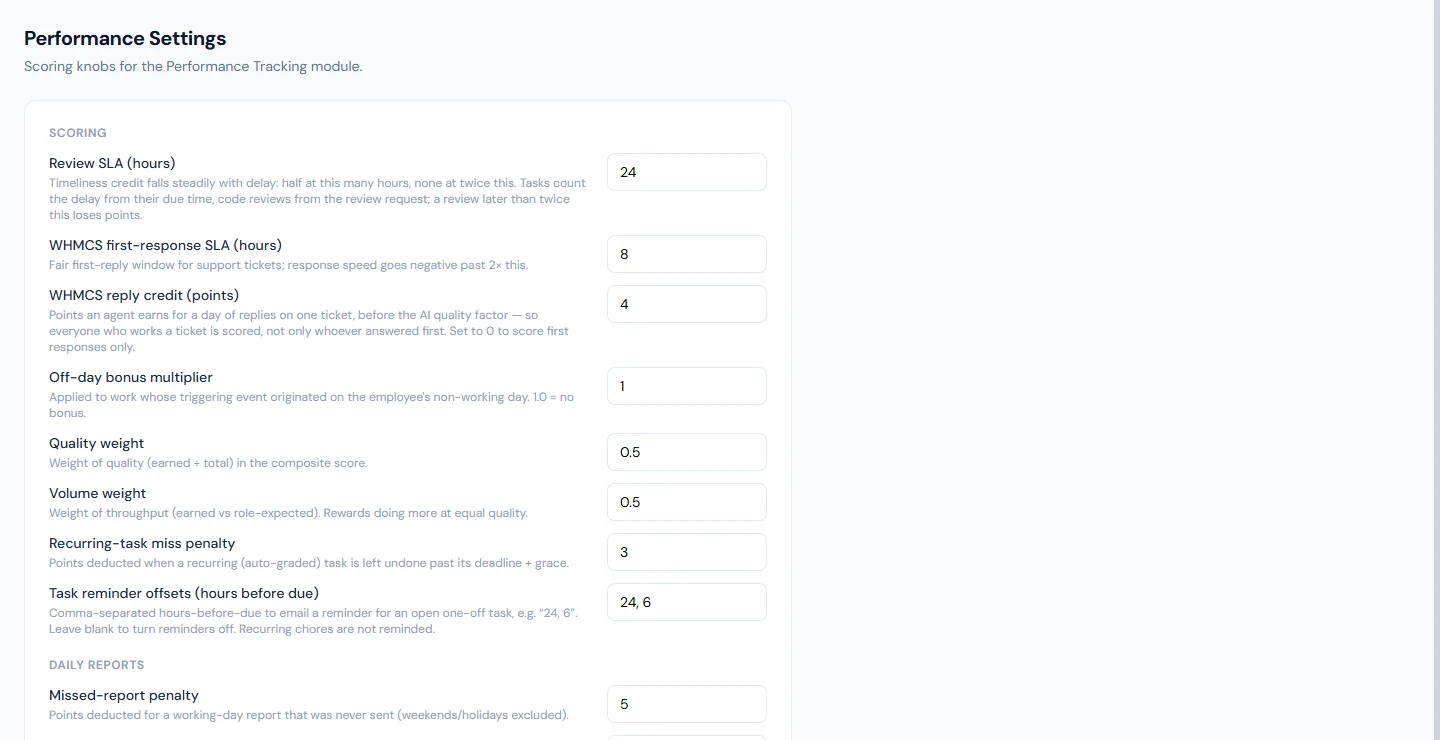
| Setting | Default | What it changes |
|---|---|---|
| Review SLA (hours) | 24 | Timeliness for tasks (from the deadline) and GitHub reviews (from the request): half credit at this many hours, none at twice it |
| WHMCS first-response SLA (hours) | 8 | The same curve for the first reply on a ticket |
| WHMCS reply credit (points) | 4 | Points per agent, ticket and day of replies; 0 scores first responses only |
| Off-day bonus multiplier | 1.3 | Extra credit for work done on an off day; 1.0 means none |
| Quality weight / Volume weight | 0.5 / 0.5 | How the composite blends quality and volume (Chapter 70) |
| Recurring-task miss penalty | 3 | Points lost for a recurring task left undone |
| Task reminder offsets (hours before due) | 24, 6 | When open one-off tasks are reminded; blank turns reminders off |
Daily Reports: Daily reports enabled, the Missed-report penalty (5) and the Submitted-report value (5), separate so one can change without the other, and the Submission recipient email (Chapter 72). A missed report is judged one hour after each employee's shift ends; there is no hour to set. Exempt roles are set on the designation or the employee.
Weekly Sales Report: Weekly sales report enabled, the Sales metrics, Due day, Due hour, Reminder hour and the recipient email (Chapter 73).
AI: AI scoring enabled (below).
75.2 AI scoring: what it does and what data leaves the system
With AI scoring enabled, the AI is called at these points, and is sent only what is listed:
| When | What the AI is sent | What it returns |
|---|---|---|
| A task is created | Its title, description, priority and the assignee's role | A proposed weight, 1 to 100 |
| A recurring schedule is saved without points | The same, once | A proposed weight |
| A task is graded | Its title, the manager's star rating and the completion note | A quality factor within 0.15 of the stars |
| A daily report is submitted | The report, the previous report, the titles of tasks named, the day's tracked GitHub and WHMCS items, the role | A verdict and a note |
| Recommendations are generated | Role, tenure, the score with its sources, and counts of notable evidence | A band, a percentage and a rationale |
| A GitHub review is scored, on repositories marked AI on | The pull request's description and file list, and the reviewer's text | A depth and any flag |
| A WHMCS reply is scored, where AI grading is on | The ticket subject and the agent's replies | A depth |
Employees' names are not part of the task, grading or increment prompts; code and customers' messages are never sent. With AI off, nothing leaves the system: task weights come from the priority (10, 25 or 50), grades from the stars alone, daily reports are "Not graded" and earn their full value, recommendations come from the bands, and GitHub and WHMCS work is scored on its metadata and speed.
75.3 Increment recommendations: generate, adjust, apply, dismiss
Generate looks at the last 182 days for every active employee with at least three months of service and writes one recommendation each, replacing any still pending. Each shows the employee, the Merit composite, Tenure, a Band (None, Small, Standard or Strong), the Increment and the Rationale. Without the AI, the bands decide: a composite of 85 or more is Strong at 12%, 70 or more Standard at 8%, 55 or more Small at 4%, below that None, plus one point for two years' service or more. Tobias Mwangi (NWL-0014), at 73.5 after 30 months, is Standard, 9%; Anastasia Ruvalcaba (NWL-0034), at 68.5 after 16 months, is Small, 4%.
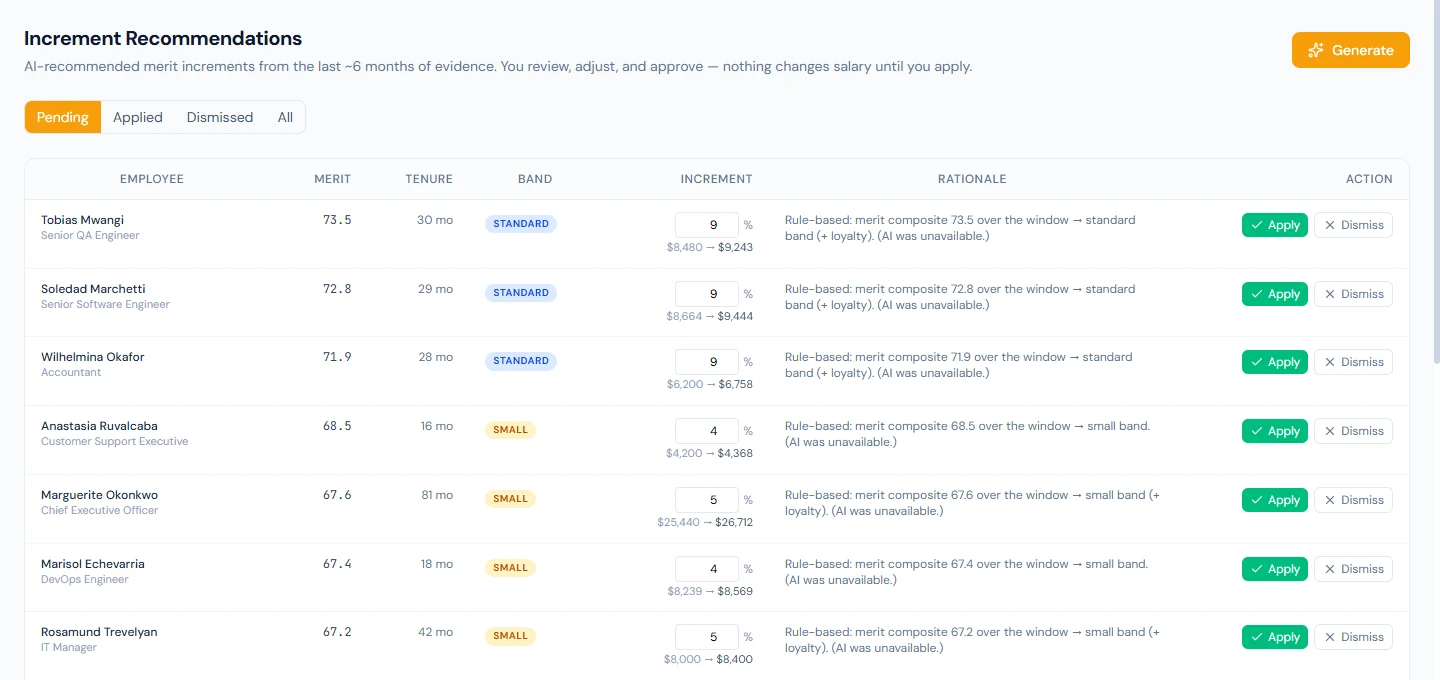
The Increment percentage can be changed before applying (0 to 40); under it, the current salary and the salary it would become are shown. Apply asks "Apply a 9% increment to Tobias Mwangi? This updates their salary (… → …) from today and, where an increment letter template is active, issues the letter." It records a merit salary increment from today, priced from the salary in force now, exactly as Payroll › Increments would (Chapter 57): the employee is emailed and the next payroll pays the new salary. Dismiss closes a recommendation without a change. The tabs Pending, Applied, Dismissed and All keep the history.
A recommendation is a starting point, not a verdict: read it with the appraisal (Chapter 69) and the budget, and adjust.
What happens next
- Part 12 turns to HR documents and communication: letters, acknowledgments, announcements and email templates.
What the employee sees
Nothing of the settings or recommendations; the effect of the settings in their scores, and an applied increment as a salary increment with its email and letter.
Common mistakes
- Tuning settings until the ranking looks right. Decide the rules, then read the results.
- A penalty larger than the reward. One missed report then wipes out several good ones.
- Applying recommendations in bulk unread. Each is a pay decision; read the rationale and the appraisal.
- Generating before the evidence is there. Six months of thin evidence gives bands that mean little.
- AI on without telling people. Tell employees what is sent and why; the table above is the answer.
Practice
Use your own trial workspace, not a customer's.
- Read every setting and write down why your workspace keeps or changes each default.
- Turn AI off, create a task, and see the priority-based weight; turn it back on and create another.
- Generate recommendations, change one percentage, apply it, and find the increment under Payroll › Increments.
- Dismiss another and find it under Dismissed.
Quiz
1. What does the Review SLA control?
Timeliness for tasks and GitHub reviews: half credit at that many hours late, none at twice it.
2. What changes when AI scoring is switched off?
No AI is used: weights come from the priority, grades from the stars, reports are not graded, and recommendations use the bands.
3. Is the code of a pull request sent to the AI?
No; only its description, file list and the reviewer's text.
4. How is a rule-based recommendation worked out?
From the composite over 182 days: 85+ Strong 12%, 70+ Standard 8%, 55+ Small 4%, else None, plus one point for two years' service.
5. What does Apply do?
Records a merit salary increment from today, priced from the current salary, with the usual email and, where a template is active, the letter.