Chapter 79 — Email templates
Almost everything in Operentra ends in an email: a leave decision, a payslip, a contract to sign, a reminder that probation ends next week. Those emails speak for the company, to its own people and sometimes to candidates, so their wording, language and tone matter as much as the letters'. This chapter is how the emails are chosen, worded, switched on or off, and traced when someone says they never got one.
What this chapter covers
- 79.1 How Operentra emails work: triggers, the shared library, your copy
- 79.2 Turning individual emails on or off
- 79.3 Editing: visual and source modes, variables, language versions
- 79.4 The shared email layout
- 79.5 Preview and test sends
- 79.6 Who receives HR emails
- 79.7 Emails you can't change
- 79.8 Email logs
The concept
Automated email works by trigger: an event happens (a leave is approved) and a template for that event is filled with its details and sent. A good setup has standard wording everyone starts from, lets each organisation adjust the wording to its voice, sends each person the email in their own language, and keeps a log, because "I never received it" is a question HR must be able to answer.
How Operentra handles it
- About a hundred emails, each tied to a trigger, grouped by area: authentication, employee lifecycle, leave, payroll, loans, attendance, performance, recruitment and the rest.
- A shared library of standard wording in English, Arabic, French, German and Spanish serves every workspace and improves over time. Saving a change makes your own copy of that email in that language; your copies are kept as you wrote them.
- Each email has one switch for the workspace, all languages together.
- Each recipient gets their language: your copy in their language, else your English copy, else the standard wording in their language, else the standard English.
- One layout wraps every email: logo, body and footer.
- Email Logs record every attempt: sent, failed or skipped, with the reason.
- Who:
company.settingsfor templates and the layout (Super Admin, HR Manager); the Logs menu needsaudit.view(the same two roles).
Walkthrough
Northwind's emails are all switched off, because its addresses cannot receive mail; its email log shows a thousand sends, every one "skipped". Your trial workspace starts with every email on.
79.1 How Operentra emails work: triggers, the shared library, your copy
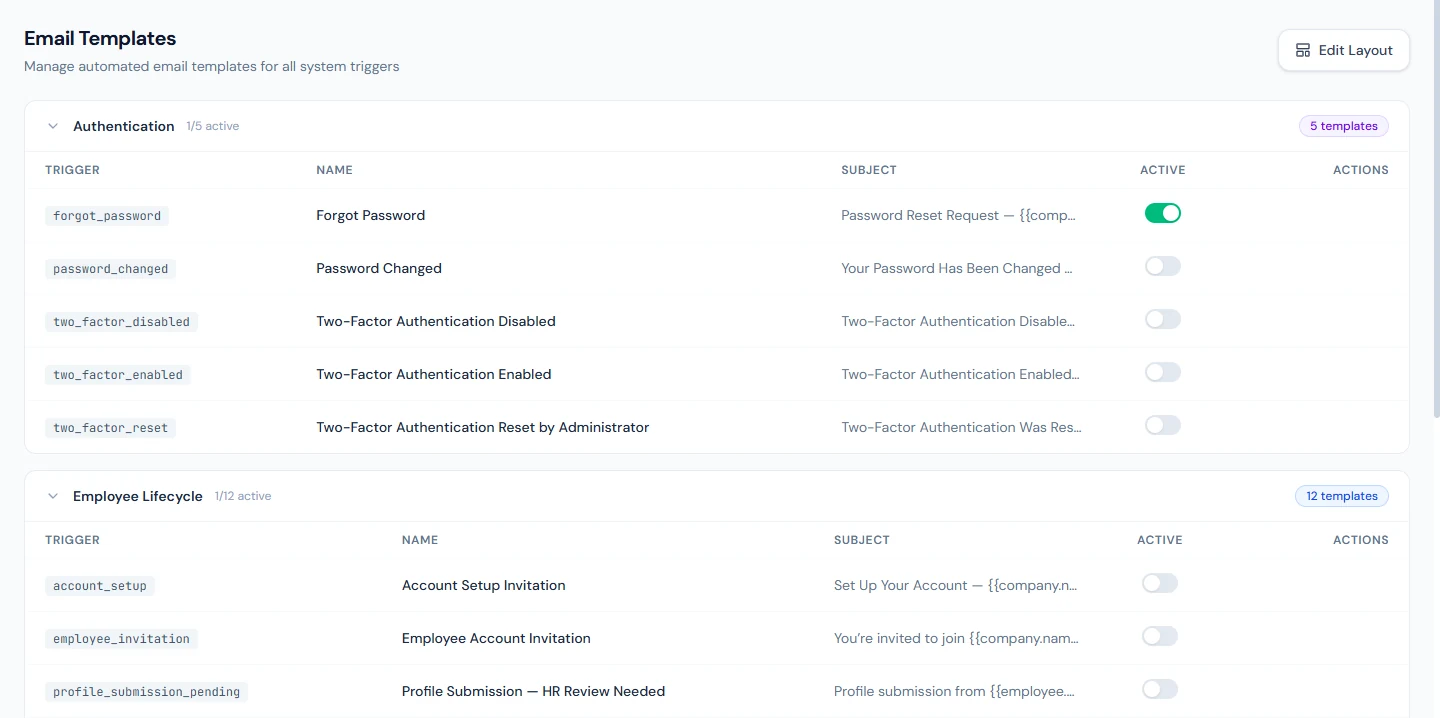
Settings › Email Templates lists every email by group, with its
subject, an Active switch, and Customized where the workspace
has its own copy. Opening one shows the trigger code (for example
leave_approved), the group and the editor.
Until you change an email, the workspace uses the standard wording, and improvements to it reach you automatically. The first time you Save a change to an email in a language, the editor warns, and then creates your copy of it in that language: from then on that copy is used and library updates no longer reach it. Saving only the switch, or saving without changing the wording, makes no copy. There is no button to go back to the standard wording; keep a note of your changes.
79.2 Turning individual emails on or off
The Active switch on the list, or in the editor followed by Save, turns an email on or off for the whole workspace and every language. An email that is off is not sent, and the log records it as skipped with the reason; the bell notification for the same event still appears, because the bell has its own switches under Settings › Notifications by area.
Switch off what your workspace does not use (daily report reminders before daily reports are on, for example) rather than letting people learn to ignore email.
79.3 Editing: visual and source modes, variables, language versions
The editor has the Subject Line and the Email Body, with Visual and Source modes, and tabs for English, العربية, Français, Deutsch and Español. Available Variables lists the values this email can use, such as the employee's name, the leave dates or the link to the portal; clicking one inserts it. Variables are written between double curly braces, and an unknown one prints nothing. A language with no version yet reads "Not translated yet"; recipients in it get the English version until one is added.
Edit the English version first. If you rewrite the English, recipients in other languages get your English rather than the standard translation you have not reviewed; translate your change into their tabs when you can.
79.4 The shared email layout
Edit Layout on the list opens the Email Layout: the HTML around every email, with a placeholder where each email's body goes. The standard layout shows the company logo (Settings › Branding) at the top, the body, and a footer, "This is an automated notification from" and the company name, "Please do not reply to this email.", in the email's language, right to left for Arabic. Preview shows it, Save Layout applies it to every email at once, and saving it empty goes back to the standard layout.
79.5 Preview and test sends
Preview shows the email with sample values at desktop, tablet and mobile widths. Test sends the saved email, with sample values, to any address you type: use your own. A test that was not sent, because the email is switched off, sending is not set up or the monthly limit is reached, says so and points to Email Logs. A test counts towards the workspace's monthly email allowance like any other email.
79.6 Who receives HR emails
There is no single "HR inbox" setting. Each email goes to the person it concerns (the employee) and, for requests and alerts, to the people whose role covers that work: a leave, attendance correction or overtime request goes to the employee's reporting manager, or if there is none, to those who approve that kind of request; an expense claim to its approvers; a probation reminder to those who confirm employees; a letter request to those who handle requests (Chapter 76). Choosing who gets HR email is therefore choosing roles and reporting lines (Chapter 14). An email to several people of the workspace goes as one message to all of them, in the workspace's default language.
79.7 Emails you can't change
Eight emails about the workspace's own account cannot be edited or switched off: trial ending soon, trial expired, subscription cancelled and reactivated, a failed seat payment, the data-retention warning, the data-purged notice, and the personal account offer. They are sent even when the workspace is read-only, because a workspace must never be able to silence "your data will be deleted". Opening one explains that it is a platform notice.
79.8 Email logs
Logs › Email Logs lists every attempt with the Time, Recipient, Subject, Trigger, Employee and Status, filtered by recipient, status, trigger and dates. Sent means the mail server accepted it, not that it reached the inbox. Failed means the mail server refused it; click the row for the error. Skipped means Operentra deliberately did not send it: the email is switched off, the workspace is read-only, the monthly limit is reached, there is no template, or sending is not set up. When someone says they never got an email, search their address: the log answers which of these happened.
What happens next
- Chapter 80 covers SMS, the other channel.
What the employee sees
Emails in their own language, in the company's layout, for the events that concern them, and nothing from emails the workspace switched off.
Common mistakes
- Editing translations before the English. Your English copy then outranks the standard translations; translate after.
- Switching an email off to stop the bell. The bell has its own switches under Notifications.
- Testing to someone else's address. Tests use sample data; send them to yourself.
- Reading "Sent" as delivered. It means accepted by the mail server.
- A layout without the body placeholder. Every email would arrive empty; preview before saving.
- Expecting a library improvement in a customised email. Your copy is yours; update it yourself.
Practice
Use your own trial workspace, not a customer's.
- Open the "Leave approved" email, change one sentence in English, save, and find Customized on the list.
- Send yourself a test, then switch the email off and send another; read both entries in Email Logs.
- Preview the layout on mobile, add a line to the footer, and send another test.
Quiz
1. When does a workspace get its own copy of an email?
When a change to its wording is saved in a language; from then on that copy is used and library updates no longer reach it.
2. Which version does a French-speaking employee receive?
The workspace's French copy, else its English copy, else the standard French, else the standard English.
3. What does switching an email off do to the bell notification?
Nothing; the bell has its own switches under Settings › Notifications.
4. Why can't the trial and data-retention emails be switched off?
So a workspace can never silence notices about its own account and data.
5. What does "Skipped" mean in the email log?
Operentra deliberately did not send it: switched off, read-only, monthly limit, no template, or sending not set up.