Chapter 73 — Weekly sales reports
Sales teams are measured in numbers: calls made, meetings booked, proposals sent, revenue closed. A weekly report that asks for exactly those numbers, from exactly the people who sell, gives the sales manager a pipeline view without a spreadsheet chase every Friday. This chapter is the setup, the employee's side and the reading.
What this chapter covers
- 73.1 Settings and sales metrics
- 73.2 The employee's submission
- 73.3 Reviewing and exporting reports; reminders and misses
The concept
A good activity report asks for a handful of numbers that predict the result, the same every week, so weeks can be compared and totalled. It is due at a fixed time, it is chased once before the deadline, and a missed week is visible. It is a planning tool, not a scorecard: the numbers feed the pipeline review, not anyone's merit points.
How Operentra handles it
- Performance › Settings turns the weekly sales report on and defines the sales metrics: up to twenty, each with a label, a kind (an amount of money or a count) and whether it is required; plus the Due day, Due hour, Reminder hour and a recipient email.
- The sales team is every active employee in a department whose name contains "sales"; they see Sales Report in the portal menu.
- The employee enters the week's numbers and can update them until the week ends; the latest submission is kept.
- A reminder goes on the due day to anyone who has not submitted; after the deadline, a week with no report is marked Missed and the employee is emailed. Sales reports carry no merit points.
- Performance › Sales Reports lists the reports with totals and a CSV export.
- Who:
performance.managefor the settings;performance.view_allto read the reports (Super Admin, HR Manager, HR Officer).
Walkthrough
Northwind has not switched weekly sales reports on. Turning them on would ask the four people in Sales & Business Development for their numbers; the example below is how that setup would look.
73.1 Settings and sales metrics
In Performance › Settings, Weekly sales report enabled turns the feature on. Sales metrics lists what each report asks for:
| Label | Kind | Required |
|---|---|---|
| Discovery calls | Count | Yes |
| Demos booked | Count | Yes |
| Proposals sent | Count | No |
| Revenue closed | Amount | Yes |
A count is rounded to a whole number; an amount is in the workspace currency; neither can be negative. Renaming a metric later does not change past reports: each keeps the labels it was submitted with. Due day and Due hour set the deadline in the workspace's time zone (Friday at 18:00 by default); Reminder hour is when the due day's reminder goes (10:00 by default); Submission recipient email gets a copy of each report, as does the employee's reporting manager.
Who is asked depends on the department's name: only departments with "sales" in their name count, so "Sales & Business Development" qualifies and "Business Development" alone would not.
73.2 The employee's submission
The portal's Sales Report page shows "Enter your sales numbers for this week. Just the figures — no write-up needed. Due every …" with the due day and hour, one field per metric marked amount or count, and Submit Numbers. The week runs Monday to Sunday and only the current week can be filled in. "You can update these numbers any time during the week — the latest submission is kept": Update Numbers replaces them, and a report marked missed on Friday evening can still be filled in over the weekend. Recent weeks shows the month's earlier reports.
73.3 Reviewing and exporting reports; reminders and misses
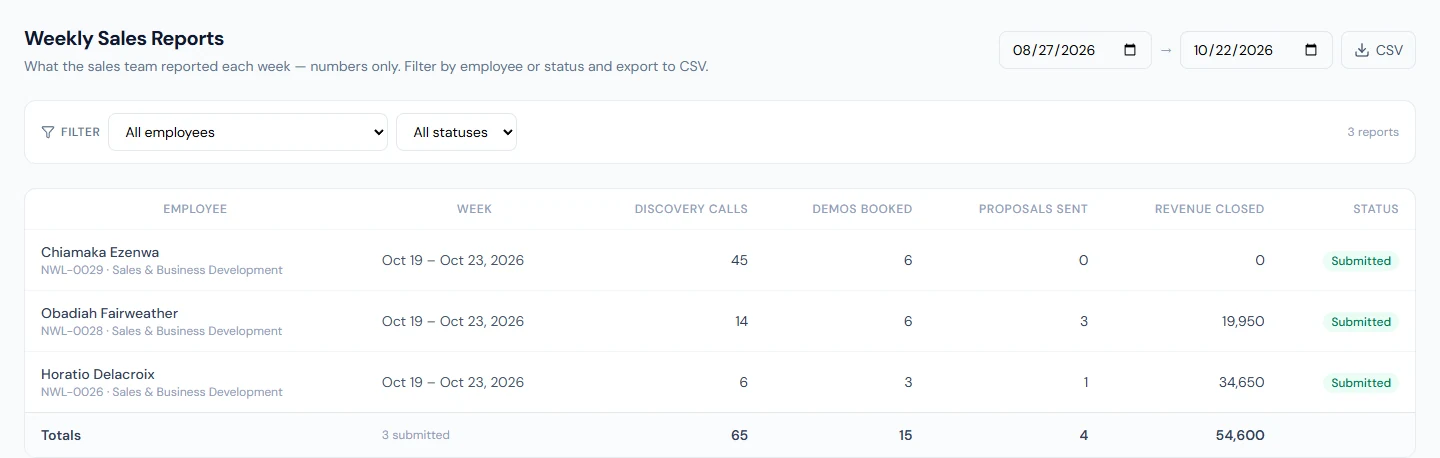
Performance › Sales Reports lists the last eight weeks by default, one row per person and week with the status and a column per metric, and a Totals row; filter by employee or status, or change the dates. CSV exports the same with the employee, code, department, week start and end, status and every metric.
On the due day at the reminder hour, everyone in the sales team with no report for the week is reminded by email. After the deadline, each of them is marked Missed for the week and emailed; the manager sees the gap in the list. A missed week costs no points.
What happens next
- Chapter 74 brings in the evidence that engineers and support agents leave in GitHub and WHMCS.
What the employee sees
Sales Report in the portal with this week's form, their recent weeks, a reminder on the due day and an email if a week is missed.
Common mistakes
- A sales department without "sales" in its name. Nobody in it is asked; rename it or the feature never reaches them.
- Too many metrics. Four or five numbers get filled in; twenty get guessed.
- Changing metrics mid-quarter. Weeks stop being comparable.
- Expecting merit points. Sales reports are planning data, not score evidence.
- Reading Friday's misses as final. The week stays open until Sunday.
Practice
Use your own trial workspace, not a customer's.
- Turn the weekly sales report on with three metrics, one of them an amount.
- Put a test employee in a department named "Sales" and submit the week's numbers from their portal; update one number.
- Open Sales Reports, check the Totals row, and export the CSV.
Quiz
1. Who is asked for a weekly sales report?
Active employees in a department whose name contains "sales", while the feature is on.
2. Can numbers be changed after submitting?
Yes, until the week ends; the latest submission is kept.
3. What happens after the deadline to someone who has not submitted?
The week is marked Missed and they are emailed; they can still submit before the week ends.
4. Do sales reports affect the merit score?
No.
5. What does a metric's kind decide?
Whether it is an amount of money or a whole-number count.