Chapter 91 — Audit and logs
Sooner or later someone asks a question only a log can answer: who changed this salary, did the payslip email go out, why can this person not sign in, who approved that leave. A good HR system writes those answers down as it goes. This chapter covers the four logs Operentra keeps for a workspace, what each one records and what it does not, and how to read them during an investigation.
What this chapter covers
- 91.1 Activity Logs
- 91.2 Login History
- 91.3 Email Logs
- 91.4 SMS Logs
- 91.5 Using the logs in an investigation
The concept
An audit trail records who did what, when and from where, in a form nobody can quietly change. It serves three purposes: settling disputes ("I never changed that"), detecting misuse (a pattern of failed sign-ins, an admin acting as someone else), and showing a regulator or auditor that controls exist. Two principles go with it. Access to the logs is itself restricted, because they contain personal data and show what people did. And a log is only as good as what it records: knowing what is not written down matters as much as reading what is.
How Operentra handles it
- Logs in the admin menu holds four pages:
| Page | Records | Who can open it |
|---|---|---|
| Activity Logs | Every change made through Operentra by a person or an API key | audit.view (Super Admin, HR Manager) |
| Login History | Sign-ins, failed sign-ins, lockouts, sign-outs, two-factor steps, workspace switches, admin sign-ins as a user | audit.view |
| Email Logs | Every email the workspace sent, failed to send or skipped, with the reason | company.settings (Super Admin, HR Manager) |
| SMS Logs | Every text message sent: verification codes and tests | sms.manage (Super Admin, HR Manager) |
- Nothing in the app edits or deletes a log entry, and restoring a workspace from a backup (Chapter 92) leaves the activity log as it was.
- Times are shown, and From and To filters read, in the workspace's time zone (Chapter 8); To includes the whole of that day.
- Who: the roles above; employees see no logs.
Walkthrough
Signed in to Northwind as an HR Manager.
91.1 Activity Logs
Activity Logs, "Every change made in Operentra by a person or an API key: who, when, and what they sent", lists the newest first, 25 to a page. Filter by From and To, by Action (Created, Updated, Deleted) and by Entity Type, which lists the kinds of record this workspace's log actually holds (Employee, Leave, Payroll, Branch and so on).
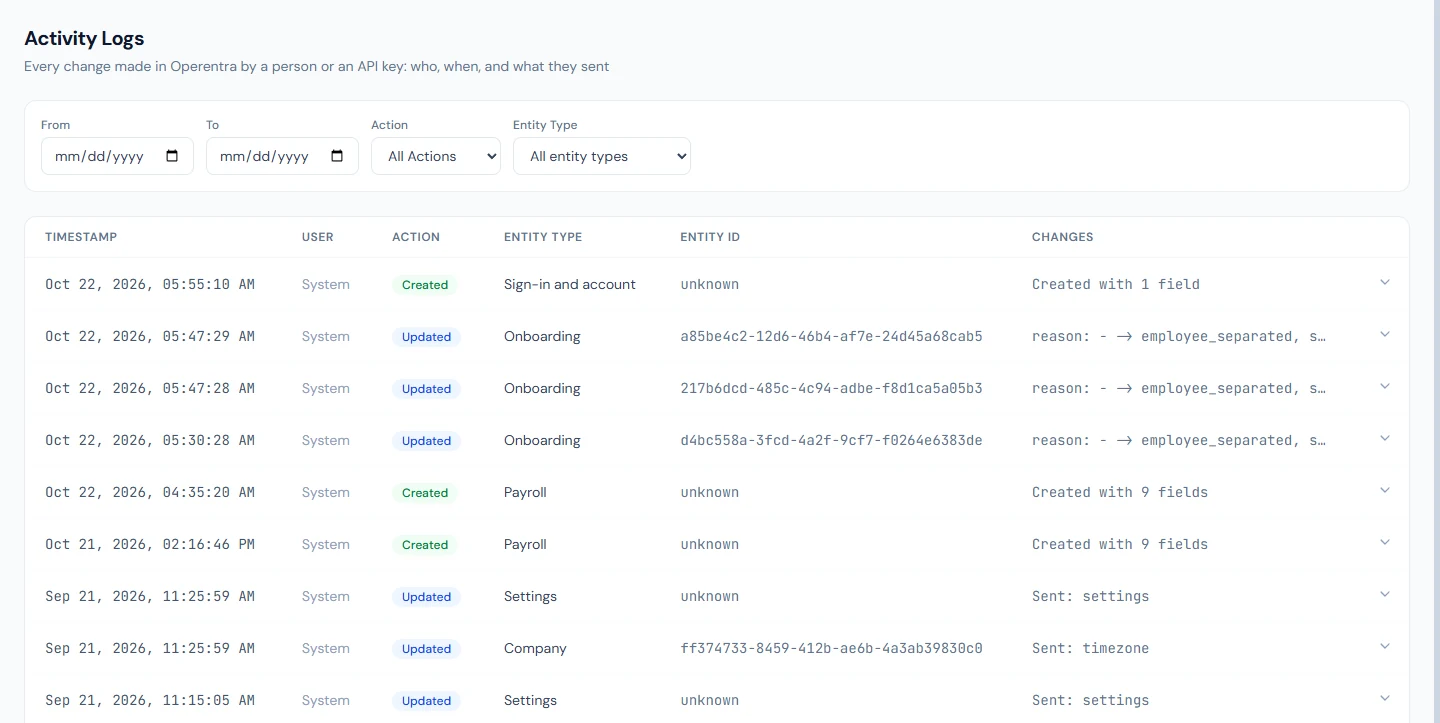
Each row shows the Timestamp, the User (name and email, or "System" where no person is attached), the Action, the Entity Type, the Entity ID and Changes: "Created with 6 fields" for a new record, "Sent: phone, personalEmail" for an update, "Record deleted" for a deletion. Expanding a row shows Values sent, the fields and values in the request. A change made with an API key (Chapter 96) is recorded under the person who created the key.
Read this precisely. The log records what was sent, not the value before: an update whose Values sent show a gross salary of 7,200 tells you who set 7,200 and when, not what it was. For the previous value, look at the earlier entry for the same record, or at the record's own history (salary history, shift history, the payroll run). Passwords, codes and keys in a request are stored as "***REDACTED***", and a very large request (a bulk import) is replaced by a note of its size.
What the activity log does not record: views and downloads (opening a payslip or exporting a report), changes Operentra makes on its own (the scheduled jobs of Chapter 95, such as accruals and reminders), and attempts that failed.
91.2 Login History
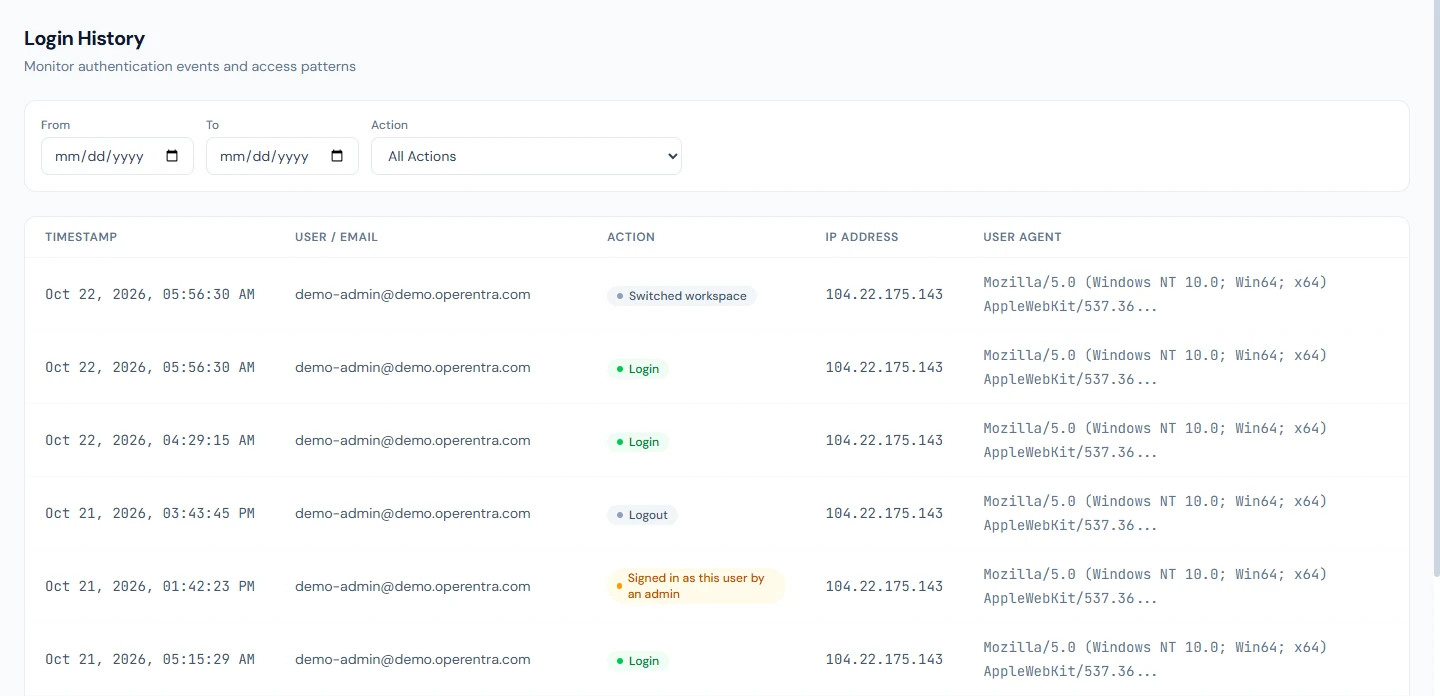
Login History, "Monitor authentication events and access patterns", shows the Timestamp, User / Email, Action, IP Address and User Agent (the browser and device). The actions are:
| Action | Meaning |
|---|---|
| Login / Logout | A sign-in or sign-out |
| Failed Login | A refused sign-in, usually a wrong password |
| Locked | Too many failed attempts locked the account for a while |
| Password accepted, 2FA code requested / 2FA code accepted / Wrong 2FA code | The two-factor steps (Chapter 6) |
| 2FA turned on / turned off / recovery codes regenerated / reset by an admin | Changes to a person's two-factor |
| Switched workspace | Moving to another company (Chapter 15) |
| Signed in as this user by an admin | An admin used Sign in as user (Chapter 14) |
| Session ended (token reused) | A sign-in token was used twice, so the session was closed as a precaution |
Filter by From, To and Action. A run of Failed Login rows from an unfamiliar IP address followed by Locked is worth a conversation with the person; "Signed in as this user by an admin" entries show every time an admin acted as someone else.
91.3 Email Logs
Email Logs, "Audit trail of every outbound email — sent, failed, or skipped", lists the Time, Recipient, Subject, Trigger (which email it was, Chapter 79), Employee and Status, with a count of matching and total emails. Filter by Recipient, Status (Sent, Failed, Skipped), Trigger, From and To.
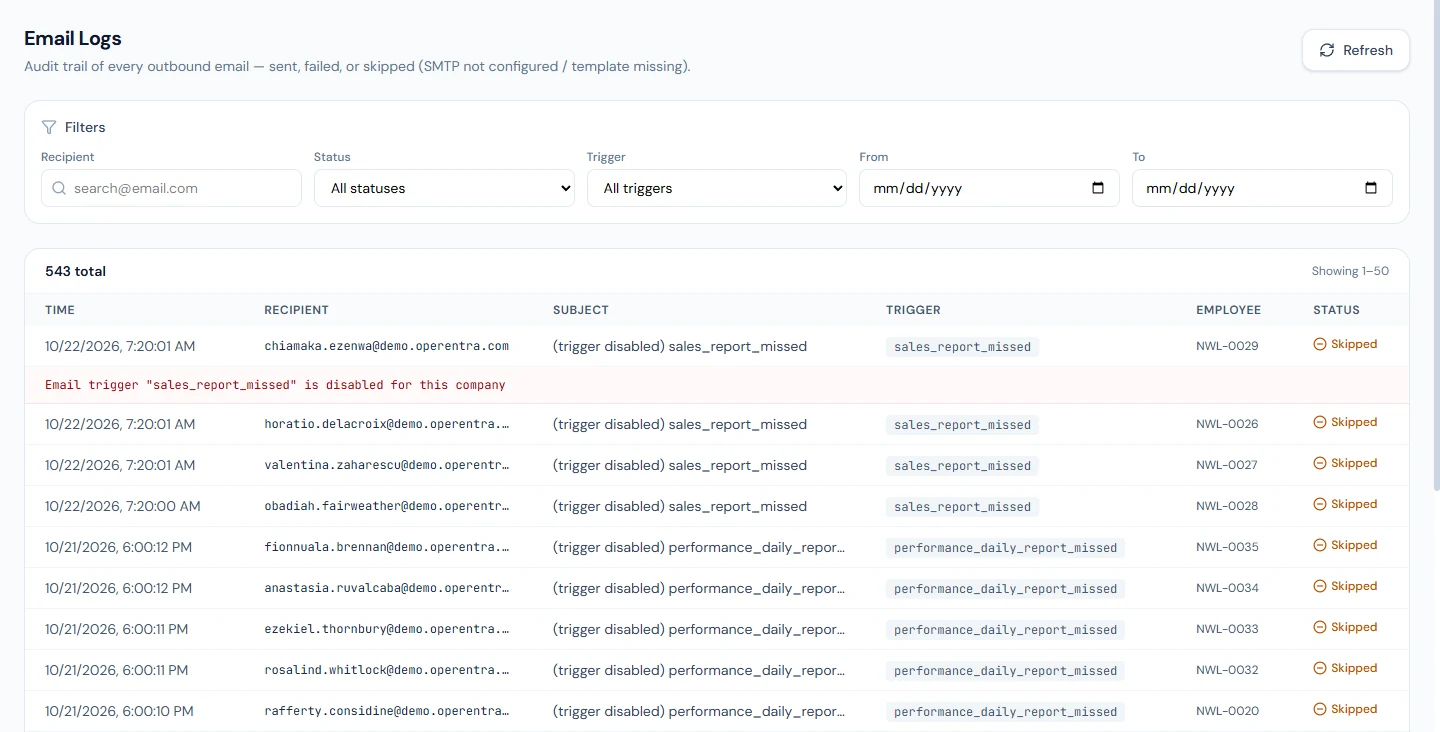
A Failed or Skipped row expands to the reason: the mail server refused it; email is not configured; the workspace reached its monthly email limit; the workspace is read-only; the email's trigger is switched off for this workspace; or no template exists for it. "Sent" means the mail server accepted it; whether it then reached the inbox (and not spam) is outside Operentra's view.
91.4 SMS Logs
SMS Logs, "Audit trail of every outbound SMS — verifications, OTPs, and tests", lists the Time, Recipient, Purpose, Provider and Status, filtered by Recipient, Status, Purpose, From and To. It fills only once the workspace has an SMS provider (Chapter 80).
91.5 Using the logs in an investigation
Take a typical question: "My salary changed and nobody told me." Start in Activity Logs with the Entity Type of the record (Employee or Payroll), the dates around the change, and Action Updated; the entry names who made the change, when and from which address, and what they sent. Then check Email Logs for the employee to see whether the notification was sent, skipped (and why) or failed. If the question is about access ("someone signed in as me"), Login History by date shows every sign-in, its IP address and device, and any admin who signed in as that person.
Write down what you found, with the times, before you change anything, because your own corrections will appear in the log too.
What happens next
- Chapter 92 covers data protection: exports of a person's data, erasure, backups and restore.
What the employee sees
Nothing: employees see no logs. Their own actions in the portal are recorded like anyone else's.
Common mistakes
- Reading "Values sent" as before and after. It is what the request contained; the previous value is in the earlier entry or the record's history.
- Giving
audit.viewwidely. The logs contain personal data and show what everyone did; keep the permission with HR leadership. - Expecting views and exports in the log. Only changes are recorded.
- Treating "Skipped" as sent. Expand the row: the email never left.
- Fixing first, investigating later. Note what the log says before your own changes join it.
Practice
Use your own trial workspace, not a customer's.
- Edit a branch's name; find the entry in Activity Logs with Entity Type Branch and read Values sent.
- Sign out, sign in with a wrong password once, then correctly; read both rows in Login History.
- Switch off an email trigger, cause that email, and read the Skipped row's reason in Email Logs; switch it back on.
Quiz
1. Does the activity log show a field's value before a change?
Not for ordinary changes: it shows what was sent. The previous value is in the earlier entry for that record or in the record's own history.
2. Which roles can open Activity Logs and Login History by default?
Super Admin and HR Manager (audit.view).
3. Name three things the activity log does not record.
Views and downloads, changes Operentra makes on its own (scheduled jobs), and failed attempts.
4. What can a Skipped email row tell you?
Why the email never left: email not configured, monthly limit reached, workspace read-only, trigger switched off, or no template.
5. How do you see that an admin acted as someone else?
Login History shows "Signed in as this user by an admin" for that person, with the time, address and device.