Chapter 82 — Offboarding in Operentra
Chapter 81 described what a good departure needs. This chapter is the same departure in Operentra: one separation record that carries the dates, the checklist, the money and the documents from the day notice is given to the day the person's account closes.
What this chapter covers
- 82.1 Starting a separation
- 82.2 The clearance checklist: automatic and manual items, waive, reopen, refresh
- 82.3 Settlement preview: leave encashment, gratuity, PF, loans
- 82.4 Completing the final settlement: PF options, gratuity override, experience certificate
- 82.5 Settled summary; cancelling a separation
- 82.6 Offboarding settings: account grace period
- 82.7 Account-closing emails and ex-employee access
- 82.8 The employee's portable profile after they leave
The concept
A separation record is a small workflow with a hard end. It opens when the departure is known, collects evidence that the company's property, money and knowledge are back, calculates what is owed, and closes with a payment, a certificate and the end of access. Each step has an owner, and the last step cannot be undone, so the checks come first.
How Operentra handles it
- Offboarding lists separations with the employee, type, dates, clearance progress and final settlement; New Separation opens one, and so does Start offboarding on the Status menu of the employee's profile. A departure is never a status picked by hand.
- Five checklist items come with every separation: two checked against the records (assets, loans) and three ticked by HR (IT access, knowledge transfer, exit interview). Someone with a provident fund has a sixth, also checked against the records.
- The settlement preview works out leave encashment, gratuity, the provident-fund balance (for someone with one) and loans; Complete Settlement records it, marks the employee Separated, ends the contract and issues the experience certificate.
- The leaver's account stays open for a grace period after the settlement, then closes.
- Who:
offboarding.manageto open, clear, settle and cancel (Super Admin, HR Manager);offboarding.viewto follow (also HR Officer and Accountant).
Walkthrough
Northwind's Offboarding list has a departure at each stage: Cassius Vermeulen (NWL-0041), an accounts assistant who resigned two weeks ago and is working out a thirty-day notice, part-way through the checklist; Mordecai Ferrante (NWL-0047), who resigned and left on 20 May 2026, and Octavia Lindgren (NWL-0048), whose contract ended on 20 July 2026, each settled five working days after the last working day (28 May and 27 July); and Corinne Aldersgate (NWL-0046), settled on 1 March 2026.
82.1 Starting a separation
New Separation asks for the Employee (its search lists active employees), the Type (Resignation, Termination, Retirement, End of Contract, Death, Absconding), the Notice Date, the Separation Date (the date employment ends) and the Last Working Day, and a Reason, "Internal notes only — not visible to the employee". Create separation opens the record with its checklist and reads the automatic items at once, so it starts Pending, or In Progress when the records already clear one (no asset issued, or no loan). It emails the employee ("Your separation has been initiated", without the reason) and everyone who manages offboarding (with it). An employee can have one open separation at a time.
Start offboarding, at the bottom of the Status menu on the employee's profile (Chapter 19), opens the same form with the person already chosen. Use it for someone the search does not list: On Leave, Suspended, still New, or an older record set to Terminated, Resigned or Retired by hand. A Separated person cannot be offboarded again.
Opening a separation changes nothing else: the employee stays active, on payroll and in attendance until the settlement is completed. Run and lock the payroll for the last month first: the days after the last working day have no attendance and are docked, so the slip pays to the last working day (Chapter 54).
82.2 The clearance checklist: automatic and manual items, waive, reopen, refresh
| Item | How it is completed |
|---|---|
| Assets returned | Automatically, when no asset is still issued to the employee |
| Loans settled | Automatically, when no loan has an outstanding balance |
| Provident Fund settled | Automatically, at Complete Settlement, by the PF option chosen there; only for someone with a provident fund |
| IT access revoked | Mark done by HR |
| Knowledge transfer | Mark done by HR |
| Exit interview | Mark done by HR |
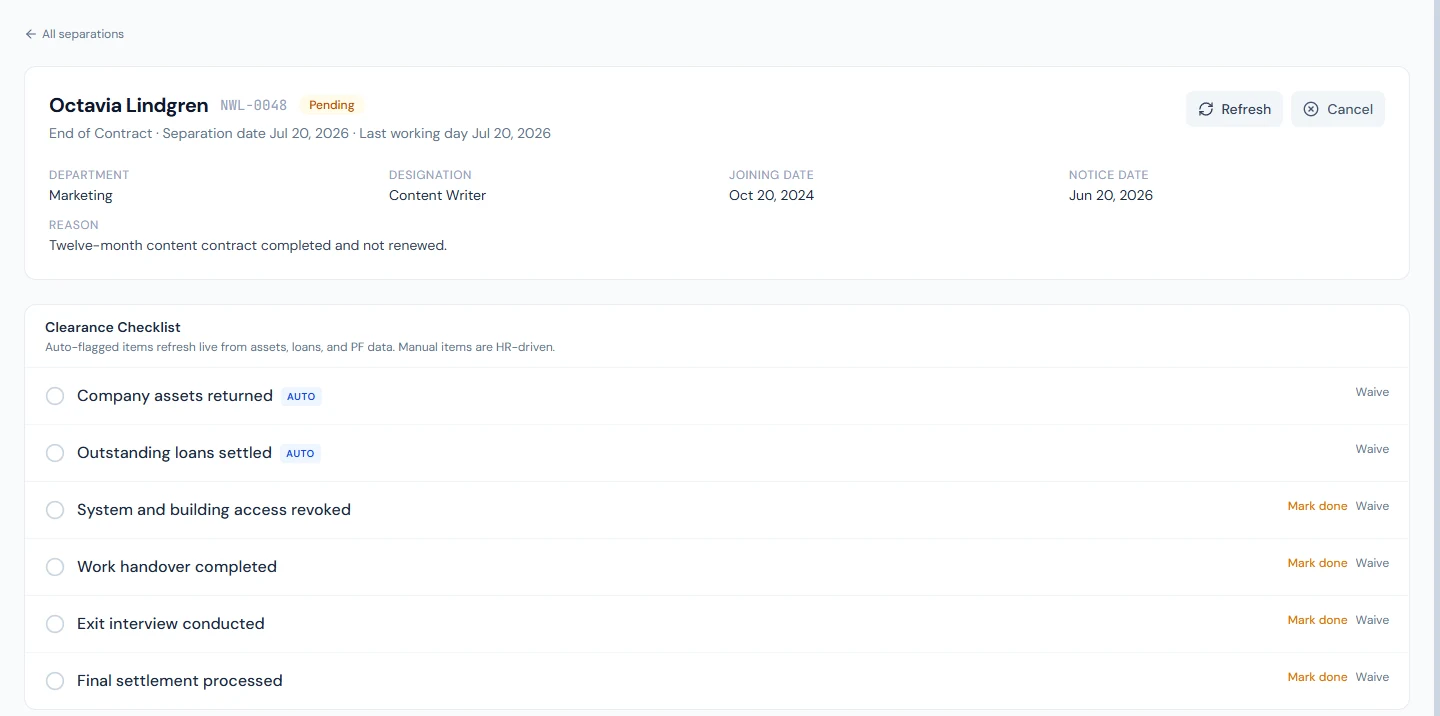
Provident Fund settled is on the list only for someone with a provident fund: a PF ledger, filled by the PF contributions on their payslips or an opening balance (Chapter 61). Northwind has no provident fund, so its separations have five items; at Dunebridge, whose staff provident fund Chapter 61 follows, a member's separation has the sixth.
The automatic items are re-checked every time the record is opened, or with Refresh, and show what they found ("Outstanding assets: 1", "Outstanding loan balance: …"). Waive closes an item that will not be done, with an optional note: a loan to be deducted from the settlement rather than repaid, for example. Reopen sets a manual item back to pending. The record moves from Pending to In Progress as items are done, and to Ready to Settle when every item but the provident fund is done or waived; HR is emailed when the last one is ticked. Cassius's record is In Progress, 3/5 in the list: the knowledge transfer and the exit interview done, and Loans settled cleared by the records; IT access waits for the last working day, and Assets returned for anything still issued.
82.3 Settlement preview: leave encashment, gratuity, PF, loans
The Settlement Preview shows the Years of Service (to the separation date), the Last Basic Salary (the basic payroll pays: what the salary structure's Basic component gives on the gross of the salary in force on the last working day) and the lines of the settlement:
- Leave encashment: the unused days of this fiscal year (accrued so far, for a monthly or quarterly type) for leave types whose policy allows encashment, at the per-day figure the policy's basis gives: a multiple of the leaver's daily basic pay (that last basic ÷ 30) or a fixed amount per day (Chapter 49), with the breakdown per type. An encashable type with no rate, or priced in days of basic pay for a leaver whose salary structure gives no basic pay, appears as a warning under the figures and is left out until it is fixed.
- Gratuity: under the country's end-of-service rule, with the years and the threshold, or "No end-of-service gratuity rule for this workspace's country" (Chapter 62).
- PF, for someone with a provident fund: their balance, employee and employer shares together (Chapter 61); where the fund pays it from its own account, it is shown as paid from the fund and kept out of the cash. For anyone else there is no PF line.
- Outstanding loans, shown as a deduction.
The total is the cash settlement. The final month's salary, pay in lieu of notice and any severance are not part of it.
82.4 Completing the final settlement: PF options, gratuity override, experience certificate
Complete Settlement appears at Ready to Settle and warns: "This action is permanent." For someone with a provident fund it asks for the PF Settlement: Full withdrawal (paid to employee), Transfer to another PF trust (with the Receiving Trust) or Forfeit (write-down to zero); for anyone else it does not ask. It also offers an optional Gratuity Override, a fixed amount that replaces the calculated one (0 for a forfeiture; write the reason in the separation reason); and Auto-issue experience certificate and attach to settlement email, ticked by default.
Completing it records the figures on the separation; debits the provident-fund balance of someone who has one (and pays it from the fund's account, where the fund has one); marks the encashed leave as used; records the cash figure as a non-taxable addition among the current month's payroll adjustments; marks the employee Separated; ends the active contract (Expired for an end of contract, Terminated otherwise); cancels their onboarding pipeline if it is still open (Chapter 32), with a line in the activity log; issues the experience certificate (Chapter 76) and emails the employee the breakdown with the certificate attached. Because the person is now Separated and the monthly payroll covers active employees, pay the final settlement directly, by transfer or cheque, from the settlement figure, and keep the record. Its adjustment stays approved on the Adjustments page and does not mark the month's payroll run as out of date (Chapter 55). Loans are deducted from the figure but stay open in the loans module, which cannot close a loan early (Chapter 60); the settlement record shows the deduction.
82.5 Settled summary; cancelling a separation
A settled separation shows Settled on the date with the years of service, last basic, leave encashed, gratuity, PF and its option (for someone with a provident fund), loans and the Final Cash Settlement, and the experience certificate's reference. Corinne's reads a last basic of 7,300.00 and 6.5 days of leave encashed, 1,581.65 in all. The checklist becomes read-only; a settlement cannot be reversed or edited.
If the person later comes back, nothing here is undone. Rehire, on the Status menu of their profile (Chapter 19), starts a new employment on the same record: a new joining date, status New (Pending Activation), fresh salary, contract, onboarding and leave balance. This separation, its settlement and everything before it stay on file, and the profile shows the earlier employment as Previously employed. Years of service for a later gratuity count from the new joining date; this settlement already paid for the earlier ones.
Cancel, before settlement, closes the separation as Cancelled: the employee stays active, the checklist is kept for the record, and nobody is notified, so tell the employee yourself. A new separation can be opened later.
82.6 Offboarding settings: account grace period
Settings › Offboarding has one setting, the Account grace period (days), 30 by default: how long a leaver's portal account stays active after the final settlement. Saving it needs permission to update the company settings (Super Admin by default).
82.7 Account-closing emails and ex-employee access
A daily job, shortly after 10:00 in the workspace's time zone, handles the closing. Five days before the grace period ends, the leaver is emailed "Your account will close in … days", at both their work and personal addresses, with links to their payslips, tax certificates and letters and a tip to move their sign-in to a personal email. When it ends, their login is disabled, their sessions are signed out and they are emailed "Your … account has been closed". Their records stay in the workspace.
Until then the leaver signs in as before, with the same role. For anyone with an administrative role, change it to Employee on the last working day (Chapter 14), so that the grace period gives access to their own documents and nothing else.
82.8 The employee's portable profile after they leave
A leaver whose sign-in is a personal email keeps that Operentra login: when they join another workspace that uses Operentra, All Employments in their account lists their past employments, with the dates and roles. Their payslips and documents stay with the employer. When a whole workspace is deleted under its data-retention terms, each person with a personal email is offered to keep a record of their employment (the company, dates, designation and their personal details, no salary data) through a link to Keep your employment record, or to delete it.
What happens next
- Part 14 turns to the employee portal, to help HR support employees in it.
What the employee sees
The separation email, the settlement email with the breakdown and the experience certificate, the account-closing reminder and notice, and the portal as usual until the account closes.
Common mistakes
- Settling before the last payroll. The settlement does not include salary; run the last month first.
- Waiving the loan item without a note. Say that the balance is deducted from the settlement; the loan itself stays open.
- Leaving an admin role on a leaver. Change it on the last working day.
- Writing private notes in the reason and expecting the employee not to see them anywhere. It is kept from the employee's email; still, write it for the record.
- Overriding gratuity without saying why. Write the reason in the separation.
- Cancelling without telling the employee. Cancel sends nothing.
Practice
Use your own trial workspace, not a customer's.
- Open a separation for a test employee with an issued asset and a loan; read the automatic items.
- Return the asset, waive the loan with a note, and tick the manual items.
- Read the settlement preview, then complete the settlement with the experience certificate.
- Read the settled summary, find the experience certificate under Issued Letters, and the payroll adjustment for the month.
Quiz
1. Which checklist items complete themselves?
Assets returned and loans settled, from the records, and, for someone with a provident fund, the provident fund, at Complete Settlement.
2. What does the settlement preview include?
Leave encashment, gratuity, the provident-fund balance (for someone with one) and outstanding loans; not salary, notice pay or severance.
3. What does Complete Settlement change about the employee?
They become Separated, their active contract ends, and the experience certificate is issued.
4. How long does a leaver keep their portal account?
For the grace period after the settlement, 30 days by default.
5. What happens when a separation is cancelled?
It is marked Cancelled, the employee stays active, and nobody is notified.