Chapter 13 — Branding, language and email identity
Everything a workspace shows and sends carries an identity: the name in the browser tab, the logo on a payslip, the seal on a letter, the language a contract is written in, the address an email arrives from, the web address people sign in at. This chapter sets all of it, on two screens.
What this chapter covers
- 13.1 Application name, app logo, favicon, company logo and company seal
- 13.2 Default email language and document language
- 13.3 Email sender: sending address, sender name, reply-to
- 13.4 Custom domain: connecting, DNS records, status checks, certificate, removal (plan feature: Custom domain)
- 13.5 Employee sign-in policy: flexible or official email only
The concept
A company presents three identities, and they have different owners.
The product's look is what people see on screen: the name in the tab, the mark in the sidebar. By default it is the platform's; a company can replace it with its own so that staff feel they are using the company's HR system.
The company's marks on paper are different. A logo on a payslip and a seal on a letter are part of the document's authority, the digital equivalent of letterhead and a rubber stamp. They belong on records, not in the sidebar, and a square document logo rarely suits a sidebar anyway.
The sender is who an email comes from. Recipients trust an address they recognise, and replies need somewhere to go. The domain that address sits on belongs to whoever runs the mail system; the company owns the name and the reply-to.
Language has three owners too, as Chapter 5 showed on screen: the interface follows the device, emails follow the recipient, and documents of record follow the workspace, because an archive in mixed languages is an archive nobody can audit.
Last, a sign-in address decides who owns an account. A person who signs in with a personal address keeps the account when the employment ends, and can use it in another company of the same group. A person who signs in with a company address has an account tied to the job.
How Operentra handles it
Branding (/admin/settings/branding), under Settings → Branding,
holds one text field and four image uploads with previews. Seeing it needs
company.settings; each upload needs company.update.
Workspace Settings (Chapter 8) carries the rest in four tabs:
Language, Email sender, Custom domain and Member accounts.
Custom domain is a plan feature (custom_domain, on Enterprise); on other
plans the tab shows a lock and the plans that include it. The other three
tabs are on every plan. The email sending domain is the platform
operator's; a workspace personalises what sits in front of it.
Walkthrough
13.1 Branding
Open Settings → Branding.
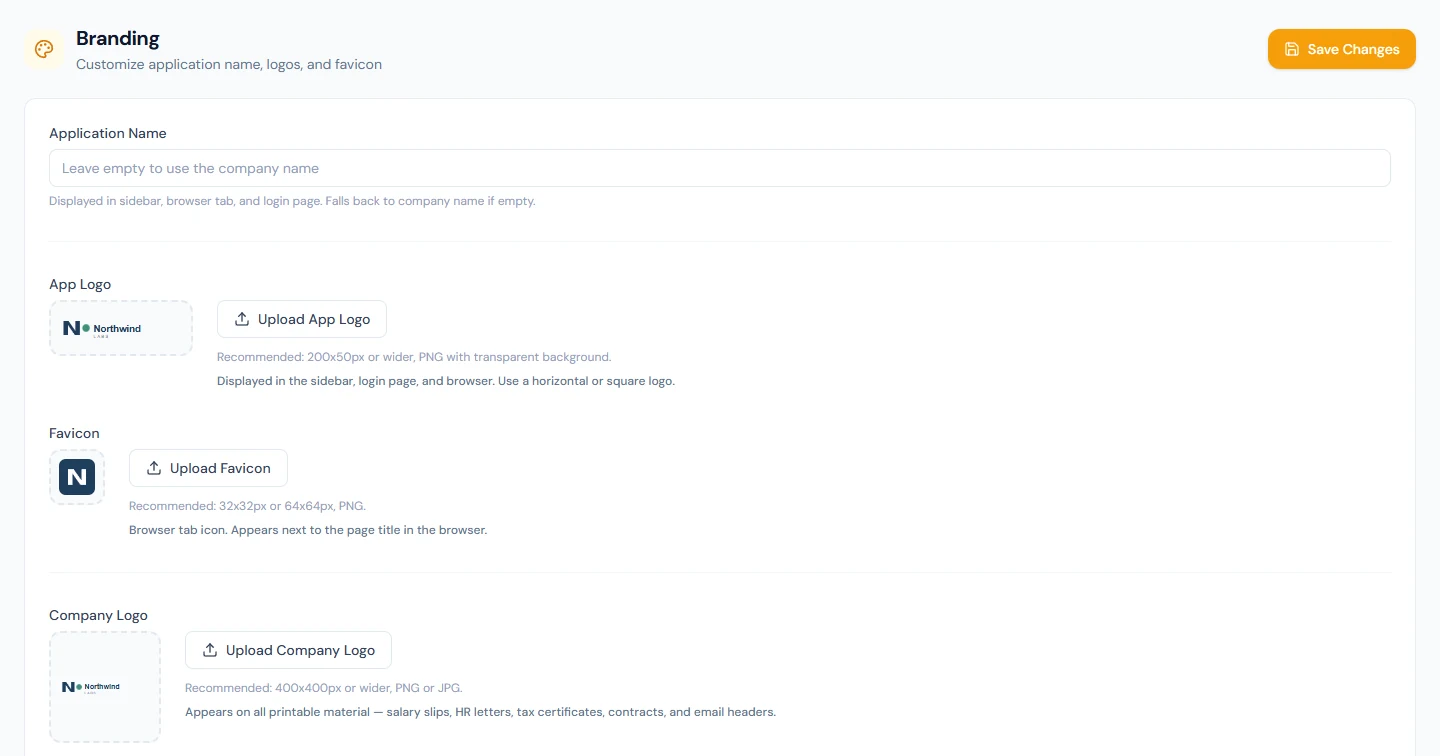
| Field | Where it appears |
|---|---|
| Application Name | The sidebar, the browser tab and the sign-in page. Blank uses the company name. It also labels the entry in members' authenticator apps, as it was when each of them enrolled. |
| App Logo | The sidebar and the sign-in page. A horizontal or square mark; 200 by 50 pixels or wider. Without one, the company logo is used there instead. |
| Favicon | The small icon in the browser tab; 32 or 64 pixels square. |
| Company Logo | Printed material: salary slips, HR letters, tax certificates and contracts, and the header of emails. 400 pixels or wider. |
| Company Seal / Stamp | Salary slips, HR letters and other official documents, as a digital stamp. Best with a transparent background. |
Each Upload stores the image at once and refreshes the preview; Save Changes at the top is for the application name. The uploader accepts PNG, JPG and GIF; the size limit is the platform's, 10 MB unless the operator has changed it. Northwind carries a wordmark, a favicon, a document logo and a seal, which is why its slips and letters in later chapters look like a company's and not a product's.
13.2 Language
Open Workspace Settings → Language. Two selectors.
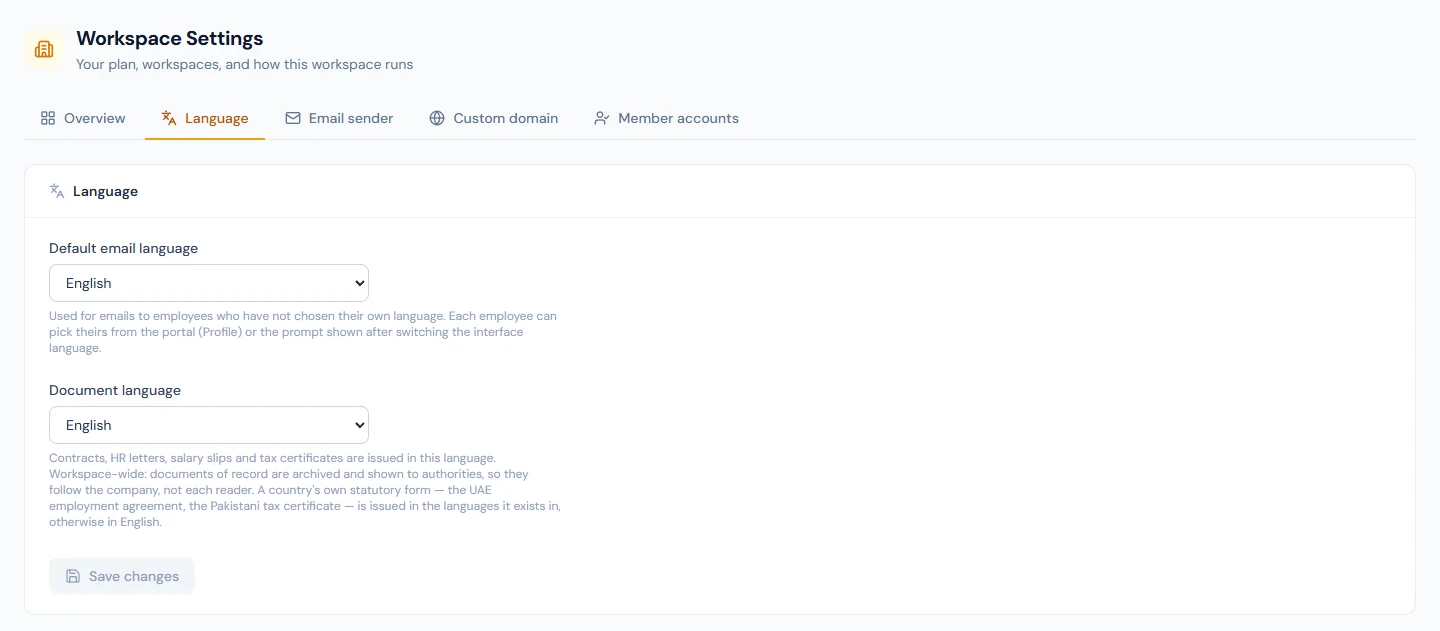
Default email language. Emails are addressed to a person, so each employee's own preference comes first (set on their portal profile, or accepted from the prompt that appears after they switch the interface language). This setting is the fallback: employees who have not chosen, and recipients who are not employees, such as candidates.
Document language. The language contracts, HR letters, salary slips and tax certificates are issued in, for the whole workspace, whoever they are about. Each issued document is stamped with the language it was actually produced in, so a later change of setting does not rewrite the archive's description of itself.
Both lists offer the five languages Operentra writes its emails and documents in: English, Arabic, French, German and Spanish, the same five the interface offers under the globe (Chapter 5). Where a single template lacks a variant, the English one is used, whole: a document is never half-translated. A form written for one country's law keeps that country's languages: a UAE workspace's employment agreement exists in English and Arabic, so with French chosen it is issued in English, never as the generic agreement in French. Save applies to emails sent and documents issued from then on.
13.3 Email sender
Open Workspace Settings → Email sender. The card at the top, Emails will be sent from, shows the exact From header that will be used, and the reply-to beneath it once set.
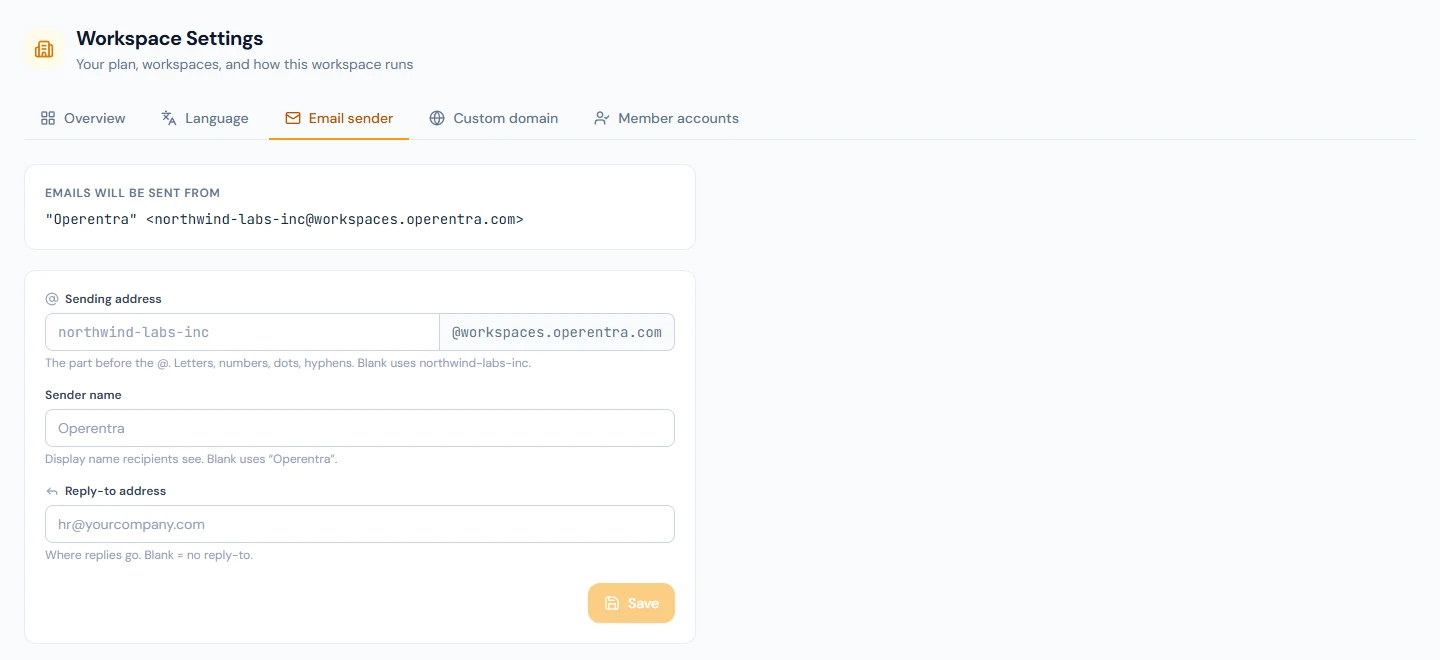
| Field | Notes |
|---|---|
| Sending address | The part before the @; the domain after it is the operator's and shown read-only. Letters, digits, dots and hyphens. Blank uses a slug of the company name. The address must be unique across all workspaces on the platform; a taken one is refused at save. |
| Sender name | The display name recipients see. Blank uses the platform's default name. |
| Reply-to address | Where replies go. Must be a valid email address; blank adds no reply-to. |
The first two fields are editable only once the platform operator has configured a sending domain; until then an amber notice says email goes out from the platform's default identity, and the two fields are disabled. On Operentra's hosted service that is the case as this chapter is written, so expect the notice; the reply-to works either way and is the field that matters, because it is where an employee's reply to a payslip email lands. Saved changes apply to new emails.
13.4 Custom domain
Open Workspace Settings → Custom domain. On a plan without the feature the tab shows a lock; a domain connected before a downgrade stays visible, checkable and removable, but a new one cannot be connected.
Connect. Enter the domain, for example hr.yourcompany.com, and
choose Connect. A subdomain is the right choice; the root domain
usually hosts the company website, and pointing it at the workspace would
take that site offline. The domain must be a valid hostname, can belong to
only one workspace, and cannot be under the platform's own domains. The
status becomes Waiting for DNS and the page lists two records to add
at the domain's DNS provider, each with a Copy button.
| Record | Name | Value |
|---|---|---|
| CNAME | the domain itself | the target shown on the page, a platform-owned host |
| TXT | _operentra-challenge. followed by the domain | operentra-verify- followed by a token unique to the workspace |
Each record has a live Status chip, re-checked every half minute while you wait: Checking, Found, Not found yet, Wrong target (the chip names where the record points instead), or Proxied. The last one means Cloudflare's orange-cloud proxy is in front of the record, which hides the CNAME and blocks certificate issuance; set the record to DNS only (grey cloud) until the domain is active.
Verify & attach. When both records are in place, choose it. Operentra checks the TXT record, then the CNAME, and tells you which one is missing if either is. When both pass it attaches the domain to the platform and starts issuing the SSL certificate: status Issuing certificate, with a Check now button; the page refreshes itself every few seconds while it waits. You do not have to stay: the click also arms an hourly re-check for the next 72 hours, so a domain whose DNS propagates slowly attaches by itself once the records are live.
Active. The status shows Active since a date and links to the domain. From then on people sign in there, the sign-in page carries the workspace's name, app logo and favicon before anyone signs in, links in emails point there, and the careers site lives there. Keep both DNS records in place; removing them takes the domain offline. Error shows a message explaining what to fix, and verifying again is always allowed.
Remove domain asks for confirmation, detaches the domain and returns the workspace to the standard address; a domain can be connected again later.
13.5 Member accounts
Open Workspace Settings → Member accounts. One choice, Employee sign-in policy, with two options.
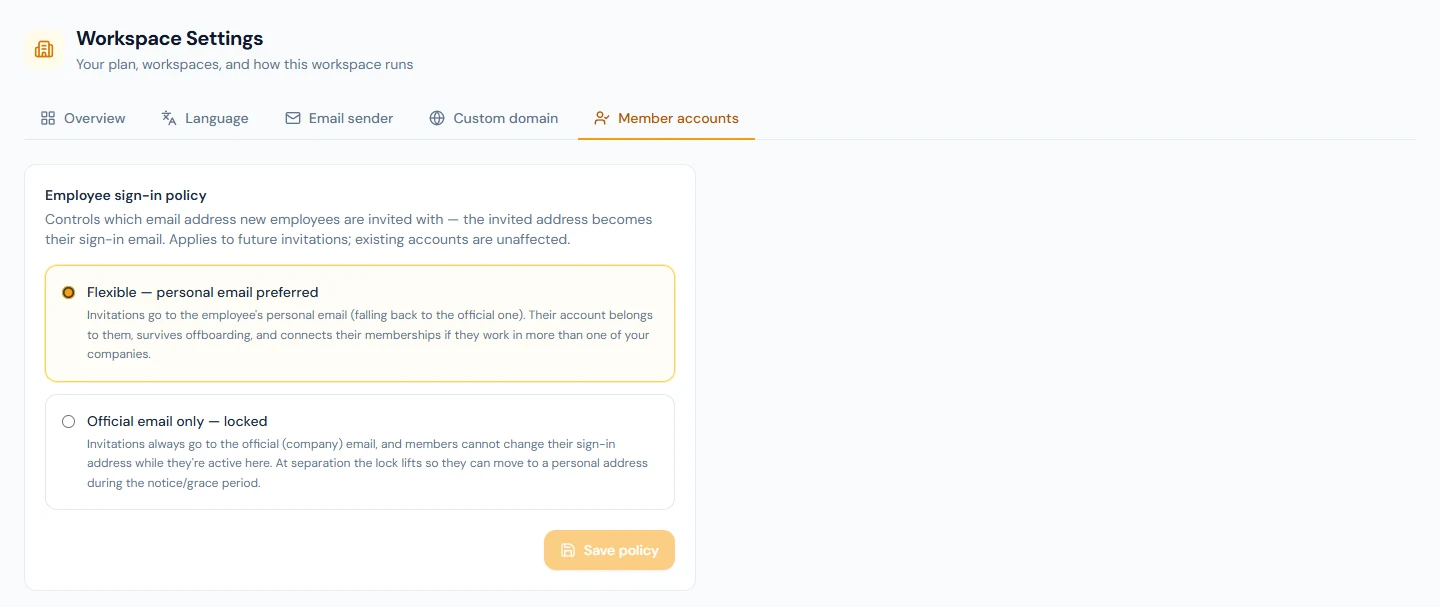
- Flexible — personal email preferred. Invitations go to the employee's personal email, falling back to the official one, falling back to an invitation address the administrator enters when the record has neither. The invited address becomes the sign-in email. The account belongs to the person: it survives offboarding, and if they work in another of your companies under the same address, the two memberships share one account with a company switcher (Chapter 15).
- Official email only — locked. Invitations always go to the official email, or the administrator's entry where there is none, and members cannot change their sign-in address while they are active members. The lock lifts at separation, so a leaver can move to a personal address during the notice and grace period. An administrator can exempt one person with Allow sign-in email change on their user row (Chapter 14).
Save policy applies to invitations sent from then on; existing accounts and invitations already sent are unaffected. Northwind keeps the default, flexible.
Which to choose: flexible treats the account as the person's and suits a company that wants staff to keep their history across jobs within the group; locked suits a company whose policy is that all access runs through a company mailbox, and that is prepared to tell leavers to move their sign-in before the account closes.
What happens next
- Branding shows on the next page load for everyone signed in, and on documents generated from now on.
- The document language applies to documents issued from now on; each carries its own language stamp. The email default applies to the next email sent to someone without a preference.
- A saved sender identity applies to new emails only.
- Once a domain is active, links in new emails and new verification QR codes carry it; platform-level flows, such as billing, stay on the platform address.
- The sign-in policy applies to the next invitation.
- Nothing in this chapter sends an email.
What the employee sees
The company's name and mark in the sidebar, the tab and the sign-in page; the logo and seal on their slips and letters; emails from the sender name, with replies going to the reply-to; on a custom domain, the company's own sign-in address; an invitation at the address the policy chose; and, under the locked policy, a sign-in email they cannot change, with a notice naming the company that locks it (Chapter 6).
Common mistakes
- Uploading the document logo as the app logo. A square letterhead mark squeezed into a sidebar; the two have different jobs and different shapes.
- Choosing the document language for one group of employees. Documents follow the workspace. Employees' emails follow them.
- A reply-to nobody reads. Replies to payslip and leave emails land there.
- Pointing the root domain at the workspace. The company website goes offline.
- Leaving Cloudflare's proxy on during verification. The status chip says Proxied; switch to DNS only until active.
- Deleting the DNS records after the domain is active. The domain goes offline and the certificate cannot renew.
- Choosing the locked policy without a leaver's plan. An account on a company address goes dormant at closure unless the person moves it to a personal address during the grace period.
- Expecting a policy change to move existing accounts. It applies to future invitations only.
Practice
In your workspace:
- Open Branding. Type an application name, upload an app logo and a favicon, and reload: the sidebar and the tab now carry your brand. Upload the company logo and, if you have one, the seal.
- Open Workspace Settings › Language. Leave both at English unless your documents are issued in another language, and note why the two settings are separate.
- Open Email sender. Set a reply-to address that a person reads, and save. If the sending fields are open on your platform, choose a sending address and a sender name and check the preview.
- Open Custom domain. If your plan includes it and you control a domain, connect a subdomain and add the two records; otherwise read the lock card and move on.
- Open Member accounts and leave the policy flexible. Write down, in one sentence, what would make you choose the locked policy instead.
Quiz
1. Where does the Company Logo appear, and where does the App Logo appear?
Answer
The company logo appears on printed material and in email headers: salary slips, HR letters, tax certificates, contracts. The app logo appears in the sidebar and on the sign-in page, and the company logo stands in for it when none is uploaded.
2. An employee has set Arabic as their email language, and the workspace's document language is English. In which language is their salary slip, and in which language is the email that carries it?
Answer
The slip is in English, because documents follow the workspace. The email is in Arabic, because emails follow the recipient.
3. The Sending address and Sender name fields are disabled. Why, and what can you still do?
Answer
The platform operator has not configured a sending domain, so email goes out from the platform's default identity. The reply-to can still be set, and replies go there.
4. The CNAME record's status chip reads Proxied. What do you change?
Answer
In Cloudflare, set the record to DNS only (grey cloud), wait a few minutes and verify again. The proxy can go back on once the domain is Active.
5. Under the locked policy, when can a member change their sign-in email?
Answer
After separation, when the lock lifts for the notice and grace period, or earlier if an administrator ticks Allow sign-in email change on their user row.