Chapter 26 — Job openings
A job opening is the hire before it exists: the role, the team, the headcount, the approval, and then the advert that goes out under it. Operentra keeps the two halves apart on purpose. The opening is internal and carries the hiring decision; the posting is public and carries the words. This chapter walks the opening from a draft to a live page on the careers site and back off it.
What this chapter covers
- 26.1 Creating an opening; opening statuses
- 26.2 Details tab: headcount, internal notes
- 26.3 Posting tab: slug, location, remote policy, description sections, salary range
- 26.4 Publishing, unpublishing and view counts
The concept
Chapter 25 made the case: decide to hire before you advertise, and write the advert for the person you want. The two artefacts that follow have different readers and different lifetimes. The requisition is read by the people who approve budget and by whoever audits the hire; it changes when headcount or scope changes. The advert is read by strangers; it changes when the words are not working. A system that mixes them either exposes internal notes to the public or makes HR re-approve a role to fix a typo.
Status is the other thing worth getting right. A role is either being set up, actively hiring, paused, filled or abandoned, and each of those means something different for the advert, for applications and for the people waiting on the hire. The status should drive what the system allows, not sit beside it as a label.
How Operentra handles it
- Recruitment is its own menu, with Job Openings and Candidates, and its own three permissions: view, manage and interview. A new workspace grants them to the Super Admin only; give the HR Manager role (or whichever role hires) view and manage on Users and Roles (Chapter 14). The module is part of the Growth plan and above, so a trial workspace has it.
- An opening has five statuses: Draft, Open, On hold, Filled, Cancelled. Only an Open opening can publish its posting or take applications, and only an Open opening is listed on the careers site. Moving to Open stamps who approved it and when.
- The opening carries the internal side: title, department, designation, employment type, branch, headcount and internal notes. The posting carries the public side: slug, location, remote policy, four text sections, a salary range and whether the range is shown.
- One posting per opening, saved as a draft first, then published. Unpublishing takes it off the site at once; moving the opening out of Open does the same automatically.
- The slug is the public address, unique across the whole platform, made from the title unless you type one.
- Views are counted on every load of the public page, including your own.
Walkthrough
Northwind Labs has four openings: Senior Software Engineer (Open, headcount 2, published), DevOps Engineer (Open, published), Product Designer (On hold) and Customer Support Executive (Filled). The careers site therefore lists two roles.
26.1 Creating an opening; opening statuses
Recruitment › Job Openings lists every opening with its title and designation, department, headcount, the number of applications, the posting state (Published, Draft, or a dash when no posting has been saved) and the status pill. The status filter above the table narrows it; View careers page opens your public site in a new tab.
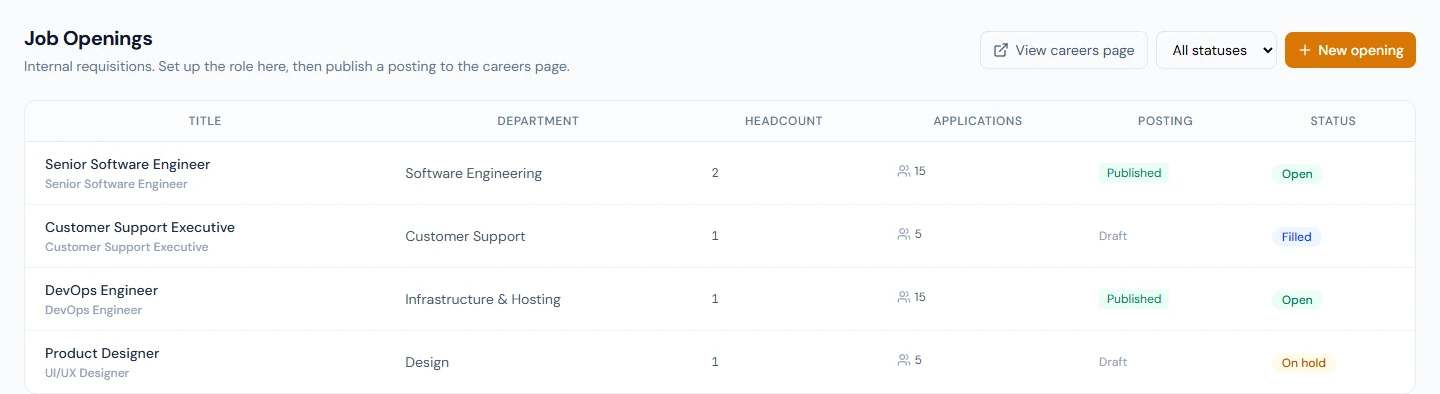
New opening asks for the title (required), and optionally the department, designation, employment type and headcount (default 1). Create takes you straight to the new opening, which starts as Draft. The branch cannot be chosen here or on the Details tab; the location the public sees is typed on the posting instead.
The five statuses, and what each permits:
| Status | Meaning | Publish? | Listed on the site? | New applications? |
|---|---|---|---|---|
| Draft | Being set up; not yet approved | No | No | No |
| Open | Approved and hiring; the approval is stamped with the user and date | Yes | Yes, if published | Yes |
| On hold | Paused | No | No; the posting is unpublished when you move here | No |
| Filled | Headcount reached; set for you when a hire is converted, or by hand | No | No; posting unpublished | No |
| Cancelled | Closed without hiring | No | No; posting unpublished | No |
Change the status from the panel on the Details tab; the current one is highlighted and a draft shows the hint "Move to Open before publishing a posting." Filled and Cancelled stamp a closed date; moving back to Open clears it and stamps a fresh approval. Nothing is emailed on a status change, and applications already in the pipeline stay where they are.
26.2 Details tab: headcount, internal notes
The Details tab shows the department, designation, employment type, branch and creation date as read-only rows, then two editable fields:
- Headcount, the number of hires this opening is for. Converting a hire counts against it, and the opening becomes Filled when the count is reached (Chapter 30). Raise it here if the team grows while the role is open.
- Internal notes, the free text for the hiring committee, the budget approval reference, the agreed salary ceiling, the interview rounds you decided on (Chapter 25). Nothing in this box reaches the careers site or any candidate email.
Save details writes both. The title, department, designation and employment type are fixed from the dialog; a wrong one means a new opening, so check the dialog before you click Create.
26.3 Posting tab: slug, location, remote policy, description sections, salary range
The Posting tab is the advert. Northwind's Senior Software Engineer posting reads: location "Austin, Texas", Hybrid, a salary range of 115,000 to 150,000 USD per year shown publicly, and the four sections filled.
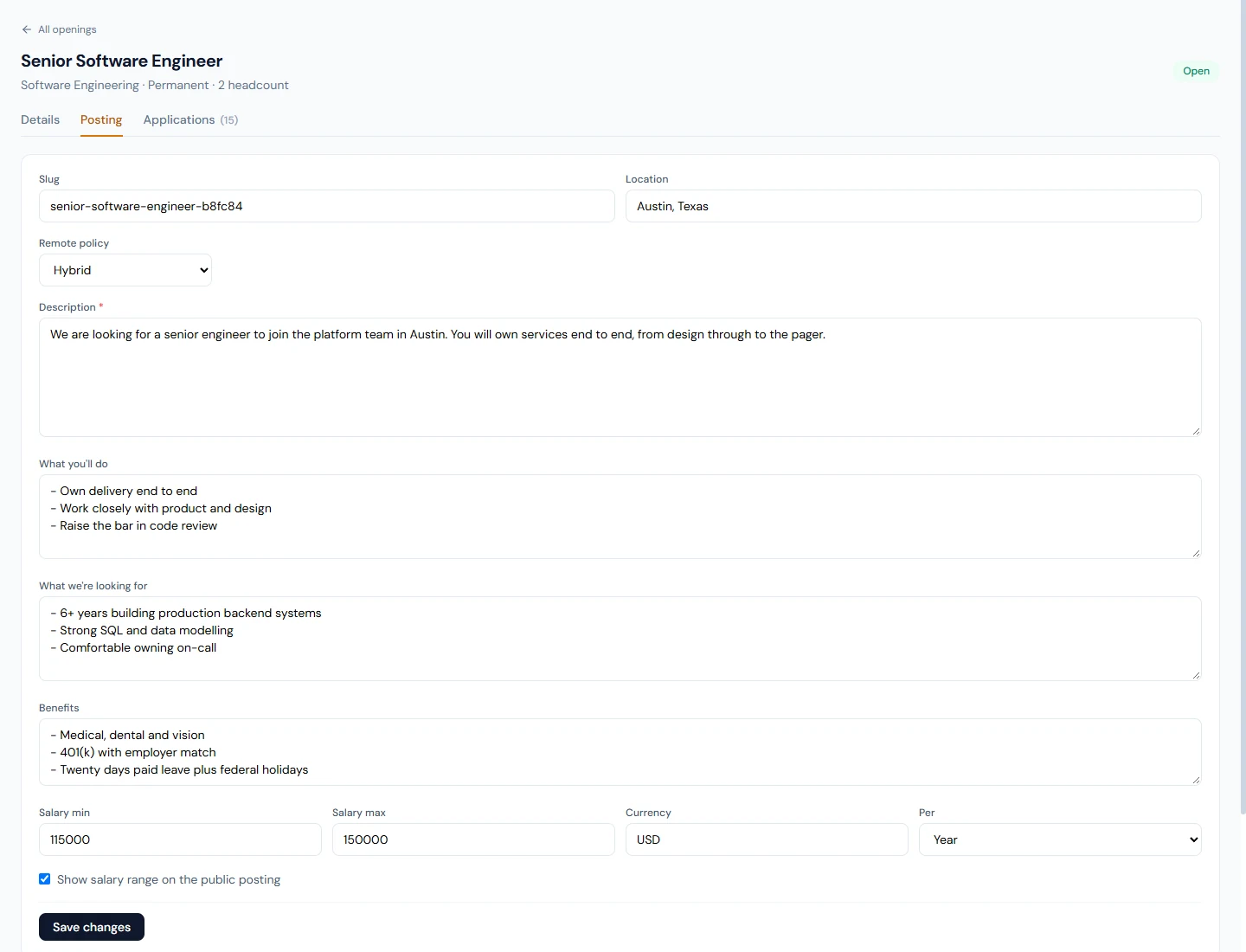
| Field | Notes |
|---|---|
| Slug | The last part of the public URL. Leave it blank and Operentra makes one from the title: lowercase, hyphens, a numeric suffix if another workspace already took it. Slugs are unique across the whole platform, so a common title may get the suffix. Changing it after publishing breaks links you have shared. |
| Location | Free text, "e.g. City, Country". Shown on the role card, the job page and the search-engine listing. When blank, the branch name or city on the opening is used. |
| Remote policy | On-site, Hybrid or Remote; shown as a badge and reported to search engines. |
| Description | Required. "What is this role and what's the team doing?" The first 220 characters become the tagline under the title and the search-engine summary, so lead with the role, not the company. |
| What you'll do | Day-to-day responsibilities. |
| What we're looking for | Required experience, skills, qualifications. |
| Benefits | Shown as "Benefits and perks". |
| Salary min, max, Currency, Per | Numbers in the currency shown, which defaults to the workspace's, and whether they are per month or per year. The public page prints the range as "USD 115,000 – 150,000 /yr" and tells search engines the same unit. |
| Show salary range on the public posting | Off by default. The range is only ever shown, and only ever sent to search engines, when this is ticked. |
All four text sections are plain text with two rules: a blank line starts a new paragraph, and a line starting with a dash, an asterisk or a bullet becomes a bullet point. That is enough for a readable advert and keeps pasted formatting out.
Save draft (the button reads Save changes once a posting exists) stores the advert without showing it. The description is the only required field; the button stays disabled until it has text.
26.4 Publishing, unpublishing and view counts
The Publishing panel beside the form has three states.
- No posting yet: "Save the posting first."
- Draft: "Posting is saved as a draft. Publish to make it discoverable", with an amber "Move the opening to Open before publishing" while the opening is not Open, and the Publish to careers page button, enabled only when it is.
- Live: "Live since 21 Aug 2026", a link to Open public page, the view count, and Unpublish.
Publishing is instant: the role appears on the careers landing page under its department, its own page answers at the slug, and the sitemap lists it (Chapter 27). Unpublishing is equally instant and can be undone by publishing again. Moving the opening to On hold, Filled or Cancelled unpublishes for you; when you reopen, publish again. Nobody is emailed either way.
The view count increments every time the public page is loaded: by candidates, by you checking the page, by the search engines that index it. Northwind's DevOps Engineer page has been loaded 2,388 times. Treat the number as a trend between two dates rather than a count of people, and compare it with the applications column on the list to see which adverts convert.
What happens next
- Applications arrive on the Applications tab of the opening, from the public form or from a candidate HR adds by hand, and the candidate is emailed a receipt (Chapters 27 and 28).
- The posting follows the opening's status. A hire converted against the last headcount marks the opening Filled and takes the posting down; so does a manual move to On hold or Cancelled.
- Edits to a live posting go live on save, including the slug, so edit words freely and the slug never.
- Nothing here touches the employee side. The department, designation and employment type on the opening are suggestions that pre-fill the Add Employee form at conversion (Chapter 30); the record is made there.
What the employee sees
Nothing. Openings and postings are HR screens and public pages; no employee is notified of a posting, and the portal has no careers link. Interviewers meet the opening only when they are put on a panel (Chapter 29).
Common mistakes
- Writing the advert in the internal notes box. Notes are private and never published. The advert goes on the Posting tab.
- Publishing with the salary range typed but the switch off. The range is stored, not shown. Tick "Show salary range on the public posting" if you mean it to be seen.
- Changing the slug of a live posting. Every link you have shared on LinkedIn, in emails and in job boards breaks. Fix the title, leave the slug.
- Pasting a formatted document into the description. Only blank lines and bullet dashes are understood; headings and bold arrive as plain text.
- Leaving a filled role Open. It keeps taking applications you will reject. Mark it Filled, or let the conversion do it.
- Creating a second opening to fix a wrong department. Reasonable when nothing has happened yet; once applications exist, they stay on the old opening. Decide before the first applicant.
- Reading the view count as applicants. It counts page loads, including yours and the crawlers'.
- Expecting HR to see the menu. Recruitment is a Super Admin area until the permissions are granted to another role.
Practice
Use your own trial workspace, not a customer's.
- Create an opening for a role you hire often, headcount 1. Open the Details tab and write three lines of internal notes: the budget reference, the salary ceiling, the interview rounds.
- On the Posting tab, write the four sections, with bullet dashes in "What you'll do", a salary range set to per year, and the show-salary switch left off. Save the draft and try to publish. Read the two messages in the Publishing panel.
- Move the opening to Open and publish. Open the public page and check that the salary is not shown. Tick the switch, save, reload the public page.
- Reload the public page three more times and read the view count on the Publishing panel.
- Move the opening to On hold. Read the list's Posting column and the Publishing panel, then open the careers page and confirm the role is gone. Move it back to Open and publish again.
Quiz
1. Why will the Publish button not work on a new opening?
A new opening is a Draft. Only an Open opening can be published; move the status to Open on the Details tab (which stamps the approval), and make sure the posting has been saved.
2. The salary range is filled in, but candidates say the page shows none. What is missing?
The "Show salary range on the public posting" switch. The range is stored either way but only shown, and only sent to search engines, when the switch is on.
3. What happens to a live posting when the opening is put On hold?
It is unpublished automatically and leaves the careers site and the sitemap. Moving the opening back to Open does not republish it; click Publish again. The view count is kept.
4. Where does the location on the public job page come from?
From the Location field on the posting. If that is blank, the branch on the opening supplies its name or city.
5. What does the view count measure?
Loads of the public job page, by anyone: candidates, HR, search-engine crawlers. It is a trend, not a count of people.