Chapter 58 — Paying employees
A locked run says what everyone is owed. Paying it is a separate act, done in a bank or with a chequebook, and Operentra's job is to make that act easy and to record it faithfully: which account paid, by which method, on which date, with which reference, so that a question months later ("was I paid for March, and how?") has an answer on the slip. This chapter covers the three ways money leaves: a bank file, cheques, and anything else recorded by hand.
What this chapter covers
- 58.1 Mark as paid: bulk and single, methods, paid-from account, reference
- 58.2 Bank transfer file: preview, skipped employees, fund transfers
- 58.3 Custom bank file formats
- 58.4 Cheques: register and templates
- 58.5 Finalising a run; clearing a payment
The concept
Payroll records two facts that are easy to confuse: what is owed (the locked run) and what was paid (the payment record). They usually agree, and the cases where they do not are the ones that matter: a transfer that bounced, a cheque that was never cashed, a person paid in cash because their account was closed. Keep the payment record per person, with the paying account and a reference that matches the bank statement, and reconciliation becomes reading two lists side by side instead of an investigation.
How Operentra handles it
- Mark as Paid on a run records one payment for every entry: payment date, method (Bank Transfer, Cheque, Cash or Mobile wallet), the company account it was paid from, a reference, and whether to email each employee. The run becomes Disbursed. A single entry can be marked paid the same way.
- Paying an approved run locks it first, with the lock's checks, so a run is never paid without being locked (Chapter 55).
- Download Bank File builds the transfer file for a locked run in the format designed for the paying account: a preview lists who will be paid, who is skipped and why, and any contribution-fund transfers.
- Cheques: Print Cheques for a locked run on a template sized to the bank's leaves; the Cheque Register tracks each one from Printed to Issued, Cleared, Bounced, Cancelled or Stale.
- Finalize Run closes a run whose entries were each paid separately; Clear payment undoes one entry's payment and its acknowledgement.
- Who:
payroll.managefor payments and the bank file (Super Admin, Accountant); the cheque permissions for printing and the register.
Walkthrough
Northwind pays salaries by bank transfer from its operating account at First National Bank of Texas, whose payment file is an ACH credit batch in CSV. Its ten disbursed runs, September 2025 to June 2026, were each marked paid by bank transfer from that account. It has two cheque templates, one for First National Bank of Texas and one left over for a Denver bank the company no longer banks with, and an empty cheque register. July is locked and unpaid, the month to pay live.
58.1 Mark as paid: bulk and single, methods, paid-from account, reference
On a locked run, Mark as Paid opens "Mark all 46 entries as paid": Payment Date, Method, Paid From (the company's bank accounts, the primary one marked, with a link to add one), Reference ("Cheque #, transfer ID, batch reference…") and a box to email each employee after marking paid. Confirm Payment stamps every entry with those details, moves the run to Disbursed, and reports how many emails went. The email tells each employee that their salary for the month has been paid and asks them to confirm receipt in the portal; their signed slip follows (Chapter 59).
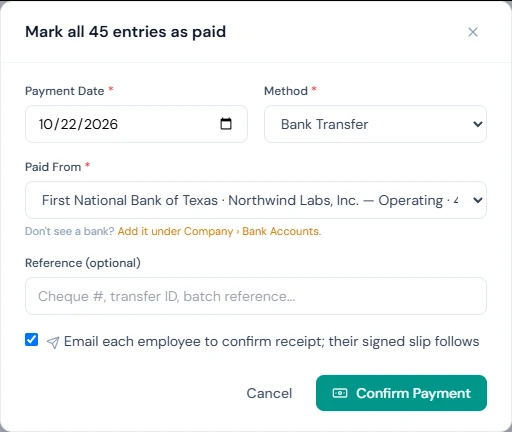
Use the bank's batch or transaction reference, the one on the statement. Choose the method that actually moved the money: Bank Transfer records the run's contribution-fund transfers on the fund (Chapter 61), because the bank file carried them; any other method leaves the fund's remittance to be recorded there by hand.
The Mark paid icon on one entry opens the same form for one person, for the employee paid in cash because their account was being changed, or the late joiner paid a week after the rest. For a handwritten cheque, choose Cheque, the paying account and the cheque number as the reference: the cheque is entered in the register as Issued.
58.2 Bank transfer file: preview, skipped employees, fund transfers
Download Bank File is available once the run is locked. Choose Pay from (company bank) and the Value date; if the account's format needs a branch city, enter it once and it is remembered. The preview then says how many employees will be paid and lists everyone skipped with the reason: paid by another method, a net of zero or less, no bank account on the profile, no IBAN where the format needs one, no bank selected, or a bank the paying account cannot route to. Fix the profiles (Chapter 19) and the list shrinks; the skipped are never silently missing from the file. Where the company runs a contribution fund paid into its own account, the fund's share (employee and employer) appears as its own transfer, and the file total shows salaries and funds together.
Download CSV saves the file under the format's filename pattern, ready to upload to the bank's bulk payment screen. Generating the file does not mark anyone paid; Mark as Paid does, once the bank has accepted the batch.
58.3 Custom bank file formats
Each company account carries its own file format, built in the payment file designer on the account (Chapter 11): a header, a row per employee and a trailer, from variables such as the employee's account number, the amount and the value date, with the date, decimal and line ending options the bank specifies, and a live preview. Northwind's ACH batch is one. Design a format when the bank publishes a bulk payment specification; an account without a format cannot produce a file, and its runs are paid by recording the transfer with Mark as Paid.
58.4 Cheques: register and templates
Cheques › Templates holds a template per bank's cheque leaf: its size in millimetres, where the date, payee, amount in figures and in words, and account go, and the date format. Print Cheques takes a locked or disbursed run ("This run is not locked, so its amounts may still change. Lock it before printing cheques." otherwise), the employees to pay by cheque, the paying account, a template and the first cheque number, and produces a PDF of one cheque per employee, in the order shown, to print on the leaves. If the template is for another bank than the account, the page says so: Northwind's Denver template on its Texas account is the example to recognise.
Every printed cheque enters the Cheque Register as Printed. Handing it over is Issue (one or several at once), which records the salary as paid and, if chosen, asks the employee to acknowledge it. From Issued, a cheque is marked Cleared with the date on the bank statement, Bounced with the return date and reason, or Cancelled with a reason: cancelling a printed cheque voids a spoiled leaf; cancelling an issued one (lost, stopped) clears the salary payment so it can be paid again. Reprint prints the same cheques again on unused leaves. A cheque older than the cheque-validity setting (Chapter 53) and not cleared shows as Stale. While a cheque for a run is Printed but not issued, Mark as Paid for the whole run is refused, and an entry paid by a cheque is changed only through the cheque.
58.5 Finalising a run; clearing a payment
When every entry was paid separately, by cheques or one by one, Finalize Run moves the run to Disbursed without overwriting each entry's own payment details ("Every entry is already marked as paid. This will move the run status to Disbursed without changing any per-entry payment dates, banks, or references. No emails will be sent."). It is refused while any entry is unpaid.
Clear payment on an entry removes its payment record, after "Clear payment for this entry?", and with it the employee's acknowledgement, which they will give again once the entry is paid again. Use it for a transfer that bounced or an entry marked paid by mistake; the run's figures do not change.
What happens next
- Slips and acknowledgements (Chapter 59) follow each payment.
- Contribution funds (Chapter 61) record the run's remittance when it was paid by bank transfer.
- Reports (Chapter 65) and the register show who was paid, how and when.
What the employee sees
The email that their salary was paid and the request to acknowledge it, the slip in the portal with the payment date and method, and, once they acknowledge, the signed slip.
Common mistakes
- Marking paid before the bank accepted the batch. The email goes out on save; mark paid when the money has moved.
- Generating the file and forgetting Mark as Paid. The file pays nobody in Operentra's records.
- A reference that is not on the statement. Reconciliation then starts from scratch.
- Ignoring the skipped list. Those people are not in the file; pay them another way and mark them individually.
- Paying the whole run as Cheque from Mark as Paid. No cheques enter the register; print them from Print Cheques instead.
- Reprinting a spoiled leaf. Cancel that cheque and print a new one with the next number.
- Cancelling an issued cheque without paying again. The salary is now unpaid on the run; pay it.
- Using Clear payment to change an amount. It changes the record of payment, not what was owed; amounts move by adjustment next month.
Practice
Use your own trial workspace, not a customer's.
- Lock a run (Chapter 55) and open Download Bank File: read who is skipped and why, fix one profile, and preview again.
- Mark one entry paid in cash with a reference; then Clear payment on it and read the entry.
- Mark the run paid by bank transfer with a batch reference and the email box on; read the result banner.
- Add a cheque template for your bank, print cheques for another locked run, issue two, mark one cleared and cancel one.
- When every entry is paid, Finalize the run.
Quiz
1. What does Mark as Paid record, and what does it not do?
The payment date, method, paying account and reference for every entry, moving the run to Disbursed; it does not move money or build a file.
2. Who is left out of the bank file?
Anyone paid by another method, with a net of zero or less, without a bank account, IBAN or bank, or at a bank the paying account cannot route to; the preview lists each with the reason.
3. What happens when an issued cheque is cancelled?
Its salary payment is cleared, so the employee can be paid again.
4. When is Finalize Run used?
When every entry was already paid separately; it closes the run without overwriting their payment details or sending emails.
5. What happens when an approved run is paid?
It is locked first, with the lock's checks and settlement, then paid.