Chapter 80 — SMS
Email reaches people at their desks; a text message reaches the phone in their pocket, and proves the phone is theirs. Operentra uses SMS sparingly, for the few things only a phone can do: confirming that a mobile number and an emergency contact are real, and asking a client for feedback after a field visit. This chapter connects a provider and shows where the messages go.
What this chapter covers
- 80.1 Adding and testing an SMS provider
- 80.2 Where SMS is used
- 80.3 SMS logs
The concept
SMS costs money per message and reaches people who did not choose to hear from you, so it belongs where nothing else works: one-time codes that prove someone holds a phone, and short requests that need an answer from someone outside the company. Messages go through a provider (a gateway that connects to mobile networks), with a sender name the recipient recognises, and every message is logged.
How Operentra handles it
- Settings › Integrations › SMS Providers connects one or more providers; Infobip is supported. The default provider sends.
- SMS is used for the verification codes for an employee's mobile number and emergency contact, the field-visit feedback request, and test messages; nothing else sends SMS.
- Logs › SMS Logs lists every message with its purpose and result.
- Who:
sms.manage(Super Admin, HR Manager).
Walkthrough
Northwind has no SMS provider, so phone verification stays inactive there and nobody is asked for a code. The steps below are for your trial workspace with an Infobip account.
80.1 Adding and testing an SMS provider
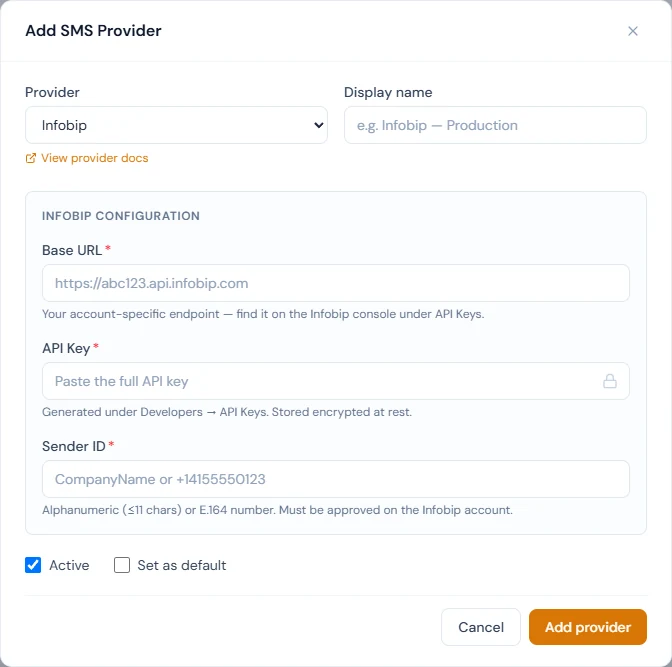
Add SMS Provider asks for the Provider (Infobip, with a link to its documentation), a Display name ("Infobip — Production"), and the provider's details: the Base URL from your Infobip account, the API Key (stored encrypted; "Leave blank to keep existing" when editing) and the Sender ID, up to eleven letters and digits or a phone number in international form. Active and Set as default finish it; the first provider added becomes the default.
On the provider's card, Test checks the credentials without sending anything and shows "Connection OK" or "Connection failed". Send sends a real message, "This is a test message. If you received it, the SMS provider is configured correctly.", to a number you enter with its country code (+1…). If the provider refuses it, the error is shown and the dialog stays open. Set default chooses which active provider sends; deleting a provider keeps its log, and verification then uses another active provider if there is one.
80.2 Where SMS is used
| Message | When | Chapter |
|---|---|---|
| Mobile number verification code | An employee verifies their own mobile number | 23 |
| Emergency contact verification code | The code goes to the emergency contact's phone, who passes it to the employee | 23 |
| Field visit feedback request | After a field visit, when field-visit feedback by SMS is on | 42 |
| Test message | From the provider's card | — |
Codes are six digits, valid for ten minutes, with five attempts, a minute between resends, and a day's lockout after too many tries. Settings › Verification › Phone Verification decides whether employees must verify both numbers before using the portal; it stays inactive until an active SMS provider exists, so nobody is ever blocked for want of one. Announcements, reminders and other notifications go by email and the bell, never by SMS.
80.3 SMS logs
Logs › SMS Logs lists every message with the Time, Recipient, Purpose (Mobile number verification, Emergency contact verification, Field visit feedback, Test message), Provider and Status, Sent or Failed, filtered by recipient, status, purpose and dates; click a failed row for the provider's error. The provider page also shows the most recent activity. Sent means the provider accepted the message; delivery to the handset is the network's part.
What happens next
- Part 13 turns to exits: separation and offboarding.
What the employee sees
A text with a code when they verify their mobile number, and one sent to their emergency contact when they verify that number.
Common mistakes
- A sender ID the networks reject. Some countries require a registered sender; check with the provider before going live.
- Turning phone verification on before testing SMS. Send a test to a real phone first.
- Numbers without a country code. Store and test numbers in international form.
- Expecting SMS for announcements. Operentra does not send them.
- Reading Sent as delivered. It means the provider accepted it.
Practice
Use your own trial workspace, not a customer's, and your own phone.
- Add your Infobip account as a provider and run Test.
- Send a test message to your phone and find it in SMS Logs.
- Verify your own mobile number from the portal and find the code message in the log.
Quiz
1. What does Test do, and what does Send do?
Test checks the credentials without sending; Send sends a real test message to a number.
2. What is SMS used for in Operentra?
Mobile and emergency-contact verification codes, field-visit feedback requests, and test messages.
3. When does phone verification start blocking the portal?
Only when it is switched on and an active SMS provider exists.
4. How long is a verification code valid?
Ten minutes, with five attempts.
5. What does a Failed row in SMS Logs show?
The provider's error, when the row is clicked.