Chapter 21 — Profile change approvals
Everything in Part 4 so far was HR writing to the employee record. This chapter is the one place the employee writes to it, and the gate you keep on that: a person edits their own details in My Account, offers them to your workspace, and nothing reaches the record until you have compared the two versions and approved. Done well, this is how phone numbers, addresses and bank accounts stay current without HR retyping them. Done carelessly, it is how a payroll goes to the wrong account.
What this chapter covers
- 21.1 How employees submit changes from My Account
- 21.2 Reviewing the field-by-field difference
- 21.3 Approving or returning with a note
The concept
An employee is the best source for the facts about themselves and the worst place to leave them unchecked. Their new phone number is right because they typed it; their new bank account is right only if it is really theirs, and "please update my direct deposit" is one of the oldest frauds aimed at HR. So self-service needs a gate with three properties. The proposal and the record are kept apart until a human decides. The decision is made field by field, against what is on file today, not against a form the employee filled from memory. And the outcome goes back to the person with a reason, so a returned change is a conversation, not a dead end.
The second idea is that personal data belongs to the person, not to any one employer. Someone who has worked for two companies on Operentra has one profile and two employer copies, each approved separately. HR's copy is the one payroll and letters read; the person's profile is the one they carry with them.
How Operentra handles it
- Two records, one direction. The person's profile lives in My Account (the avatar menu, the My Profile tab), outside any workspace. Your workspace holds its own approved copy on the employee record. Values flow from the profile to your copy only through a submission you approve. They never flow back: a change HR makes on Edit Employee (Chapter 19) does not update the person's profile.
- The profile is seeded once. The first time a person opens My Account, their profile is copied from the employee record of the workspace they are signed into. From then on the two live apart.
- A submission is a snapshot of the whole profile, not a list of edits: every personal field on the My Account form, the addresses by type, and the bank account, as they stood at the moment of submitting. Later edits in My Account do not change a submission already waiting.
- One decision per submission. You approve or return the snapshot as a whole. There is no approving three rows and returning one.
- One pending submission per employer. While one waits, the person cannot send another to the same workspace; My Account shows "Awaiting review" instead of a checkbox.
- Nothing to review is never queued. If the profile already matches your copy, submitting does nothing and the person is told "Nothing to submit". The one exception is a first submission from someone whose record is still waiting for it (Chapter 16): that goes through even when every value matches, so the record can move out of draft.
- Who reviews. Anyone with permission to edit employee records: the Super Admin, HR Manager and HR Officer roles. The queue is Employees › Profile Approvals; the dashboard raises a blue alert, "1 profile submission awaiting review", and the command palette finds it under "pending profile".
- Who is told. A new submission goes to the bell of everyone who can review (up to ten of them) and, when the trigger is on, by email ("Profile Submission — HR Review Needed"). The decision goes to the employee's bell and email ("Profile Submission — Outcome"), with your note. Muting an email trigger (Chapter 79) silences the email, not the bell.
- Approve copies and re-arms. The proposed values are written to the record. A changed phone number, a changed emergency-contact phone and a changed address go back to Unverified (Chapter 23). Addresses are updated by type and never deleted. The primary bank account is updated or created, never cleared, and a bank name that matches your bank list is linked to it so payment files keep their routing details. A submitted address with no country is filed under your workspace's country.
- Approve refuses what it cannot apply. A blank first or last name, an identity number that does not fit your country's rule, or one already on another employee's record, stops the approval with a message. The submission stays in the queue for you to return.
- Return changes nothing on the record. The note is stored and sent, and the person's edits stay in their profile for them to correct.
Walkthrough
21.1 How employees submit changes from My Account
Chapter 6 showed the employee's side in full; here is the sequence as it reaches you. The person opens the avatar menu, My Account, and the My Profile tab. Edit opens every field: names, the identity number under your country's label (Social Security Number for Northwind), date of birth, gender, marital status, personal email, the phone with its country picker, the emergency contact's name, phone and relationship, addresses marked Current or Permanent, and the bank account. Save checks only two things, both so that the result can be approved later: the first and last name cannot be blanked, and the identity number must fit the rule of the workspace they are signed into. The toast reads "Profile saved — Stored on your account, share it with employers whenever you choose." Nothing has reached you.
Then the Share with your employers card appears, ringed in the brand colour, with a pulsing "Changes not yet shared with 1 employer". Your workspace is listed with "3 fields differ from their copy" and a "Not shared" badge. The person ticks it and clicks Submit for approval. The toast says "Submitted to 1 employer for review"; the row turns amber, "Awaiting review"; and your bell rings.
Meanwhile the portal's own My Profile page, the approved copy, has not moved. Its banner says so: "To update your personal details, edit your profile and submit it for approval", with an Edit in My Account button. That page only changes when you approve.
Example. Northwind's queue holds one submission. Imani Castellanos (NWL-0007) has a new phone number, a personal email address instead of the work one HR entered, and a different emergency contact. Imani saved the three in My Account and submitted them on 20 September 2026. The portal profile still shows the old values; your queue shows the new ones.
21.2 Reviewing the field-by-field difference
Open Employees › Profile Approvals. The page is headed "Profile Approvals — Review employee-submitted personal data before it reaches the employee record." Each pending submission is a card, oldest first, with the person's initials, name and code, "Submitted 20 Sep 2026", and a badge: amber "5 changes", or grey "No changes". Click the card to expand it.
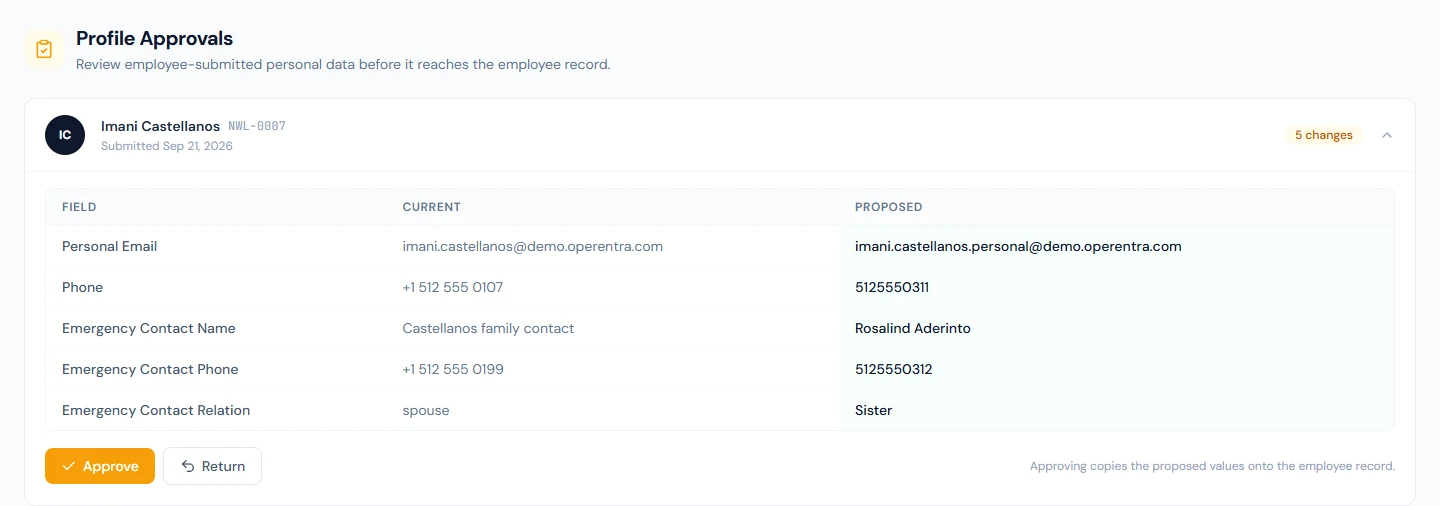
The body is a three-column table, Field, Current and Proposed, with the proposed cell tinted green. Only the rows that would actually change are shown. Scalar fields are one row each, under your workspace's own label for the identity number. Each address type is one row, the whole address joined with commas. The bank account is one row: bank, branch, account title, number and IBAN together. Values are shown exactly as each side stored them, so a date reads as a date but a phone number or a relationship reads as typed.
Imani's card expands to five rows:
| Field | Current | Proposed |
|---|---|---|
| Phone | +1 512 555 0107 | 5125550311 |
| Personal Email | [email protected] | [email protected] |
| Emergency Contact Name | Castellanos family contact | Rosalind Aderinto |
| Emergency Contact Phone | +1 512 555 0199 | 5125550312 |
| Emergency Contact Relation | spouse | Sister |
Read a card with four questions.
- Is each proposed value complete and in the right shape? A phone with digits missing, an email without a domain, an address with no city. The identity number is checked for you at approval; the rest is your eye.
- Which column is newer? Because HR edits never reach the person's profile, a profile saved months ago can propose an old value over the one you corrected last week. If Current is the right one, the answer is Return, with a note asking them to copy your value into their profile.
- Does a change need evidence? A new bank account means a call back on a number you already hold, never a reply to the email that asked. A new identity number means the document (Chapter 22). A new name means the paperwork behind it.
- Will approving re-arm anything? Any change to the phone, the emergency phone or an address sends it back to Unverified. The comparison is on the stored text, so the same number written with different spacing counts as a change and resets verification too.
A card marked No changes says, when expanded, "The submission matches the current record — approving simply marks the profile as reviewed." It is a first submission from someone you invited whose details you had already entered correctly. Approve it; that is what moves the record out of draft.
21.3 Approving or returning with a note
Approve is one click with no confirmation, and the hint beside it is the whole contract: "Approving copies the proposed values onto the employee record." The card disappears; the toast reads "Profile approved — Imani Castellanos's employee record has been updated." On Imani's profile (Chapter 19) the five values are now the proposed ones, the phone and the emergency contact show Unverified on the Verifications screen (Chapter 23), and Imani has a bell notification and, if the trigger is on, an email headed "Your profile submission was approved — Northwind Labs, Inc." saying the changed details may need verifying again.
If the snapshot cannot be applied, nothing changes and the toast says why: "This submission has no first or last name", "Social Security Number must be exactly 9 digits. Return the submission and ask the employee to correct it", or "Another employee is already on file with this Social Security Number. Return the submission and check which record is right." The card stays; the next step is always Return.
Return opens an amber box, "Note to the employee (optional)", with a placeholder that suggests the tone: "Tell them what needs fixing, e.g. "Social Security Number format looks wrong"". Write the note as you would a reply to a form: name the field, say what is wrong with it, say what to do. The person cannot answer inside Operentra, so the note has to carry the whole message. Confirm return closes the card with the toast "Submission returned — Imani Castellanos can revise and resubmit their profile." Imani's record is untouched. Imani receives "Your profile submission was returned — Northwind Labs, Inc." with "Note from HR:" and your text, and the My Account share card lights up again, "5 fields differ from their copy", with the edits intact. Imani corrects what you named and submits again; a new card arrives.
Example. Northwind's HR officer rings Imani on the number already on file, confirms the new one and the new contact, and approves. Had the submission proposed a new bank account as well, the call would have come first and the question would have been read from the card: bank, account title, last four digits.
What happens next
- The approved values are on the record and feed everything that reads it: the directory, letters, the bank payment file, the verification screens.
- Verification has to run again where a value changed. A changed address must be verified by letter again, and a changed phone is listed as unverified on the Verifications screen (Chapter 23).
- The decision is stored with who made it, when, and the note, but there is no history screen. The queue shows pending submissions only; past ones are kept in the database and not shown.
- An approval raises the employee-updated event for integrations (Part 17), because the person's own name, date of birth, identity number and contact details may have changed.
What the employee sees
- A bell notification for the decision, and the outcome email when its trigger is on. Nothing is sent while the submission waits.
- On approval, the portal's My Profile shows the new values. When address verification is switched on and an address went back to Unverified, the Verifications tab carries a red dot until the letter code is entered.
- On return, the note, and the share card in My Account offering the same employer again with the edits still in place.
Common mistakes
- Approving on the strength of the Proposed column alone. The Current column is yours and may be newer. A stale profile overwrites a fresh correction the moment you approve.
- Approving a bank account change from the screen. Confirm it by voice on a number you already hold. The card shows the account; it cannot show who typed it.
- Returning without a note. The person receives "returned" and nothing else, and will send the same values again.
- Expecting the employee's edits to appear on the record. They appear in your queue. Until you approve, the profile, the directory and every letter carry the old values.
- Expecting your edits to appear in their My Account. They do not. Tell the person when you correct something on their behalf, or their next submission will propose the old value back.
- Waiting for a resubmission that cannot come. While a card is in your queue the person cannot submit again. Decide the card first.
- Trying to approve part of a card. It is all or nothing. Return it with a note naming the one row that is wrong.
- Treating "No changes" as an error. It is a first submission that already matched. Approve it.
Practice
Work in your own trial workspace with the invited employee from Chapter 16's practice, signed in through a second browser or a private window.
- As the employee, open My Account, change the emergency contact and the personal email, save, and submit. Read the share card before and after.
- As HR, open Profile Approvals, expand the card and count the rows against what you changed. Read how each side stored the phone number.
- Return it with a note that names one row. As the employee, read the bell notification and the share card.
- As the employee, correct it and submit again. As HR, approve, then open the Verifications screen and find the phone that went back to Unverified.
- As HR, change the employee's personal email on Edit Employee. As the employee, open My Account and read what the share card now claims. Decide what you would tell them.
Quiz
1. HR corrected Harriet's phone number yesterday. Today Harriet's submission proposes the previous number. What is going on, and what do you do?
Harriet's profile in My Account was never updated by your edit; changes flow only from the profile to your record. Return the submission with a note asking Harriet to copy the correct number into My Account, or to confirm which is right.
2. An employee says they resubmitted their profile, but your queue shows only their first card. Why?
One pending submission per employer. While a card waits, the person cannot send another to the same workspace; My Account shows "Awaiting review". Decide the card and the next submission can come.
3. You approved a submission that changed only the phone number. Why does the Verifications screen now show that phone as Unverified?
A changed primary phone, emergency phone or address goes back to Unverified on approval, so your verification flows run again. A change of formatting alone counts.
4. Can an employee remove an address or clear their bank account by submitting a profile without them?
No. Addresses are updated by type and never deleted, and an empty bank account is not submitted at all. Removing either is an HR edit on the record.
5. Who is told when a submission arrives, and how?
Everyone who can edit employee records, which is the Super Admin, HR Manager and HR Officer roles: a bell notification, and the "HR Review Needed" email when that trigger is on. The dashboard also raises a blue alert with the count.