Chapter 36 — Attendance settings
Chapter 34 was the policy and Chapter 35 the shifts; this chapter is the page where the company-wide rules are written down. It is short to read and expensive to get wrong, because every setting on it is applied to every working day from the moment it is saved. Read each card against your written policy, and change one thing at a time.
What this chapter covers
- 36.1 Choosing capture methods and reading the readiness checklist
- 36.2 Grace and lateness thresholds and their actions
- 36.3 Lates that count as an absence
- 36.4 Overtime approval rules and rate
- 36.5 Missing-punch reminder emails
- 36.6 GPS accuracy setting
- 36.7 Working days per week
The concept
A settings page is a contract with the people it governs. Three habits keep it honest. Know which settings act and which inform: some numbers change a day's status, some change pay, and some are only printed where the employee can read them. Change rules at a month boundary: a threshold edited on the 14th grades the second half of the month differently from the first. Write the policy first and the settings second, so that the page is a transcription and not the place the policy was invented.
How Operentra handles it
- Attendance › Settings is one page of cards: capture methods, grace and lateness, overtime, missing-punch reminders, GPS, working days, with Save Settings at the end for everything below the capture card (which saves on its own).
- Who: reading needs
attendance.view_all; saving needscompany.settings. - Acting settings: grace (when a shift leaves its own at the default), thresholds 2 and 3, lates per month, overtime minimum and the two approval switches, checkout grace, reminders and their offset, GPS on/off and accuracy.
- Informing settings: Threshold 1 and the Warning action, the overtime rate multiplier, and working days per week, all printed in the employment agreement's attendance and overtime clauses (Chapter 31) and nowhere else.
- Week Off Days on this page are the rest days for anyone on no shift; everyone else's come from their shift.
Walkthrough
Northwind's page reads: capture by biometric machine and HR; grace 10 (the Office Shift's own 15 wins for everyone on it); Threshold 1 at 20 minutes with Warning, Threshold 2 at 60 with Mark as Half Day, Threshold 3 at 150 with Mark as Absent; four lates per month for an absent; overtime requiring approval, not auto-approved, from 30 minutes, at 1.5; checkout grace 120; reminders on with a 60-minute offset; GPS off at 100 metres; five working days with Saturday and Sunday off.
36.1 Choosing capture methods and reading the readiness checklist
The first card, How attendance is captured, lists three methods with a checkbox each: Biometric machine, GPS attendance, and HR marks attendance. Tick every method you use; the card says you can combine them, the office machine for office staff and GPS for field staff being the example. A method the plan does not include is shown locked.
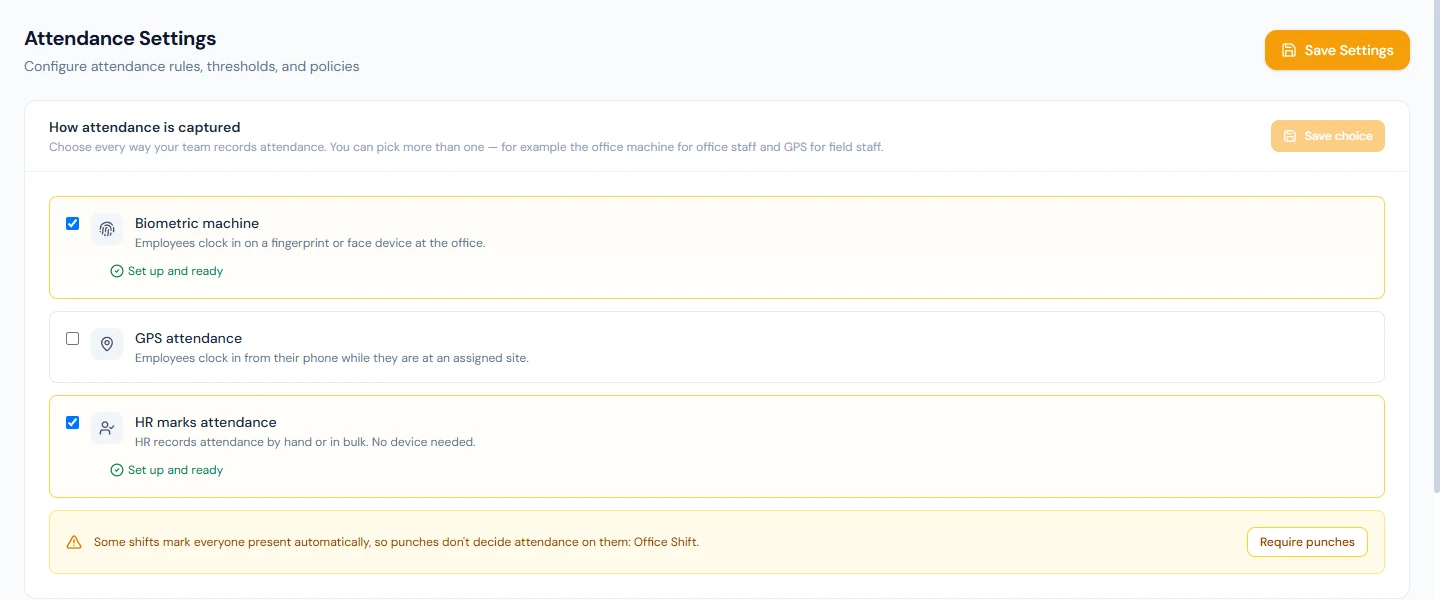
Under each ticked method the card shows Set up and ready or Still needed before it records attendance with the missing steps as links: "Add an active biometric device" for the machine (Chapter 40); "Switch on GPS attendance (below)", "Add a GPS attendance site" and "Assign employees to a GPS site" for GPS (Chapter 41). HR marking needs nothing. Save choice stores the selection; choosing none is refused.
The same card carries the Auto-Present notice from Chapter 35: when a biometric or GPS method is saved and any shift is Auto-Present, it names those shifts, explains that punches do not decide attendance on them, and offers Require punches, which switches them to Punch Required after a confirmation that spells out the consequence: from then on a working day without a punch counts as absent, and days already marked are not changed.
This choice also drives the "Choose how attendance is captured" step on the dashboard's setup checklist (Chapter 7), which stays open until every chosen method is ready. Northwind's reads Set up and ready for both: the Austin terminal is active, and HR marking needs nothing.
36.2 Grace and lateness thresholds and their actions
Grace Period is the company-wide grace, used when a shift leaves its own at the default; a shift's grace overrides it (Chapter 35). Checkout Grace is how long after the shift's end a punch-out is still accepted for the same day; beyond it the day is flagged as missing a check-out, without any change to its status or pay (Chapter 37).
The Late Thresholds ladder has three rows, each a number of minutes past grace and an action, with the explanation printed above them: a day is Late from the first minute past grace; Thresholds 2 and 3 change the status to Half Day or Absent when their action says so; Threshold 1 and the Warning action change nothing automatically and are printed in the employment agreement. The actions offered are No Action, Warning, Mark as Half Day and Mark as Absent. The ladder is applied to lateness and to early leaving alike, and when both happen on one day the more severe status wins.
Northwind's ladder therefore means: a clock-in 61 to 150 minutes past the fifteen-minute grace is a Half Day, beyond 150 an Absent, and anything from one minute past grace is Late.
36.3 Lates that count as an absence
Lates per month for Absent is the monthly tolerance from Chapter 34. Payroll counts the month's Late and Early Leave days together and, for every full multiple of this number, deducts one day's pay as a separate line, on top of whatever the statuses already did. Set to zero, no such deduction is made. Northwind's four means the fourth incident costs a day and the eighth another.
A Late day itself is paid in full; a Half Day half; an Absent day not at all. The tolerance is what makes a run of small latenesses cost something without turning each one into an absence.
36.4 Overtime approval rules and rate
The Overtime card has four controls.
Require OT Approval decides whether overtime is credited because it happened or because it was approved. Off, every day's net time beyond the shift, from the minimum up, is credited from the punches. On, only approved overtime requests count: extra hours without an approval are recorded on the day but not credited.
Auto-Approve OT Requests is available only when approval is required: on, every submitted request is approved as it is submitted and the employee is told, which keeps the audit trail without a manager's click. The card explains the switch's state either way.
Minimum Overtime (minutes) is the floor; an excess below it is ignored.
Overtime Rate Multiplier is printed in the employment agreement's overtime clause. Operentra does not yet calculate overtime pay; the credited hours appear on the attendance record and the salary slip, and paying them is a payroll adjustment (Chapter 56). The description on the page says so.
36.5 Missing-punch reminder emails
Enable Reminder Emails turns on two emails: a missing check-in reminder when the shift has started and nothing has been punched, and a missing check-out reminder when it has ended and only a check-in exists, each sent once per employee per day after the Reminder Offset has elapsed (sixty minutes by default). A job looks every fifteen minutes. Holidays, weekly-off days, approved leave, Auto- Present and Punch Not Required shifts, and days already marked Absent, On Leave, Holiday or Weekend are skipped, so the reminder only reaches someone who was expected and is silent.
Both emails are templates on Settings › Email Templates (Chapter 79), so a workspace that wants the check-in nudge but not the check-out one can switch the second template off.
36.6 GPS accuracy setting
The Geo Attendance card is plan-gated; on a plan without GPS attendance it is locked with a link to the plans. Enable Geo Attendance lets employees assigned to a site punch from the portal when they are physically there, and Max GPS Accuracy (meters) rejects a punch whose reported accuracy is worse than the number, because a coarse fix from wifi or an IP address could place a phone inside a fence it is nowhere near. Sites and assignments live on the Geo Locations page (Chapter 41). Northwind has GPS off; the default limit is 100 metres.
36.7 Working days per week
Working Days per Week is printed in the employment agreement, where the hours-per-day figure is derived from it and the shift. Week Off Days are the rest days for an employee with no shift, in payroll; everyone on a shift takes their rest days from the shift's own weekly-off chips, which is why Chapter 35 asked you to set those first.
Save Settings writes everything below the capture card at once and confirms with "Attendance settings saved successfully."
What happens next
- Every working day from now is graded against the saved rules; days already graded keep their statuses until something regrades them (a regularization, a shift-history edit, or the recompute a shift change triggers).
- The employment agreement (Chapter 31) prints the ladder, the overtime terms and the working week from this page for every new contract, which is the other reason to settle it before hiring.
What the employee sees
Nothing of the page. They meet its rules as statuses on their days, as the reminder emails, as the attendance clause in their agreement, and as the GPS punch card when it is enabled for them.
Common mistakes
- Ticking a capture method and stopping. Until the card reads Set up and ready, the method records nothing; the dashboard step stays open to say so.
- Expecting Threshold 1 or "Warning" to mark anything. They are printed in the agreement. The status changes start at Threshold 2.
- Setting Threshold 2 below the grace. Minutes are counted past grace; a Threshold 2 of 10 with a grace of 15 means a Half Day from the 26th minute.
- Turning approval off to "fix" uncredited overtime. It credits every long day from then on, for everyone. Approve the request instead.
- Reading the multiplier as a payroll setting. It is printed; the pay is an adjustment.
- Switching reminders off because one person complained. Mute the one template, or fix that person's shift mode.
- Loosening GPS accuracy to make punches go through. A 500-metre limit accepts a punch from across the district. Fix the phone's location setting.
- Setting Week Off Days and assuming they apply to everyone. They apply to people with no shift; shifts carry their own.
Practice
Use your own trial workspace, not a customer's.
- Open Attendance › Settings and read the capture card. Tick HR marks attendance, Save choice, and read what changed on the dashboard's setup checklist.
- Read the ladder's explanation, then set Threshold 2 to 45 with Mark as Half Day and save. Mark an employee's day with a clock-in 70 minutes after their shift start (Chapter 38) and read the status.
- Set Require OT Approval on and Auto-Approve on, and read the switch descriptions. Submit an overtime request from the portal and read its status.
- Set the reminder offset to 30, then open Settings › Email Templates and preview both reminder templates.
- Set Working Days per Week to 5 and read a contract's agreement preview (Chapter 31) for the hours-per-day figure.
Quiz
1. Which settings on this page change nothing automatically?
Threshold 1 and the Warning action, the overtime rate multiplier, and working days per week. All three are printed in the employment agreement.
2. When does a capture method count as set up?
A biometric method when an active device exists; GPS when it is switched on with a site and at least one assignment; HR marking always. The card shows Set up and ready or the missing steps.
3. How does "Lates per month for Absent" reach the payslip?
Payroll counts Late and Early Leave days together and deducts one day's pay for every full multiple of the number, as its own line.
4. What do the two overtime switches do together?
Require OT Approval limits credited overtime to approved requests; Auto-Approve, available only when approval is required, approves each request on submission so the credit needs no manager's click.
5. Who is not sent a missing-punch reminder?
Anyone on a holiday, weekly-off day or approved leave, anyone on an Auto-Present or Punch Not Required shift, anyone already marked, and anyone already reminded that day.