Chapter 22 — Employee documents and compliance
An employee file is not complete until the paper behind it is on hand: the identity document, a photo, proof of the bank account the salary goes to, the certificates a role requires. Operentra keeps that paper as employee documents: the employee uploads, HR reviews, and a workspace-wide matrix shows who still owes what. This chapter covers the whole loop, from the list of document types to the spreadsheet you hand an auditor.
What this chapter covers
- 22.1 Document types, mandatory documents, expiry tracking
- 22.2 How employees upload documents
- 22.3 Employee Documents page: verify, reject, revoke, delete, history, preview
- 22.4 Document Review queue
- 22.5 Document Compliance matrix: filters, populations, CSV export
- 22.6 Document emails
The concept
Three things make document collection work, and each has a failure mode HR knows well.
A fixed list of what is wanted, so nobody is asked for a document that does not exist in their country and nobody forgets the one that does. The failure is a list copied from somewhere else: a form that demands an expiry date for a card that never expires.
A review step, so a blurry scan or the wrong page is sent back with a reason instead of sitting in the file until an audit finds it. The failure is review without feedback: a rejection the person only discovers months later.
A view across everyone, so the question "who is still missing a bank proof" is answered by a filter, not by opening forty files. The failure is a view that counts the wrong thing: a type nobody requires dragging every percentage down, or a stale duplicate hiding a rejection.
How Operentra handles it
- Document types come with the workspace, worded for its country. Every workspace has the identity document under its own name (Social Security Number for Northwind), Passport Photo, Educational Record, Experience Letter, Bank Account Proof, Medical Fitness Certificate and Police Verification. A UAE workspace also has the Residence Visa and the Labour Card; a Pakistani one the Domicile Certificate. You cannot add a type, rename it or change its fields from the screen; what you decide is whether it is required.
- Each type has a shape. Some carry fields the employee fills in (the identity number; a degree, institution and years; an employer, title and dates; a bank name and account; issue and valid-until dates on the medical and police certificates), and each has one or more named file slots. The identity document asks for issue and expiry dates and a back side only in countries where the card itself expires. Educational Record and Experience Letter accept multiple entries; the rest hold one current document, with earlier uploads kept as history.
- Required is a per-type switch on Settings › Verification. The compliance measure counts required types only; an optional type is listed, never owed.
- Formats and sizes are per type and enforced. The settings table shows each type's allowed formats and maximum size per file; a file outside them is refused with a message naming the file and the rule. The workspace's overall upload limit (Chapter 12) still applies on top.
- Four document states. Pending Review after an upload; Verified or Rejected (with a reason) after review; Uploaded when the workspace has switched document verification off, in which case nothing is reviewed and HR is not told about uploads.
- One rule decides a type's state, on the employee's page, on the HR page and in the matrix alike. For a single-entry type the latest upload decides. For a multi-entry type every upload counts: any rejected one makes the type Rejected, otherwise any pending one makes it Pending. A required type is complete when it is Verified or Uploaded.
- Who does what. Employees upload and see their own documents. The Super Admin, HR Manager and HR Officer roles hold the review permission (verify, reject, revoke, delete) and the view-all permission (Documents and Document Compliance). Accountants and department heads see none of it.
- Three emails, each with a bell notification: an upload goes to everyone who can review except the uploader; a verification or a rejection goes to the employee. Muting a trigger (Chapter 79) silences the email, not the bell.
- Dates are captured, not watched. The expiry and valid-until dates an employee types are shown on the document card; nothing alerts when one approaches. The dashboard's document alert counts uploads awaiting verification.
Walkthrough
22.1 Document types, mandatory documents, expiry tracking
Open Settings › Verification. The Document Requirements table lists every type with a Required or Optional badge, a Mandatory toggle that saves the moment you click it, the allowed formats ("pdf,jpg,jpeg,png"; "jpg,jpeg,png" for the photo) and the maximum size per file (5 MB; 3 MB for the photo). Below it, the Document Verification toggle, on by default, is the switch for the review step itself; switching it off turns every later upload into a plain Uploaded file with no queue and no HR email.
Decide the required set once, before the first invitation goes out, because the portal's red borders and the matrix's red cells follow it. A fresh workspace requires the identity document, the photo and the bank proof (plus the visa and labour card in the UAE). Northwind made a different choice: Passport Photo, Educational Record and Bank Account Proof are required there, and the Social Security Number document is optional, so its column in the matrix is grey where it is missing rather than red.
On expiry: the identity document in a country whose card expires, the medical and police certificates, and the UAE residency documents carry date fields, and the dates appear on the document's card once uploaded. That is where tracking ends today. There is no expiry report and no alert, so a workspace that must chase renewals keeps that list outside Operentra for now, or exports the matrix and adds the dates by hand.
22.2 How employees upload documents
In the portal, My Profile › Documents shows one collapsible card per type with its Required and Multiple badges, how many uploads it holds, and a short summary on the right: Verified, Uploaded, Under review or Action needed. A required type with nothing in it has a red border. The portal dashboard also lists required documents still missing, by name, while document verification is on.
Upload (or Add New on a multi-entry type) opens a form built from the type: the fields, with required ones starred, and a dashed slot per file ("Front Side", "Back Side", "Certificate / Transcript") that previews images as they are chosen. A hint under the form repeats the type's rule: "Allowed: pdf,jpg,jpeg,png · Max 5MB per file". Submit stays disabled until every required field and slot is filled. The entry then shows Pending Review with the upload date, and HR's bells ring.
Two things the employee cannot do. They cannot replace a document that is pending or verified: a single-entry type offers Re-upload only after a rejection, so a change of mind goes through HR. And they cannot delete anything; a rejected upload stays visible, with its reason, until HR removes it or a new upload takes its place. Older uploads of a single-entry type sit behind "View history".
Example. Forty-eight of Northwind's fifty people, everyone but the two hires awaiting activation, have uploaded between them: 199 documents are verified, 34 are waiting for review and 13 were rejected, each with the reason "Scan is cropped — please re-upload the full page." Imani Castellanos has five verified documents and no Passport Photo, so the Documents tab shows that card with a red border and the required count reads two of three.
22.3 Employee Documents page: verify, reject, revoke, delete, history, preview
Open Employees › Documents and pick a person; the choice sits in the address bar, so a link from the matrix lands here with the person already selected. Six tiles summarise the file: Document Types, Uploaded (types with at least one upload), Verified, Pending and Rejected (counted per upload), and Missing Mandatory, ringed in red when it is above zero.
Below, one card per type with the Required and Multi badges. An empty card says "Awaiting upload". A filled one shows each entry with its status badge, a thumbnail per file (an image, or a PDF icon), the field values the employee typed, the rejection reason when there is one, and the upload date. Clicking a thumbnail opens the preview: images and PDFs display in place, with Download; anything else offers the file to download. A single-entry card shows the latest upload and "View history (2 previous uploads)" for the rest; a multi-entry card shows every entry.
The actions depend on the state:
| State | Actions | What happens |
|---|---|---|
| Pending | Verify; Reject with a reason | Verify records you and the time, emails "Your Passport Photo Has Been Verified". Reject requires a reason, emails it, and the employee must re-upload |
| Verified | Revoke with a reason | The document becomes Rejected with your reason, and the employee is told it was rejected and asked to re-upload |
| Rejected | Delete | After "Delete this document permanently?", the upload and its files are gone; the card shows the next-newest upload or "Awaiting upload" |
| Uploaded | Delete | The same, for workspaces with verification switched off |
There is no HR upload on this page. If a document reaches you by email or on paper, the person uploads it themselves from the portal.
Example. Delphine Rousseau in Northwind's HR team opens Harriet Okoro's file. The bank proof shows a cancelled cheque with the account number Harriet typed; Delphine compares it with the account on Harriet's profile (Chapter 19) and clicks Verify. The educational record is a photo of a certificate with the institution's name cut off; Delphine rejects it with "The institution name is cut off at the top — please re-scan the whole page." Harriet's bell rings twice.
22.4 Document Review queue
Employees › Document Review is the inbox: every pending upload in the workspace, oldest first, in a table of Employee, Document Type, Files (thumbnails that open the same preview), Uploaded, and Verify / Reject. Reject opens "Reject Document" with a required Rejection Reason. The page is for clearing a backlog without opening forty files; for anything that needs the person's other documents beside it, click through to their Documents page.
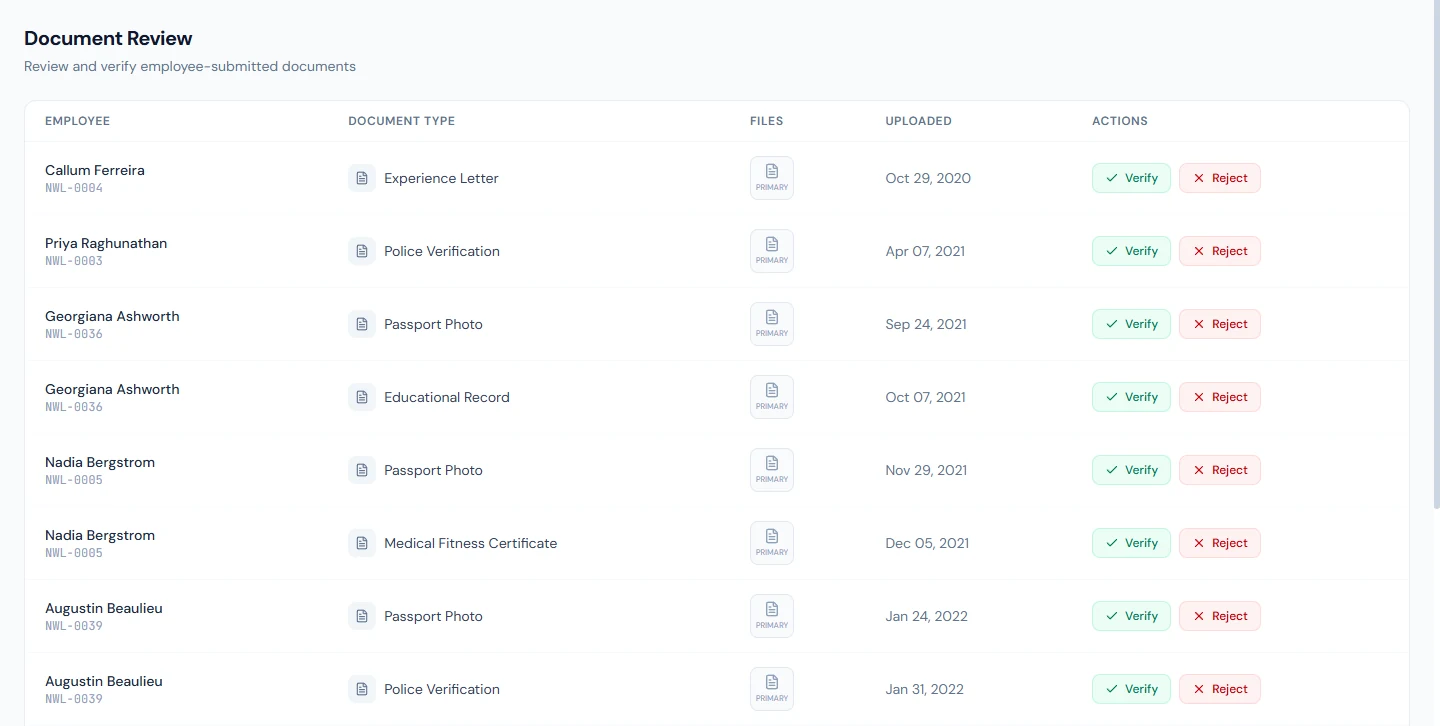
The admin dashboard (Chapter 7) raises a blue alert, "34 documents awaiting verification", that opens this queue. "No documents pending review — All submitted documents have been processed" is the state to aim for.
22.5 Document Compliance matrix: filters, populations, CSV export
Employees › Document Compliance answers "who still owes what" for the whole workspace. A summary strip reads, for the rows currently shown: Employees, Employees with all required documents, Employees missing required documents, Documents awaiting review, and Rejected, awaiting re-upload.
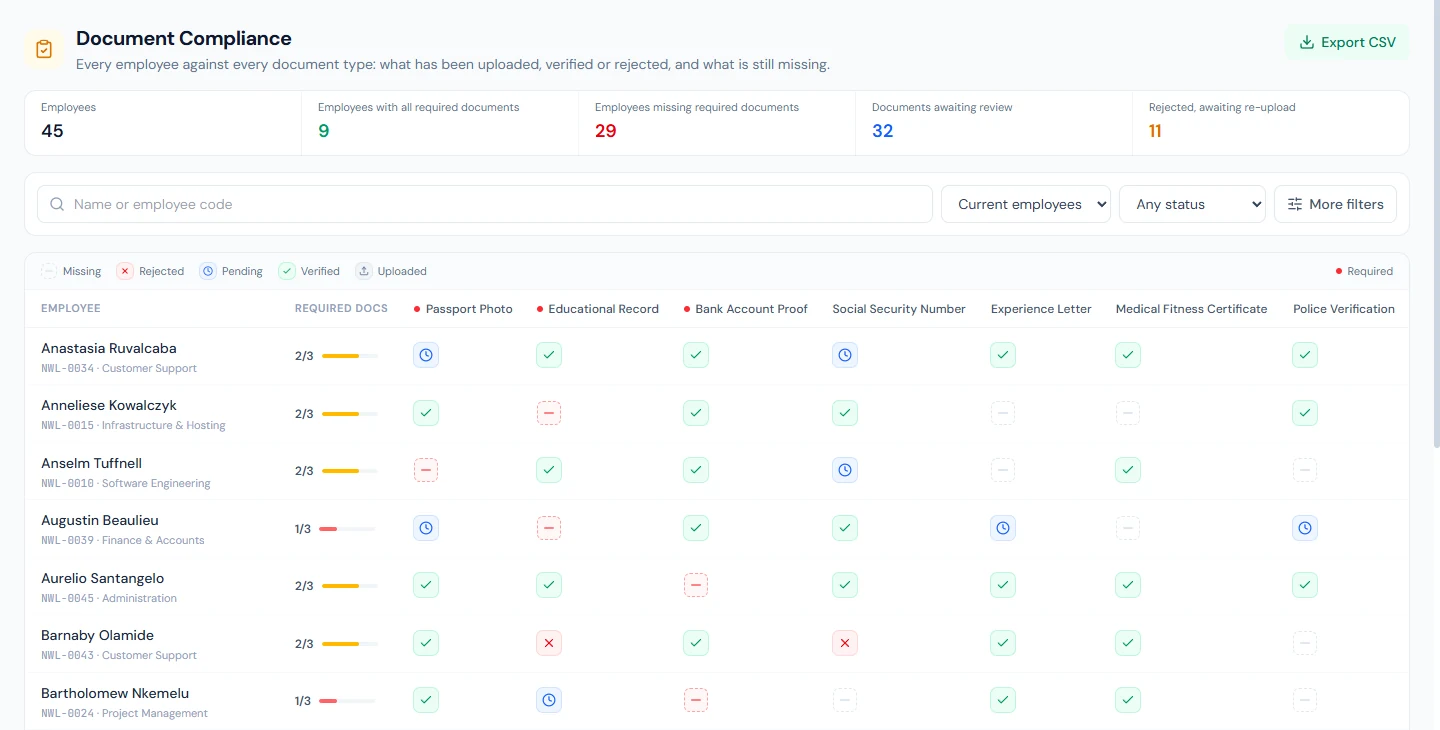
The matrix has one row per employee (name, code, department, and the status when it is not Active) and one column per document type, with a red dot on the required ones. Between them, Required docs shows the count complete and a bar: "2/3" for Imani. Each cell is one glyph, read from the legend above the table: a tick for Verified, an upload arrow for Uploaded, a clock for Pending, a cross for Rejected, a dash for Missing. A missing required document is a red dashed cell; a missing optional one is grey. A cell holding more than one upload carries a count, and hovering gives the breakdown ("Verified: 1, Pending: 1"). Clicking a name or any cell opens that person on the Documents page.
The filters: search by name or code; the population, Current employees by default, or Former, or All; and Show, which narrows the rows to Incomplete (a required type not complete), Missing (a required type with no upload at all), Awaiting review or Rejected. With a single document type chosen under More filters, Show asks about that type alone, and the matrix drops to that column. More filters also holds Department, Branch, Employment type and the sort: by name, or by completion lowest first. Clear filters resets everything, the population included.
Two measurement rules worth knowing. Completion is rounded down, so a file with one required document outstanding never reads 100%. And when no type is required at all, the column reads "Not measured" and the two required-document tiles show a dash, because there is nothing to measure.
Export CSV downloads the rows and document columns on screen, named document-compliance-current-2026-10-20.csv for today's current employees: Employee Code, First Name, Last Name, Department, Designation, Branch, Employment Type, Employee Status, Required Complete, Required Total, Completion %, Missing Required Documents (the names, semicolon-separated), then one column per visible type, headed "Passport Photo (required)" where it is required, holding the state and the breakdown.
Example. Before Northwind's quarterly audit, HR sets Show to Missing and sorts by completion lowest first: the people with a red dashed cell rise to the top, Imani among them for the missing photo. Export CSV with that filter is the chase list; clearing the filter and exporting again is the audit file.
22.6 Document emails
Three templates under Employee Lifecycle in Settings › Email Templates (Chapter 79) carry the loop, and each also lands in the bell:
| Trigger | To | Subject |
|---|---|---|
| Document Uploaded (to HR) | everyone who can review, except the uploader | New Document Uploaded by Harriet Okoro — Northwind Labs, Inc. |
| Document Verified | the employee | Your Passport Photo Has Been Verified — Northwind Labs, Inc. |
| Document Rejected | the employee | Your Educational Record Has Been Rejected — Northwind Labs, Inc. |
The upload email goes out only while document verification is on. The employee's emails go to their work address, or their personal one when there is no work address. A revoke sends the rejection email. Northwind has every trigger switched off, so in the demo only the bells ring.
What happens next
- A verified document changes nothing else in Operentra: the fields the employee typed stay on the document and are not copied to the profile. The bank account on the profile is the one payroll uses (Chapter 19); the bank proof is the evidence for it.
- A rejection or a revocation waits for the person. Nothing reminds them; the red border on their Documents tab, the reason on the card and the bell are the prompts.
- The matrix reads the live data every time it opens. A verification you grant on the Documents page moves the cell the next time the matrix loads.
- Deleting a document removes its files from storage as well as the entry.
What the employee sees
- The Documents tab in My Profile with the red borders, the summaries and the reasons; "Under review" while HR has it.
- A bell notification, and an email when the trigger is on, for each verification and rejection, linking to the Documents tab.
- The portal dashboard's list of required documents still missing.
Common mistakes
- Requiring a document that does not fit the country. The list is worded for your workspace's country, but Required is your choice. A required Police Verification in a workplace that never asks for one keeps every file incomplete forever.
- Rejecting without a usable reason. The reason is the whole message. "Rejected" tells the person nothing; "the back side is missing" gets the right upload next time.
- Expecting the employee to replace a pending document. They cannot. If the wrong file is waiting in the queue, reject it with a reason and the Re-upload button appears for them.
- Deleting a rejected upload to tidy the card. The reason goes with it, and the person loses the prompt. Leave it until the re-upload arrives.
- Reading the matrix with the population wrong. Current employees is the default; an auditor who wants last year's leavers needs Former or All.
- Judging a multi-entry type by its newest upload. Every upload counts there. A rejected certificate from two years ago keeps the type Rejected until it is re-uploaded or deleted.
- Waiting for an expiry alert. There is none. Dates are shown on the card and nowhere else.
- Expecting an HR upload button. Documents come in through the portal only.
Practice
Work in your own trial workspace with the invited employee from Chapter 16's practice.
- On Settings › Verification, read the allowed formats and size for Passport Photo, then make Medical Fitness Certificate required and optional again. Watch the badge change.
- As the employee, upload a PDF where only images are allowed and read the refusal. Upload an image, and read the summary on the card.
- As HR, open Document Review, reject the upload with a reason, then open Employee Documents for the same person and read the card.
- As the employee, re-upload. As HR, verify from the Documents page, then revoke with a reason, and read what the employee now sees.
- Open Document Compliance, set Show to Missing, sort by completion, and export. Open the CSV and find the Missing Required Documents column.
Quiz
1. An employee's Educational Record shows Rejected in the matrix although their newest certificate was verified yesterday. Why?
Educational Record accepts multiple entries, and every upload counts: any rejected one makes the type Rejected. An older rejected certificate is still on file. Delete it, or have it re-uploaded.
2. An employee says they cannot replace the document HR is reviewing. What do you do?
A pending or verified single-entry document cannot be replaced by the employee. Reject it with a reason that says what to send instead; the Re-upload button then appears for them.
3. Which roles can verify documents, and who is emailed when one is uploaded?
The Super Admin, HR Manager and HR Officer roles. The upload email and bell go to everyone holding that permission except the uploader, and only while document verification is switched on.
4. What does Revoke do to a verified document?
It turns the document into a rejected one carrying your reason, and sends the employee the rejection email asking them to re-upload.
5. The compliance matrix reads "Not measured" in the Required docs column. What has happened?
No document type is marked required on Settings › Verification, so there is nothing to measure. Every type is still listed and every cell still shows its state.