Chapter 14 — Users, roles and permissions
So far one person has done everything in your workspace: you, as Super Admin. Real HR work is shared, and sharing it safely means deciding who can sign in and what each of them can do once inside. This chapter covers both halves: the roles that bundle permissions, and the users who hold them.
What this chapter covers
- 14.1 Role-based access and least privilege
- 14.2 The default roles and what each can do
- 14.3 The Users list: statuses and the two-factor shield
- 14.4 Adding a user: invitation or no portal login, linking to an employee, assigning roles
- 14.5 Resending invitations and setup emails; resetting passwords; resetting two-factor
- 14.6 Activating, deactivating and deleting users
- 14.7 The per-person sign-in email exception
The concept
A permission is one capability, named by its module and its action: viewing all employees, approving leave, locking a payroll run. A role is a named bundle of permissions, and a person holds one or more roles. That is role-based access control, and it exists so that access is decided by job, not by person: when the payroll clerk leaves, the next one gets the same role, not a hand-copied list of switches.
Two rules make it predictable. Roles add up. A person with two roles can do everything either role allows; there is no way to take a capability away with a second role. And the check happens on the server, on every request: a role is not a menu, it is a lock on every door.
Least privilege is the discipline that goes with it: give each person the smallest set of capabilities their work needs, and widen it only when a real need appears. The cost of too little access is a request to you; the cost of too much is a payroll edited by someone who should only have read it.
Chapter 6 made the other distinction this chapter relies on: a person's account is theirs and may belong to several companies, while their membership in your workspace is yours to grant, shape and close. The Users page manages memberships. Some of its actions reach the account behind them, and the chapter says so each time.
How Operentra handles it
Access Control has three screens: Users (/admin/access/users),
Roles (/admin/access/roles) and Permissions
(/admin/access/permissions). The Users screen needs the users.manage
permission, held by Super Admin and HR Manager out of the box; Roles and
Permissions need roles.manage, held by Super Admin alone. These are the
only four admin pages the app refuses to open without the permission;
everywhere else, a missing permission hides a menu entry, and the server
refuses the action if someone finds the URL.
Every workspace starts with six system roles, locked against editing and deletion, and a catalogue of more than a hundred permissions grouped by module. Custom roles are built by duplicating a system role and trimming it. Memberships are created by the employee flow (Chapter 16), which gives each employee the Employee role, or by hand on the Users page.
Walkthrough
14.1 Where access is decided
Open Access Control → Permissions first. It is a read-only catalogue:
every permission the platform defines, grouped by module (Company,
Employees, Attendance, Leave, Payroll, Salary Slips, Tax, Loans, Reports,
Users, Roles and the rest), each with its display name, its code such as
payroll.lock, and a one-line description. You cannot add or remove
permissions here; you choose which roles grant them.
Then open Access Control → Roles. Each role is a card with its name, slug, description, how many permissions it grants and how many users hold it. A System badge marks the six defaults.
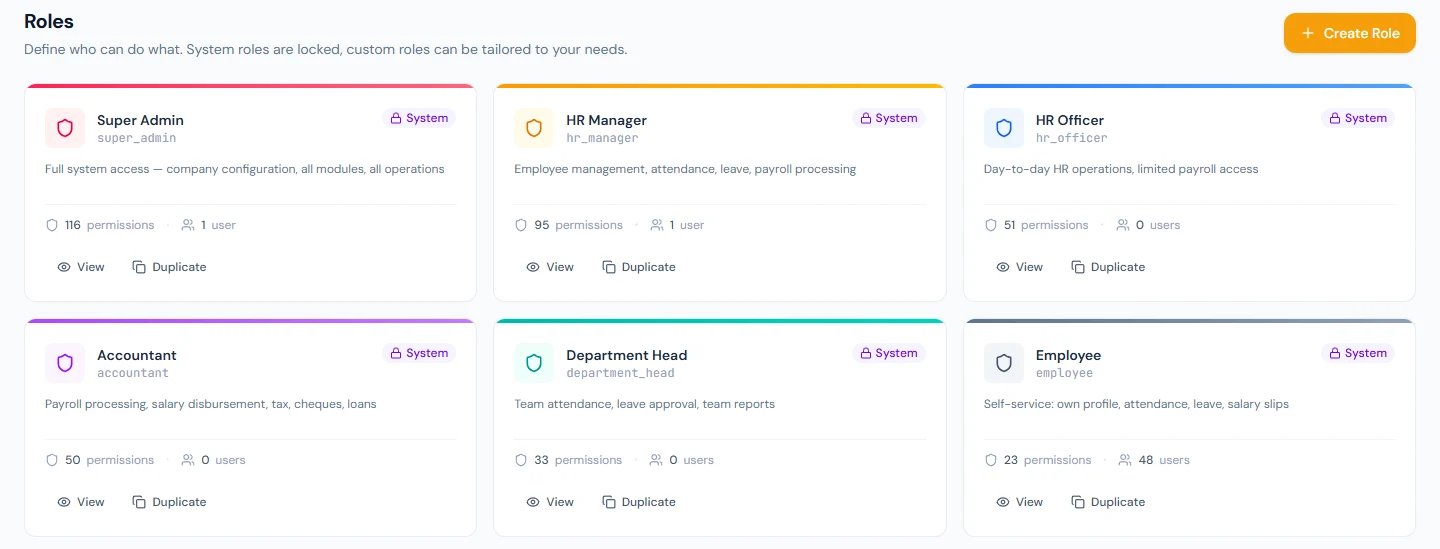
Opening a role shows the editor: modules down the left, each with a selected-of-total count and a filled, half-filled or empty indicator; the chosen module's permissions on the right as checkboxes. System roles open view-only. For a custom role, tick and untick, use Select all in module or the footer's Select all and Clear all, rename inline, and Save changes; an Unsaved badge and a leave-page warning guard your edits.
14.2 The default roles
| Role | Built for | Can | Cannot |
|---|---|---|---|
| Super Admin | The owner and one deputy | Everything, including the powers no other default role has: manage roles and users, sign in as another user, reset a member's two-factor, lock payroll, edit email templates, configure recruitment, manage API keys and backups. | Be removed as the last one. |
| HR Manager | The head of HR | The whole employee lifecycle including delete, import and confirmation; documents and contracts; attendance marking and the regularisation and overtime approvals; leave approval and leave configuration; payroll processing, approval and configuration, salary assignment, slips; tax and loans; holidays, announcements, letters, biometric devices, appraisals, assets, onboarding, offboarding, expense approval, performance; audit logs; managing users. | Manage roles; sign in as someone; lock or hard-edit a payroll run; cheques; email templates; recruitment; backups. |
| HR Officer | Day-to-day HR staff | See every employee, attendance, leave and document; create and update employees; mark attendance and raise regularisations; holidays and announcements; letter requests; assets; onboarding; department reports. | Delete anything; approve leave, regularisations or overtime; process payroll or administer tax and loans. |
| Accountant | Finance | See employees and attendance; run payroll end to end including locking and disbursement; slips; cheques; tax; loan approval; expense approval; every report and print. | Create or edit employees; mark attendance; approve leave; announcements; letters; users or settings. |
| Department Head | Line managers | See their direct reports' attendance and leave, on a team dashboard; approve those reports' leave, regularisations and overtime, and nobody else's, which the server enforces; review appraisals and grade tasks for their reports; approve the team's expenses; their own self-service (Chapter 89). | Edit employee records; the employee directory; payroll; reports; anything outside the team. |
| Employee | Everyone | Their own profile, documents, attendance, leave, slips, tax, loans, expenses, letters, announcements, holidays and reviews. | See anyone else's data or approve anything. |
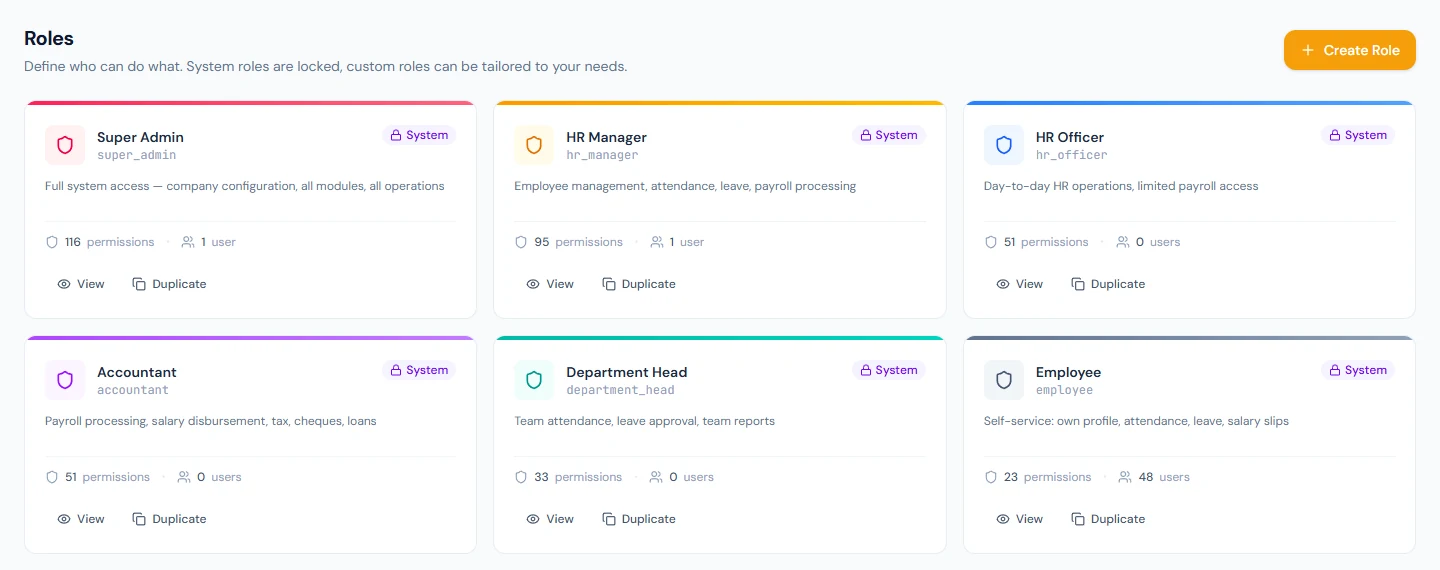
Two of the six are complementary by design: a small company can give one person both Accountant and HR Manager and get the union. Super Admin is for one or two people; everything else is better done from HR Manager.
Need something in between? Duplicate the nearest system role, which copies its permissions into a new editable role, then trim. A custom role with no users can be deleted; a role still assigned to people cannot. When a new module ships, its permissions appear in the catalogue and in the system roles, but not in your custom roles until you tick them.
Northwind has three real sign-ins: Dana Whitfield, the Super Admin you have been using; Solomon Nakamura, who holds HR Manager so the course can show the approving side of a request; and one employee login for the portal chapters. Everyone else in the directory has a membership with the Employee role but no credentials, which is the next section's No portal badge.
14.3 The Users list
Open Access Control → Users.
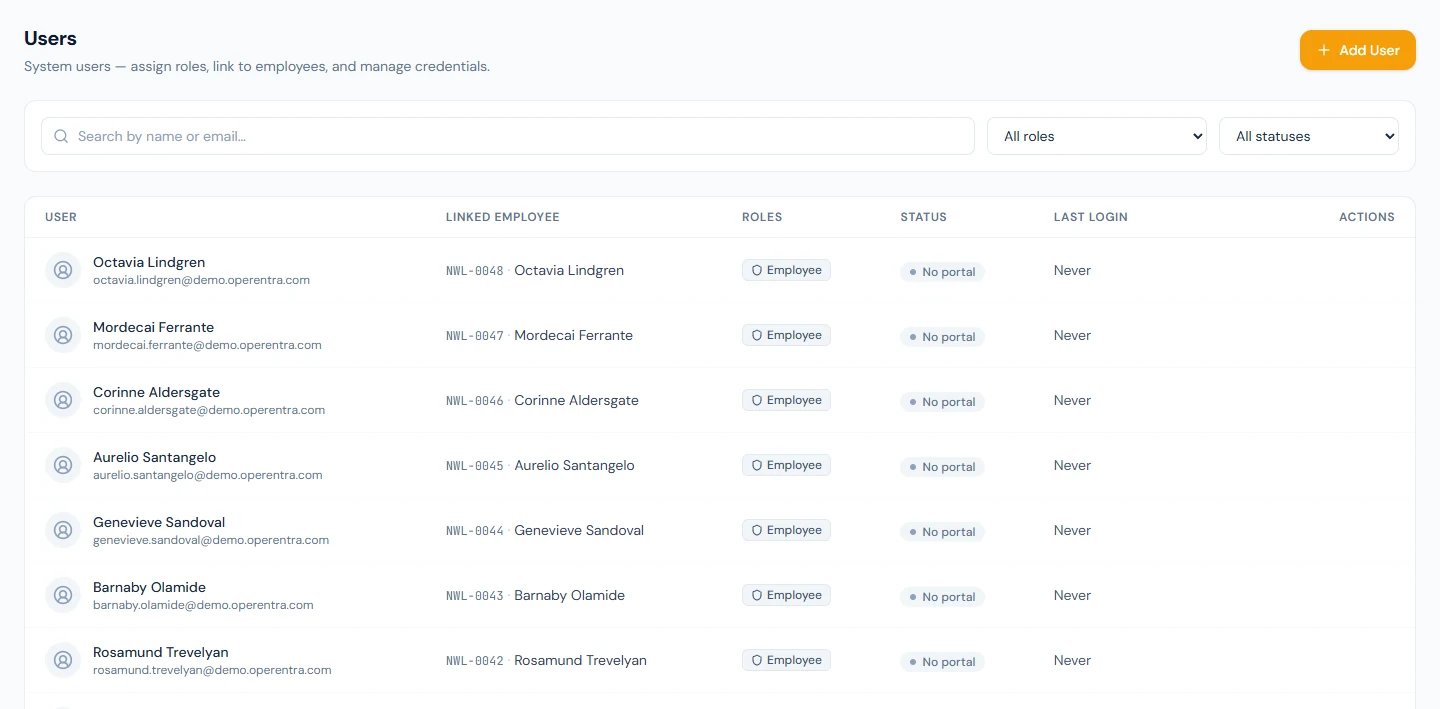
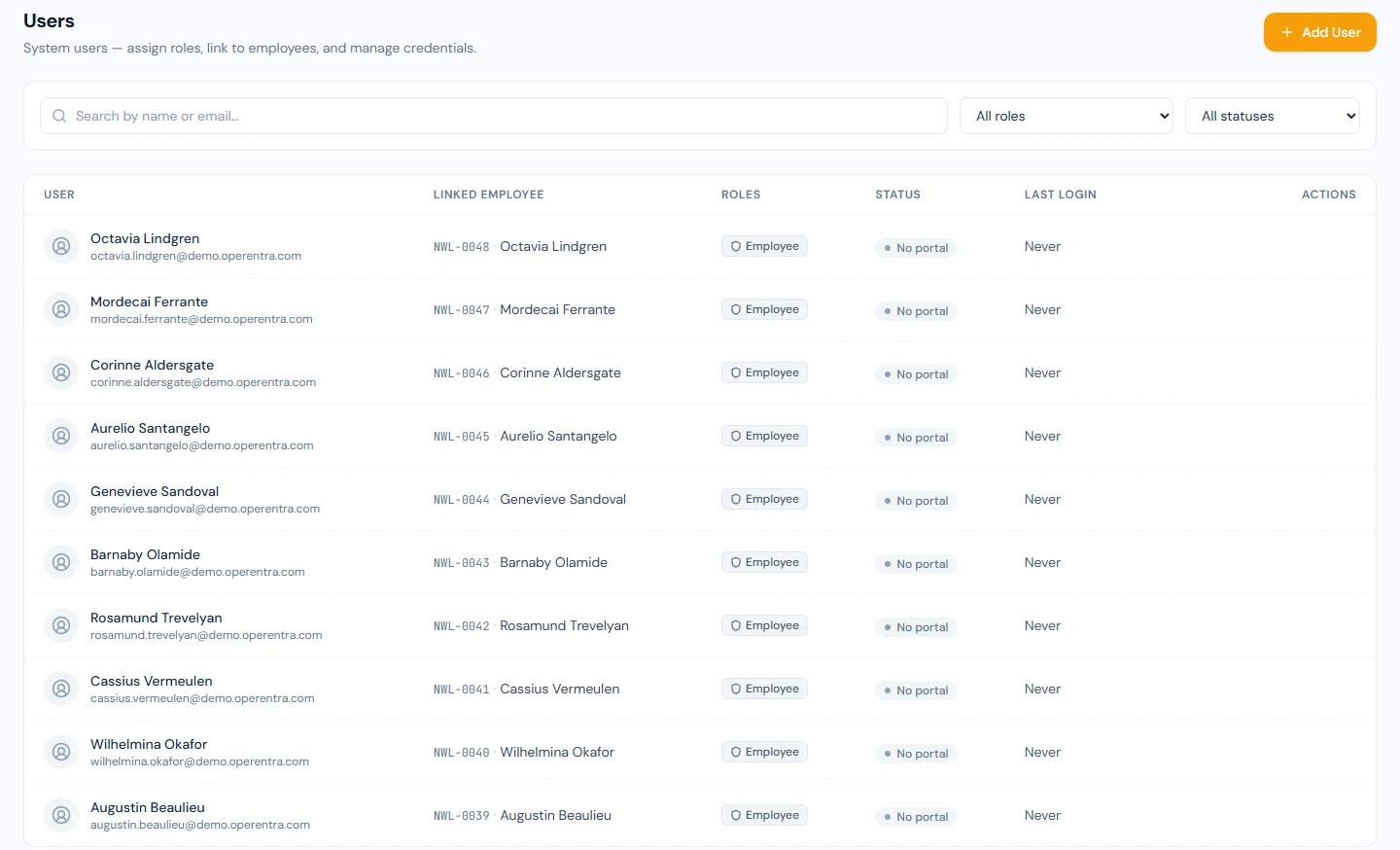
Each row shows the person's name and email, the linked employee's code and name, their role chips, a status, and when they last signed in, with the actions appearing on hover. Search by name or email, filter by role or by active status; the list shows ten rows a page.
| Status | Meaning |
|---|---|
| Active (green) | A working sign-in. Clicking the pill deactivates. |
| Inactive (grey) | Deactivated. History kept, sign-in refused. Clicking the pill reactivates. |
| Invited (amber) | An invitation is out and unclaimed. Hover to see the address it went to. |
| Invite expired (red) | The seven-day link lapsed before it was used. |
| No portal | A membership with no credentials: the person exists in the workspace, counts toward the seats, appears in approval queues and receives payslips, but cannot sign in. |
| Declined | The person refused the invitation. Their employment record, if any, is untouched. |
A green shield beside the status means the person has two-factor authentication enabled. Never under last sign-in is what you will see beside most employees in a new workspace, and beside every no-portal row.
14.4 Adding a user
Most memberships are made for you: adding an employee (Chapter 16) creates one with the Employee role, invited or admin-managed as you choose there. Add User is for everyone else, such as an accountant or an auditor who needs access without an employee record, or an HR colleague who is also an employee and needs more than the Employee role.
| Field | Notes |
|---|---|
| Name, Email | Required. The email must be unique within your workspace; the same person may already have a membership elsewhere, which is fine. |
| Portal access | Invite to workspace emails an invitation; the person accepts with their own password. No portal login creates the membership with no credentials; invite them later from the row. Decided once, at creation. |
| Linked employee | Optional. Type a code or a name and pick. An employee can be linked to one user only, and an employee added through Chapter 16 is already linked, so this is for records that have no membership yet. Set once, at creation. |
| Roles | Click the chips. The person gets the union of what you pick; a user with no roles can sign in and do nothing. |
| Active | Ticked by default. |
There is no password field, on purpose. Membership is an offer: with Invite to workspace, an email goes out with a link that lasts seven days. An address new to the platform chooses a password at the link; an address that already has an Operentra account, say from a sister company, signs in as usual and finds the invitation as a banner with Accept and Decline, and the existing password is untouched. Until they accept, the row reads Invited and nothing of theirs is in your workspace. If the email cannot be sent, the membership still exists, the page tells you the send failed rather than pretending, and Resend invitation is on the row.
Declining is not resigning: a declined invitation attached to an employee record leaves the employment untouched, the row reads Declined, and you can invite again at any time.
14.5 Invitations, setup emails, passwords and two-factor
Hover a row for its actions.
- Resend invitation (envelope, on Invited and Invite expired rows) makes a new seven-day link and sends it again; it also clears a previous refusal.
- Invite to portal (envelope, on No portal and Declined rows) asks for an address, which becomes the person's sign-in email, and sends the invitation.
- Resend setup email (envelope, while a person still has to choose their own password) sends a one-click link that lasts 48 hours. It appears after an administrator's password reset too, so you can hand the person a link instead of a password.
- Reset password (key) lets you set a password for the person, at least eight characters, which they must change at their next sign-in. Because the password belongs to the account, this re-keys their sign-in for every company they belong to, signs them out everywhere, and lifts a lockout, so someone locked out after wrong guesses can sign in at once. It is refused for a row that has no login.
- Reset two-factor (shield-off, shown only on rows with the green
shield, and only to holders of the
users.manage_2fapermission, Super Admin by default) clears the authenticator and every recovery code. The person signs in with the password alone and can enrol again. Because two-factor protects the account, the reset removes it from their other workspaces as well; the person is emailed and the event is in the login audit trail. Treat the permission like impersonation. - Sign in as user (log-in icon, holders of
users.impersonate) opens the app as that person to see what they see. Not yourself, not an inactive row. Every action is recorded under their account, the event is audited, the session is pinned to this workspace even if they belong to others, their two-factor is not prompted for, and a banner takes you back to your own session.
14.6 Activating, deactivating and deleting
Deactivate by clicking the green pill, or untick Active in the edit form. The person keeps every record and cannot sign in. If this was their last active membership anywhere, their login goes dormant; reactivating any membership wakes it. Deactivation is the normal end of access, and the only one available for anyone who has ever signed in.
Delete (trash) is for mistakes: a membership created for the wrong person, never used. You type the person's email, or their name for a no-portal row, to confirm. The server refuses when the person has any audit history: audit-log entries, sign-ins, sign-in attempts, announcements they authored or read, saved reports, interview feedback they gave, API keys they created (revoked ones included). The refusal lists what it found, in your language. In practice that is everyone who has ever signed in, and the answer is to deactivate. You cannot delete yourself. If the deleted membership was the account's only one, the login is removed with it.
The last Super Admin stays. Operentra refuses to delete, deactivate, or remove the Super Admin role from the last active Super Admin, from the pill, the edit form and the trash alike. Give the role to someone else first.
14.7 Editing a member and the sign-in email exception
Edit (pencil) changes the name, the email, the roles and the active flag. Roles take effect on the server at once; the person's menus follow at their next sign-in, so ask them to sign out and in when you change what they may do.
Changing the email is allowed only while the person belongs to this one workspace, in which case their sign-in address moves with it. When they belong to several companies, the address is their platform sign-in and the edit is refused: it is theirs to change, from My Account (Chapter 6).
Allow sign-in email change is the per-person exception to the official-email-only policy from Chapter 13. Tick it and this one member may move their sign-in to another address while still employed, which the policy otherwise forbids. Under the flexible policy it changes nothing.
What happens next
- An invitation sends the Employee Account Invitation email to a row linked to an employee, or the Workspace Invitation email to one that is not; both carry the address that becomes the sign-in email and the seven-day expiry (Chapter 79 covers the templates).
- A setup email carries a 48-hour link. A password reset sends no email: you tell the person the password yourself, or send the setup link instead.
- A two-factor reset emails the person. Impersonation, resets and every sign-in land in the login audit trail (Chapter 91).
- Role and permission changes apply to the next request the person makes; their screen catches up at their next sign-in.
- Deactivating a member closes nothing else: employment, payroll and attendance carry on.
What the employee sees
An invitation email with Activate My Account; a password prompt if the address is new, or a banner with Accept and Decline on their next sign-in if they already have an account. After accepting, their row turns Active and they land on the portal or the admin panel according to their roles. After an administrator's password reset, Your session has ended on every device and a forced password change at the next sign-in. After a two-factor reset, an email saying so and a sign-in that asks for the password alone. While being impersonated, nothing: the session is the administrator's, recorded under their name.
Common mistakes
- Super Admin for convenience. One or two people. Everyone else gets HR Manager, Accountant or a custom role.
- Trying to edit a system role. It opens view-only. Duplicate it and edit the copy.
- Changing a role and expecting the menu to change. The server already enforces the new permissions; the person must sign out and in to see them.
- Deleting instead of deactivating. Deletion is refused for anyone with history; deactivation is the way access ends.
- Resetting the password of someone who belongs to several companies without telling them. It changes their sign-in everywhere and signs them out everywhere.
- Adding a user with no roles. They can sign in and see nothing. Pick at least Employee, or the role their work needs.
- Adding a user for someone who already has an employee record. The employee flow already created their membership; edit that row's roles instead of creating a second.
Practice
In your workspace:
- Open Permissions and expand the Payroll module. Read its permissions and notice which are view, which are process, and which are lock.
- Open Roles, duplicate Accountant as "Payroll Manager", and in the editor clear the Cheques and Loans modules. Save. Note the permission count on the new card.
- Open Users. Add a user with No portal login for an auditor, with the Accountant role; see the No portal badge. Then use Invite to portal on that row with an address you control, and watch the row become Invited.
- Enrol your own account in two-factor if you did not in Chapter 6, then return to Users and find the green shield on your row.
- Try to deactivate yourself from the pill. Read the refusal, then add a second Super Admin you trust before you ever need it.
Quiz
1. A person holds HR Officer and Department Head. Can they approve a leave request from their own team?
Answer
Yes. Roles add up, and Department Head grants leave approval for direct reports. HR Officer alone could only view it.
2. What is the difference between a No portal row and an Inactive row?
Answer
No portal is a membership that never had credentials: the person is in the workspace but has nothing to sign in with, and can be invited later. Inactive is a membership whose sign-in was switched off; it keeps its history and can be switched on again.
3. You change a user's roles. When does the change apply, and when does the person see it?
Answer
It applies on the server to their very next request. Their menus and buttons follow at their next sign-in, so ask them to sign out and in.
4. Why does deleting a user who signed in last month fail, and what do you do instead?
Answer
The sign-in is audit history, and the server refuses to delete anyone with history. Deactivate the membership instead.
5. You reset the password of a member who also works at a sister company on the same account. What happens there?
Answer
The password belongs to the account, so it changes for the sister company too, and the person is signed out everywhere and must set a new password at their next sign-in.