Chapter 59 — Salary slips
The slip is what the employee keeps. It is the proof of income a landlord or a bank asks for, the record a tax return is filed from, and the first place anyone looks when pay seems wrong. Operentra produces one for every entry of every run, in the workspace's language, with a QR code that lets a third party check it is genuine, and closes the loop with the employee's acknowledgement that the money arrived.
What this chapter covers
- 59.1 Slip templates: default, clone, languages, tokens
- 59.2 Viewing, downloading and emailing slips (period mode, employee mode)
- 59.3 Bulk ZIP and bulk email
- 59.4 QR verification on slips
- 59.5 Employee acknowledgement, signed slip, reminders
- 59.6 Resending acknowledgement requests and signed slips
The concept
A good slip answers every question about one month's pay without a phone call: gross and how it was made up, every deduction and why, what the employer paid on top, the attendance behind any docked days, the tax and the year so far, the net, and how and when it was paid. Two controls make it trustworthy beyond the company: verification, so that a document a stranger is shown can be checked against the source, and acknowledgement, so that the company can show the employee confirmed receiving the money on a given date.
How Operentra handles it
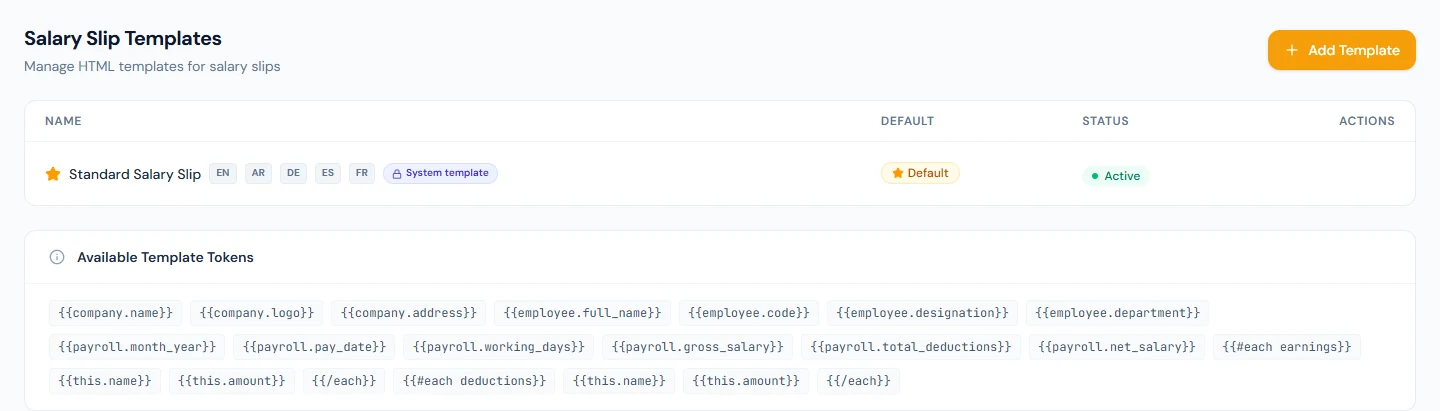
- Payroll › Slip Templates lists the slip designs: the shared system template (read-only; clone it to edit) and any the workspace made, each in its language versions, with one marked Default. The slip prints in the workspace's document language.
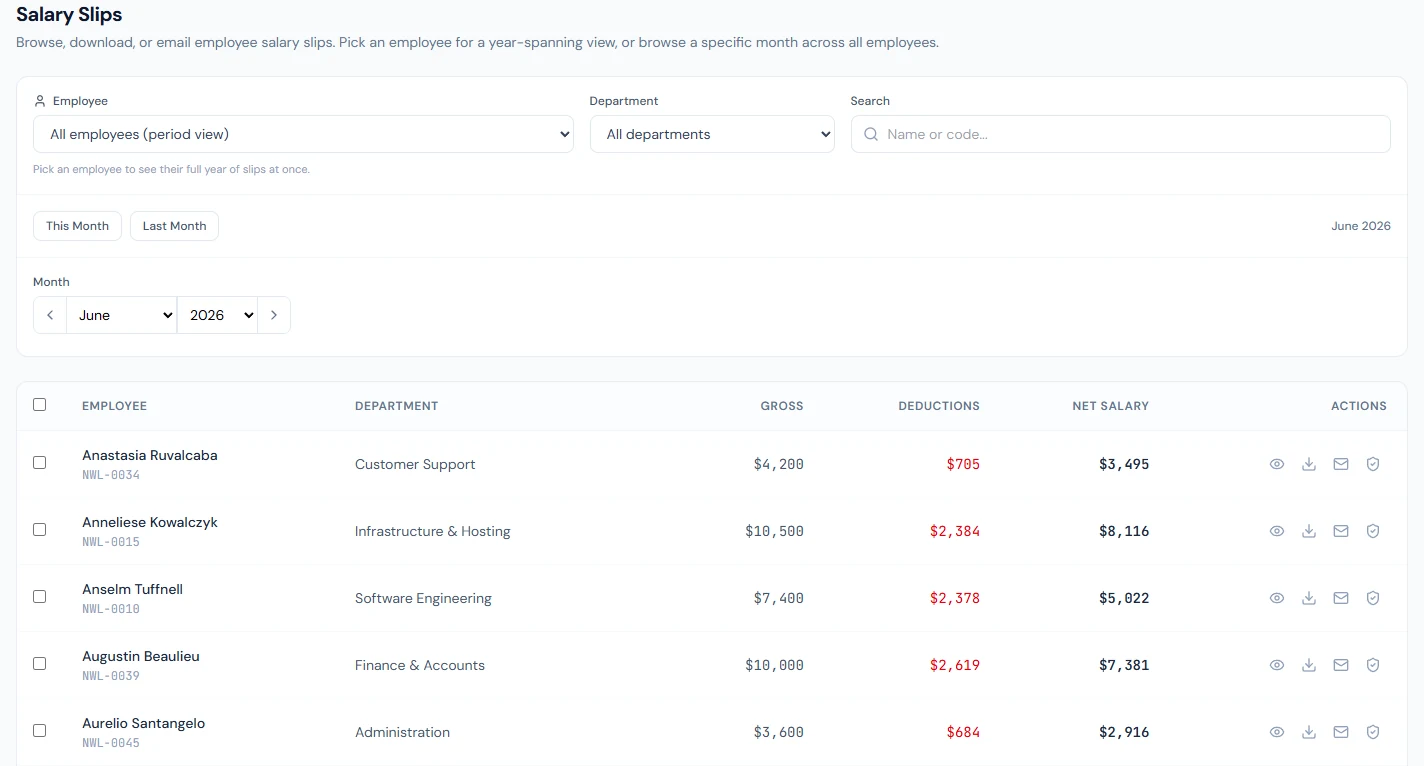
- Payroll › Salary Slips shows slips by month for everyone, or by employee for a whole year; each can be viewed, downloaded as a PDF or emailed with the PDF attached.
- Download ZIP and Email All act on a selection.
- Every slip carries a QR code to a public verification page; the Verification dialog shows its status and scans and can revoke or restore it.
- After payment, the employee is asked to confirm receipt in the portal; confirming records the time and IP address and emails the signed slip. Two reminders follow, after two and five days.
- Resend the request or the signed slip from the run's entries.
- Who:
salary_slips.view_allandsalary_slips.email(Super Admin, HR Manager, Accountant); templates with the workspace settings permission; every employee sees their own.
Walkthrough
Northwind's thirteen runs give it thirteen months of slips for most of its people, printed from the system template in English. Its ten paid runs were marked paid without the acknowledgement emails (one request went out, for a single May slip), and no slip has been acknowledged: Imani's portal counts all ten paid slips as awaiting acknowledgement, because the portal asks about every paid slip whether or not an email was sent. Northwind is a US workspace, where no statute is cited for the acknowledgement.
59.1 Slip templates: default, clone, languages, tokens
Slip Templates lists each design with chips for its language versions; clicking a chip previews that version. The system template, marked as such, is shared by every workspace and kept up to date by the platform; it cannot be edited, only cloned, which copies every language version into an editable design for the workspace. Add Template starts one from scratch: a name and the HTML content, built from the tokens listed under the editor (the employee's details, each earning and deduction line, attendance, tax, year-to-date figures, the net, the payment). Set default chooses the design new slips use; a template must be active to be default, the default cannot be deleted, and deleting a design deletes its language versions.
The standard slip runs to two pages: the payslip itself, then a salary statement with the year so far, the last twelve months, tax and fund summaries and the employer's cost. It prints in the workspace's document language (Chapter 13), not the reader's, because it is a document of record.
The payslip's attendance strip shows working days, present, absent,
leaves and late arrivals, plus Half Days, Unpaid Leave and
Early Leave in a month that has any, so each attendance deduction
has its count on the slip. A custom template can print the same
counts with the payroll.half_days, payroll.unpaid_leave_days and
payroll.early_leave_count tokens (Appendix D).
59.2 Viewing, downloading and emailing slips (period mode, employee mode)
Salary Slips opens in period mode: one month across all employees, with a month stepper, a department filter and a search, listing gross, deductions and net per person. Choosing an employee switches to employee mode: their slips for a year, with the year stepper, for the question "show me everything I was paid this year". Each row can be viewed in the slip viewer, downloaded as a PDF, or emailed: "Send slip to Imani Castellanos?", with the PDF attached to the address on file. A slip whose run is out of date says so in the viewer ("This slip is out of date. 1 new bonus for this employee since the run was processed."), so nobody sends a slip that a reprocess would change. Imported slips (Chapter 64) carry an Imported badge.
59.3 Bulk ZIP and bulk email
Tick slips, or a whole month, and the bar offers Download ZIP ("Bundle 45 salary slips into a single ZIP file?"; large batches take a minute) and Email All ("Each employee receives their own slip as a PDF attachment. Employees without an email on file are skipped."), which ends with a count of sent and skipped. Bulk email is for a company that sends slips on pay day rather than through the acknowledgement flow below; doing both sends each employee two emails.
59.4 QR verification on slips
The first time a slip is downloaded or emailed, it gets a verification token, printed as a QR code. Scanning it opens a public page that confirms the slip came from the workspace and lets the holder download the original, so a landlord can check a slip against the source rather than trusting a copy. The Verification button on a slip's row shows the token's status (Active or Revoked), its URL and code, how many times it was scanned, and Revoke this document with a reason; after revoking, a scan shows a REVOKED banner and no download. Revoking is reversible with Restore verification. Use it for a slip that was superseded by a corrected one. Chapter 77 covers verification for every document type.
59.5 Employee acknowledgement, signed slip, reminders
When a run is marked paid with the email box ticked (Chapter 58), or a cheque is issued, each employee is emailed that their salary was paid and asked to confirm receipt. In the portal, My Salary shows a banner, "1 salary slip awaiting your acknowledgment", and the slip a card, "Confirm receipt of your salary", with Acknowledge Receipt; the banner counts every paid slip not yet confirmed. The confirmation dialog asks "Confirm you've received your June 2026 salary?" and says what it records: the time and the IP address, as evidence of receipt, and that anything wrong should go to HR before confirming. Confirming marks the slip Acknowledged with its date, emails the signed PDF slip, and adds Download Signed Salary Slip (PDF) to the card. Where the workspace's country has an electronic-signature statute, the note names it; in a US workspace it does not.
An employee who has not confirmed receives a reminder two days after the request and a second three days after that; nothing further is sent. Reminders go out shortly after 09:00 in the workspace's time zone. The run's entries show Awaiting Ack for paid, unconfirmed slips and Acknowledged with the date once confirmed.
59.6 Resending acknowledgement requests and signed slips
On the run page, a paid entry awaiting acknowledgement has Resend acknowledgment request email, for the employee who deleted it or changed address; an acknowledged entry has Resend signed salary slip with PDF. Clearing a payment (Chapter 58) also clears the acknowledgement, so a re-paid entry is acknowledged again.
What happens next
- Tax certificates and reports (Chapters 63 and 65) draw on the same entries; document verification (Chapter 77) covers letters and certificates too.
What the employee sees
Their slips in the portal, month by month, with each run's status; the acknowledgement request and its reminders; the signed slip after they confirm; and the public verification page when someone scans their QR code.
Common mistakes
- Editing the system template. It is read-only; clone it, then set the clone as default.
- Emailing slips from a run still in Review. The figures can change; send after locking, or let the acknowledgement flow send the signed slip.
- Bulk email and the acknowledgement flow together. Employees get two emails; pick one.
- Ignoring the out-of-date notice. Reprocess the run before sending that slip.
- Revoking instead of correcting. Revocation hides a slip; issue the corrected one too.
- Treating a missing acknowledgement as non-payment. It is a missing confirmation; check the payment record and resend.
- Missing email addresses. Those employees are skipped silently in bulk sends; fill the profiles.
Practice
Use your own trial workspace, not a customer's.
- Open Slip Templates, preview the system template in two languages, and clone it.
- Open Salary Slips in period mode for a paid month, view one slip, and download it; switch to that employee's year.
- Open the Verification dialog for the downloaded slip, copy the URL and open it in a private window; revoke it, reload, and restore it.
- Mark a run paid with the email box ticked, sign in as an employee, and acknowledge the slip; read the card afterwards.
- On the run page, resend the signed slip to that employee.
Quiz
1. How do you change the slip's design?
Clone the system template (it copies every language version), edit the clone, and set it as default; the system template itself is read-only.
2. What is the difference between period mode and employee mode?
Period mode shows one month for everyone; employee mode shows one person's slips for a year.
3. What does revoking a slip's verification do?
A scan of its QR code shows a REVOKED banner and cannot download the slip; it can be restored.
4. What happens when an employee acknowledges a slip?
The time and IP address are recorded, the slip shows Acknowledged, and the signed PDF is emailed and downloadable in the portal.
5. How many reminders does an unacknowledged slip get?
Two: after two days and again three days later.