Chapter 81 — Brand Studio: ID cards, visiting cards and email signatures
A company ID card does two jobs. It tells a receptionist, a client or a security guard that the person carrying it works here, and it gets them through the door. The first job fails quietly when people leave: the card stays in a drawer, still looks official, and nobody can tell from the plastic that it stopped meaning anything. The same company also hands out business cards and puts a signature under every email, and each of those drifts from the brand a little more with every person who makes their own. Brand Studio makes all three from one set of brand decisions, and gives every ID card a QR code that answers the only question that matters: is this card valid today?
Brand Studio isn't part of any plan, the free trial included. A workspace unlocks it by writing an honest review of Operentra on G2 and sending the link, from Billing or from a locked Brand Studio page (Chapter 94). It appears in the menus once the workspace is in regular use: at least 10 active employees and a payroll run approved, locked or paid (on a plan without payroll, attendance recorded on 15 of the last 30 days). Until then it is left out of the menus, and its pages, opened from a link, say Not available yet (Chapter 5). From then until a review unlocks it, its menu entries show a lock and employees don't see the three portal pages. Cards issued while it was on keep verifying, and can still be revoked (81.4).
What this chapter covers
- 81.1 The brand kit
- 81.2 Issuing ID cards
- 81.3 Printing from the queue
- 81.4 Reissue, revoke and returned cards
- 81.5 Joiners and leavers
- 81.6 What the QR code shows
- 81.7 Visiting cards
- 81.8 Email signatures
- 81.9 Requests from employees
The concept
An ID card is a claim, "this person works for us", printed on something that outlives the claim. Three rules keep it honest.
- It can be checked. Anyone holding the card can confirm it against the employer's own records, not against what is printed on it.
- It can be withdrawn. When the claim stops being true (the person leaves, the card is lost or stolen, a replacement is issued), the check must say so at once, whether or not the card ever comes back.
- It says no more than it must. A card is read by whoever finds it. Name, photo, role and employee number identify the holder; a blood group or an emergency contact belongs on a card only where the work needs it, a site with medical risks for example.
Collecting the card when someone leaves is still good practice (it is an item on most clearance checklists), but it is no longer what keeps the card from being misused: the check does that.
Business cards and email signatures are the other everyday carriers of a brand. They go wrong in a slower way: someone's title changes and the card doesn't, or each person builds a signature with their own font and an old logo. One brand kit that every piece is made from, and each person's details taken from their HR record, keeps them consistent.
How Operentra handles it
- One brand kit per workspace holds the logos, colours, typeface, contact details and the layout of each piece. Cards and signatures are made from it and from each employee's record.
- ID cards are issued to current employees (New, Active or On Leave) who have a photo and a designation. Each card gets a serial number, an expiry date and its own QR code, and waits in a print queue until HR marks it printed, which emails the holder that it is ready to collect.
- The QR code opens a public page that says Valid ID card or Not a valid ID card, and never why not. A card stops being valid when it is revoked, replaced or past its expiry, or when its holder is no longer a current employee.
- Leavers' cards are revoked by themselves when the final settlement is completed, when the employee record is deleted, and on rehire (a card from the earlier employment).
- Visiting cards are ordered per employee in batches of 50 to 500 and printed from their own queue. Email signatures are built from the kit and the employee's record each time they are opened; HR can copy one or email employees a link to theirs.
- Employees see their ID card, signature and business card in the portal, and can ask for a replacement card or a batch of business cards.
- Who:
| Permission | What it allows | Default roles |
|---|---|---|
brand_studio.manage | The brand kit: logos, colours, layouts | Super Admin, HR Manager |
brand_studio.issue | ID Cards, Visiting Cards, Email Signatures and Requests: issue, print, revoke, order, send, handle requests | Super Admin, HR Manager, HR Officer |
brand_studio.view_own | The three portal pages | Every role |
brand_studio.request | Asking for a replacement card or business cards from the portal | Every role |
So an HR Officer issues and prints cards but cannot change the kit. The
pickers that list employees on the Visiting Cards and Email Signatures
pages read the employee directory, so a custom role also needs
employees.view_all to use them (Chapter 14).
Walkthrough
Dana Whitfield, Northwind's Super Admin, sets Brand Studio up for the 47 current employees: 45 Active and 2 New, all with a photo and a designation on file, across two branches. Brand Studio is switched on for Northwind, a demo workspace, by the platform.
81.1 The brand kit
Brand Studio › Brand Kit: "The logos, colours and layouts that every ID card, visiting card and email signature is made from." The form is on the left; on the right a live preview, previewed with a sample employee, has five tabs: ID card · front, ID card · back, Visiting card · front, Visiting card · back and Email signature. Form changes show in the preview at once and are saved only by Save Changes (Discard goes back to the saved kit). If someone else saves the kit while you edit, their version loads and you make your changes again. Logo uploads are the exception: uploading or removing a logo saves straight away, without touching your unsaved edits.
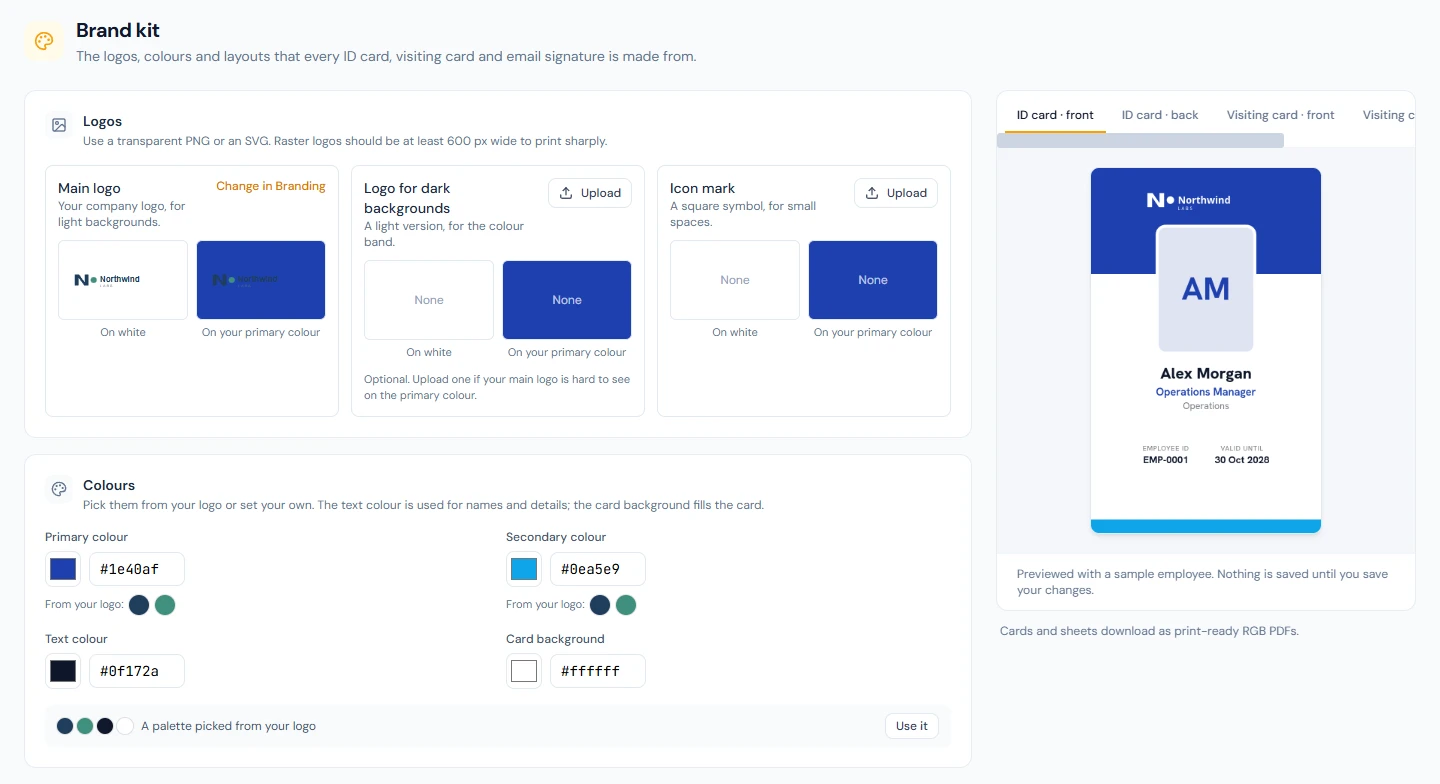
Logos. Three slots, each shown on white and on your primary colour. The Main logo is the one from Settings › Branding (Chapter 13), changed there with Change in Branding. The Logo for dark backgrounds is optional: a light version for the colour band, worth uploading when the main logo disappears on the primary colour. The Icon mark is a square symbol for small spaces. A transparent PNG or an SVG prints best (JPEG and WebP are accepted), up to 5 MB, counted against the workspace's storage. A raster logo narrower than 600 pixels (256 for the icon mark) gets a warning that it may print soft.
Colours. Primary colour, Secondary colour, Text colour (names and details) and Card background. With a main logo on file, From your logo: offers swatches, and A palette picked from your logo sets all four with Use it. Text on the colour band is white or your text colour, whichever reads better; when even that stays under 4.5:1 contrast (the WCAG AA minimum), a warning under the primary colour says so. Take it seriously: a card is read at arm's length, often under poor light.
Type and contact details. Typeface (Hanken Grotesk or Schibsted Grotesk); a Tagline for visiting cards; a Website, printed exactly as typed, or the company website when left empty; and Paper size for print sheets, the starting choice when you download a sheet. The paper is set from the company's country the first time the kit is opened: US Letter in the United States and Canada, A4 elsewhere, so Northwind's kit starts on US Letter.
Social links. Up to eight (LinkedIn, X, Facebook, Instagram, YouTube, TikTok, GitHub), shown on email signatures.
ID card. "The layout and the details shown apply to cards issued after you save."
- Layout: ten designs, each shown as a picture drawn with the saved logo and colours: six portrait (Classic, Sidebar, Minimal, Diagonal, Corporate and Badge, which keeps the top clear for a lanyard punch) and four landscape (Classic, Panel, Banner and Minimal). A card keeps the design it was issued with. Every design keeps the text, the photo and the QR code at least 5 mm from the card's left and right edges, where a badge holder or sleeve can cover them; only the colour bands may run under it.
- Shown on the card: Designation, Department, Branch, Issue date and Expiry date; all but Branch start on. Every card also prints the name, photo, employee code, serial number and QR code.
- Personal details on the card back: Blood group and Emergency contact, both off. Leave them off unless the work needs them (see the concept above).
- Valid for (months): 24 to start with, up to 120; 0 means cards do not expire.
- Serial prefix: 1 to 10 capital letters or digits,
IDto start with; the hint shows the next serial, for example Next card: ID-000001. The number is one counter for the workspace: a new prefix continues the count (NW-000048afterID-000047), it does not restart at 1. - Extra text on the back: up to 300 characters, printed under the return address. The back's If found, please return to block names the company, with the address and phone of the employee's branch, or the company's when the branch has neither.
- Public verify page: whether the page the QR code opens also shows The holder's photo and The holder's designation for a valid card. Both start off (81.6).
Visiting card. "Applies to orders placed after you save." Layout (ten designs, each with a matching back, shown as pictures in the saved colours and size: Classic, Centred, Minimal, Split, Bold, Monogram, Stripe, Diagonal, Corner and Dark), Size (International, 85 × 55 mm, or US, 3.5 × 2 in) and QR code on the back (Contact card, which saves the employee's contact details when scanned, or No QR code). The size starts on International in every country, so Northwind switches it to US: cards printed for a US office should fit a US cardholder.
Under What the QR code holds, the contact card always carries the name, company, job title and work email; Mobile, Office phone, Website and Address are off until ticked. Every extra line makes the code denser and harder for a phone to read at card size, so Northwind leaves them off: the front of the card prints them anyway.
Email signature. Layout (eight designs, shown as pictures in the saved logo and colours: Stacked, Side by side, Compact, Banner, Card, Photo, Accent and Minimal; Side by side and Photo can include the Employee photo, and Photo shows the employee's initials when the photo is off), Included (Designation, Department, Phone, Mobile, Email, Website, Address, Social links; Department and Address start off) and an optional Disclaimer. Phone is the office number (the branch's, else the company's), Mobile the number on the employee's record, and Email their work email.
What a kit change reaches. An issued card keeps the layout, details and photo it was issued with, and a visiting card order keeps what it was ordered with. The colours, typeface and logos are read from the kit as it is now, so a change to those shows on every preview and print from then on, reprints included. Signatures are built fresh every time.
81.2 Issuing ID cards
Brand Studio › ID Cards has three tabs: Issued, Print queue and Not issued yet. On a new workspace, Not issued yet lists every current employee. Cards can be issued from four places, and all four open the same Issue ID cards dialog:
- Not issued yet: Issue on a row, tick rows and Issue for selected, or Issue for everyone listed;
- the employee directory (Chapter 20): tick people and use Issue ID cards in the bar at the bottom of the list;
- the employee profile (Chapter 19): the ID card panel's Issue ID card;
- the onboarding checklist (81.5): the Issue ID card task.
Dana ticks everyone on Not issued yet except Cassius Vermeulen, whose separation is under way (Chapter 83), and clicks Issue for selected.
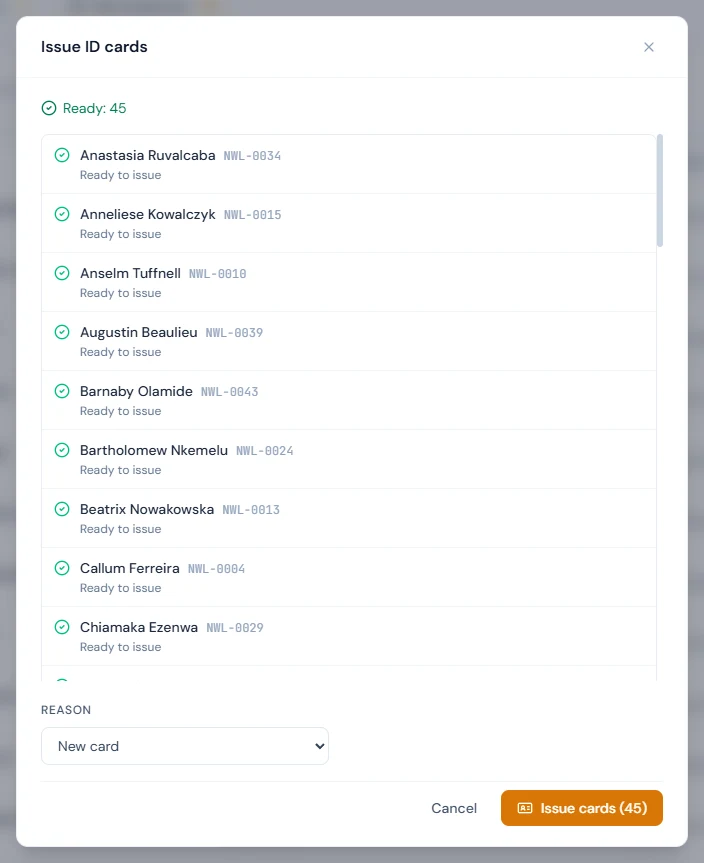
The dialog first checks everyone selected and splits them into Ready and Need attention. What stops a card:
| Blocker | Fix |
|---|---|
| No photo on file | Add photos opens the directory filtered to people with a missing photo |
| Photo waiting for review | Review photos opens Profile Approvals › Photos (Chapter 21) |
| Not a current employee | A suspended employee or one who has left can't have a card |
| No designation on their record | Edit employee |
Warnings don't stop a card but are worth reading before you print: a photo not yet checked for print, a long name (over 26 characters, shrunk to fit), a current card that has expired, and Replaces card ID-000123, which stops verifying as soon as the new card is issued.
Pick a Reason (New card, Lost, Damaged, Details changed or Other; it starts on New card, or on Details changed when everyone ready already has one) and click Issue cards. People who need attention are skipped, and the check runs again as each card is created. Each card takes the next serial and an expiry Valid for (months) after the issue day in the workspace's time zone, on the same day of the month or the month's last day when it is shorter. An employee has at most one active card.
The Issued tab lists cards with Serial, Issued and Expires, searchable by name, employee code or serial and filtered by Card status (Active by default, Replaced, Revoked, All cards). Flags are worked out each time the list loads:
| Flag | Meaning |
|---|---|
| Expired | An active card past its expiry: it no longer verifies |
| Expires within 30 days | Due for renewal |
| Outdated | The name, photo, or a printed designation or department has changed since issue; hover to see which |
| Not printed | Still in the print queue |
| Returned | Handed back to HR |
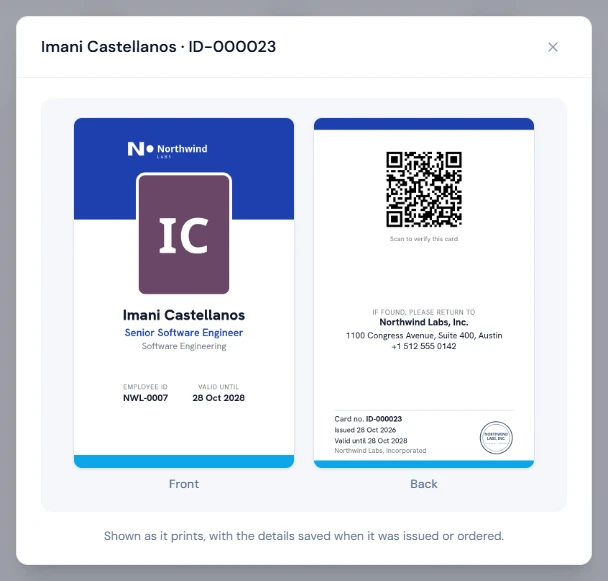
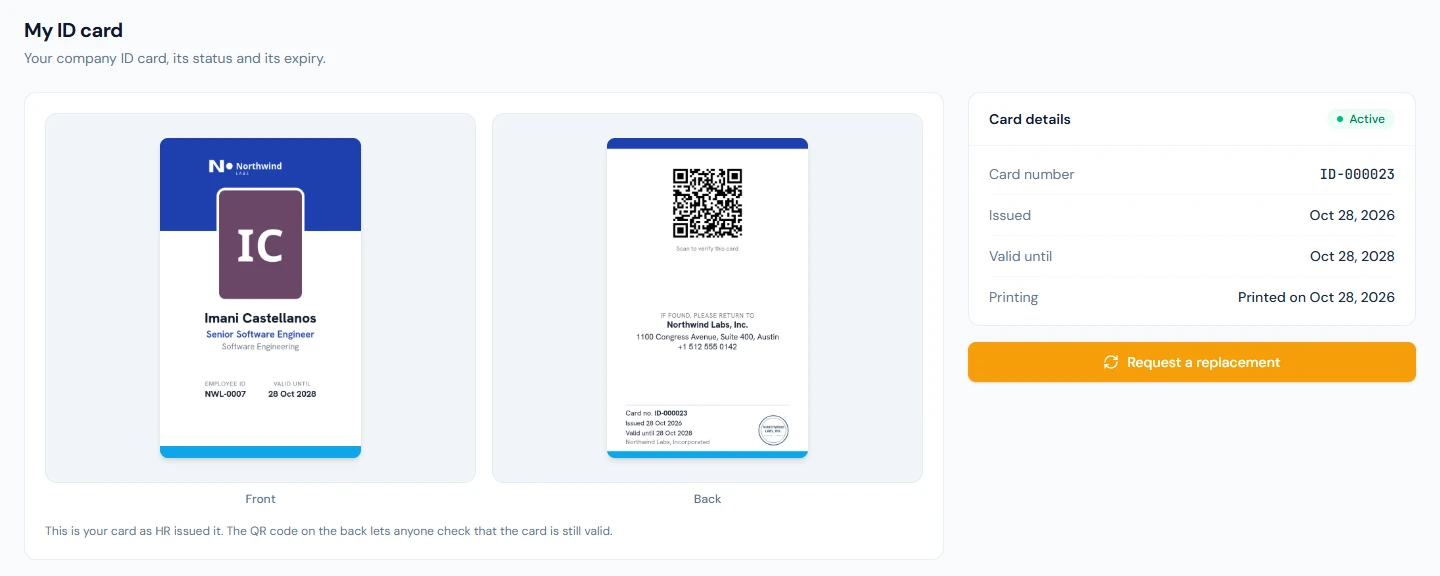
Preview shows a card front and back "as it prints, with the details saved when it was issued". The employee profile's ID card panel shows the current card with Preview, Reissue, Revoke and Mark as returned, its Earlier cards and All ID cards.

81.3 Printing from the queue
New cards wait on Print queue, oldest first.
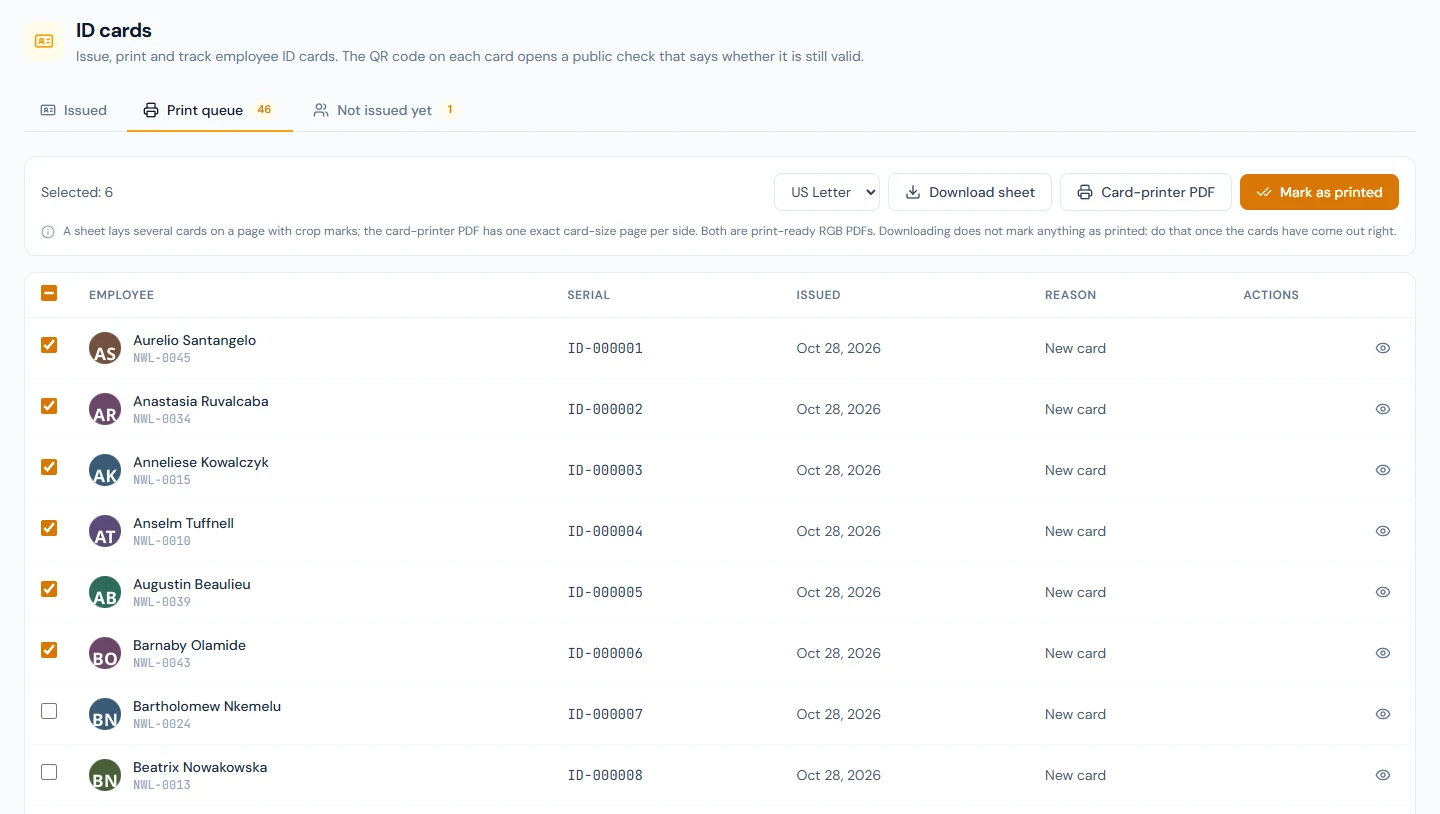
- Tick the cards and pick the Paper size (it starts on the kit's).
- Download a file. Download sheet lays several cards on each page with crop marks, for card stock on an office printer: each page of fronts is followed by a page of backs, mirrored so that a double-sided print flipped on the long edge puts every back behind its front. Card-printer PDF has one exact card-size page per side, front then back, for a desktop ID card printer; one file holds cards of one orientation only. One file holds at most 100 cards.
- Print, and check the cards came out right.
- Click Mark as printed and confirm. The cards leave the queue, and each holder is emailed that their card is ready to collect.
Downloading never marks anything printed, because a printer can jam halfway through a run. After a download the page offers Mark as printed for exactly the cards in that file, or Not yet. A single active card can also be downloaded from the Issued tab (Download PDF) as Card size, With bleed, Bleed and crop marks or Card printer. The files are print-ready RGB PDFs: tell a print shop they are RGB. A card always prints with its QR code; when the workspace has no public address for the check, the download is refused rather than printed without one.
| Piece | Size | Per A4 sheet | Per Letter sheet |
|---|---|---|---|
| ID card, portrait | CR80, 53.98 × 85.60 mm | 9 | 9 |
| ID card, landscape | CR80, 85.60 × 53.98 mm | 10 | 8 |
| Visiting card, International | 85 × 55 mm | 10 | 8 |
| Visiting card, US | 3.5 × 2 in | 10 | 10 |
81.4 Reissue, revoke and returned cards
Reissue opens the issue dialog for that one employee. Issuing the new card marks the old one Replaced, and the old card's QR code stops verifying in the same step. Use it for a lost or damaged card, an expired one, or an Outdated card after a promotion (Chapter 24) or a new photo. Pick the reason that is true: it stays in the card's history.
Revoke asks for a reason of at least 3 characters ("For example: reported stolen"), kept in the card's history. The card stops verifying immediately and the employee has no active card until you issue one. Revoke when a card must stop working and no replacement is due yet; for a lost card that is being replaced, Reissue with Lost already does it.
Mark as returned records that a card was handed back. It is offered on any card not yet marked, an active one included, and it does not stop the card verifying: a returned active card stays valid until it is revoked or replaced, or, for a leaver, until the final settlement revokes it. Mark it when the plastic is in your hand; revoke when the card must stop working.
Both are on the Issued tab and on the employee profile's ID card panel. That matters when Brand Studio is switched off (until 31 October 2026 it came with the Enterprise and Custom plans; a workspace that had it that way and hasn't sent a review since, or whose grant ended, finds it locked): the Brand Studio pages lock, but a card issued before keeps verifying until it is revoked, replaced, expired, or its holder leaves. Revoke and Mark as returned stay available without Brand Studio, on the profile's panel, which then shows only for someone whose card is still active or not yet handed back, with just those two actions and the note Brand Studio isn't switched on for this workspace. A final settlement still revokes a leaver's cards by itself.
Nothing on this page sends an email or writes to the activity log; the card itself keeps who issued it and who revoked it, when and why.
81.5 Joiners and leavers
Joiners. With Brand Studio unlocked, every onboarding checklist (Chapter 32) gets an optional Issue ID card task due on the joining day. It opens the ID Cards page with the issue dialog for that person, and it closes by itself the next time the checklist is opened after a card is issued. Being optional, it never holds an onboarding open. New (Pending Activation) employees can be issued a card, so it can be waiting on day one: Northwind's next joiner, Lucia Ferrero, starts on 2 November 2026 and can have a card printed before then.
Leavers. A separation (Chapter 83) for someone holding an active card that isn't marked returned gets an ID card returned clearance item. It checks itself when the separation is opened: ID cards to collect: 1, until every active card, and every card revoked since the separation started, is marked returned. Like other clearance items, a pending one blocks Complete Settlement, and an automatic item can't be ticked by hand, only waived. The usual path:
- Collect the card and Mark as returned on the Issued tab (or on the leaver's profile). It stays active.
- Open the separation: the item passes.
- Complete Settlement revokes the card ("Employee left: final settlement completed").
If the card can't be collected, revoke it at once so it stops working, and waive the item with a note.
Complete Settlement also cancels what the leaver still has waiting: pending requests, and visiting card orders not yet printed (each order keeps the reason "Employee left: final settlement completed"). Nobody is emailed, so a queue can no longer mail someone who has left. Deleting the record does the same.
Brand Studio also revokes an active card when the employee record is deleted, and on rehire it revokes any card still active from the earlier employment, so an old card never verifies again. The check reads the holder's record at every scan as well: a suspended employee's card reads not valid while they are suspended and valid again when they are reinstated, without being revoked.
81.6 What the QR code shows
The QR on every card back (Scan to verify this card) opens a public page on the workspace's address, with no sign-in. It gives one of two answers:
- Valid ID card: "This ID card was issued by Northwind Labs, Inc. and is valid today."
- Not a valid ID card: "This card is not valid. Do not accept it as proof that the holder works for Northwind Labs, Inc."
Both show the company's logo and name and the time of the check. A valid card adds the Card holder's name, the Card number and Valid until (or Does not expire), plus the holder's designation and photo only if the kit switches them on. These two come from the record now, not from the card, so on an outdated card they can differ from what is printed: that is a reason to reissue outdated cards promptly. A card that is not valid shows nothing more, and the page never says why (revoked, replaced, expired, the holder left), so whoever holds a found or stolen card learns nothing from it. A card is valid through its printed expiry day.
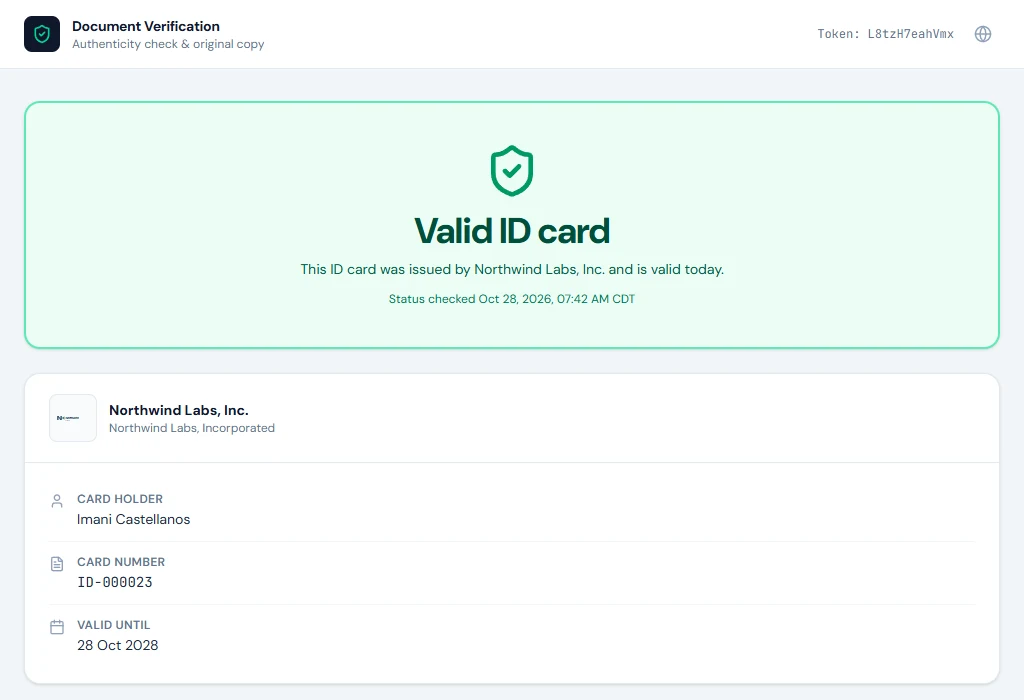
ID cards use the same verification page as letters (Chapter 77), but a card has no official copy to download: the plastic is the document. HR cannot revoke a card from the document verification screens either: cards are revoked on the ID Cards page or the employee profile.
81.7 Visiting cards
Brand Studio › Visiting Cards: "Order business cards for employees and print them from one queue."
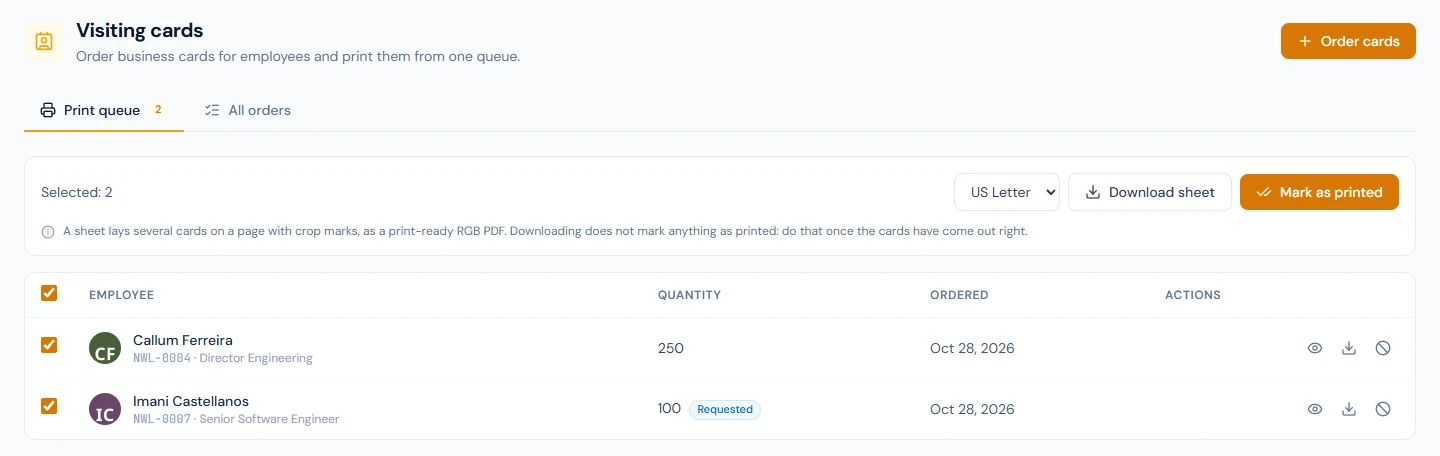
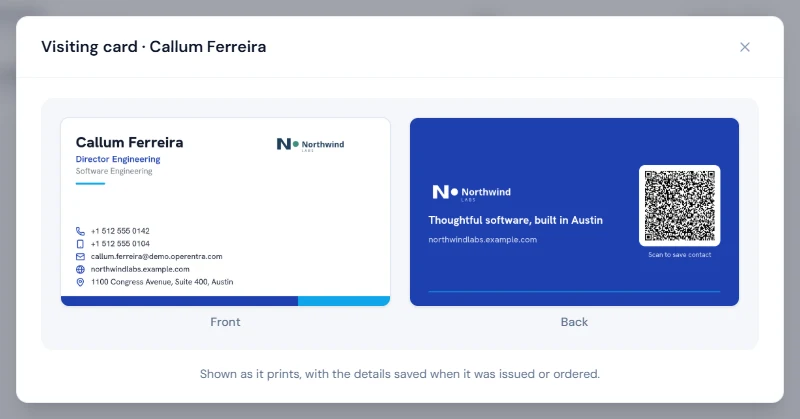
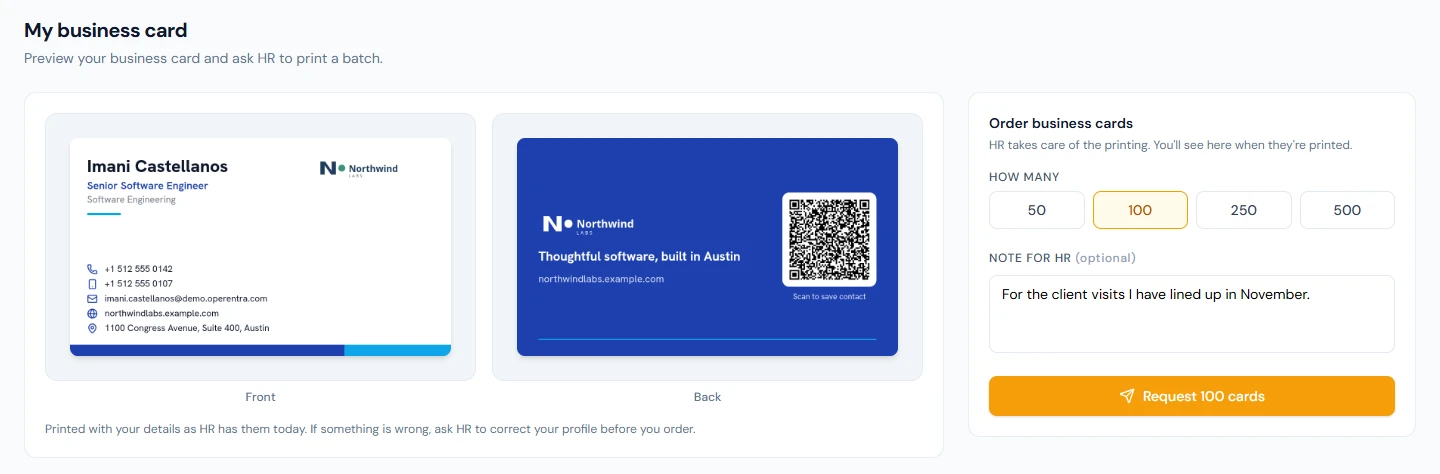
- Order cards: pick a current employee and a Quantity (50, 100, 250 or 500; 100 to start with), then Order 100 cards. "The cards print the employee's name, title and contact details as they are now. Later changes don't alter this order." A card prints the name, designation, department, work email, phone numbers, the branch's address (else the company's), the website and tagline, and the contact-card QR when the kit has one.
- From the directory: tick people and Order visiting cards with Cards per person; each person gets an order of their own.
- Print queue: orders not yet printed, oldest first, those that came from a portal request marked Requested. Preview and Download PDF (starting on With bleed) per order; tick orders, pick the paper, Download sheet, then Mark as printed, which emails each employee that their cards are ready to collect.
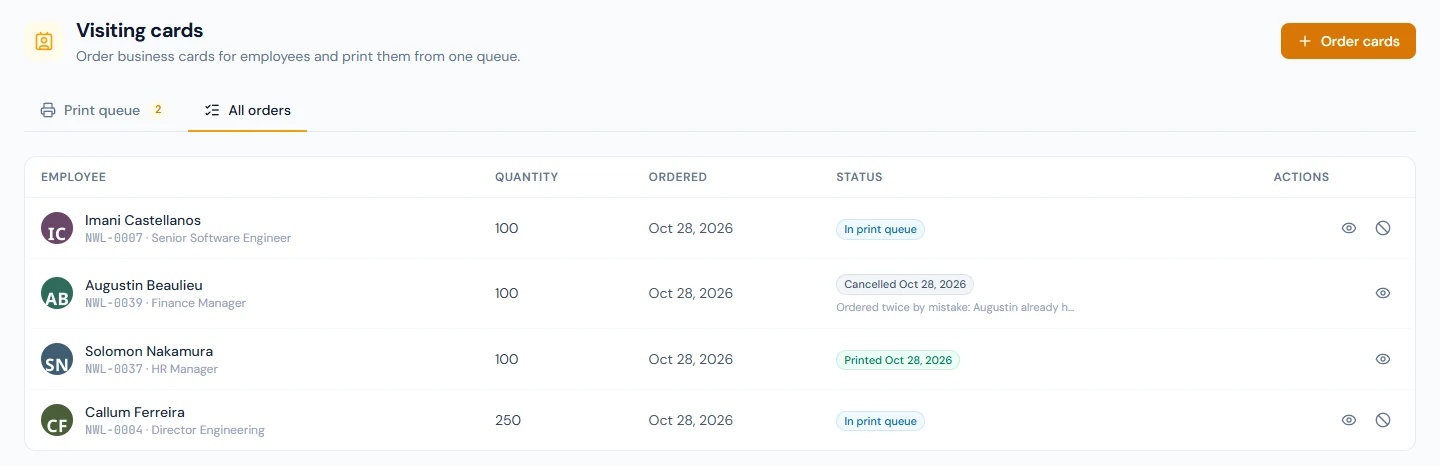
- All orders: every order, In print queue, Printed or Cancelled with its date.
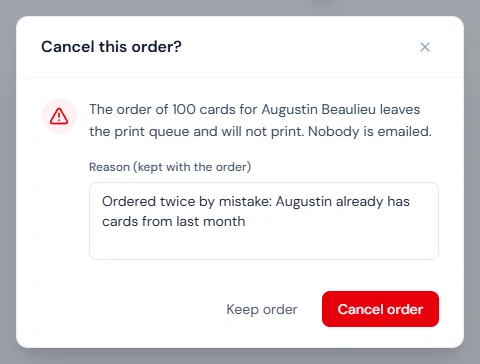
- Cancel order (on a row in either tab) calls off an order until it is marked as printed, with a reason of at least 3 characters kept on the order: a wrong quantity, a duplicate, someone about to leave. It leaves the queue and can't be downloaded or printed. If it was placed for a portal request, the request is cancelled too, and the employee's portal shows Cancelled by HR with the reason, so they can ask again. Nobody is emailed.
At Northwind, Dana orders 250 cards for Callum Ferreira and 100 each for Solomon Nakamura and Augustin Beaulieu, and fulfils the 100 that Imani Castellanos asked for (81.9). Solomon's are printed. Augustin's order was a mistake, so Dana cancels it:
A sheet holds one order, the same card in every position, fronts then mirrored backs. Print as many copies as the order needs: at 10 per A4 sheet, a 250-card order is 25 copies. A printed order can't be cancelled, so check the cards before Mark as printed.
81.8 Email signatures
Brand Studio › Email Signatures: "Each employee's signature, built from the brand kit and their own record." Pick an Employee to see it as it will paste into an email; Copy signature copies it with its formatting.
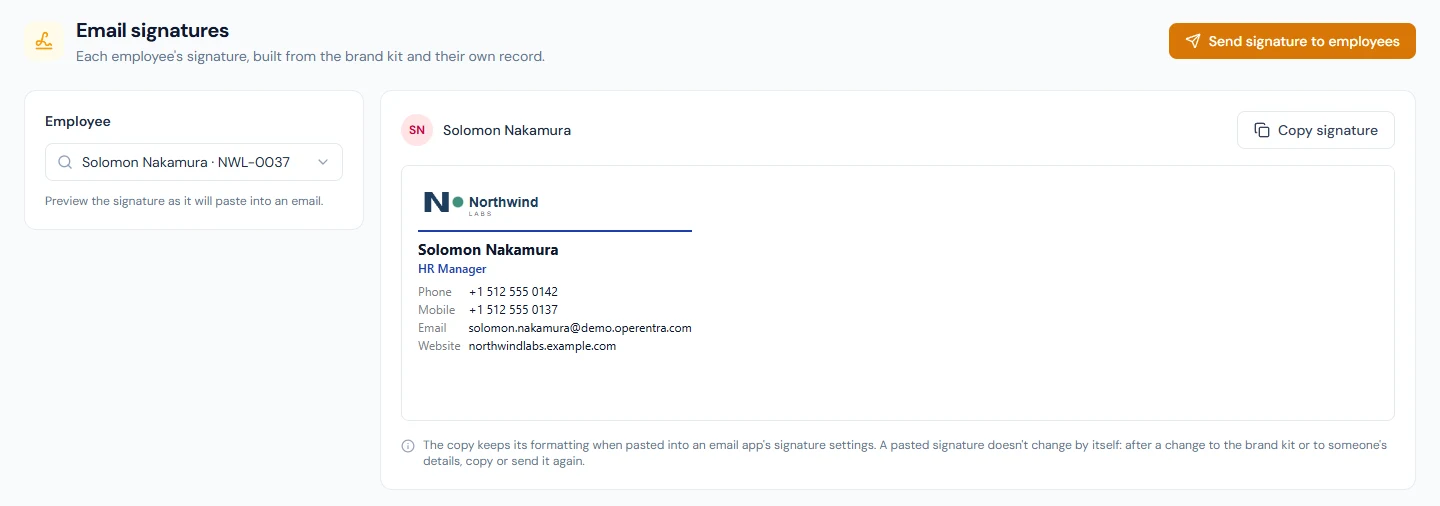
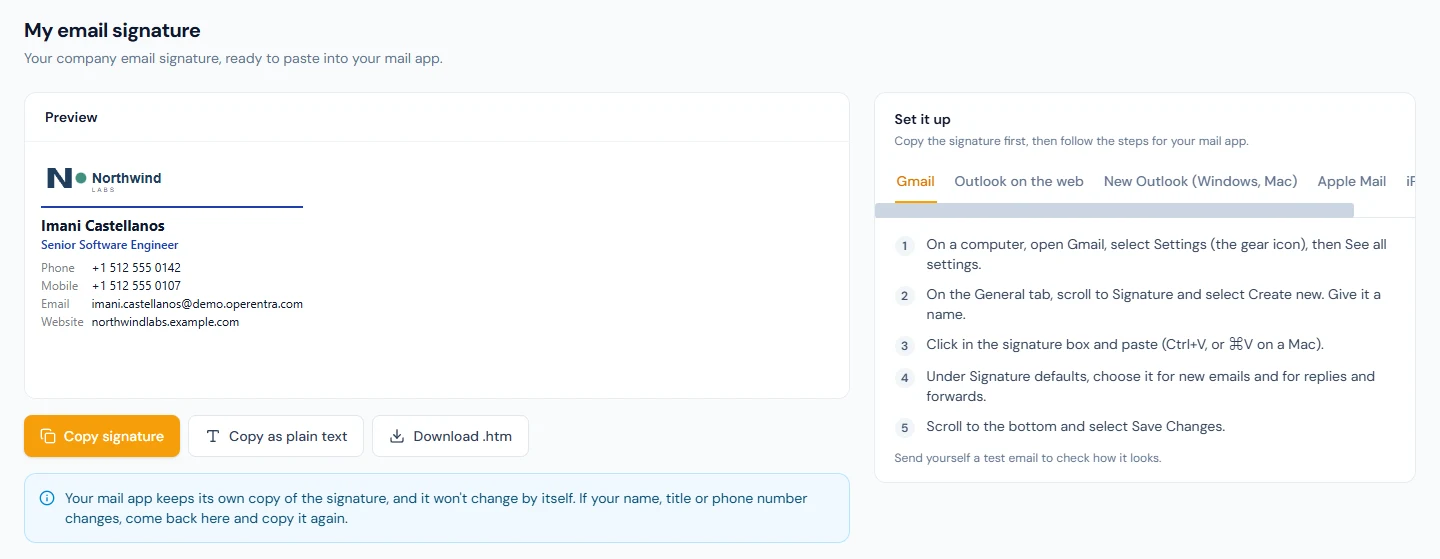
Send signature to employees emails each person picked a link to My Email Signature in their portal, where they copy it and follow setup steps for Gmail, Outlook, Apple Mail or iPhone Mail. The list holds current employees; tick people, All shown or All current employees. Those who couldn't be emailed are counted under Not sent: usually no email address on file, or the email switched off in Settings › Email Templates (Chapter 79).
A pasted signature is a copy. After a kit change or a change to someone's title or phone, the signature in their mail app stays as it was until they copy and paste it again, so send it again after any change that matters. The logo and photo in a signature are images the recipient's mail app loads from the workspace's address.
81.9 Requests from employees
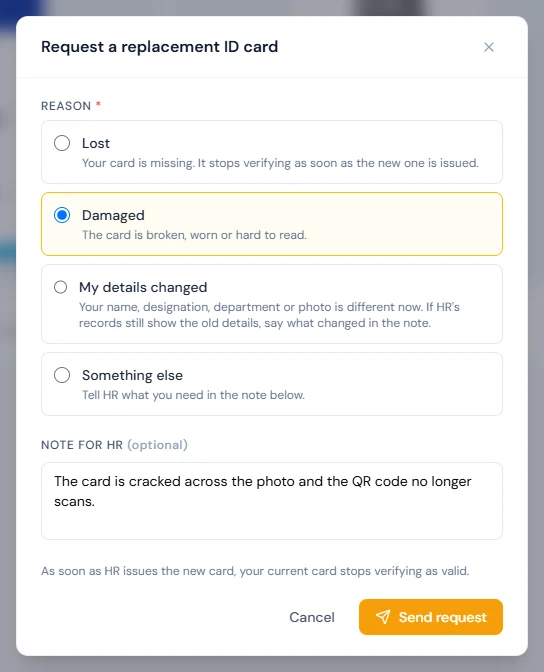
From the portal, employees ask for a replacement ID card (reason Lost, Damaged, My details changed or Something else) or for business cards (50 to 500), each with an optional note for HR. They can have one pending request of each kind and withdraw it while it waits. Every active user who can issue cards (up to ten) is emailed about each new request.
Brand Studio › Requests lists them by Status (Pending by default, oldest first; Fulfilled, Rejected, Cancelled) and Request type.
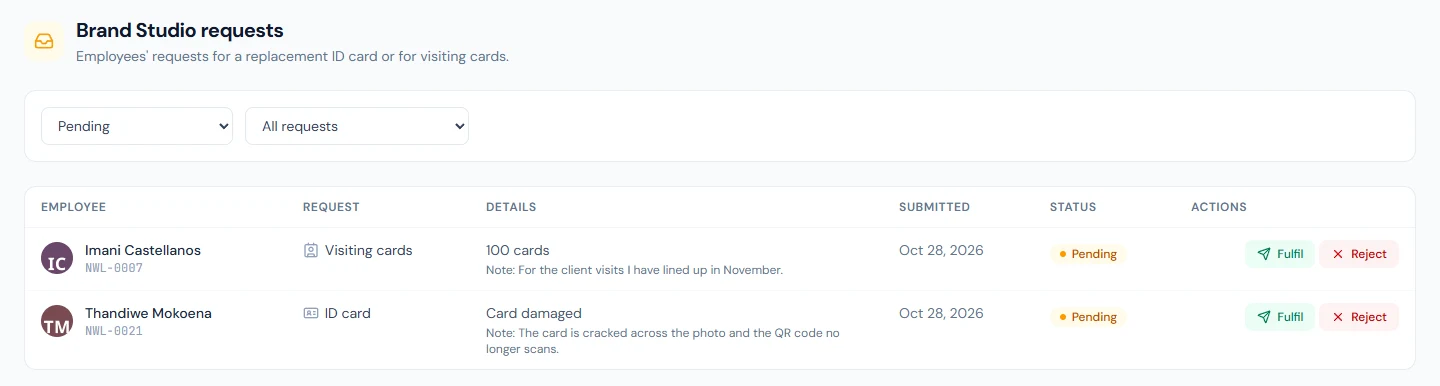
- Fulfil an ID card request: Issue a replacement card runs the usual checks; the new card joins the print queue and any current card stops verifying.
- Fulfil a visiting card request: Order visiting cards, in the quantity asked for or another.
- Reject: a Note to the employee of at least 3 characters, which they see in the portal and by email.
Issuing a card or ordering visiting cards anywhere else, for someone with a pending request of that kind, fulfils the request too, so it can't later print a second card. Fulfilling sends no email; the employee hears when the card or cards are marked as printed.
Cancelled covers three cases: the employee withdrew the request, HR cancelled the visiting card order placed for it (the row reads Order of 100 cancelled with the reason), or the employee left.
What happens next
- Part 13 turns to exits: separation fundamentals (Chapter 82) and offboarding, where the ID card returned item appears (Chapter 83).
What the employee sees
Three pages under Me in the portal (Chapter 85): My ID Card, the card as issued with its state, number, dates and printing status, and Request a replacement; My Email Signature, with Copy signature, Copy as plain text, Download .htm and setup steps for their mail app; and My Business Card, a preview with Order business cards. A business card request whose order HR cancelled reads Cancelled by HR, with the reason. Emails arrive when a card or business cards are ready to collect, when a request is declined (with HR's note), and when HR sends their signature.
Common mistakes
- Marking cards printed before they are printed. It emails every holder that their card is ready. Download, print, check, then mark.
- Treating "returned" as "cancelled". A returned card still verifies until it is revoked, replaced, or the settlement revokes it. Revoke a card that must stop working.
- Marking a wrong order as printed to clear the queue. It emails the employee that their cards are ready. Cancel the order instead, with a reason.
- Putting blood group and emergency contact on every card. Whoever finds the card reads them. Switch them on only where the work needs them.
- Leaving outdated cards in circulation. After a promotion or a new photo, the printed card and the public check disagree. Reissue with Details changed.
- Expecting a pasted signature to update itself. Send signatures again after a kit change or a change to someone's details.
- A US company printing International visiting cards. The size starts on International everywhere; switch it to US for US offices.
- Expecting a new serial prefix to restart the numbers. The count carries on across prefixes.
- Assuming cards switch off with Brand Studio. Cards issued while it was on keep verifying after it goes off. Revoke a lost or stolen one from the employee profile's ID card panel, which stays available without Brand Studio.
Practice
Brand Studio needs to be unlocked first. In your own workspace, never a customer's, once it is in regular use, send an honest review from Billing (Chapter 94) and follow the steps below once it is approved.
- Open the brand kit, apply the palette picked from the logo, set the visiting card size for your country and save.
- Issue a card to one employee from their profile and read the Ready / Need attention check.
- Download it as a sheet, mark it printed, then scan its QR code with a phone.
- Revoke it with a neutral reason and scan again.
- Copy your own signature into your mail app and send yourself a test email.
Quiz
1. Which employees can be issued an ID card?
Current employees (New, Active or On Leave) with a photo on file, no photo waiting for review, and a designation. Each has at most one active card.
2. What happens to the old card when you reissue one?
It becomes Replaced, and its QR code stops verifying in the same step the new card is issued.
3. Does marking a card as returned stop it verifying?
No. It stays valid until it is revoked or replaced, or, for a leaver, until completing the final settlement revokes it.
4. What does the public page say about a card that is not valid?
Only that it is not valid and should not be accepted as proof of employment. It never says why, and shows neither the holder nor the card number.
5. When is the holder emailed that their card is ready?
When HR marks it as printed in the print queue. Issuing and downloading send nothing.
6. An employee was promoted after their card was issued. What does Operentra show, and what should HR do?
The card is flagged Outdated (designation), and the public check shows the new designation if the kit shows it. Reissue the card with the reason Details changed.
7. Brand Studio is no longer switched on for the workspace, and an employee reports their card stolen. What can HR do?
Revoke it from the ID card panel on the employee's profile. The card keeps verifying until it is revoked, and revoking (like marking a card returned) stays available without Brand Studio.