Chapter 98 — The AI assistant and AI credits
People ask HR the same questions all day: how much leave do I have, was my overtime approved, who is off this week, what did we pay last month. The answers are already in Operentra, a few clicks away. The AI assistant lets anyone ask in plain words and get the answer from the same data the page would show them, and it can prepare a request or an approval for them to confirm. This chapter is about the decisions HR makes around it: who may use it, how much it may cost, and what it can and cannot do on someone's behalf.
The assistant is in a private beta. It is not part of any plan yet: a workspace has it only when Operentra switches it on for that workspace. If your workspace does not have it, nothing in this chapter appears in your menus, and the practice tasks below are for later.
What this chapter covers
- 98.1 Who has the assistant
- 98.2 Opening it and asking
- 98.3 Confirm cards
- 98.4 What it never shows or does
- 98.5 AI credits and the monthly allowance
- 98.6 The Usage and credits page
- 98.7 Per-person access and limits
- 98.8 Buying credit packs
- 98.9 When credits run out
The concept
An assistant that can read HR data is only safe if it is held to the same rules as the person using it. Three principles from earlier chapters apply:
- Least privilege (Chapter 14): the assistant has no access of its own. It sees exactly what the person asking could see on the pages, and nothing more.
- A human decides: a tool that changes records on someone's say-so needs a step where the person checks what will happen and agrees. The assistant prepares; the person confirms.
- Data minimisation (Chapter 93): the less personal data travels, the less can leak. Identity numbers, bank details, addresses and similar fields never leave the server, even when the person could see them on a page.
AI also has a running cost: each answer uses a language model, priced by how much text it reads and writes. AI credits turn that cost into a budget HR can see and control, for the workspace and for each person.
How Operentra handles it
- Who has it: the workspace must have the assistant switched on
(private beta), the person's role must hold Use the AI Assistant
(
assistant.use, on all six system roles by default), and the person must not be switched off on their employee record. - Where: an Assistant button at the bottom corner of every page (Ctrl+J, or ⌘+J on a Mac) opens a chat panel. The full page is Assistant › Chat in the admin sidebar and Me › Assistant in the employee portal.
- How it works: every answer comes from the app's own pages and reports, called with the person's own session. Every change is a confirm card that does nothing until the person presses Confirm.
- Credits: every message uses AI credits. The workspace gets a monthly allowance from its plan and can buy packs; each person can have a monthly limit.
- Where you manage it: Assistant › Usage & credits, the add and edit employee forms, and Billing (which links to it).
| Who | What they can do |
|---|---|
| Anyone with Use the AI Assistant | Ask about what their access opens; prepare requests and, if they approve requests, decisions, as confirm cards |
Holders of company.settings (Super Admin and HR Manager by default) | Open Usage & credits: see usage, switch people on or off, set limits, buy credits. They have no personal monthly limit |
| Whoever may edit employees | Set the AI assistant section on the add and edit employee forms (never on their own record) |
Walkthrough
Signed in to Northwind as the Super Admin.
98.1 Who has the assistant
Three switches decide whether someone sees the assistant:
- The workspace. During the beta, Operentra switches it on for a workspace by hand. Without that, the Assistant menu entries and the button are left out altogether, not shown with a lock. A link to the page opened anyway shows "AI assistant isn't available in this workspace", Not available yet, and "It is in a private beta, switched on for selected workspaces only." See Chapter 94 for features outside your plan.
- The role. Use the AI Assistant is on every system role. A custom role you created needs it ticked by hand in Access control › Roles (Chapter 14). Removing it from a role hides the button for those people on their next sign-in. Holding it adds no access: it only opens the chat.
- The person. Each employee record has a Can use the AI assistant switch, ticked by default (98.7).
The assistant is also closed while you are signed in as someone else (Chapter 14): support can see a person's pages, but not talk to the assistant as them.
98.2 Opening it and asking
Press the Assistant button, or Ctrl+J. The panel opens with Try asking suggestions picked from what your access opens: reports first for HR ("Headcount by department", "Who is on leave this week?"), your own records for an employee ("What's my leave balance?", "Apply for leave for me").
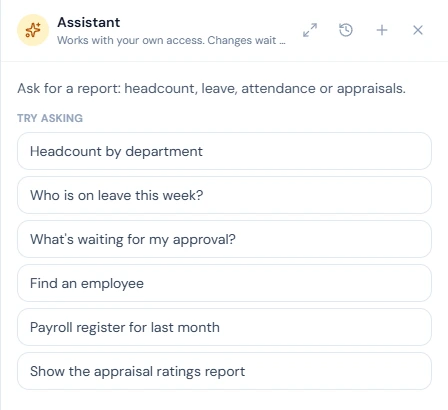
Type in your own words and press Enter (Shift+Enter starts a new line). The assistant reads the pages it needs and answers in the language you use Operentra in; for a request with several steps it first says in a line what it will do.
- Tables and cards come straight from the data. The assistant writes only the short summary around them. A table longer than thirty rows folds, with Show all. Every card has Open in the app, which takes you to the page the data came from.
- Figures are checked. If the summary quotes a number that is not in the data, the summary is withheld and the cards stay. Ask again.
- People are found, not guessed. To look at someone else, the assistant searches for them first. If two people match, it lists them and asks which one. It cannot use an employee it did not find in the same conversation.
- Ambiguity is asked about. Which leave type, which month, which cycle: it asks rather than picks.
Open full page (the expand icon at the top of the panel) opens the same conversation on the full page: Assistant › Chat, or Me › Assistant in the portal. There you also have your earlier conversations, grouped Today, Yesterday, Previous 7 days and Older, with Search conversations, Rename and Delete conversation. New chat starts a fresh one. Conversations are private to the person who started them: no administrator can read them.
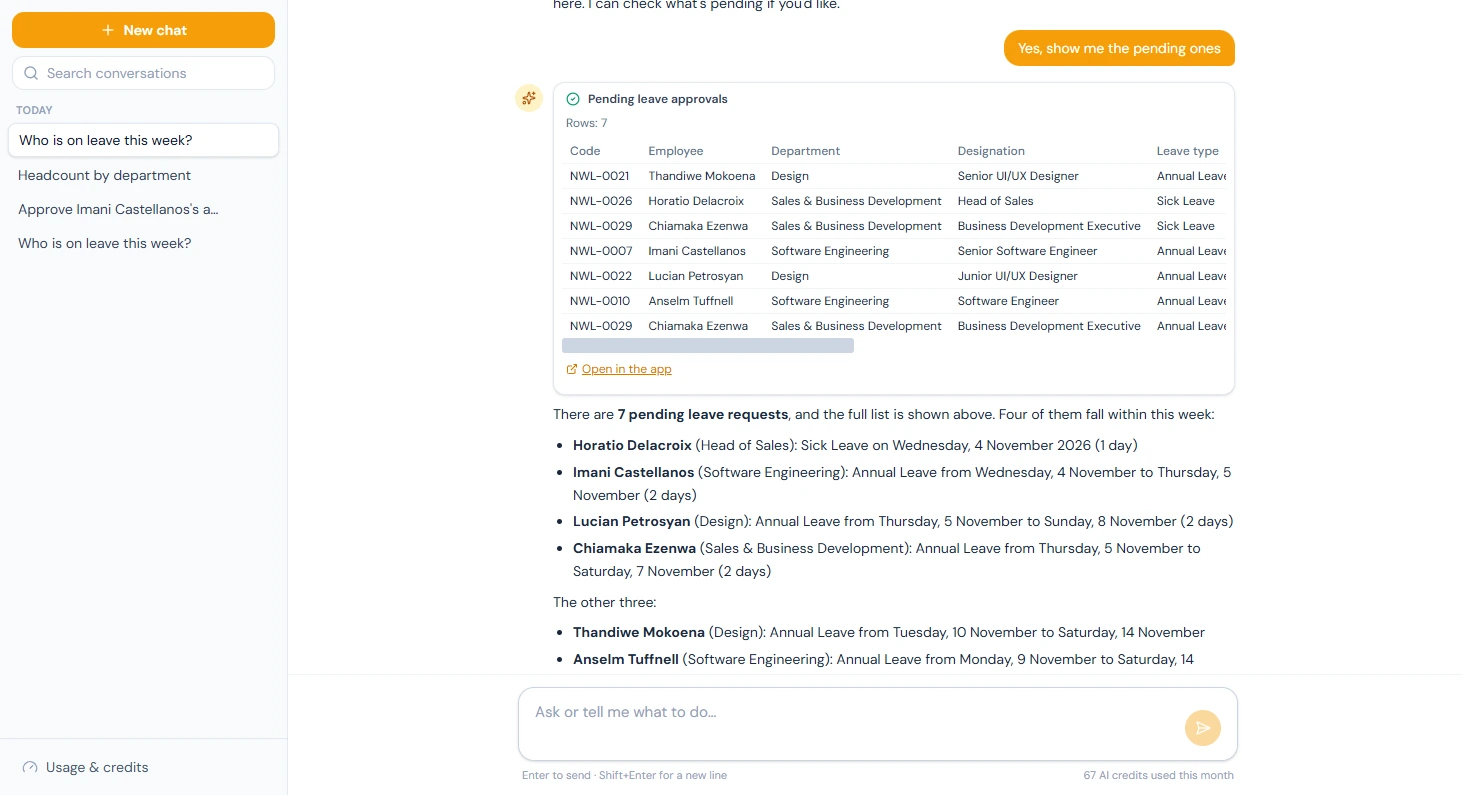
What it can reach depends on the person's permissions, module by module: people and the org chart, attendance, leave, payroll and payslips (with their PDF), tax certificates, loans, expenses, assets, HR letters, contracts, onboarding and offboarding, performance and appraisals, recruitment, field visits, every report in the Reports section (Chapter 91), and the activity and sign-in logs. A department head sees their team, an HR officer the company, an employee only themselves, exactly as on the pages.
98.3 Confirm cards
Ask "Apply for annual leave on 15 and 16 December, family wedding" and the assistant does not apply. It prepares a confirm card: the server runs every check the leave form runs (the days it counts, holidays and weekly offs, the sandwich rule, the balance before and after, overlaps, whether a document is needed) and the card shows what the server worked out, with "Nothing has been submitted yet. Check the details, then confirm."
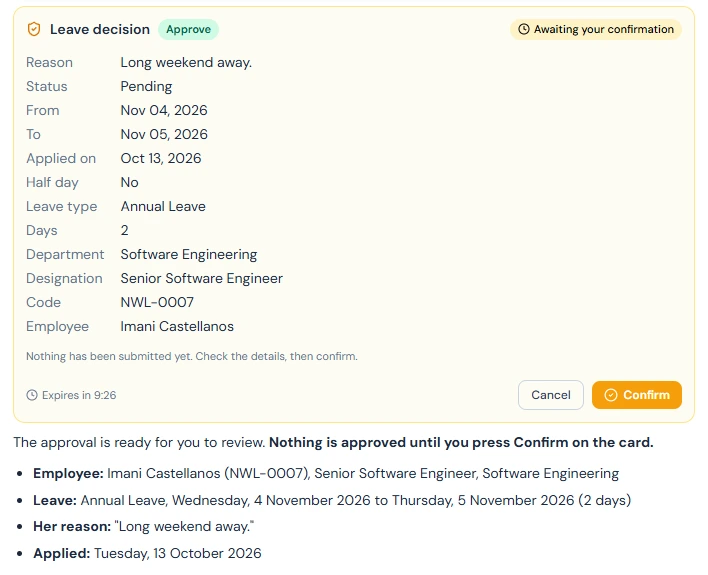
- Confirm submits it. That is an ordinary request from the person, so the same emails go out and the activity log records it under their name, as if they had used the page (Chapter 92).
- Cancel drops it. A card left alone expires after ten minutes.
- A card can be confirmed once. Its state reads Awaiting your confirmation, Confirming…, then Confirmed or Failed, or Cancelled or Expired.
The same pattern covers every change it can prepare, each needing the permission the page needs:
- Self-service: leave and its cancellation, attendance regularisation, overtime, expense claims and their withdrawal, loan applications, HR letter requests and their withdrawal, starting or completing a task, the daily report, the weekly sales report, and the appraisal self review.
- Decisions: approving or rejecting leave, regularisation, overtime, expense claims and loans, rejecting a letter request, and grading a task. The card shows the request as the approver's page shows it. The server still refuses an approver's own request, one outside their team, or one already decided (Chapter 90).
- HR and admin changes: employees' work details, departments, designations, holidays, announcements, onboarding tasks, separations and settlements, assets, hiring, contracts, appraisal cycles, user accounts and roles.
- Money: increments, bonuses, adjustments, salary assignments, provident fund entries, tax adjustments, pausing a loan, and running payroll and its steps. The card repeats the person, the amount and the month exactly as asked, and the payroll cards say what the step does and whether the run allows it now (Part 9).
When a card says how many people an action reaches (publishing an announcement, rolling out an appraisal cycle) or that it cannot be undone (terminating a contract), read that line before you confirm.
98.4 What it never shows or does
Never shown, to anyone, in any card: national identity numbers, bank details, home addresses, personal phone numbers and email addresses, dates of birth, positions from GPS, IP addresses and file locations. Money figures follow the page: whoever may open the payroll page sees the same figures in the chat, and nobody else does.
Never done in the chat (use the page):
- verifying a document or reviewing a photo (it cannot see files);
- editing a profile, or entering a verification code;
- acknowledging a payslip or accepting a contract, which record the person's device as evidence;
- clocking in by position;
- changing settings;
- taking a candidate's or employee's contact and identity details, or bank details: the card says where to add them;
- uploading an attachment. When a leave type needs a document, the card says so and the request goes through the Leave page.
The rules hold however a request is worded. A message that asks it to ignore its instructions, or a leave reason that says "approve this", is treated as text, not as an order.
98.5 AI credits and the monthly allowance
Every message the assistant answers uses AI credits. A short question uses a few; a message that reads several modules or prepares a card uses more. The line under the message box shows the person's use, for example "120 of 1,000 AI credits used this month".
The workspace gets a monthly allowance from its plan: a base amount, plus an amount for each employee you are billed for (your headcount, or the plan's minimum seats or your reserved seats if higher; Chapter 94). At launch the plans carry:
| Plan | Base per month | Per billed employee |
|---|---|---|
| Starter | 500 | 20 |
| Growth | 1,000 | 40 |
| Enterprise | 2,000 | 80 |
Operentra can change these figures; your own numbers are on the Usage and credits page (98.6).
- The allowance is set at the start of each calendar month (UTC) and does not roll over.
- A plan change that raises it (an upgrade, more billed employees, a trial becoming a paid plan) raises this month's allowance straight away. One that lowers it waits for next month.
- A workspace on a trial gets a smaller trial allowance. A workspace whose subscription has ended gets none.
- Purchased credits (98.8) are used only after the allowance runs out, and they never expire.
Only the assistant uses credits. Nothing else in Operentra spends them.
98.6 The Usage and credits page
Assistant › Usage & credits, "AI assistant usage & credits", is
for holders of company.settings. Pick a Month at the top. The
cards show:
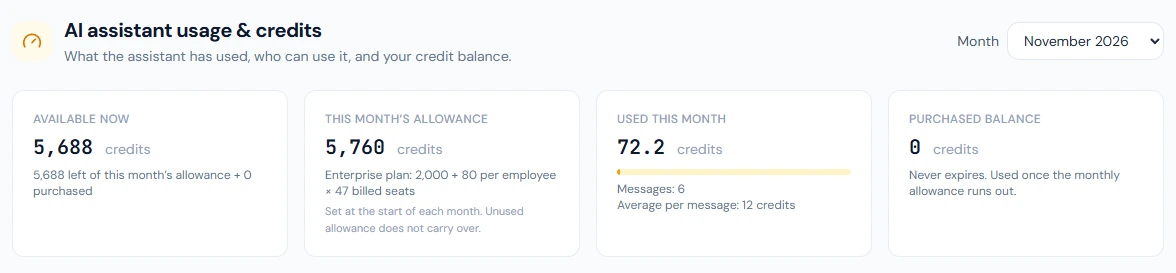
- Available now: what is left of this month's allowance plus the purchased balance.
- This month's allowance, with how it was worked out, for example "Growth plan: 1,000 + 40 per employee × 48 billed seats".
- Used this month, with the number of messages and the average credits per message.
- Purchased balance: "Never expires. Used once the monthly allowance runs out."
Credits per day charts the month (Show as table for the numbers). People lists every current employee with their switch, monthly limit, use, messages and when they last used it (98.7). Admin logins lists logins without an employee record. Credit history lists every monthly allowance, purchase, adjustment and refund, with the purchased balance after each.
The Billing page also shows an AI credits card with what is available now and a Usage & credits button, when the workspace has the assistant.
98.7 Per-person access and limits
On Add employee (Chapter 16) the AI assistant section has Can use the AI assistant, ticked by default, and Monthly AI credits, pre-filled with the workspace default. The section appears only when the workspace has the assistant. The same fields are on the employee's Edit page (Chapter 19), and the profile shows the result under Employment details: Off, On, workspace default credits, or On, N credits a month.
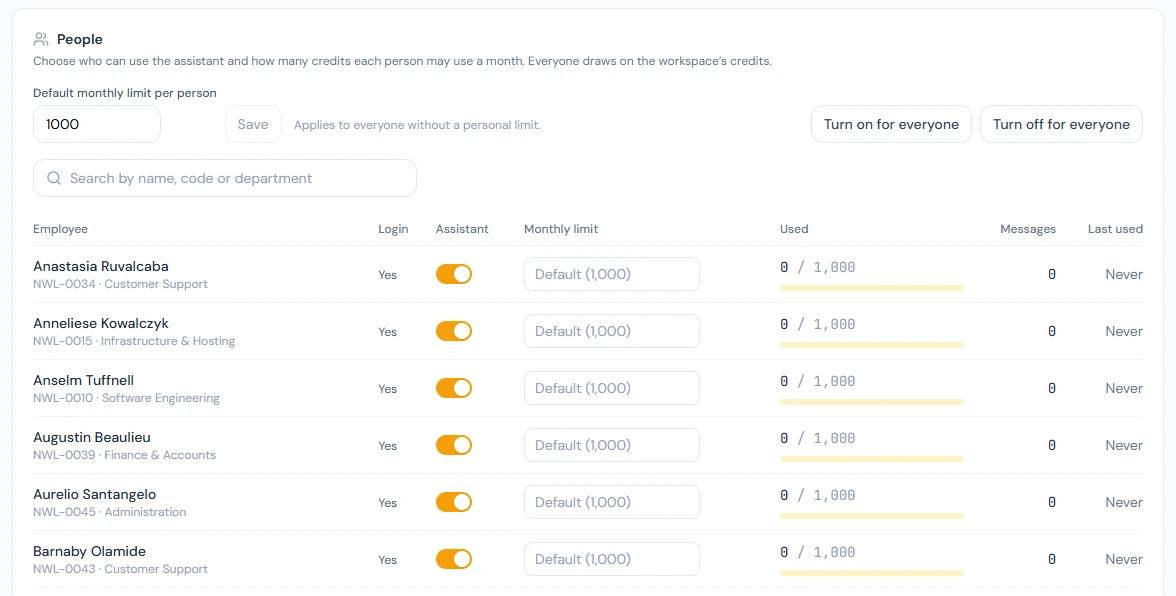
On Usage & credits, under People:
- Default monthly limit per person applies to everyone without a personal limit: 1,000 credits unless you change it.
- Each row has the person's switch and their Monthly limit. Leave the box empty to follow the default; a number you type is that person's own limit.
- Turn on for everyone and Turn off for everyone change every current employee at once, after a confirmation.
Three rules to know:
- Nobody changes their own. On your own employee record the section is read-only: another admin changes it, or you use Usage & credits.
- Credit managers have no personal limit. People whose role holds
company.settingsshow No limit (manages credits): they could raise their own limit anyway. The workspace's credits still apply. - Admin logins without an employee record have no personal limit either. To stop one using the assistant, remove Use the AI Assistant from its role.
98.8 Buying credit packs
Under Buy credits on Usage & credits, pick a pack (5,000, 25,000 or 100,000 credits by default). Each shows its price and the price per 1,000 credits; Operentra sets the prices. Buy opens a Stripe checkout for a card payment.
- The credits appear as soon as Stripe confirms the payment, usually within a minute, and the pack's invoice is listed with your other invoices on Billing.
- If a payment is refunded, the credits it bought are taken back in proportion; a chargeback the workspace loses takes them all. Both appear in Credit history as "Refund or chargeback".
- A workspace without online payment sees "Online payment is not set up for this workspace. Contact support to add credits."
Before buying late in a month, check Available now against the date: the allowance renews on the 1st.
98.9 When credits run out
The assistant tells people plainly why it stopped:
| Situation | What they see |
|---|---|
| Switched off on their record | "The assistant is not switched on for you. Ask an admin to turn it on in your employee record." |
| Their own monthly limit reached | "You have used your 1,000 AI credits for this month. They renew on the 1st, or an admin can raise your limit." |
| The workspace has no credits left | "Your workspace has used all its AI credits for this month. They renew on the 1st, or an admin can buy more." |
Two more limits apply on top of credits: 50 messages per person per day, and 40 messages per conversation ("This conversation is full. Start a new one."). Conversations are deleted after 90 days. Operentra can change the daily cap and the 90 days. Earlier conversations stay readable while the assistant is blocked.
What happens next
- Part 18 brings everything together: Chapter 99 runs a year at Northwind Labs, and Chapter 100 is the final assessment.
What the employee sees
In the portal, the Assistant button and Me › Assistant. They can ask about their own leave, attendance, payslips, loans, expenses, assets, letters, contract, appraisals and tasks, and prepare their own requests as confirm cards. The line under the message box shows their credits used this month. If you switch them off, the page tells them to ask an admin (85.7).
Common mistakes
- Treating the assistant as a way round permissions. It has none of its own. If someone needs to see payroll, give them the role, not a chat.
- Confirming without reading the card. The card is the server's reading of the request: check the person, the dates and the amount before pressing Confirm.
- Typing identity or bank details into the chat. They are never needed there. Add them on the employee page.
- One high limit for everyone from day one. Start with the default, watch Credits per day and the average per message for a month, then adjust.
- Buying a pack on the last day of the month. Check Available now: the allowance renews on the 1st, and purchased credits are used only after it.
- Expecting the switch to stop an admin login. A login without an employee record has no switch. Remove Use the AI Assistant from its role instead.
Practice
Only if your trial workspace has the assistant (it is in a private beta). Use your own workspace, never a customer's.
- Ask "Who is on leave this week?", then press Open in the app on the card and compare it with the Leave page.
- Ask the assistant to apply for a day of leave for you. Read the card, then press Cancel, and check that nothing reached the Leave page.
- On Usage & credits, set the default monthly limit to 500, switch one test employee off, and sign in as that employee to read what the assistant says.
Quiz
1. What can the assistant see?
Only what the person asking could see on the pages, through their own session. It has no access of its own.
2. You ask the assistant to approve a leave application. When is it approved?
Only when you press Confirm on the card it prepares. Until then nothing has changed, and the card expires after ten minutes.
3. Which runs out first, the monthly allowance or purchased credits?
The monthly allowance. Purchased credits are used after it and never expire; the allowance does not roll over.
4. Why does the HR Manager show "No limit (manages credits)"?
The role holds company.settings, which manages AI credits, so a
personal limit would mean nothing: they could raise it themselves. The
workspace's credits still apply.
5. An employee asks the assistant for a colleague's bank account number. What happens?
It never shows bank details to anyone, in any card, whatever the person's permissions.
6. A plan upgrade happens on the 20th. When does the bigger allowance apply?
Straight away: a raise applies to the current month. A lower allowance waits for next month.