Chapter 40A — The kiosk
A terminal on the wall (Chapter 40) is a device HR buys, wires in and looks after. GPS clock-in (Chapter 41) needs every person to carry a phone. A warehouse, a kitchen or a shop floor often has neither, and it does have a tablet. One shared screen that everybody clocks in on is cheap and quick, and it has two weaknesses: anyone standing at it can claim to be anyone, and its address can be copied. This chapter is the kiosk, and how each weakness is closed.
What this chapter covers
- 40A.1 Creating a kiosk and setting it up on a device
- 40A.2 PINs and what wrong ones lock
- 40A.3 Badges, employee codes and the photo
- 40A.4 How a kiosk punch becomes attendance
- 40A.5 What the screen shows and what it leaves out
The concept
A shared clock-in device has no signed-in user, so everything rests on how a person proves who they are in the two seconds they stand there. The classic abuse is buddy punching: clocking in for a colleague who is late. The defences are something only the person knows (a PIN), something only they hold (a badge), and a record of who stood there (a photo). The second risk is the device: with no login, the address on the screen is all that makes it a clock, and an address can be opened elsewhere, so the kiosk must be tied to one device. The third is guessing: a four-digit PIN has ten thousand values and the tablet is unattended, so tries must be rationed.
How Operentra handles it
- Attendance › Kiosks lists the kiosk devices and, below them, the Kiosk PINs panel. A kiosk is a link opened in any browser; nobody signs in on it.
- Kiosks belong to the Scheduling feature, which comes with the Growth and Enterprise plans (Appendix F). Without it the menu entry is locked and a kiosk link answers Kiosks are not switched on for this workspace.
- The link is set up on one device, the first browser to claim it. The modes are PIN, Badge and PIN or badge, with an optional Photo on punch.
- A PIN is four to eight digits, stored hashed like a password, set by the employee or assigned by HR.
- A punch goes through the same path as a terminal or GPS punch and carries the source Kiosk.
- Who (Appendix E):
attendance.kiosk_managemanages devices and other people's PINs (Super Admin, HR Manager); anyone with an employee profile sets their own PIN; punch photos needattendance.view_all.
Walkthrough
Northwind has one kiosk, Front desk, at Austin HQ, in PIN or badge mode without a photo. The three people of Customer Support have PINs: Ezekiel Thornbury (NWL-0033), who leads it, and the two agents on the Support rotation (Chapter 35A), Anastasia Ruvalcaba (NWL-0034) and Fionnuala Brennan (NWL-0035).
40A.1 Creating a kiosk and setting it up on a device
Add kiosk asks for a Name, an optional Branch (it narrows the list of names to that office and puts the kiosk on that office's clock), How people identify themselves (the mode) and Take a photo on every punch. Saving adds a row with the link and Copy link. Each row says whether the kiosk is set up on a device and since when, and Last seen, when that device last called in, which is how you learn a tablet has gone to sleep.
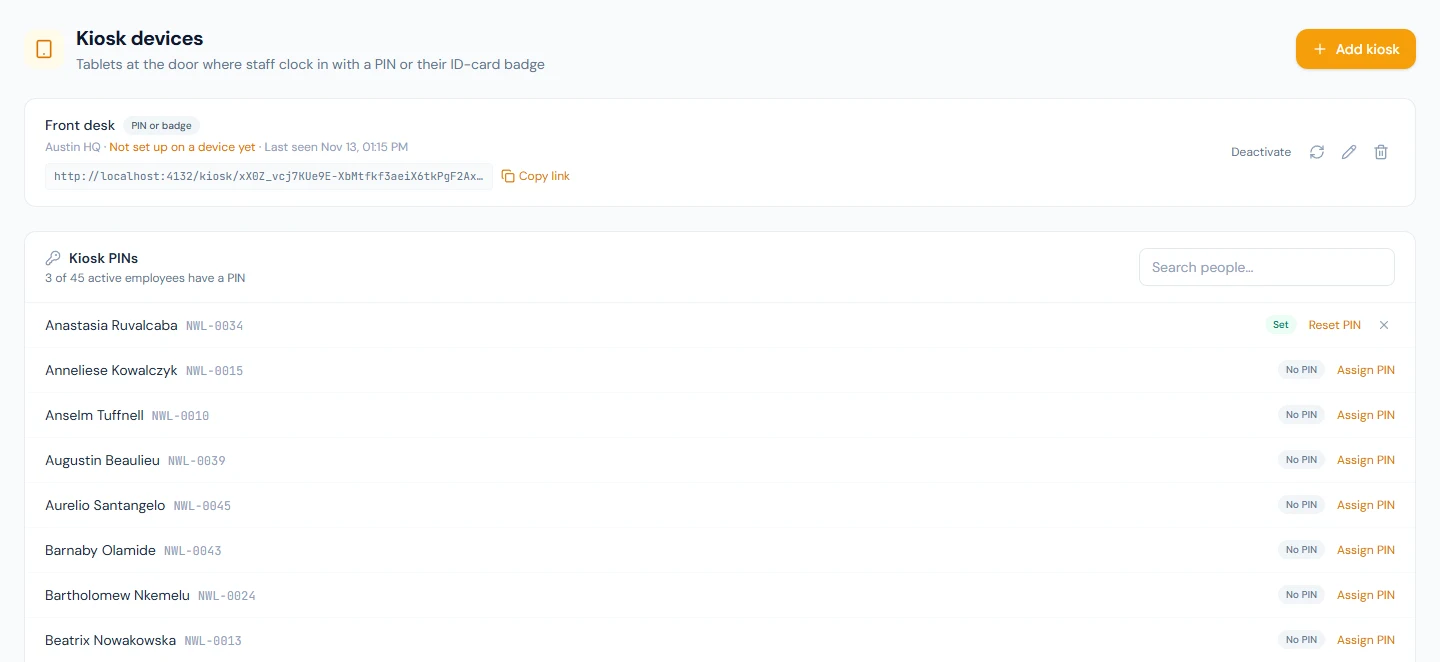
Open the link on the tablet. A link nobody has set up shows one button, Use this device as the kiosk. Pressing it issues a secret to that browser, which sends it with every call; Operentra keeps only a hash. From then on the link works in that browser and nowhere else: someone who reads the address off the screen and opens it on a phone is told This kiosk is set up on another device. The browser must keep its site data, so do not use a private window; put it in full-screen or kiosk mode and leave it.
The link's token is kept twice: hashed, to find the kiosk, and encrypted, so the Kiosks page can show the link again. A copy of the database without the application's encryption key hands out no working link, and nothing stored anywhere hands out a device's secret.
| Control | What it does | Use it when |
|---|---|---|
| Release tablet | Lets go of the device and keeps the link; the next browser to set the link up becomes the kiosk | the tablet was replaced or its browser data was cleared |
| New link | Replaces the link; the old one stops at once and the new one must be set up | the link may have leaked, or the tablet is lost |
| Deactivate | Keeps the kiosk and refuses everything until Activate | the door is out of use |
| Delete | Removes the kiosk and its link; the punches it recorded stay in the logs | it will not be used again |
40A.2 PINs and what wrong ones lock
The Kiosk PINs panel lists every active employee as Set or No PIN, with Assign PIN or Reset PIN. HR can replace a PIN and cannot read one. A PIN HR assigned is known to whoever typed it, so tell the person privately and ask them to change it under My Account › Sign-in & Security › Kiosk PIN.
Wrong tries are rationed twice.
- Per person, per kiosk. Five wrong PINs for one person within ten minutes lock PIN entry for that person on that kiosk: for ten minutes the first time in a day, an hour the second, and until the next day begins on the kiosk's clock the third. Other kiosks are unaffected, and a right PIN in between does not reset the day's count.
- Per kiosk. Twenty failed tries of any kind within ten minutes lock the whole kiosk for up to ten minutes, which stops one PIN being tried against every name.
The tablet says why and for how long. The first lock tells nobody
else. At the second lock of a day, everyone who holds
attendance.kiosk_manage gets the Kiosk PIN Entry Locked email and
a bell notification naming the kiosk and the person, once per person
per day (Appendix C): it
means a forgotten PIN or someone guessing at a colleague's. A new PIN,
set by the person or by HR, lifts their lock on every kiosk at once.
40A.3 Badges, employee codes and the photo
A badge is the ID card Brand Studio prints (Chapter 81). Its QR code carries the card's verification link, which cannot be guessed, so on a Badge or PIN or badge kiosk the card identifies its holder with no PIN, even while that person's PIN is locked. A revoked, replaced or expired card, or one from another workspace, is refused as That badge is not recognised. Any scanner that types what it reads and presses Enter will do: the kiosk reads it as typing.
An employee code is never enough. Codes are printed on payslips and count up one by one, so a scanned code only says who the person claims to be: the tablet shows Code scanned and the PIN pad, and the punch needs both. A wrong code is refused in the same words as a wrong PIN, so the kiosk cannot be used to find out which codes exist.
Photo on punch is the answer to buddy punching: a friend can know
a PIN, and the photo shows who stood there. A punch without the photo
is refused, so a tablet whose camera is missing or blocked records
nothing. The camera needs a secure (https) address and the browser's
permission the first time. Photos are stored privately and show as thumbnails in
Attendance Logs to people who hold attendance.view_all.
40A.4 How a kiosk punch becomes attendance
Once the person is identified, the kiosk decides the direction from the day as it stands: with no clock-in yet the punch is a clock-in, otherwise a clock-out. The punch is then written as a terminal or GPS punch is. Its day is worked out on the person's own clock, their branch's time zone or else the workspace's, and it is graded against the shift the resolver gives for that day (Chapter 35A) with the grace, rounding and checkout window of Chapter 36. It appears in Attendance Logs and on the day with the source Kiosk.
A second tap by the same person on the same kiosk within a minute records nothing: the screen shows the first punch again with Already recorded a moment ago, so a double tap never becomes a clock-out.
The kiosk refuses, with the reason on screen, a person on a Punch Not Required shift and a day HR has already set by hand or by a regularization. A punch the day cannot take, such as a clock-out after the checkout window closed, is refused too and is still kept in Attendance Logs as a punch that changed nothing.
40A.5 What the screen shows and what it leaves out
The screen shows the workspace's name and logo, the kiosk's name and branch, and a clock in the kiosk's time zone. In the PIN modes it lists the active people who have a PIN, by name and photo, with their initials where there is no photo or it does not load; with a branch set, only that branch's people. Front desk is at Austin HQ, so it lists Ezekiel Thornbury and Anastasia Ruvalcaba, and Fionnuala Brennan, who has a PIN and works at the Denver Office, is not on its list. After a punch it shows the person's name and Clocked in at or Clocked out at with the time, then clears itself.
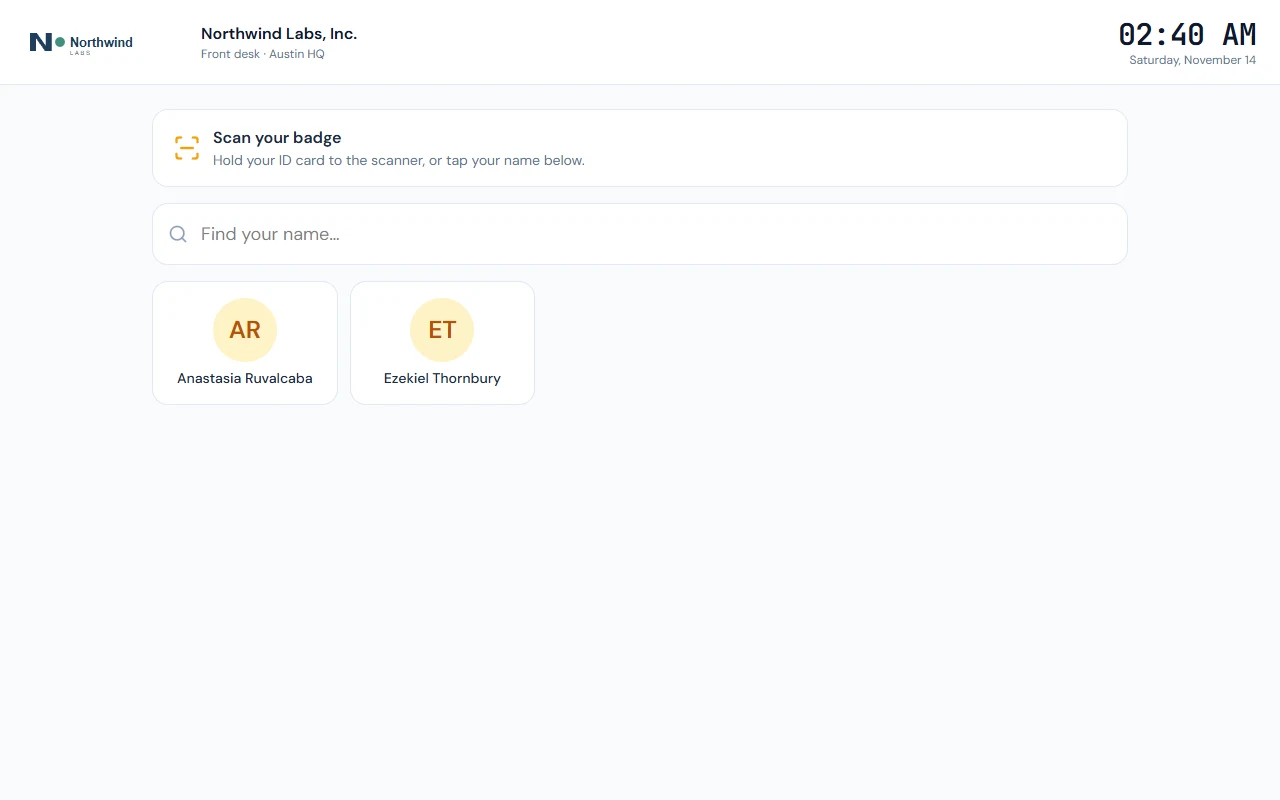
What it leaves out is deliberate. The list carries no employee codes, because a list of codes is a list of people to try. A scanned code is never answered with a name. The answer to a punch holds a name, a direction and a time: no code, no location of a photo file, and nobody's hours or history. A Badge kiosk shows no names at all.
The kiosk does not store punches while offline. If the connection drops, a band reads Connection lost. Trying again… and the page retries by itself; a punch tried meanwhile fails with a message and nothing is recorded.
What happens next
- The day is in Daily Attendance (Chapter 37) and the raw punches in Attendance Logs (39.3).
- A missed punch is corrected as any other, by a regularization (Chapter 39) or a mark by hand (Chapter 38).
What the employee sees
At the door: their name, the PIN pad and the confirmation. In the portal, the Kiosk PIN card under My Account › Sign-in & Security. Anastasia Ruvalcaba (NWL-0034) has a PIN, so her card reads You have a PIN and offers Change PIN and Remove PIN. Imani Castellanos (NWL-0007) has none: her card offers Set PIN, and she is on no kiosk's list until she sets one.
Common mistakes
- Passing the link around before it is set up. Whoever opens it first and presses the button becomes the kiosk.
- Using Release tablet when the link may have leaked. Release keeps the link, so a copy of it can set the kiosk up. Use New link.
- Assigning PINs and leaving them. A PIN known to HR, or shared by a team, proves nothing. Ask people to change it.
- Turning the photo on without a working camera. Every punch is refused until the camera works.
Practice
Use the Northwind demo workspace or your own trial, not a customer's.
- Open Attendance › Kiosks, read the Front desk row, Copy link and open it in a browser. If it says the kiosk is set up on another device, Release tablet first.
- Press Use this device as the kiosk, then open the same link in a second browser and read the refusal.
- Reset PIN for Anastasia Ruvalcaba, tap her name on the kiosk and enter it. Do it again within a minute and read the screen.
- Enter a wrong PIN for her six times and read the last message. Reset her PIN and check that she gets in at once.
- Find her punches in Attendance Logs, then Release tablet.
Quiz
1. What stops someone who copies the kiosk's address from using it on a phone?
The link is set up on the first browser that claims it. Every other browser is refused until HR releases the tablet or issues a new link.
2. Release tablet or New link: which one after a suspected leak?
New link. Release keeps the same link for the next browser to set up; New link ends the old link at once.
3. What do five wrong PINs do, and who is told?
They lock PIN entry for that person on that kiosk: ten minutes, then
an hour, then until the next day. At the second lock of a day the
holders of attendance.kiosk_manage are told, once per person per day.
4. Why is a scanned employee code not enough to punch?
A code is printed on payslips and can be guessed, so the kiosk asks for the PIN as well. An ID card's QR code cannot be guessed, and identifies its holder alone.
5. How does the kiosk know whether a punch is in or out?
From the day as it stands: no clock-in yet means a clock-in, otherwise a clock-out. A second tap within a minute records nothing.
6. What does the photo on punch protect against, and what does it cost?
Buddy punching: a colleague can know a PIN, but the photo beside the log row shows who stood at the tablet. A punch without a photo is refused, so the tablet's camera must work.