Chapter 9A — Work locations and the org chart
Chapter 9 gave every employee a branch. It does not say where the person is on Thursday. Once part of the week is worked from home and some days at a client's, "which branch" and "where today" are two questions, and the second is asked every morning. A third sits beside them: who reports to whom? This chapter is the list of places, the three layers that decide a person's day, the card that shows the answer, and the reporting tree.
What this chapter covers
- 9A.1 The list of work locations
- 9A.2 Default, weekly pattern and day exceptions
- 9A.3 Who is where today
- 9A.4 Retiring and deleting a location
- 9A.5 Reading the org chart
- 9A.6 Department view, focus and Export PNG
- 9A.7 The people directory and the org chart for everyone
The concept
A branch is a fact of employment: it changes with a transfer, and holidays and the time zone hang on it. A work location is an expectation about a day: the office, home, a client's premises. It is easiest to keep as three layers: the usual place, the usual week (home on Fridays) and the exception (at the client on the 14th). A stated location is a plan, not evidence; attendance records what happened (Chapter 34).
The org chart is the picture of reporting lines: who assigns a person's work, approves their leave and reviews them. It is not the department list, since a manager's direct reports can sit in several departments. A chart drawn by hand is out of date after the first transfer.
How Operentra handles it
- Where it lives. Company Setup › Work Locations is the list of places. A person's own settings are on the Work location card of their profile and on the portal page Me → Where I Work. The chart is Employees › Org Chart.
- Three kinds of place (Office, Home, Other site) and three layers per person. A day takes the exception for its date, else the weekly pattern for its weekday, else the default, else Not set. One card, Who is where today, shows the result.
- No attendance rule reads a work location. A day set to Home is not a punch, an absence or a permission. Holidays and the time zone still come from the branch on the employee's record (9.1).
- The chart stores nothing. It is the Reporting Manager of everyone still employed: Active, On Leave or Suspended (Chapter 16).
- Who.
work_locations.view, held by every default role, shows the card and lets a person set their own pattern and days.work_locations.manage(Super Admin, HR Manager, HR Officer) keeps the list and sets anyone's three layers. The org chart shows the whole workspace toemployees.view_all, and to a holder ofemployees.view_teamalone their own reporting line. Neither feature needs a plan or a grant.
Walkthrough
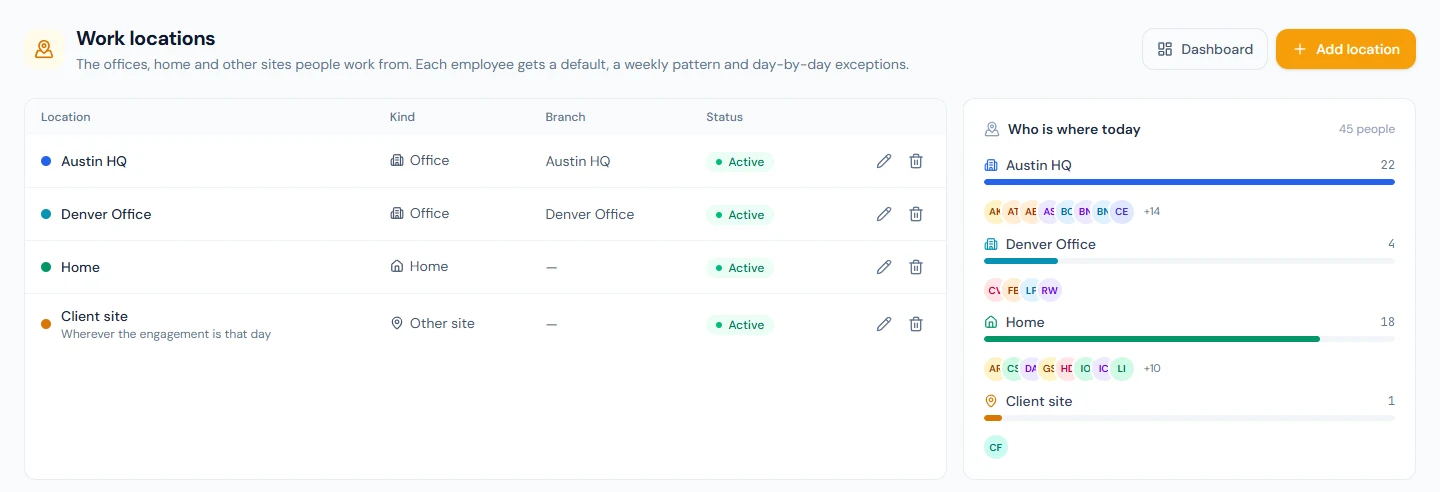
Northwind's list has four places: Austin HQ and Denver Office, each an office tied to its branch, one Home, and a Client site.
9A.1 The list of work locations
Open Company Setup › Work Locations. The table shows each place with its colour, kind, branch and status; the card on the right is Who is where today. Add location asks for:
| Field | Notes |
|---|---|
| Name | Required. |
| Kind | Office, Home or Other site. One shared Home is enough for everyone. Other site is a client's premises, a co-working space, a depot. |
| Branch | Offices only, optional. A label saying which branch the office is; it moves nobody's holidays or time zone. Choosing another kind clears it. |
| Address | Optional. Northwind's Client site reads "Wherever the engagement is that day". |
| Colour | Optional; it colours the place on the card and in every pattern. Use the kind's colour goes back to blue for an office, green for home, amber for another site. |
| Sort order | Lower numbers first, then by name: the order of the rows on the card. |
| Active | Shown when editing (9A.4). |
9A.2 Default, weekly pattern and day exceptions
HR, on the profile. The Work location card (19.8)
shows only to holders of work_locations.manage, and not on a
Separated employee's profile. Default saves when you choose;
Not set clears it. Weekly pattern is seven selects, Sunday to
Saturday, and Save pattern stores only the days that differ from
the default. Add an exception for a day takes a date, a place and
an optional note of up to 200 characters. The card lists exceptions
from a week ago onwards, each with a cross to remove it.
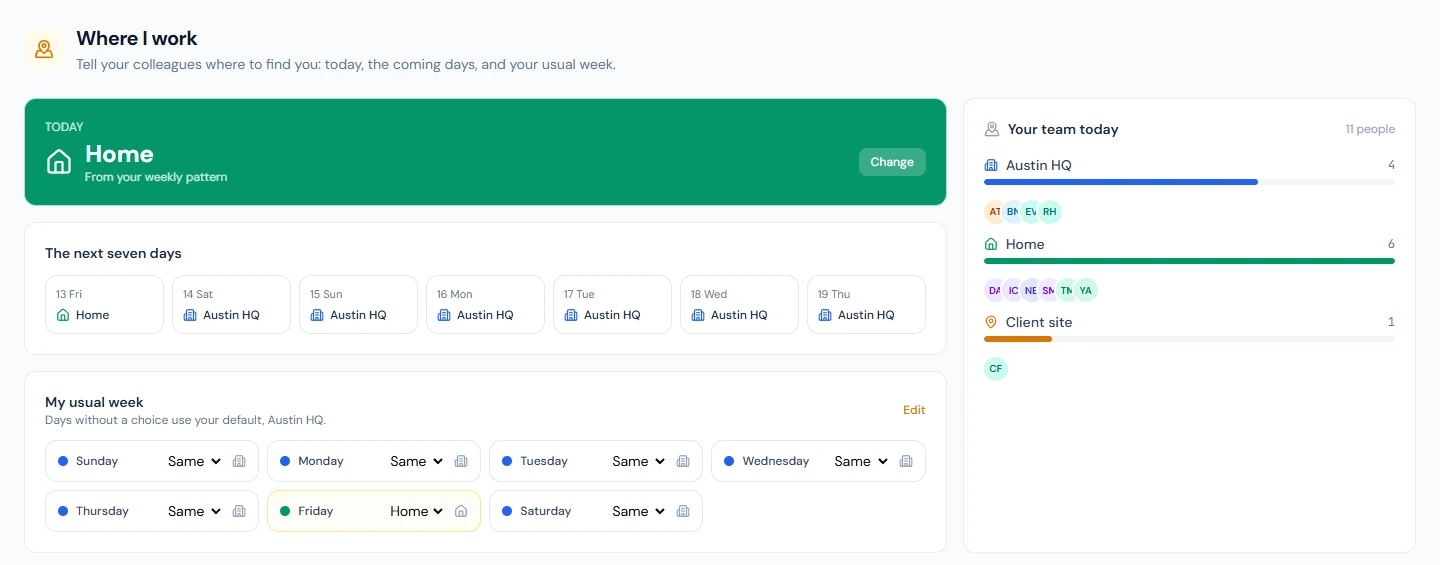
The employee, in the portal. Me → Where I Work (85.9) has the same pattern under My usual week and a tile for each of seven days, today first. Tapping a tile, or Change on today's card, opens the picker. Choose a place, type a note if the day needs one, and press Save: the place and the note are saved together, and nothing is saved before that. Opening a day already set by hand shows its place and note, so either can be changed. Back to my usual place for this day removes the exception. The employee cannot change their default.
Nobody else can write. A Department Head holds work_locations.view
only, so a manager reads the team's days and does not set them. There
is no approval step: a change shows everywhere the moment it is
saved. A person has one exception per date; setting the date again
replaces the place and the note. Changing the default leaves the
pattern alone, so a move from Denver to Austin keeps the home Fridays.
At Northwind everyone's default is the office of their own branch,
some people have one or two Home days, and a few exceptions carry
notes such as "On site for the quarterly review".
9A.3 Who is where today
The card has one row per place with anyone in it: the name, a count, a bar and the first eight faces. Click a row for the names; someone there by a day exception is tagged today only. Two rows follow. On leave holds everyone with an approved leave application covering the date, whatever the three layers say. Not set holds people with none of the three. Two rules decide who is counted:
- Only employees whose status is Active appear. A status of New, On Leave, Suspended or Separated leaves the person off the card (Appendix G): the card answers "where do I find them today", and none of them is at any of the places. The org chart, which answers "who reports to whom", keeps the On Leave and the Suspended (9A.5).
- The card knows nothing of weekends or holidays. On a Saturday, everyone not on approved leave still reads at their usual place.
The admin dashboard (Chapter 7)
shows the whole workspace to holders of employees.view_all, as does
the Work Locations page. The card's title is a link to that page only
for someone who can open it, a holder of work_locations.manage; for
anyone else it is plain text. In the portal the card is narrowed to the
reader's own department and titled Your team today: on the
Where I work page, and on the dashboard with a Where I work today
line on top. "Team" here means department, not direct reports.
9A.4 Retiring and deleting a location
Untick Active on a place that is no longer used. It stops being offered for a default, a pattern day or an exception. Days already pointing at it keep resolving to it until each is changed.
Delete removes a place for good, and is refused only while the place is in current use by someone still employed:
- it is their default;
- it is a day in their weekly pattern;
- it is their exception for today or a later day.
The refusal names what holds the place, with a count of each: "This work location is still in use: it is the default place of 3 current employee(s); it is chosen for 1 day(s) from today onwards. Move those to another place first, or mark the location inactive to keep it on record."
History does not hold a place. An exception for a day already past cannot be changed, and the profile lists exceptions only from a week back; a Separated employee's card is hidden (9A.2). Neither can be cleared by hand, so neither blocks: when the place is deleted, past exceptions go with it, and it is cleared from the record of anyone who has left or whose record was deleted (Chapter 19). That is the difference between the two. Retire a place whose history the workspace wants to keep readable; Delete one that was added by mistake, or that nobody will ask about again.
9A.5 Reading the org chart
Open Employees › Org Chart; the directory's ⋯ menu and a button on Company Setup › Departments lead to the same page (20.4). Everyone still employed is a card with photo, name, designation and department: the Active, and also the On Leave and the Suspended, whose cards carry a tag with the status. A line runs from a manager down to each direct report. A line above the canvas counts the people, how many are "at the top" and how many levels deep.
- At the top. Anyone with no reporting manager, and anyone whose manager is not drawn. Northwind has one: its chief executive, Marguerite Okonkwo. Among a manager's reports, the one with the most people below is drawn first.
- A leaver. A Separated person has no card, and their reports rise to the top until each has a new manager. The same happens while a manager's status is New. A manager whose status is On Leave or Suspended is still the manager: the card stays, tagged On Leave or Suspended, with the reports under it. Approved leave does not change the status at all, so a manager on holiday has no tag. The chart draws people, not positions: a vacant role has no box.
The chart cannot be edited. A wrong line is corrected on Edit Employee or by a transfer (Chapter 24).
9A.6 Department view, focus and Export PNG
A card with reports carries a chip counting everyone below it at any depth, "13 below". Click it to hide or show that team. The ⌖ beside it focuses the chart on that person: the tree is redrawn from their card down, and a chip with their name at the top clears it. There is no search box. The department drop-down keeps one department's people; a manager outside it is not drawn, so their reports inside it become top cards. Zoom runs from 40% to 160%.
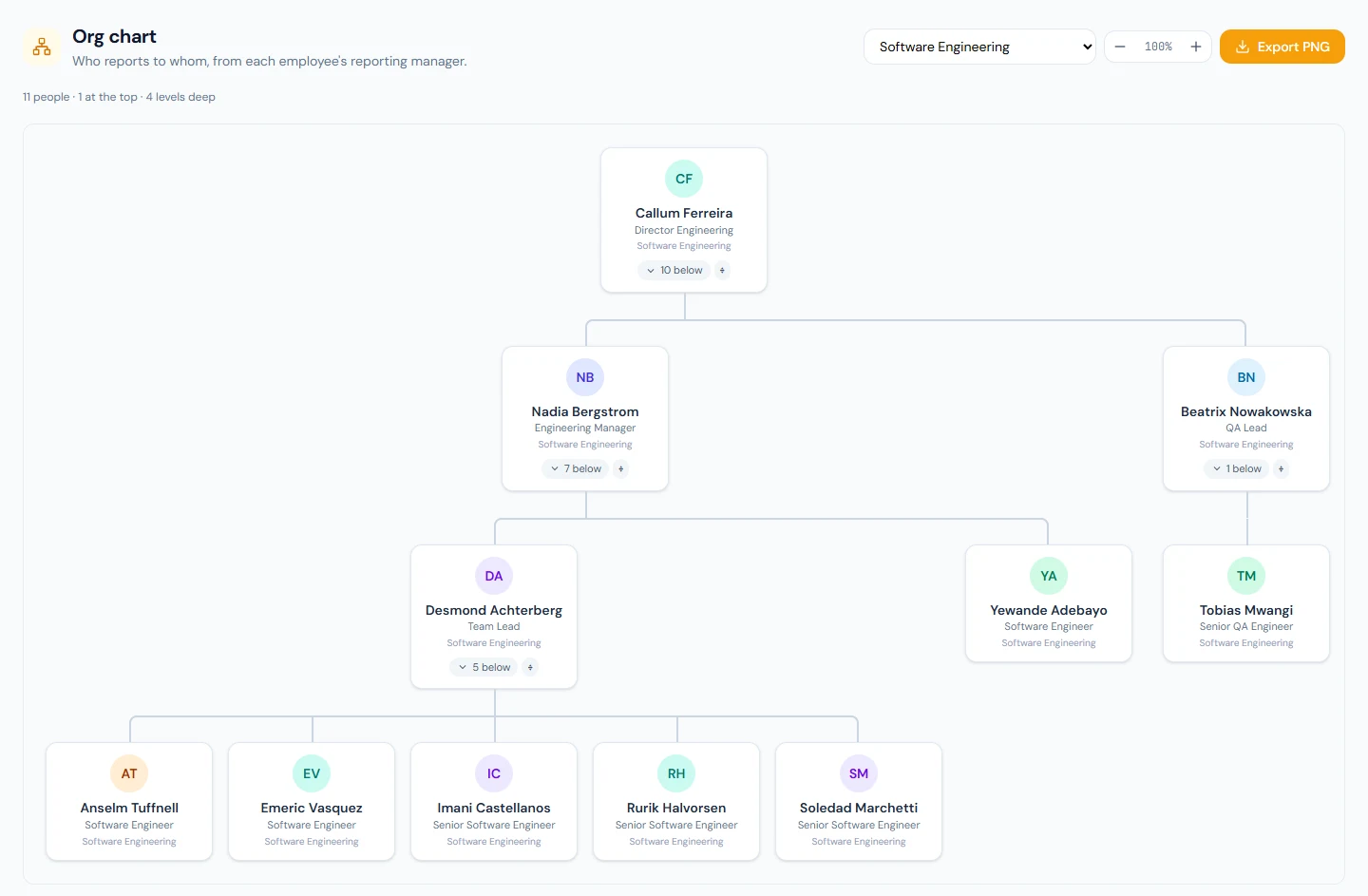
Export PNG downloads a picture named org-chart- and the date,
with the same department and focus as the screen. Teams you hid are
drawn open. It is made on the server with initials in place of photos,
the same status tags, and the workspace name as the caption. There is
no print button.
The page, and its menu entry, need employees.view_all or
employees.view_team. What they show differs. With
employees.view_all the chart is the whole workspace. With
employees.view_team alone, as a Department Head has (90.1),
it is the reader's own reporting line: their card and everyone
below it, at any depth. A focus or a department in the address narrows
that line and never widens it, the exported picture is the same tree,
and the names are plain text, since opening a profile needs
employees.view_all. Someone with no employee record of their own has
no line and sees an empty chart. There is no portal view.
9A.7 The people directory and the org chart for everyone
The org chart above is the admin one: all of it for people who can see
every employee, their own line for a team lead. The people
directory opens the same reporting structure, and a way to reach each
other, to everyone. It lives in the portal under Company → People
and needs directory.view, which every default role holds.
- People lists everyone whose status is Active or On Leave. The search box takes several words and each has to match something: a name, a job title, a department, a branch, a skill, or the person's own "About" line.
- A person's card shows how to reach them, the reporting line above them from the top of the company down, their direct reports, and their skills. Every name on it opens that person's card.
- Org chart draws the whole workspace for everyone, with the department filter and the focus button. A name opens the person's card, not their employee record.
What the directory shows is decided under Settings → People Directory. Name, photo, job title, department and branch are always shown. Work email, work phone and extension, where the person is today, skills and the "About" line each have a switch, and a detail switched off cannot be searched either. Personal email, personal phone numbers, identity numbers and pay are never shown: the directory does not read them. Away says a person is on leave today and never says why.
Two fields feed it. Work Phone and Extension are set by HR on the employee form, under Contact, apart from the personal number the directory never shows. The "About" line is written by the person on their own card: a line or two on what colleagues can ask them about.
Office suite, on the same settings page, adds buttons to each card. Microsoft 365 adds chat, call and meeting buttons that open Microsoft Teams; Google Workspace adds a button that opens a Google Calendar event with the person as a guest. Email and phone links are there either way.
The main switch on that page closes the directory for the whole workspace: the three screens say it is not open and People leaves the portal menu. Northwind has it on, with a desk line and extension for everyone and an "About" line for about a third of the team.
What happens next
- Nothing is emailed, and attendance, leave and payroll are untouched. Shifts are Chapter 35A.
- Integrations can read the list of places and each employee's default through the public API, not patterns or exceptions.
- The chart moves with the record: a transfer, a new reporting manager or a separation changes it the next time it is opened.
What the employee sees
Imani Castellanos opens Me → Where I Work. Today's card is coloured by the place and says why: Your usual place, From your weekly pattern or Set for this day. Her default is Austin HQ, the office of her branch. Below are the seven days, My usual week, and Your team today for Software Engineering. She does not see the org chart, the Work Locations page or anyone else's notes.
Common mistakes
- A Home location per person. One shared Home is enough.
- Reading the card as attendance. It is what people said. Who was at work is Chapter 37.
- Deleting a place to tidy the list. Once nobody uses it now, Delete goes through and takes its past exceptions with it. To keep that history readable, untick Active instead.
- Expecting managers to set their team's days. Only the person and HR can.
- Leaving a leaver's reports unassigned. They sit at the top of the chart, still pointing at a manager who has gone.
Practice
In the Northwind demo workspace, signed in as the admin:
- Open Company Setup › Work Locations. Read the four rows and note which two have a branch. Open each row of the card.
- Open Imani Castellanos's profile. On the Work location card, set Wednesday to Home and save the pattern, then add an exception for tomorrow at Client site with a note.
- Still as the admin, and with tomorrow's exception in place, try to delete Client site and read the refusal: it names the day chosen from today onwards. Untick Active, look for the place in a day's picker, and tick it again.
- Sign in as Imani. On Me → Where I Work, find both changes, then use Back to my usual place for this day.
- Open Employees › Org Chart. Read the summary line, hide one team, focus on Nadia Bergstrom, and export the picture.
Quiz
1. A person's default is Austin HQ, their pattern says Home on Fridays, and they set Client site for this Friday. Where does the card count them, and what if their leave that day is approved?
At Client site, tagged "today only": exception, then pattern, then default. With approved leave that day, under On leave.
2. Who can change an employee's default, pattern and day exceptions?
HR, with work_locations.manage, all three for anyone. The employee,
their own pattern and days, not the default. A manager, none.
3. What does unticking Active do to people already using the place?
Nothing at once. Their days keep resolving to it; it only stops being offered for new defaults, pattern days and exceptions.
4. What stops a location being deleted, and what does not?
Current use by someone still employed stops it: their default, a day in their weekly pattern, or an exception for today or later. Past exceptions and the records of people who have left do not; they are detached when the place is deleted.
5. A team lead appears at the top of the chart beside the chief executive. Name two causes.
They have no reporting manager, or their manager is not drawn: Separated, still New, or outside the department chosen. A manager who is On Leave or Suspended is drawn, so that is not a cause.
6. An employee asks whether colleagues can see their mobile number in the people directory. What do you say?
No. The directory never shows personal phone numbers or personal email. It shows the Work Phone and Extension HR sets on the employee form, and only while that switch is on in Settings → People Directory.
7. How does the portal org chart differ from the admin one?
Everyone with directory.view sees the whole workspace, where the
admin chart narrows a team lead to their own line. A name opens the
person's directory card instead of their employee record, and there is
no PNG export.