Chapter 43A — Timesheets
Attendance answers when: in at nine, out at six. A timesheet answers on what: six hours on the Harbourline portal, two on the retainer, one on a new joiner's onboarding. A company that bills its people's time, budgets by project, or pays some of them by the hour needs the second answer, and it needs it checked by someone who was there, which is why a week goes through the manager before it counts. This chapter is the catalogue, the grid, the approval and the report.
What this chapter covers
- 43A.1 Projects and tasks
- 43A.2 The weekly grid
- 43A.3 Submit, approve, return, withdraw
- 43A.4 Hours by project
- 43A.5 Paying hourly staff from timesheets
The concept
A timesheet is a claim: "I spent these hours on this". Three things make it trustworthy. It is granular enough to be true: a day, a project, a task, in quarter hours, not "40 hours, week 12". It is bounded: only real projects, only open tasks, at most so many hours a day, so a slip of the finger does not bill a client twenty hours on a Tuesday. And it is confirmed by the person's manager, who knows what the team was doing that week, before anyone bills or pays from it.
The second idea is billable. Not every hour on a client project is revenue: the internal admin on a retainer, the hour spent on the company's own build pipeline. Operentra keeps the flag on the project and on the task, and an hour is billable only when both say so.
How Operentra handles it
Timesheets are a plan feature (timesheets) on the Growth and
Enterprise plans; the pages lock without it. HR keeps the projects and their tasks under Timesheets →
Projects. Each person has one timesheet per week, starting on the
weekday the workspace chose, with one row per project-and-task and a
cell per day. The person saves it as a draft, submits it, and the
week goes to their reporting manager through the approvals engine
(the same flows as Chapter 48),
with HR as the fallback step. Approved weeks are
read-only and feed the Hours by project report; a returned week
carries the manager's note back to the person for a second attempt.
For employees on an hourly pay basis
(Chapter 52), a
payroll switch can read the approved hours instead of attendance.
Walkthrough
43A.1 Projects and tasks
Open Timesheets → Projects and press New project. The name must be unique in the workspace; the code is what shows on the grid. The client is free text, and a project manager can be named for information. Tick Billable by default: new tasks inherit it.
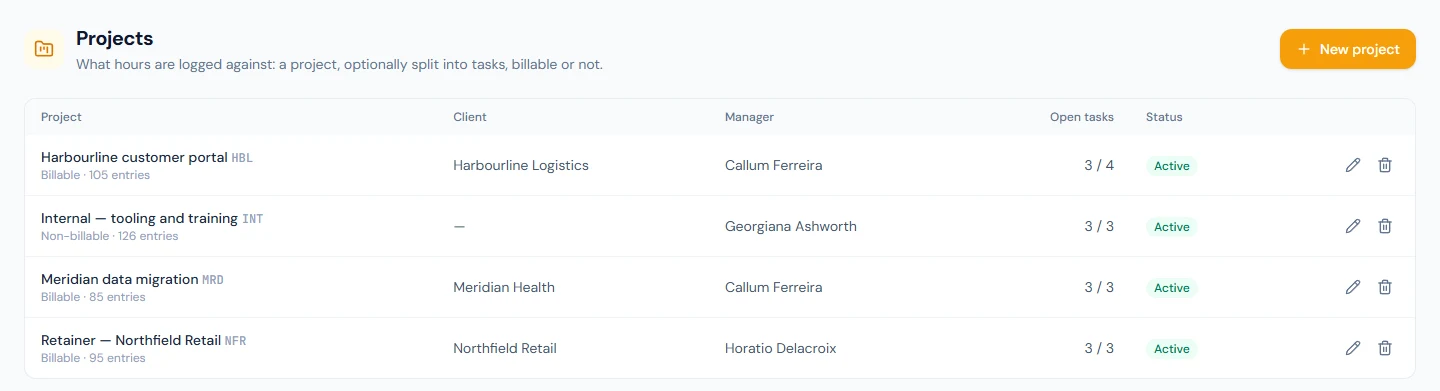
Under Tasks, add what the project breaks into. Each task has its own billable flag and an open or done state; a done task leaves the grid's picker. A project without tasks is fine: hours go on the project as a whole.
A project that is finished is archived, not deleted: its hours stay in every report, but nobody can log more. A project with hours logged cannot be deleted at all.
On the Settings tab of Timesheets: the weekday the week starts on (Monday by default), the most hours a person may log in a day (12 by default), and the payroll switch of §43A.5.
43A.2 The weekly grid
An employee opens Time → My Timesheet. The page shows this week, seven columns, and the arrows step to earlier weeks. Add a row picks a project and, when it has them, a task. Hours go into the cells as a decimal or a time, whichever the person types: 7.5, 7,5 and 7:30 are the same seven and a half hours. They are kept in quarter hours, so a cell is rounded to the nearest quarter when the person leaves it, and the row total, the day totals and the week total follow; a note per cell is optional.
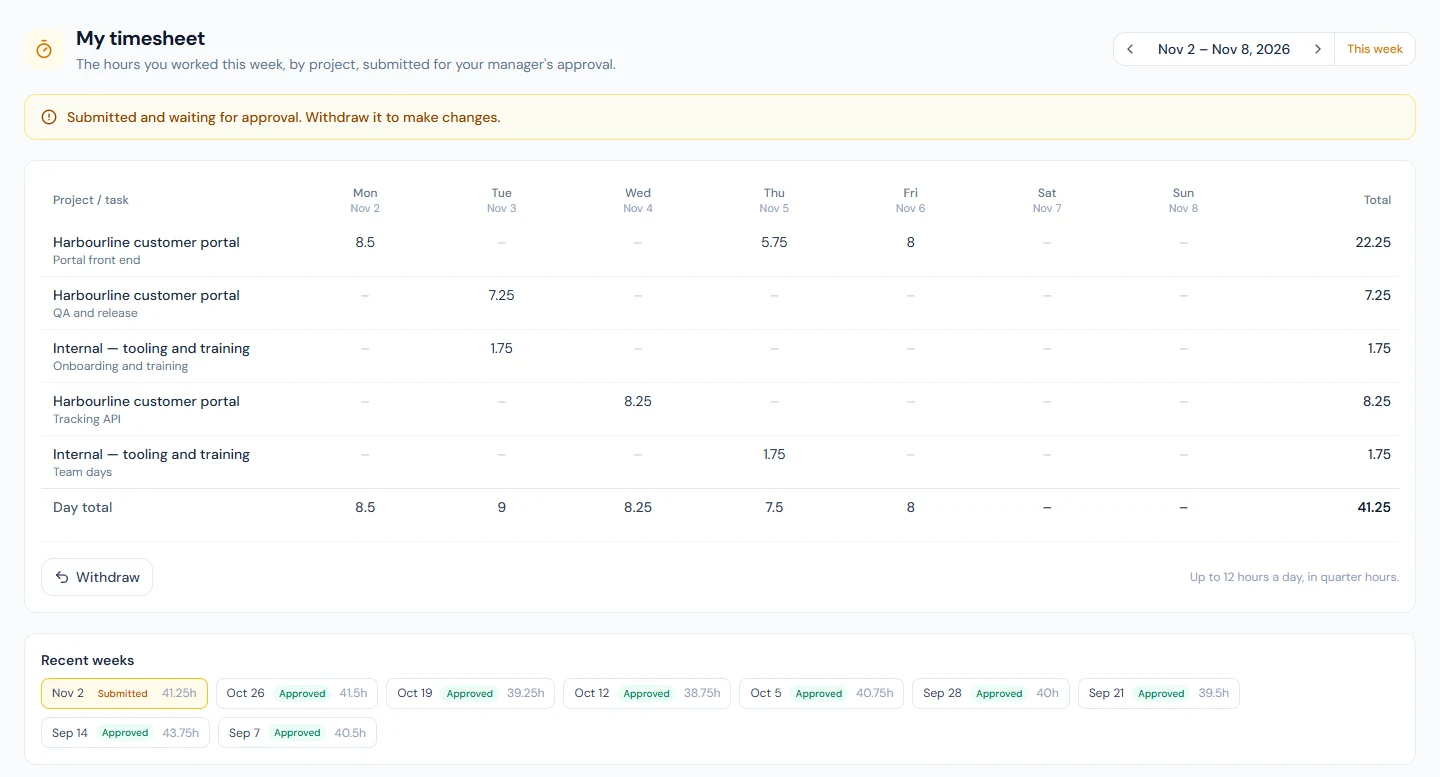
The grid marks what cannot be saved: a cell that does not hold a number of hours, and a day above the limit, each in red with a line under the grid naming the day. Save and Submit wait until it is corrected. The server refuses the rest: an archived project, a done task. A week can be saved as a draft as many times as needed, and moving to another week with unsaved hours asks first.
43A.3 Submit, approve, return, withdraw
Submit for approval needs at least one entry. The week becomes Submitted and read-only, and the request appears in the manager's Approvals inbox and on Team timesheets, with the week's hours and the number of projects in the summary line. HR sees every submitted week in the workspace on the Review tab of Timesheets.
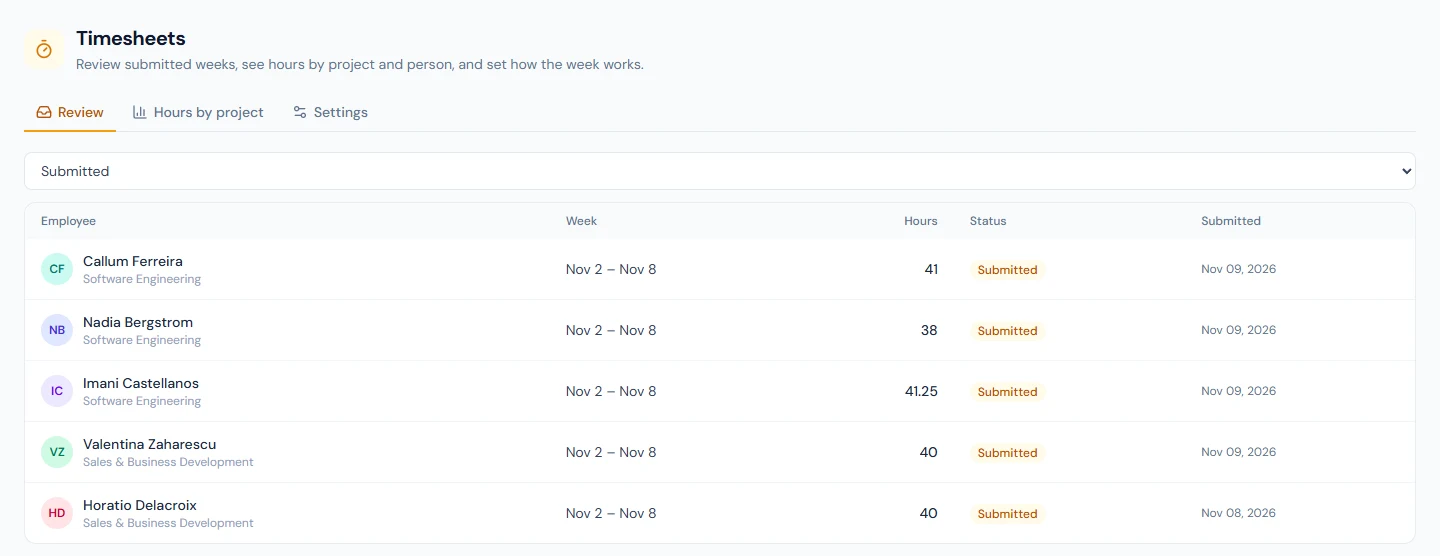
Opening a request shows the grid exactly as the person filled it. Approve records the week. Return for changes needs a note, which the person reads on the page and in the email; the week is Returned, editable again, and goes back through the same flow when resubmitted.
Until a decision is made the person can withdraw the week, which cancels the request and makes it a draft again. Both decisions are emailed and in the bell.
43A.4 Hours by project
The Hours by project tab is the report: a date range, optionally one project, and which weeks to count. Approved weeks only is the default and the only one to bill from; submitted and approved previews the month before the last decisions are in; everything includes drafts, for a quick "who has not filled in last week".
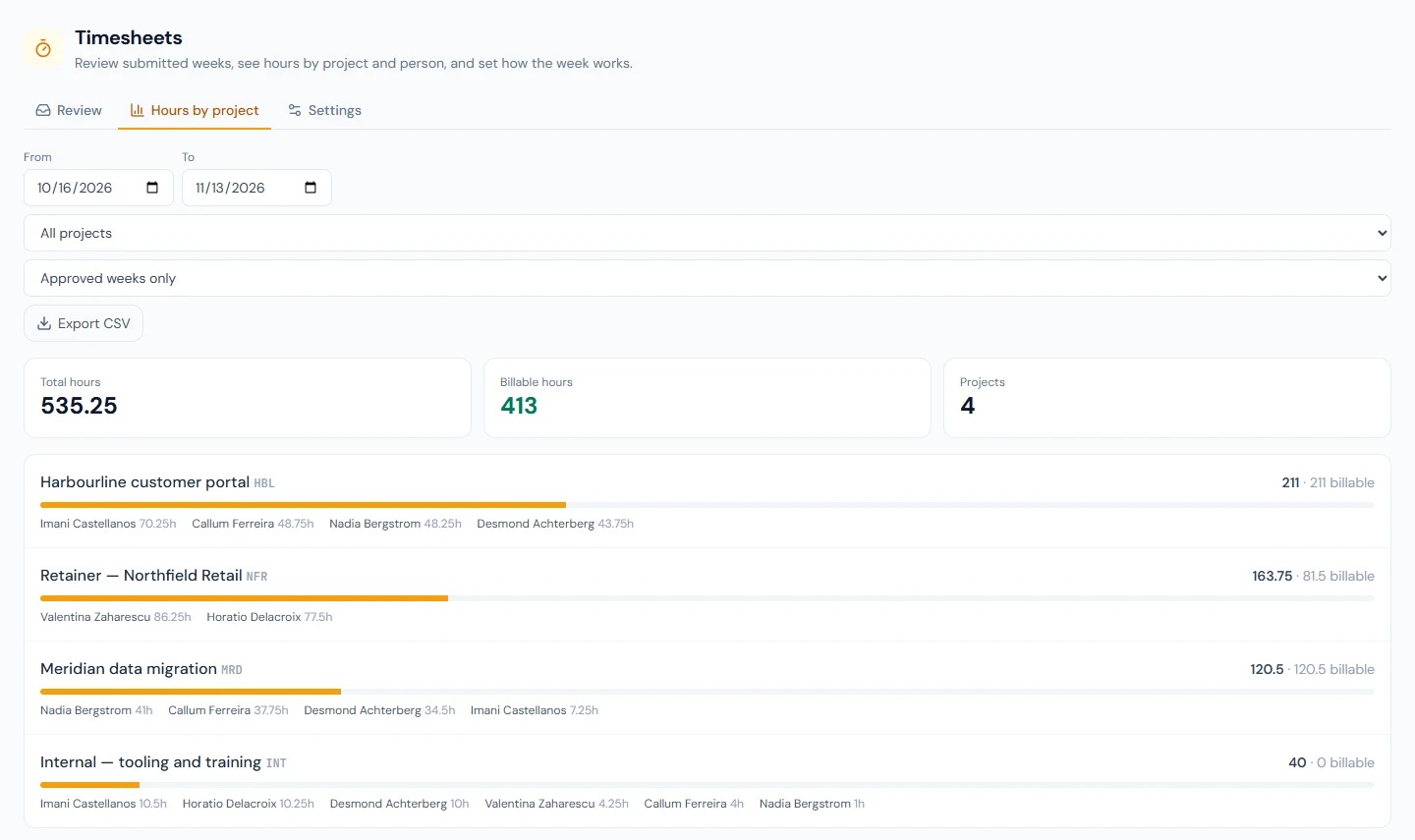
Each project shows its total and its billable hours, then each person's hours under it. CSV adds the employee code and department. An entry is billable only when its project and its task both are; the internal-admin task of a billable retainer is work, not revenue, and the report keeps the difference.
43A.5 Paying hourly staff from timesheets
A salary record on the hourly pay basis (Chapter 52) is paid from attendance hours. With Pay hourly employees from approved timesheets on, payroll reads the month's approved timesheet hours for those people instead: each day's hours become that day's hours, and anything above the standard day on the salary record is overtime, paid under the overtime rules already in place. Monthly and daily pay bases never look at timesheets.
Only approved weeks count. A week still submitted when payroll runs is zero hours, so the month's last approvals must be in before you process. Nothing else about the payslip changes.
What happens next
The approved hours are the source for billing, for the project's
budget, and for the hourly payslip when the switch is on. The events
timesheet.submitted, timesheet.approved and timesheet.rejected
and the timesheets:read scope let an invoicing or project tool read
the same weeks.
What the employee sees
Time → My Timesheet: this week's grid, the status banner (draft, submitted, approved, returned with the note), Save draft, Submit, Withdraw, and Recent weeks. A manager also sees Time → Team timesheets with their direct reports' weeks, and the same requests in their Approvals inbox.
Common mistakes
- Billing from submitted weeks. Only approved weeks are checked. Keep the report on Approved weeks only for invoices.
- Deleting a finished project. It has hours, so it cannot be; archive it and the hours stay in every report.
- Expecting the project manager to approve. The approver is the person's reporting manager (then HR), not the project's manager, unless a custom flow says otherwise.
- Running payroll before the month's approvals. With the switch on, an unapproved week pays zero hours for an hourly employee.
- Marking an internal task billable. The report would count it as revenue. Set the task's flag, not only the project's.
Practice
Use your own trial workspace, not a customer's.
- Create a billable client project with three tasks, one of them not billable, and an internal project with no tasks.
- Sign in as an employee, fill a week across both projects in quarter hours, try a 13-hour day and read the error, then submit.
- As the manager, return the week with a note; as the employee, read the note, fix the day and resubmit; as the manager, approve.
- Open Hours by project for the month and compare total and billable hours against the task you marked non-billable. Download the CSV.
- Turn on Pay hourly employees from approved timesheets, preview the hourly employee's payslip for the month, and turn it off again.
Quiz
1. When is an hour billable in the report?
When the project is billable and the task, if the entry has one, is billable too. Either flag off makes the hour non-billable.
2. Who approves a submitted week by default?
The person's reporting manager, then anyone with the timesheets permission in HR, through the approvals engine. The project manager named on the project is for information only.
3. What can a person do with a week that is Submitted but not yet decided?
Withdraw it. It becomes a draft again, the request is cancelled, and they can edit and resubmit.
4. A project is finished and has hours logged. Delete or archive?
Archive. A project with entries cannot be deleted; archiving keeps the hours in every report and takes it out of the grid's picker.
5. With the payroll switch on, what does an hourly employee's unapproved week pay?
Nothing for those days: payroll reads approved weeks only, so the approvals must be in before the month is processed. Monthly and daily pay bases are unaffected by the switch.